
For years, FPS, or frames per second, has been the defining metric of gaming performance. If your gaming PC managed to push beyond the magical 60 FPS mark, you usually had yourself a winner. A high FPS number might be correlated with a more responsive game, but FPS alone can't guarantee an enjoyable experience. Many other factors play a role in making a game feel "smooth" or "fluid."
Gamers gradually grew more knowledgeable about things like frame time and input latency, and with the advent of frame generation, the whole concept of FPS became murky. It pays to understand the underlying factors determining the kind of gaming performance you get, so you can fix any bottlenecks in the pipeline.

7 tips to improve gaming performance without taking your wallet out
Don't want to spend? No problem. You can boost your FPS for free with these tips
5 Not all frames are made equal
AI-generated frames add latency
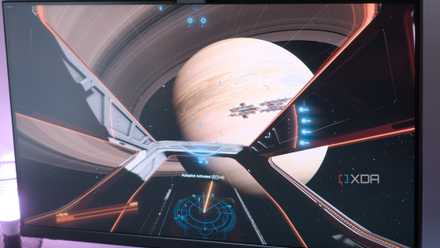
After DLSS-powered upscaling, Nvidia moved on to DLSS frame generation to further boost FPS. Frame generation essentially adds predicted frames between real ones to result in a smoother experience. However, just because the AI-generated frames help boost the FPS counter to, say, 120 FPS, that doesn't mean you'll "feel" like you're playing a 120 FPS game. AI-generated frames don't improve the responsiveness of a game the way traditionally rendered frames do.
The experience that you, the gamer, receive is still linked very much to the base framerate (with or without the aid of upscaling). Hence, the FPS counter becomes meaningless, which is why consumers were miffed at Nvidia for marketing its new Multi Frame Generation technology during the RTX 50 launch without talking about the raw performance gains.
So, the next time you're watching a game benchmark or wondering why your triple-digit FPS experience doesn't feel like it, check if there are any AI frames lurking around.
3 reasons gamers prefer upscaling over frame generation
Gamers don't consider frame generation all that hot, but happily use upscaling to boost frames
4 Low polling rate peripherals can be bottlenecks
Competitive titles need minimal input latency
Most gamers understand the importance of a fast gaming monitor, but often ignore the latency of other peripherals. The input latency — the time it takes for your keypress or mouse click to register on the screen — is obviously affected by the keyboard and mouse you're using. Many gamers choose to retain their ancient, no-name peripherals in favor of spending everything on the core components of their PC, but this can be detrimental to the gaming experience, especially in fast-paced FPS games.
Polling rate, or the frequency of your keyboard or mouse sending data to the PC, determines how quickly your input is sent to the PC. If you're using old office keyboards and mice for gaming, you're probably operating at 125Hz, whereas most budget gaming mice and keyboards today operate at around 1000Hz minimum, with many of them reaching 8,000Hz.
While polling rates beyond 1000Hz don't make a huge difference for the majority of gamers, even that number is miles better than 125Hz. It might be time to upgrade to a relatively modern gaming keyboard and mouse if you want to eliminate some of the input latency from the equation.
Razer Deathadder V3 Hyperspeed
- Brand
- Razer
- Weight
- 55 g
- RGB Lighting
- No
- Programmable Buttons
- Yes (8)
- Connectivity
- Wired and Wireless
- Battery Life
- Up to 100 hours
Aimed at the professional gamer, the Razer DeathAdder V3 Hyperspeed offers a 55 g ultra-lightweight and ergonomic design complete with a smooth-touch texture and up to 100 hours of battery life. Its 1000Hz polling rate can be upgraded to 8kHz if you buy a separate dongle.

6 features to look for when buying a new mouse
Get the right tool for your use case
3 VSync can also increase input latency
A double-edged sword
VSync or vertical synchronization is a technique used to counter screen tearing, a situation where the GPU's output exceeds the monitor's refresh rate, resulting in a horizontal break in the image. VSync fixes this undesirable phenomenon by capping the GPU's framerate to the monitor's refresh rate, thus eliminating screen tearing, but also introducing input lag in the process.
While modern VRR (variable refresh rate) technologies like G-Sync and FreeSync remove the downsides of VSync, many gamers might have the latter enabled (unknowingly) in the game's display settings. If you feel that your PC isn't running your games as smoothly as it should (based on the specs), head over to the in-game settings, and check if VSync is enabled. Disabling it will allow your GPU to deliver all of its output to your monitor. Of course, you should have G-Sync or FreeSync enabled to avoid stuttering as a result of the framerate lagging behind the refresh rate.
You should also explore Nvidia Reflex and AMD Anti-Lag technologies to reduce render lag — the delay between a frame being rendered by the GPU and being displayed on the screen. These techniques ensure the CPU renders all the frames just in time for the GPU to process them, further minimizing total latency.

6 overlooked settings in Nvidia Control Panel for better gaming performance
Nvidia Control Panel is still useful for getting the most out of your GPU and monitor
2 Insufficient VRAM can easily kill your FPS
Stay away from 8GB VRAM cards
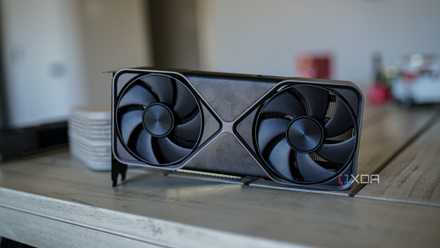
Your powerful graphics card might be on its way to generating a blistering 100 FPS in a demanding title, but could easily run into a VRAM roadblock, tanking the FPS completely. A GPU capable of delivering high FPS isn't enough; you also need sufficient VRAM onboard, depending on the resolution you're playing at. Without plenty of VRAM, you'll experience stutters, incorrectly loaded textures, and even crashes.
While 8GB of VRAM is the minimum for 1080p gaming these days, you should aim for at least 12GB on your next GPU. This is because many games are capable of exceeding 8GB even at 1080p, and once you jump to 1440p gaming, you'll quickly run out of 8GB VRAM in many titles. For 4K gaming, manufacturers should provide 20GB ideally, but 16GB is what you get on $1,000 GPUs these days. AMD's RX 9070 XT, at $600, is a great 4K GPU, and it comes with 16GB VRAM, which is better than what Nvidia offers at this price.
ASRock Radeon RX 9070 XT Steel Legend
- Memory Clock Speed
- 2518 MHz
- Architecture
- RDNA 4
- Process
- 5 nm
- Shader Units
- 128
- Ray Accelerators/Cores
- 64
- AI Accelerators/Cores
- 64
AMD's new RX 9070 XT is the best 4K gaming GPU in terms of value. It provides advanced rasterized and ray tracing performance in addition to much-improved upscaling and frame generation. At $600, it's a great buy, provided you can find one at that price.
5 reasons your GPU's VRAM capacity matters more than ever
Remember the fears about low VRAM on GPUs? They're all coming true
1 Frame time is more important than FPS
That's what it's all about
Finally, a high FPS number by itself doesn't mean you'll enjoy a smooth gaming experience. The frame time, or how long an individual frame is displayed on the screen, tells you how stable or consistent your 60 FPS or 120 FPS experience truly is. While 60 FPS technically means a frame is displayed every 16.67ms (simple division), that's not how a game behaves in the real world.
A game can display delayed frames over the course of a second, and a bunch of quick ones, while still maintaining an average of 60 frames per second. Obviously, you don't want this shoddy 60 FPS experience, even though it hits that magic number. A lower overall frame time ensures minimal stuttering, so that you get a consistent experience. As long as your PC and the game engine together maintain a low frame time, you'll be able to "feel" those high FPS numbers.
These 4 factors may be negatively impacting your FPS
You need more than just a high-end graphics card
FPS isn't everything
They often say that a capped 60 FPS is much better than an unstable 120 FPS. Frame pacing is a much more useful metric for a smooth gaming experience. Besides that, you should also keep input latency in mind due to peripherals with low polling rates, frame generation, and VSync. Lastly, a GPU with insufficient VRAM will not allow your PC to generate the frames it's otherwise capable of, resulting in a stuttering mess.