
Ever since SSDs became mainstream, lifespan anxiety has become a bit of an enthusiast rabbit hole. Most people buy a drive, install Windows, fill it with games, and then completely forget it exists for the next five years. That's perfectly fine, too, since modern SSDs are built to survive far more abuse than many people give them credit for, and the average gamer will probably replace their PC long before the drive itself starts waving a white flag.
But if you're someone constantly moving around huge RAW image libraries, exporting massive Premiere projects, working with 4K or 8K footage, or chewing through giant design assets every week, you do begin to look at storage a little differently. SSD wear then becomes a real problem you start worrying about. Today, however, the market couldn't be worse if you wanted a new SSD, either to expand your storage, or if your current drive fails. Thankfully, squeezing more life out of your current drive usually doesn't involve spending money at all.

4 Windows 11 startup apps I disabled to instantly speed up my PC
One bold move to instantly speed up an aging PC
TRIM is your best friend
Let your SSD clean up after itself
TRIM is a Windows feature for your SSD that most people never think or know about. When files get deleted, SSDs don't instantly know those blocks can be reused efficiently. TRIM tells the drive exactly which blocks are no longer needed.
Without it, the SSD gradually spends more time moving things around unnecessarily. As such, performance can become less consistent and write amplification can increase over time. Modern Windows installations usually enable TRIM automatically, but you can always check whether it's active, since it takes less than a minute anyway.
To check if TRIM is enabled on your Windows PC, open Command Prompt as administrator. Type in fsutil behavior query disabledeletenotify. Command Prompt will return a response, and if it's set to 0, you can rest assured that TRIM is enabled on your PC. If it throws up a 1 instead of a 0, then TRIM is disabled on your PC. In the case of the latter, simply type in fsutil behavior set disabledeletenotify 0 to enable TRIM.

I bought a 12,000MB/s SSD for gaming and learned an expensive lesson about bottlenecks
All that bandwidth to shave a second or two off load times?
Keep things cool — temperatures matter
Maximum temperatures are not optimal operating temperatures
Now, your SSD might function under its rated operating temperature, convincing you that anything below that limit is perfectly fine forever. That's not really how it works, though. The maximum threshold simply means that the drive can function there. However, it doesn't automatically mean that it's operating efficiently or comfortably.
Heat affects sustained performance, and can even influence long-term health. Anyone who has transferred hundreds of gigabytes at once has probably seen thermal throttling in action. A small heatsink, cleaner airflow, and reducing dust buildup can make a bigger difference than people expect. You don't need your SSD sitting at refrigerator temperatures, sure, but keeping it consistently cool is rarely a bad thing.

3 temperature sensors I pay attention to outside of my CPU and GPU
Your CPU and GPU aren't the only parts running hot
Keep older games on an HDD
Your 2005 games probably don't need NVMe speeds
Modern open-world games constantly stream assets and massively benefit from SSD speeds, since they're built with SSD load speeds in mind. Older titles on our PCs, though, simply weren't designed around that idea. After all, a lot of the backlog from our gaming libraries comes from the past decade, and plenty of the pre-2010 era games were built for mechanical drives, since that was the standard at the time.
So, take your older racing games, RPGs, shooters, and all the classics from your Steam library, and offload them onto an HDD. This won't change the experience much at all, and the entire time, your SSD stays reserved for games that actually do gain meaningful benefits from fast storage. There's no point using sports-car performance for a school-zone commute.
Go easy on hibernation
Those memory writes can quietly add up
I absolutely love using hibernation, and have been for a long, long time. As someone who grew up on the most budget builds, hibernation felt like a magical solution to longer boot times, and a neat party trick to show off to friends occasionally, too. Even after building a high-end gaming rig with a Gen4 SSD, that habit hasn't gone anywhere. Sure, I've reduced my boot time to under 10 seconds, but some habits are hard to shake, especially considering how frequently I keep tabs open and revisit them after a nap. Returning exactly where you left off feels good, but the problem is that the system saves the contents of the RAM, directly onto storage.
So, if you've got 32GB or 64GB of memory and frequently hibernate throughout the day, those writes begin stacking up over months and years. This isn't some immediate SSD killer scenario, but repeated behavior compounds over time. Sleep mode often makes more sense for those regularly stepping away from their machines.

Give your page file boundaries
Bigger isn't always better, sadly
When your PC's physical RAM starts filling up, the page file acts as a virtual memory backup. If you leave it completely unrestricted like most users do, Windows can dynamically expand (or shrink) it, based on demand.
Setting a smaller, fixed size for your page file is almost always a good SSD hygiene habit, since it can reduce constant resizing and unnecessary write activity. This doesn't mean making it absurdly tiny or disabling it entirely, though, since that can create stability problems. The idea is to simply give Windows a reasonable amount of space to work with rather than letting it grow wildly whenever workloads change.
For this, search for "system properties" in the Start Menu, and select "View advanced system settings." In the System Properties options that show up, select the "Settings" button under "Performance." Once the Performance Options open up, head to the Advanced tab, and select "Change..." under Virtual Memory. Uncheck the box that says "Automatically manage paging file size for all drives." Select the Custom size checkbox, and set an initial and maximum size.
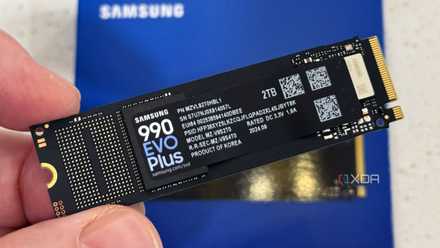
Stop panicking about your SSD's lifespan — it will probably outlive your PC
You're replace your SSD years before wearing it out
Tweak some Windows features past their prime
Disable what does not help your SSD
A lot of older Windows features made sense during the hard-drive era, but they're still around, even on Windows 11. Older mechanical drives really benefited from features like Superfetch and aggressive indexing, since they employ predictive loading and improve file search.
Much like any hard-drive era feature, the gains in question are much smaller on SSDs, if not downright negligible. The entire time, background writes continue existing behind the curtain. Search indexing can still be useful if you constantly hunt through files, but you can always turn Windows Search Indexing off and use lighter, better software like Listary.
Similarly, scheduled defragmentation is something worth checking. SSDs don't need traditional defragmentation at all, because they access data differently than HDDs. Windows is generally smart enough now, but it's still worth confirming that your system isn't performing unnecessary work and writing things to your SSD in the background that don't benefit you at all.
Listary
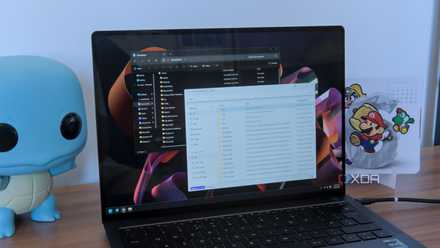
Offload your recovery elsewhere
A proper backup beats native restore systems any day
I absolutely love System Restore, and it has saved my behind countless times. However, it can also become ridiculously write-heavy, depending on usage patterns. That's because recovery snapshots and restore points build up quietly in the background.
A dedicated backup approach can often make much more sense in the long term. Tools like Macrium Reflect will give you greater control over exactly what gets backed up and when. More importantly, however, your backups and recovery plans will become intentional instead of being something you only remember after disaster strikes. A third-party tool like Macrium Reflect will write your backup files to an external drive, which you can pick to be an HDD collecting dust. System Restore, on the other hand, writes files to the same drive being restored, since Windows can always natively access a System Restore point from the primary drive itself.
Macrium Reflect
Macrium Reflect is a free-to-use disk cloning and imaging software for Windows. It provides complete backup, recovery, and closing features for individual partitions or entire disks.
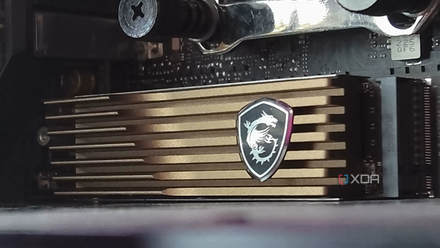
3 reasons you should have a dedicated SSD just for games
Keeping your OS and games on separate SSDs might actually make sense
Weekly maintenance goes further than people think
Small habits can prevent big expenses
Ask anyone who had to buy a new SSD out of the blue, and it'll be clear that they waited until their storage problems became visible before they did anything. Capacity warnings show up and giant folders disappear only when you don't end up maintaining your SSD and ignore routine health checks.
Spending ten minutes each week can easily prolong your SSD's lifespan and endurance, just by maintaining good hygiene. For that, make sure you clear duplicate files and installers every week to avoid choking your SSD. Removing caches from applications that love hoarding storage also helps. A good rule of thumb is to keep 10–15% of your SSD free at all times, and you can always do that by turning it into unallocated space using Disk Management in Windows. SSDs always perform better when they have room to breathe.
While you're at it, monitor your SSD's temperatures, run S.M.A.R.T. (Self-Monitoring, Analysis, and Reporting Technology) diagnostics every fortnight through the Command Prompt. Open up Command Prompt with administrator privileges, and type in wmic diskdrive get status. If you get a "Status OK" response, all is good in the world, as it means S.M.A.R.T. hasn't detected any problems.
If "wmic" isn't recognized as a valid command in your Command Prompt, make sure you have WMIC turned on via Windows' optional features.
A better recommendation is CrystalDiskInfo for Windows users, which will display the most important information like health percentage, temperature, and total bytes written (TBW).
CrystalDiskInfo
CrystalDiskInfo is a free software utility designed to monitor and report on your storage devices.

5 ways to check how much life your SSD has left
Handy apps for monitoring SSD's health to avoid failure and data loss.
Your SSD probably isn't dying tomorrow
Pay attention to the little things before they become expensive problems.
Storage conversations have become strange over the years because SSDs are simultaneously incredibly durable and somehow still treated like fragile crystal. The reality, however, sits somewhere in the middle. Most drives today will survive far longer than older enthusiast horror stories would have you believe.
Stretching the life of an SSD isn't really about treating it delicately. Instead, it's always about paying more attention to the little things before they become expensive things.