
Over the past two years living with an RTX 4070 Ti-powered gaming rig, I haven't made any upgrades at all. This year was supposed to be different as I had considered doubling my RAM and adding a new NVMe drive, but RAMflation got in the way. On the GPU side of things, I'd never dabbled in overclocking, mainly because I never felt the need, and my GPU came with a factory OC setting that's been turned on since day one.
At 1440p, my GPU has never felt like it's been pushed to its very limit, but it just did with Resident Evil Requiem since I'm so fond of path-traced lighting. As such, I decided it was finally time to overclock my graphics card, but since I've had no experience in this territory, it was safer to take a more... conservative route. The NVIDIA App tunes your GPU for you, so I decided to give it a shot.
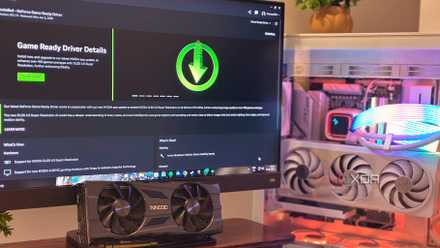
The NVIDIA App's Game Optimizer is genuinely magic, and it's not appreciated enough
So many hours I've saved in an increasingly busy life
What the NVIDIA App's automatic tuning does
It's always a safe place to get started with OCing
If you've never overclocked a GPU before, the NVIDIA App's automatic tuning feature is essentially the training wheels version of the whole process. Instead of manually nudging sliders for core clocks, voltage curves, and power limits as you would in something like MSI Afterburner, the app handles the entire process on its own. When you start the tuning process, it runs a series of quick stability tests that gradually increase the GPU's core frequency in small steps while monitoring for errors, crashes, or any sort of instabilities.
That's also why the process takes about 8–10 minutes to finish. The app is essentially probing the limits of your specific GPU silicon, testing different clock offsets under load to see what it can sustain safely. Every GPU chip is slightly different, of course, and depending on where your ticket lands in the silicon lottery, the app tries to find a stable overclock setting that works specifically for your card.
What this achieves, in most cases, is a modest core clock boost while keeping voltages and power limits within safe margins. In other words, it's not chasing any extreme benchmark numbers, and always keeping stability at numero uno. The result is that you manage to squeeze out a little extra performance without turning your GPU into a science experiment.
NVIDIA App
I established a baseline first
The performance I get daily on the games I play regularly
The first thing I did was establish the baseline for my games. Of course, it does help that most of the games I play at least once a week do have built-in benchmarking tools, barring Fortnite and RE9. Still, with three games and a quick 3DMark run of Steel Nomad, it was easy to set up a solid reference point to compare against before I let the NVIDIA App take over the reins of my GPU and tinker around.
|
RTX 4070 Ti + Ryzen 5 7600X, pre-OC |
|||||
|
Test |
Preset |
Avg. FPS |
1% Lows |
Power Draw |
|
|
Cyberpunk 2077 |
Max + PT On + DLSS Quality + FG 2x |
86 FPS |
81 FPS |
250W |
|
|
Forza Horizon 5 |
Extreme + RT Max + DLSS Quality + FG 2x |
165 FPS |
146 FPS |
190W |
|
|
Black Myth: Wukong |
High + PT Medium + DLSS Quality + FG 2x |
112 FPS |
101 FPS |
230W |
|
|
3DMark: Steel Nomad |
— |
49.03 |
46 |
280W |
|
Path Tracing has slowly become a non-negotiable for me, to the point where, if required, I even end up lowering a few in-game graphics settings to leave more VRAM headroom for the lighting model. While DLSS 4.5 has really improved image quality and temporal stability across the board, all of my games manage to deliver over 90 FPS at my preferred settings, meaning I only go down to DLSS Balanced while gaming at 4K.
The Steel Nomad test on 3DMark was certainly humbling, although with my combination of the Ryzen 5 7600X and the RTX 4070 Ti, the average score is 5036; I scored 4903, which put me in the bottom 19%. Apart from those, my gaming experience remained unchanged, and I still have no problems using DLSS and frame generation in my single-player, narrative-based games.

Please stop chasing GPU overclocks before you undervolt
Undervolting should be the first strategy for squeezing more performance out of your GPU
How to overclock your GPU with the NVIDIA App
It's actually a simple and relatively safe method
The process to tune your GPU via the NVIDIA App is quite simple, actually. For starters, of course, you'd have to have it installed on your PC. Unlike the Nvidia Control Panel, the NVIDIA App is not a mandatory installation for users of Team Green's GPUs. Then, just head into the System settings from the left-side panel, and click on the Performance tab. The app will show you your GPU's current statistics, including the GPU clock, GPU voltage, and the VRAM clock.
Overclocking pushes your hardware beyond its factory-set limits, and can potentially void your warranty upon improper execution. Always proceed with caution while attempting to overclock your GPU.
Under the statistics is the Automatic Tuning option, which finds the best OC settings for your GPU and maintains them regularly. It's a simple toggle, and switching it on displays a boilerplate disclaimer. Click on Agree & Continue. Now, the App will take about 8 to 10 minutes to test for your particular card's voltage limits, while making sure things remain stable. That's why the process takes as long as it does, going at a snail's pace of 5–6 seconds per 1% of progress. During this time, it's best to avoid doing any gaming, or even engaging in video playback or recording.
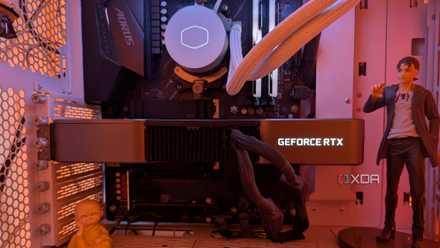
I overclocked my 5-year-old GPU instead of buying a new one in a terrible market
A GPU upgrade is out of the question, so I decided to optimize my existing card
I didn't expect it to be this effective
The FPS gains I received were remarkable
The benefit of testing games with a built-in benchmarking tool is that you can always run the exact same test at the same settings to know exactly how much of a difference the test has made. That's exactly what I did, and while I expected a slight jump of a few FPS here and there, the reality was different, to say the least.
|
RTX 4070 Ti + Ryzen 5 7600X, post-OC |
|||||
|
Test |
Preset |
Avg. FPS |
1% Lows |
Power Draw |
|
|
Cyberpunk 2077 |
Max + PT On + DLSS Quality + FG 2x |
94 FPS |
86 FPS |
260W |
|
|
Forza Horizon 5 |
Extreme + RT Max + DLSS Quality + FG 2x |
179 FPS |
152 FPS |
224W |
|
|
Black Myth: Wukong |
High + PT Medium + DLSS Quality + FG 2x |
118 FPS |
106 FPS |
230W |
|
|
3DMark: Steel Nomad |
— |
51.17 FPS |
48 FPS |
280W |
|
Cyberpunk 2077 and Forza Horizon 5 were the clearest beneficiaries here, with Cyberpunk nearly touching an average 100 FPS with Path Tracing turned on at the maximum graphical preset. I was happiest about my 3DMark score with Steel Nomad, however, since it got me past the 50 FPS mark and much closer to the global average with a 4.3% improvement.
These aren't huge FPS gains by any means, but they aren't supposed to be, either. At the risk of sounding like a broken record, the NVIDIA App's GPU tuning and overclocking are known to keep things well within stable limits. Still, I've only just dipped my toe in this pond, and the result has been nothing but encouraging.
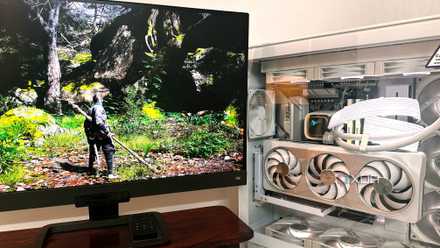
DLSS 4.5 is expensive, but it’s the best thing to happen to my aging RTX PC
The upside is remarkable, but the cost isn't equal for all.
Is the NVIDIA App's overclocking safe?
Of course, it remains true that overclocking will always have a slight risk attached, and it all depends on where your silicon chip landed in the silicon lottery. Extreme OCing is always potentially risky, but the level of overclocking that the NVIDIA App does is safely on the conservative side, which keeps things fairly safe. If you do end up seeing visual artifacts in your games or normal usage, you can always restore your GPU to its original settings through the NVIDIA App itself. However, those artifacts or game crashes usually come into play much further down the line, if and when you go with extreme (and unstable) overclocks.
For me, manual overclocking and undervolting are next, because while I've only just tasted the possibilities, I'm nothing if not excited about extracting more power from my GPU. With the way things are going in the PC hardware space vis-a-vis RAM and GPU prices, I'm going to quietly wait for the RTX 60-series cards to drop (which are rumored to be delayed), and keep pushing my current hardware for better numbers and smoother performance.