
In the past year or so, I've slowly made my transition away from Windows 11 and onto Linux, after a lifetime on Microsoft's operating system. The complaints I had about Windows 11 simply became too many and I found a more peaceful life on Linux after accepting that Microsoft probably won't be fixing Windows anytime soon.
But I wasn't totally right about that. Unbeknownst to me, while I've been spending more time on Linux, Microsoft has done a lot to make Windows 11 better than ever. But if you really want to see the results of that, you need to be using PowerToys. Microsoft has added a bunch of very useful tools to this app in recent times, to the point where I'd say it's essential.
Moving windows is easier than ever
Just grab and move
One of the big recent additions to PowerToys is something I actually wrote about recently, and it's called Grab and Move. It's a tool that other platforms have had for some time, and even Windows had it via third-party tools, but it's nice to see Microsoft finally acknowledge the need for something like this.
Grab and Move makes it far easier to move and resize windows on your computer by simply prerssing a hotkey that lets you grab the window by clicking anywhere on it. It makes it so you don't need to get a window in focus or aim for a specific part of the window like the title bar to move it around, and you can move it without switching the focus away from whatever window you're currently looking at.
Not only that, you can also resize this window using pretty much the same principles. While holding the activation hotkey, click anywhere on the window and then drag to resize the window in the desired direction. No need to spend 10 extra seconds trying to click the precise edge or corner of the window, you can just click anywhere and get it done.
It's the kind of time-saving feature users deserve, and while I didn't know I wanted something like this, now I think it should be built into the operating system.
External displays, finally under control
Seriously, how is this not built in?
Most people tend to use laptops more than desktop PCs, and if you do use a desktop, it's probably a single screen and you're not thinking too much about the settings. But if you've ever used an external monitor with a laptop, or multiple external screens, then you probably know Windows' handling of these displays is abysmal. Frankly, I'm not sure it can be characterized as anything because it simply doesn't exist.
If you have an external monitor, all settings such as brightness, contrast, color profiles, and so on, are handled by the monitor itself or a dedicated app that communicates with the monitor. You might then think there's some kind of special connection or something that needs very special software to function, but no. There's actually something of a standard here called DDC, which is how most monitors report their settings to Windows and allow the OS to modify those settings using dedicated apps. But Windows itself doesn't offer these capabilities.
Until now, you needed an app like Monitorian or Twinkle Tray, but now, PowerToys has a tool called Power Display that finally lets you change settings for external monitors in a somewhat official capacity. You can adjust things like brightness, contrast, and potentially other features depending on your monitor's capabilities, including volume for built-in speakers. It may not be a full replacement for a dedicated app with more specific per-model controls, but for most people, this makes external displays far easier to use.

3 reasons why Twinkle Tray is an essential Windows app for desktop users
If you have a desktop PC or use an external monitor on Windows, you absolutely need to get this app.
Light and dark
Who knew automatic theme switching was possible?
This feature is arguably less important, but frankly, it's no less shocking that it took this long for Microsoft to acknowledge the interest in it. Windows has had a light and dark theme for over ten years at this point, but there has never been an option to automatically switch between the two at a specific time of the day. It may not seem like much, but Microsoft does this for its night light feature, so if we're making things easier on the eyes, switching to a dark theme is something many users would like.
Like many flaws in Windows, we did have third-party apps that could do this, but now, PowerToys has it built in with one of its latest tools, called Light Switch. Aside from the clever naming scheme, Light Switch is very useful, as it can switch between dark and light modes at a specific time or follow the sunrise and sunset times at your location. You can also have it follow your system's Night Light setting, so you only need to change settings in one place.
Light Switch even ties into Power Display, too. If you create a profile for your displays in Power Display, you can make it so that that profile is automatically enabled when Light Switch changes modes. You can create a profile with higher brightness during the day that goes along with the light theme, and switch to a more dim profile at the end of the day when the dark theme kicks in. It's pretty cool.

Stop wasting time on these 7 Windows 11 tasks and automate them instead
Stop wasting time
There's a lot more, too
PowerToys is only getting better
These are just three recent additions Microsoft has made to PowerToys that bring genuine improvements to Windows 11 as a whole, and all of them should be built in features. But these aren't the first capabilities in PowerToys that deserve wider availability, and Microsoft has been using this suite as a way to make Windows 11 better for a long time.
Big deals on monitors, docks and work-setup gear
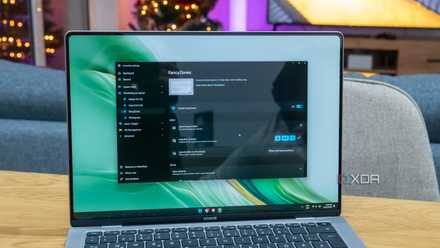
Tools like FancyZones make advanced window management a breeze and help boost productivity, and Command Palette is an incredibly useful launcher that lets you get to your apps much more quickly, saving you even more time. PowerRename has advanced renaming capabilities, and Workspaces lets you save sets of windows and apps so you can launch them all at once to get into your workflow more quickly.
8 reasons you should be using PowerToys on your Windows PC
Take your productivity to the next level
And some of these benefits are finally spilling over to Windows itself. Recently Microsoft introduced a new Run window that uses the same logic as Command Palette, making it even faster to launch programs on your computer, while also modernizing the visual aspect of it. I wish these Windows changes came more quickly, because so much of what PowerToys is doing makes Windows the experience it should have been all along.
Maybe PowerToys should be included with Windows
If Microsoft won't add all these features to Windows directly, the company should at least consider having PowerToys installed out of the box. It's been stuffing Windows full of unnecessary junk for years, so at least ther's a very clear set of benefits here, and PowerToys is kind of required to have Windows even be on the same level as the best Linux distros and desktops. If you somehow don't have it yet, you can download PowerToys below.
- OS
- Windows 10/11