
At some point, every NAS user reaches a crossroads with their setup. For me, it didn’t come with anything dramatic, like a part of the NAS breaking. It was a bunch of smaller things piling up: a few containers slowing down, Plex taking much longer to refresh, and a general sense that my Synology box was getting old. None of it was Synology’s fault. It’s still one of the easiest systems to live with, but I had reached the point where I wanted more than its ecosystem offers. I wanted to pick my own hardware and run apps without wondering whether the CPU could keep up. That’s when I decided to build a DIY NAS.
What I feared the most wasn’t the build, but moving everything over. Years of data, device backups, media, containers, and all the little workflows I had painstakingly created — all living inside my Synology. I assumed this migration would be a bit messy and very frustrating, but once I figured out a clean approach and the right set of tools, the entire move turned out to be quite the opposite.
Everything I was moving
There was quite a lot of variety
My Synology was far from some half-used NAS sitting around with a few backups on it. It held my entire photo and video archive (and my family’s too). It stored Time Machine backups, Windows backups, and a mix of synced folders from both my computers. Plex Server lived on it, and so did its large metadata directory that had grown massively over the years. I also relied on a handful of Docker containers for my everyday routine. So yes, there was a lot of important stuff to port over.
You don’t casually move that many routines and daily usage to a completely new system without worrying about breaking something along the way. But holding off any longer would’ve made it even tougher, not easier.

I built a better NAS for half the price of a Synology
Going fully DIY has its own perks
Four tools for a simple migration
This is the part that made the biggest difference. I didn’t want a complicated, over-engineered setup just for migration, since I was already dealing with a DIY setup. I wanted a few tools that just worked. And these four were enough to move everything I cared about.
Rsync (or Rclone)
There’s a reason Rsync has been around forever. I used it to move basically everything: from shared folders and photos to Plex metadata and laptop backups. What made Rsync my choice was how predictable it turned out to be. If the network hiccupped or if I stopped the transfer midway, I could start it again without losing progress. It didn’t force me to start all over. If you prefer cloud-friendly syncing or checksum-heavy workflows, Rclone does a great job too, but a simple Rsync transfer between the old NAS and the new one was enough for almost all of my migration needs.
Docker Compose
The part I honestly feared the most was moving my Docker apps. Synology’s DSM gives you a handy interface, and once you’re used to clicking your way through containers, the idea of moving everything to a DIY system feels quite intimidating. But once I rebuilt the same stack using Docker Compose, the entire process became straightforward. I exported or recreated my Compose files, adjusted a few volume paths, and things moved over almost exactly how they used to — it just needed some tinkering to wrap everything up.

This tiny web UI makes Docker Compose easier than Portainer
And you don't have to deal with paywalled services, either
Tailscale
This is where I made a mistake, which I think was a big one in retrospect. I didn’t set up Tailscale before starting the migration. So, during the move, I kept jumping between the old NAS and the new one, making sure transfers were running as expected and paths were correct. A couple of times, a transfer failed because the Synology changed its DHCP assignment, and I didn’t notice. On another day, I caught myself double-checking whether the folder I was deleting was from the right machine. None of this was deal-breaking, but it added needless stress.
If Tailscale had been on both systems from the start, I would have had stable, fixed endpoints to work with. The entire migration would have felt easier. If you’re planning a similar move, don’t repeat my mistake, and set up Tailscale to let it take networking off your worry list.
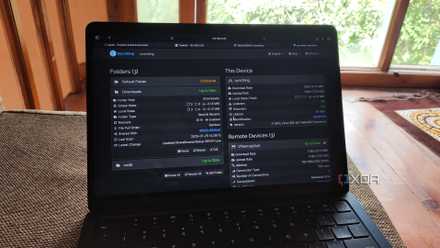
Syncthing and Tailscale gave me the private cloud experience I always wanted Dropbox to be
I no longer need to rely on third-party cloud storage platforms or manually copy project files between my devices
ZFS (or Btrfs) scrubbing
Once all my data landed on the DIY NAS, I needed to know it had arrived without corruption. This is where switching to a filesystem like ZFS made a solid impact. A quick scrub confirmed that everything was in order. It would’ve highlighted if something broke on the way. And I really appreciated this level of visibility coming from Synology, which keeps metrics under wraps.
What the move taught me
Lots of smart learning for the future
The smartest thing I did was keep both systems running in parallel for a few days. That gave me time to check performance, test apps, compare transfers, and ensure that everything on the new NAS behaved exactly as I wanted. Once the new one felt stable enough, shutting down the Synology didn’t feel too dramatic, an end-of-an-era sort of thing. What surprised me was the sense of openness in my own setup. If I wanted to add hardware, rearrange pools, or try a new app, I could just do it without any restriction.

I switched from a complex Proxmox setup to a simple Synology NAS
From a data center in the home office to an appliance-like NAS, here's how I simplified my self-hosting setup.
If your Synology setup still fits your needs, there’s no reason to switch — it's still an excellent choice for many people. But if you’ve been hitting its limits or thinking about expanding what your NAS can do, the move to DIY isn’t as intimidating as it seems. With the right approach — and tools (and with Tailscale actually installed) — the entire process becomes painless.