
It’s a nerd’s dream to have all sorts of devices at home, and I can say that my home is definitely leaning that way. My family isn’t locked to one single ecosystem — we have a MacBook, Windows machines, Android flagships, and iPhones. This varied mix is quite liberating, giving everyone the freedom to go about the way they prefer. However, that’s also a bit of a headache for me since, instead of replicating a single workflow on all the devices, I have to create separate ones for every device make.
But that’s also the fun part, right? Due to such variation, I have opted for the simplest yet most robust solution to understand and implement for each task on my primary Synology NAS, which everyone uses. And here they are:
Laptop backup
Using a mix of native and third-party tools
My work machine is a MacBook, which comes with a solid utility called Time Machine to take complete backups of your Mac devices. You can use it to back up your laptop to an external drive, but thankfully, it natively supports network storage as a backup destination, and it works flawlessly.
When setting it up the first time, I pointed it to a dedicated shared folder I had set up on my Synology NAS, and it has been smooth sailing ever since. I have paired it with a third-party tool called Time Machine Editor that gives me granular control over when I want the backup to begin. It has worked without fuss ever since, and I only need to give it monthly checks; that’s it.
My story with Windows laptops has been slightly different. The native backup tool doesn’t let me directly pick my NAS for backing up the laptop. However, instead of relying on poorly designed and often expensive third-party tools, I opted for Active Backup for Business, which Synology bundles with its NAS at no additional cost. It is a solid, reliable tool that has proven to be a worthy alternative to Windows’ own backup feature with equally dependable restoration tools.

How I use my NAS as a secure backup server for both of my PCs
Turns out, the first-party apps are more than enough
Media backup
For the priceless family photos
Everyone in my home has so far maintained their own backup strategies — some like the no-nonsense approach of using Google Photos and paying for its subscription (iCloud+ for those on iPhone), while others have a bunch of portable drives. It worked for them, but it needed proper order, which the NAS brought.
Synology Photos is what I use to back up all the photos and videos I take on all my phones. The app is compatible with both Android and iPhone, so all camera phones in the house are covered. It saves a copy of the media on the NAS at its original quality, unlike Google Photos. That’s a bonus for me, particularly since I use a combination of Synology Photos and Google Photos to get the best of both worlds.

6 real-life lessons I learned after moving my photo library to my NAS
How a NAS changed the way I see my memories
File syncing
NAS helps me with cross-platform syncing
While photos are one piece of the cross-platform equation, I also need my files to be accessible across devices, including my Mac and Windows laptops. Most mainstream cloud services offer desktop apps that easily sync your files across devices and also keep a copy safe in the cloud. Their only problem is that a remote “cloud” sits in the middle that needs an internet connection to work.
A Google Drive alternative for Synology is unimaginatively called Synology Drive, and it too offers a desktop app for doing exactly what I need. Both one-way and two-way syncs are a possibility, and yes, I have it set on both my computers. A good thing about it is that it saves a copy of everything on the NAS, which is both safer and locally accessible.
That’s for Synology, but most mainstream pre-built NAS makers offer their own alternatives that you can use instead.
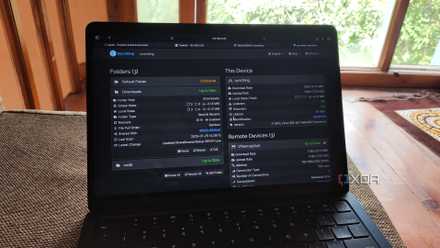
I self-host Syncthing to sync files between my PC, Mac, NAS, and other devices
Syncthing is a neat utility when you want multi-directional file synchronization for your home lab
Scheduling and versioning
So I can roll back to when everything was fine
Computers aren’t foolproof. Things go wrong all the time, and you must be prepared to save your data. A good way to do that is to schedule your backups to run automatically, rather than relying on memory. You can go a step further to enable versioning at least for important folders and files. It will come in handy in case of accidental deletion or overwrite, letting you quickly roll back to a previous, working state.

RAID
R stands for resilience
One of the biggest reasons for switching to a NAS is that you just cannot rely on a portable drive fully, since they are prone to dying, often without warning. Most NAS models come with a feature called RAID, which allows you to continue using your NAS even when a drive fails or replace the broken drive without having to move data. RAID maintains a copy of your data (depending on the RAID version) to safeguard against drive failures. That’s a solid upgrade over portable drives to keep your NAS safe from hardware issues.

5 mistakes to avoid when using SSDs in RAID
It's awesome using SSDs in RAID. Just avoid these mistakes.
NAS backup
The backup also needs a backup
A lot of us use our NAS to back up our other devices. But my NAS is also one of those devices that needs backing up. This acts as a buffer that safeguards your data even if the NAS completely fails. Now, you have several options to accomplish this. One option that is best suited for businesses is to have a second off-site NAS that mirrors the main storage and is routinely backed up.
That would prove to be an expensive affair for home users. Your best bet is to use a tool like Hyper Backup to safely sync your entire NAS or some important folders to a cloud service as a remote backup. Alternatively, you can even plug in an external drive to keep a copy of your data.
The game-changer
Using your NAS to back up all your data is a complete game-changer. It’s a perfect storage tool to maintain a 3-2-1 backup strategy, where you get the utmost peace of mind. And unlike cloud storage alone, it’s far more scalable, making it much more futureproof and cost-effective in the long run.
QNAP TS-464
- Brand
- QNAP
- CPU
- Intel Celeron N5095
- Memory
- 8GB DDR4 (max. 8GB)
- Drive Bays
- 4
- Expansion
- 2x M.2 PCIe 3.0, 1x PCIe Gen 3 x2
- Ports
- 2x 2.5 GbE, 2x USB-A 3.2 Gen 2, 2x USB-A 2.0, 1x HDMI
QNAP's TS-464 is an impressive four-bay NAS with a striking design, powerful internal specs, and IR support for a remote control. If you're looking for the best-equipped NAS for running Plex (or other media solutions) without spending a small fortune, this is the NAS for you.