
Like a lot of people, my go-to place to store my family memories has been Google Photos. It’s convenient and quite literally the gold standard of photo and video backup. The fact that it’s such a widespread ecosystem that I can share my media with absolutely anyone is incredibly useful and addictive. However, the space constraints and the constant push to take a pricey Google One subscription plan forced me to consider its alternatives.
Since I already had a NAS at my home, it became the next best option as I needed zero dollars to make it work. It’s been a few years since using my NAS as the primary way of storing my family media, and here is everything I have learned along the journey.
6 Backups aren’t optional
Don’t wait until it’s too late
You will understand the fragility of your memories stored in the form of photos and videos only when a sudden event wipes them out. When you know something so critical is stored on your NAS, you start to take backups and redundancy seriously. In the Google Photos days, it was all handled by Google, but with my NAS, it was my time to take control.
Mirrored drives suddenly didn’t feel like overkill anymore, and maintaining copies of my media on portable SSDs wasn’t as cumbersome. It’s the irreplaceable memories we’re talking about, after all.

How I use my NAS as a secure backup server for both of my PCs
Turns out, the first-party apps are more than enough
5 Metadata is your friend
But this friendship isn’t easy
When I moved my photos, I used Google’s Takeout tool to download my entire Google Photos archive in one go and then upload it to my Synology NAS. Moving the photos itself wasn’t the hard part, but the chaos that came after was. There were dozens of folders and thousands of photos with random filenames like IMG_3568 that I had no clue about — and not to forget useless screenshots in the travel folders.
So instead of relying on folders to sort my photos, say for each family trip, I took the hard road and decided to maintain metadata hygiene. It took me a lot of time to clean everything up, but it has become a routine to properly tag everything new. Without it, the NAS would’ve turned into a bigger junk drawer.
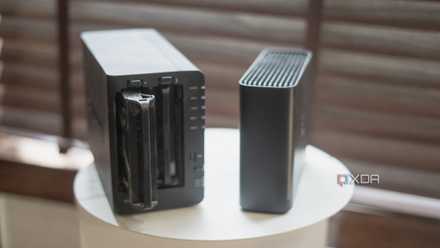
How I rescued 10 years of forgotten photos with my NAS
A simple setup that finally brought order to my photo chaos
4 The internet bottleneck is gone
My setup decides the access speed now
We’ve gotten so used to cloud storage that we accept lag as normal. Searching or scrolling through big libraries online always comes with a pause and spinning loading wheel. But after moving my entire data offline to my home server, I removed the bottleneck that was the internet. The only linking piece is the gigabit LAN cable between my NAS and my computer.
Browsing high-res albums locally feels instant in a way cloud never did. I no longer brace myself for a wait between each scroll. Accessing my lengthy albums and collections actually feels blazing fast, even though the local versions are higher quality.
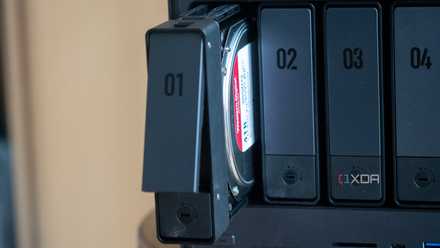
6 reasons link aggregation is worth setting up for your NAS
If you're on the fence about setting up link aggregation on your NAS, these reasons might convince you to try it.
3 Remote access is scary
It’s the double-edged sword I want to steer clear from
Remote access is quite a superpower. It not only lets me access my photos from anywhere in the world, it also backs up my photos while I am traveling, so even if I lose my phone, my memories remain safe. But the very door that lets me do that also opens up a door the other way.
It set in a kind of paranoia about my data stored on the NAS and made me aware of all the security steps I should be taking to make my NAS more secure. Think of strong passwords, two-factor authentication, using VPN for remote access, and setting proper account permissions.

I use Tailscale to remotely access my self-hosted services - here's how
Tailscale provides an easy way to access your home server from external networks
2 Google Photos is here to stay
The cloud is still part of the equation
I thought that moving my library from Google Photos to my NAS meant permanently ditching cloud storage and never needing to look back. But in reality, it didn’t work out that way. I found that a hybrid approach is the best way to go, and that you also get to taste the best of both worlds.
So, all my photos and videos in original, uncompressed quality go to the NAS. It’s sort of my media archive that keeps everything safe and secure. On the other hand, I have the cheapest subscription to Google Photos, where all my media is backed up in Storage Saver quality, allowing me to use all the new-age AI and collaboration features without the FOMO.
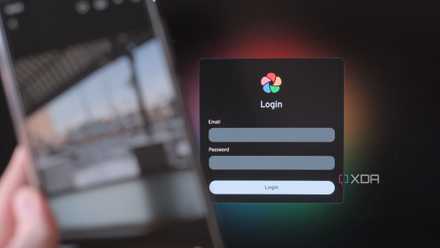
I self-hosted a Google Photos alternative with a Synology NAS — here's how it went
Build your own photo management platform with a NAS!
1 Family sharing isn’t as straightforward
Complications do surface over time
Early on, it felt quite rosy that the NAS would be the ultimate family archive, with all family members contributing to the pool, browsing, and reminiscing. But it didn’t go as smoothly, unfortunately. I may be tech-savvy, but not everyone in my family is. It took a lot of effort to help them learn the new ways of managing their media.
From teaching them things as fundamental as what a NAS is to how their photos are backed up now — part of the reason I stuck with Google Photos partially. Some were excited to try something new, while others couldn’t be bothered much. Even if the system works in the background, their media is safely backed up to the NAS without them needing to do anything.
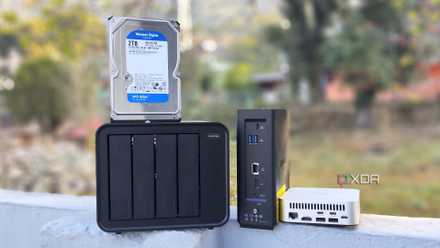
5 household gadgets I've retired after getting a decent NAS
There's a lot more you can do with a NAS besides using it as a file-sharing and backup server
The open world of photo backup
Since I own a Synology NAS, which comes bundled with a bunch of handy tools from Synology itself, I stuck with the first-party Synology Photos app for all my media needs. It’s got a nice phone app as well, which helps me browse my collection even when I am away from my desk. But it’s not the gold standard of media storage on network storage boxes. You’ve got plenty of options to choose from and go with the one that not only plays nice with your NAS but is also something your family finds easy to use every day.
QNAP TS-464
- Brand
- QNAP
- CPU
- Intel Celeron N5095
- Memory
- 8GB DDR4 (max. 8GB)
- Drive Bays
- 4
- Expansion
- 2x M.2 PCIe 3.0, 1x PCIe Gen 3 x2
- Ports
- 2x 2.5 GbE, 2x USB-A 3.2 Gen 2, 2x USB-A 2.0, 1x HDMI
QNAP's TS-464 is an impressive four-bay NAS with a striking design, powerful internal specs, and IR support for a remote control. If you're looking for the best-equipped NAS for running Plex (or other media solutions) without spending a small fortune, this is the NAS for you.