
Backups are one of those things we all promise ourselves we’ll sort out later on, but that later never arrives. We set them up only when it’s too late — when an update messes things up, a dead drive breaks things down, or some random error keeps your system from booting. I have been there.
I moved my secondary server to Proxmox to experiment with a bunch of things. That meant I ended up breaking something or the other almost every weekend, necessitating a solid backup strategy. If anything broke, I could quickly restore to the last saved point and get going without missing a beat. And for that, I needed a backup strategy that’s safe, cost-effective, and easy enough to run without becoming a chore.
Turns out Proxmox already has everything you need to strike that balance. It did need a lot of tinkering, but I finally landed on a strategy that just works and stays on guard to save me from disasters.
Keeping things simple
Who even likes complications?
Being new to the setup, I spent hours scanning through forums and tutorials, and almost all of them suggested a layered solution with custom rsync jobs, ZFS snapshots, cloud sync, third-party scripts, and whatnot. I’ve tried a lot of those in the past, and I know they add friction instead of making things easy. And that’s where accidents happen — when you miss a backup while juggling all the chaos.
With Proxmox, I stuck with the basics, using the built-in tool called Proxmox Backup Server. It’s designed to seamlessly integrate into your system and is quite capable, natively handling things like deduplication, compression, and encryption. The best part was that I didn’t need to write a single line of code — something I know I would’ve fumbled.
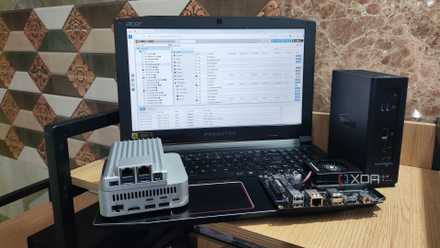
I'm addicted to installing Proxmox on old devices
Proxmox has become my favorite virtualization platform for revitalizing outdated systems
Local and remote
The best of both worlds
I stuck to the basics, not just in tools but in backup strategy too. The 3-2-1 rule has been repeated to death (and I’m guilty of repeating it as well), but the fact is, it remains the most sensible way to do backups. You should keep three copies of your data on two different types of media, with one off-site backup. I follow that on my Proxmox setup too, without overcomplicating anything.
For everyday protection, I run local backups onto a separate machine (an old PC gathering dust) that I repurposed as a backup server. It’s not too fast or anything fancy, but it’s perfect for a task like keeping stuff safe. Since it’s connected to the local network, it’s the fastest way to restore if something goes south. I don’t have to wait for cloud backups to download.
But I didn’t stop there. I also tested my Proxmox Backup Server syncing with AWS S3. The backups got mirrored to the cloud without me lifting a finger, giving me an additional safety net. My calculations for a small upload size and infrequent downloads from the server suggested it would cost me much less than a mainstream cloud storage service like Dropbox (you can set those up, too, with Rclone, but the process is a tad complicated).
I didn’t stick with the offsite backup after that since it’s my secondary server, and my primary server that houses all my important files does sync to the cloud — but you know what to do if you need offsite backup on your Proxmox setup.

Automate and forget
But only after proper verification
No matter how solid my backup strategy is, it wouldn’t make sense if I had to run everything manually. That’s why I built schedules into Proxmox to run some jobs daily or weekly, depending on how critical they are. Despite having this automation in place that helps maintain my sanity, I never skip an important step: testing restores.
Not having a backup is still bad, but learning that you have a corrupt backup copy only when you need it the most is much, much worse. I’ve now made it a routine to test-restore both my NAS backups every few weeks just to ensure everything is in order.
Thankfully, Proxmox makes a lot of things easy, including the restore workflow — so no fancy dance moves required on my part.

I tried running Android VMs inside Proxmox
With the right OS, Proxmox is surprisingly good at virtualizing Android
Safety and trust shouldn’t be expensive
And yet should afford you freedom
The only cost associated with this backup system is when you rent external cloud space for off-site backups. Depending on how critical your data is, that small investment can pay for itself even in the short term, let alone the long run. And it’s billed based on usage, not a flat fee like most cloud storage, so it’s much lighter on your pocket.
Having a backup strategy may seem like a lot of work, but the funny thing is that once you have it in place, you stop worrying about it. My experimental self wants to try new updates, play with new services, and tinker with settings just to see what happens.
All of it is quite risky, to be honest, but at the back of my head, I know I have a backup in place that can keep my data safe even through all my shenanigans. That’s the kind of freedom we all should get from our servers.