
I got my NAS to work as the central location for all my data needs — it sits on the network, which allows it to connect with every device at my place. While I have it all set up to take care of backups from my Mac and Windows laptops, getting it to work with smartphones takes a bit of work. You can manage everything on your NAS’s web interface, but on phones, you need to install an array of apps to replicate the same features and capabilities. And our digital lives now increasingly live on our smartphones; I wanted to ensure everything worked smoothly.
These are all the tools I used to make my NAS integrate well into my daily mobile workflow.
A proper file-sync app
Because it’s ultimately all about data
If there was one change that altered how I access my NAS from my phone, it has to be setting up two-way sync on these devices. Until I set it up, moving files to the phone would often result in them getting automatically saved in some random directory each time, creating the kind of chaos I never wanted to deal with.
Apps like Synology Drive — you can use whatever comes bundled with your NAS OS — are the solution to cross-device syncing woes. If I update a file in the synced folder on my laptop, it appears on my phone within seconds and in the same location each time. It may seem like a small thing, but it helped streamline my workflow quite a lot. And it all works in the background without needing manual intervention, so now I don’t even need to think about it.

Automatic photo backups
Photos take up most of my storage
Before relying on a NAS, my photos were scattered across hard drives, SD cards, and Google Photos in varying qualities. Finding them was a mess, and keeping them backed up was an even bigger headache, so much so that I often avoided backing up my media. Thankfully, that habit of mine has changed for good, thanks to automatic photo backups.
Both Google Photos and Synology Photos are part of my hybrid system now. Everything I capture with my phone’s camera is backed up to Google Photos in storage saver quality, while the full-res copies go to Synology Photos. This way, I get to keep my photos at their highest quality without missing out on the smart AI features that Google keeps tempting me with. And I have replicated this setup for my entire family for the utmost peace of mind.
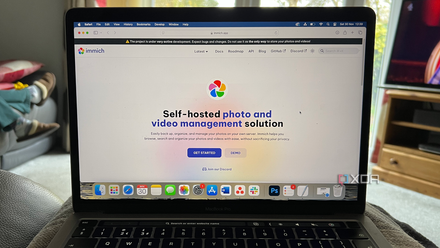
8 open-source photo management tools for great library organization
Self-hosted and secure management tools to organize your photos
Using an SMB/FTP file manager
For natively accessing NAS files
It is incredibly liberating when you open your phone’s file manager and see your NAS right there like a regular folder. Apps like FE File Explorer and Solid Explorer are two of my top choices, largely because of their wide file system compatibility and clean interface. And if you’re an iOS user, the built-in Files app can natively integrate your NAS with just your account login; no third-party app needed.
While syncing works for the folders I regularly use across devices, integrating the NAS into my phone’s file explorer lets me do much more. For instance, I can move any recordings I make on the phone to the right spot on the NAS or rename documents without having to use my NAS’s own (often terrible) file manager app. Though it may sound silly, dragging and dropping files to a remote server is incredibly satisfying.
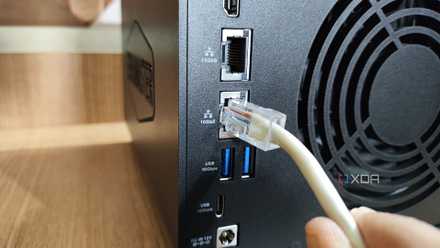
3 ways I sped up my SMB file transfers
SMB can be pretty fast when properly configured
Media streaming client
Jellyfin for the win
While backing up media to the NAS is the first step, I also need to stream my content from the NAS, often not to the living room TV but to my tablet while in bed. Plex was my first choice for this task because it was the most widely used, but I decided to move on from it when it wanted me to pay a monthly fee for streaming my media on my phone, even when I was on the local network.
Jellyfin proved to be the perfect alternative — one that hasn’t stuffed its app with features nobody asked for or nudged me to pay up after every other tap. It does a great job of logging all the metadata and offering a clean-looking library, just like how you’d get from Netflix. When you host your media locally, the latency also improves a lot compared to streaming something from the web.

I finally found a way to watch YouTube on Jellyfin — and it's incredibly easy
No more YouTube headaches on your Jellyfin server
Secure remote-access layer
A VPN should do the trick
Perhaps the most underrated thing you can do for your NAS-phone workflow is to make remote access simple and safe. Tailscale is the tool that changed it for me, though you’re free to use alternatives like WireGuard as well. The biggest challenge with remote access is exposing your NAS to the internet and making it a potential target for external attacks. And the process to set it up is even more complex, involving port forwarding and playing with the router settings.
With Tailscale-like tools, you can create a private tunnel that helps the phone behave as if it’s on the local network. That alone removed half of my mental load, saving me from worrying about the arduous setup process. It has helped me work remotely, whether I’m in a café a few blocks away or across the world.

I use Tailscale to remotely access my self-hosted services - here's how
Tailscale provides an easy way to access your home server from external networks
The world of apps for NAS
A network storage unit is nothing but a storage unit without its apps that actually make it smart. For me, these apps make it possible to use all the devices I own as a cohesive system rather than scattered pieces. There are tons of other apps you can deploy to make your NAS better at productivity, media streaming, or hosting — or a combination of all of them. The entire world of apps is open to you, and you just need to pick what suits your needs.
QNAP TS-464
- Brand
- QNAP
- CPU
- Intel Celeron N5095
- Memory
- 8GB DDR4 (max. 8GB)
- Drive Bays
- 4
- Expansion
- 2x M.2 PCIe 3.0, 1x PCIe Gen 3 x2
- Ports
- 2x 2.5 GbE, 2x USB-A 3.2 Gen 2, 2x USB-A 2.0, 1x HDMI
QNAP's TS-464 is an impressive four-bay NAS with a striking design, powerful internal specs, and IR support for a remote control. If you're looking for the best-equipped NAS for running Plex (or other media solutions) without spending a small fortune, this is the NAS for you.