
When I got my first NAS a few years ago, I thought of it as a long-term investment that would stay with me for years. While I did factor in the performance headroom to ensure comfortable longevity, I honestly wasn’t prepared for all the small upgrades. These weren’t big software or hardware overhauls, but little changes that seemed inconsequential at first — yet added up to make a noticeable difference to my NAS experience.
These are all the small upgrades that I dismissed at first, but now can’t imagine my setup without.
RAM upgrade
When has RAM ever been enough?
The base RAM provided on most budget NAS models seems enough at first. Mine came with 4GB, which felt generous for the kind of things I do, from file storage to media access. However, it started to become a bottleneck as my demands from the NAS grew, from simple tasks to running Docker containers and virtual machines for testing.
Even going from 4GB to 8GB brought a huge difference to how my NAS felt day to day. I was able to do things that felt like pushing the NAS earlier, such as streaming multiple Plex streams, indexing photos, and syncing files — all at the same time. And Synology’s new AI tools in beta also need a minimum of 8GB RAM, so it’s a win-win.

SSD caching
My NAS now feels blazing fast
SSD caching honestly felt like an enterprise feature that I had no use for. It sounded impressive on paper, but I had doubts about its practical applications, especially for my setup at home. I didn’t know what I was missing until I used a test NAS unit that had SSDs installed.
Accessing and transferring the same files on that NAS felt like a blazing-fast experience, so much so that my older NAS started to feel sluggish. The only difference was the SSD sticks installed for caching. I then gave it an upgrade with two not-too-huge 256GB NVMe drives, and I was sorted.

7 reasons SSD caching is the smartest upgrade for my home server
A small NVMe can make a big difference
Better cooling
Upgrading fans has more than one benefit
Noise wasn’t really a dealbreaker until I moved the NAS to my work desk for easier physical access. Harsh Indian summers meant that I got to hear them spin more often — and more loudly — than I wanted them to. It was disrupting my work far too many times for me to ignore it.
To counter that, I upgraded the pre-installed fans with beefier third-party ones, and I instantly noticed a change. My NAS then ran much quieter, and the hard drive overheating warnings became sparse. And when I moved the NAS back to its position in the living room, this time I chose an area with better ventilation and cooling.

5 unique ways to cool your PC without liquid cooling
AIOs and custom watercooling loops might be cool, but why don't you try something that stands out?
2.5GbE port upgrade
Not an overkill if you can make use of that headroom
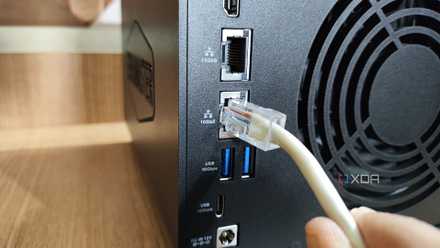
I didn’t really need 2.5GbE back then. My network worked fine, transfers were fast enough, and the network didn’t feel like a bottleneck on the 1GbE connection. But then, using the PCIe slot, I upgraded the port to 2.5GbE using a dongle that was lying around, and the difference was day and night.
Large backups seemed to take much less time, media loads were noticeably faster too, and I connected my laptop with a 2.5GbE port directly to the NAS for super-fast file access. It wasn’t about the physical upgrade anymore, but about cutting wait times for almost every action on the NAS by half.
5 reasons you should use link aggregation on your NAS
Both home users and businesses can benefit from it
UPS
The saviour of the power (and NAS)
Uninterruptible Power Supply — the term itself sounds boring. I didn’t pay much heed to it for quite a long time, and it decided to teach me a lesson. My data was lost mid-transfer when there was a power cut, and it left me both worried and frustrated. That’s when I decided to give my NAS power backup too.
Connecting a UPS to the NAS gave me a few minutes of extra time to save my data during any kind of power issue. It is one of the first companion gadgets I would suggest anyone get when buying a new NAS. And if your home has a power backup system in place, you can directly hook the NAS to it for even more peace of mind.

3 ways a NAS is the best upgrade you can make for your business
If you are considering getting a NAS for your small business but you're not sure exactly how it will help, these are some of the ways that I know.
External USB backups
Redundancy beyond RAID
Like many, I considered NAS to be a replacement for external hard drives, but I couldn’t have been more wrong. I am now a better person who has made this part of the storage plan. Important files now go to a portable SSD for safekeeping. That drive stays away from the network, so even if my primary system is compromised, I know a copy exists in safety.
And the best part is that it didn’t cost me anything — I had all the drives I needed that I had upgraded from my NAS. It may not sound like a fancy setup, but if something works for you, it works. Simple.

How a basic drive enclosure made my NAS and PC setup more flexible
The best $20 I’ve ever spent!
Small upgrades, big difference
Custom-built DIY NAS units are perhaps best suited for tinkering with and upgrading your hardware as you use the device over the years. But a lot of pre-built NAS models also offer some excellent options to make significant changes, bringing an even more substantial positive effect on your workflow. As a result of these changes, my NAS is now much faster, quieter, and safer. You can consider making these changes too for a similar upgrade to your experience.
TerraMaster F4-424 Max
- CPU
- Intel Core i5-1235U
- Memory
- 8GB DDR5 non-ECC SODIMM (up to 64GB)
- Drive Bays
- 4 HDD bays + 2 NVMe SSD slots
- Ports
- 2x USB Type-A (10Gbps), 1x USB Type-C (10Gbps), 1x HDMI 2.0, 2x 10GbE RJ45
The TerraMaster F4-424 Max is a premium hybrid NAS enclosure that combines a solid Intel Core i5-1235U processor with ultra-fast 10GbE ports and ample storage capacity. It also supports up to 64GB RAM and is as amazing for home lab workloads as it is for storing your precious data,