
If you are looking to upgrade your PC, storage shouldn't be your next priority, especially if you are already using an NVMe SSD. At a time when SSD prices are near an all-time high, you should focus on better storage organization. Modern SSDs are already fast enough, and a hardware upgrade won't bring any meaningful or noticeable change to performance for the average user, but better organization can.
The most important thing is ensuring enough free storage space on the SSD, ideally 10-20%. Anything under that and the system gradually starts to slow down. Towards the end, when there's not much breathing room left, you will start seeing errors and warnings. But it should never come down to that, and with systematic storage organization, you can keep your system running as fast as new for years. I have been using a 512GB NVMe SSD for five years now, and I haven't considered upgrading. Because smart management of available resources matters more than chasing benchmarks.
Modern SSDs are already fast enough
At least for everyday users
In the past few years, we have reached a stage where storage speeds are no longer the performance bottleneck, at least for the average user. Even when it comes to gaming, upgrading to an NVMe Gen5 SSD won't result in any noticeable boost. The same applies to other apps you run on the PC. Storage speeds are just one of the bottlenecks, but that's what often gets the most attention. Your RAM and CPU are just as important, and unless those are upgraded too, you are unlikely to benefit from switching to a faster SSD.
The read and write speeds you see in disk benchmarking software like CrystalDiskMark don't always help. Even with high numbers there, the PC might still struggle with performance if the storage remains poorly organized. A jump to 12,000 MB/s, though it sounds huge on paper, is unlikely to translate into anything of value for everyday users if the drive ultimately ends up cluttered and disorganized.
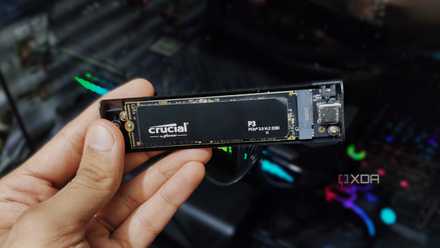
Your old SSD might be slowing down — here’s the hidden settings I changed
It's time for change.
Cluttered, unorganized drives are the real problem
This impacts performance, responsiveness, and usability
For the longest time, I never really cared about what was on my storage drive. As long as the PC wasn't throwing any errors or warnings, I assumed everything was fine. From a purely technical standpoint, it was. Apps launched and worked, all the files were accessible, and the few games I had never really showed signs of slowdown. Then, one day, I deleted all irrelevant files, found and removed duplicates, cleared the app cache, and moved rarely used files to an external HDD, and the system performance improved immediately. Until then, my "Downloads" folder was a mess, my desktop had over 30 icons, and every app saved files to the directory it liked.
For gamers, the problem becomes even bigger, as modern titles easily eat up over 100GB of storage. Get a few of these, and your system starts to struggle. For the uninitiated, moving older games to an HDD is a smart approach. I am a big fan of old games, especially the early versions of Age of Empires, and I have realized that they work just as well on an HDD as on an SSD. It likely stems from the fact that these games were developed when HDDs were still the common storage medium.
If this applies to you, the first thing you should do is move such games or titles you occasionally play to an external storage drive. This would naturally free up maximum storage. And if the game doesn't run as well, you can always move it back to the primary SSD. At least this way, you will figure out which games actually benefit from being stored on an SSD and the ones that don't.
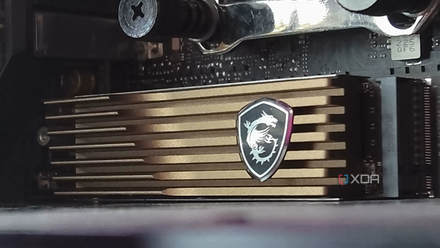
3 reasons you should have a dedicated SSD just for games
Keeping your OS and games on separate SSDs might actually make sense
Better storage organization can be a game-changer
With SSD prices climbing, optimize what you already have
Storage organization may sound like a boring, tedious task, and frankly, it is. Though you can automate parts of it, you will still need to verify occasionally that everything is working properly. But it's one of the best things you could do for your PC. It improves performance without costing you a dime. At a time when PC components are getting expensive due to increased demand, such optimizations are more useful than ever.
The next thing I did after moving games to the external SSD was to organize my "Downloads" folder. It had accumulated so many files, including 2-3 Windows ISO for different iterations and countless installers, over the years, that finding a simple PDF took longer than it ideally should.
Once I was done cleaning up, I even changed the default location of the "Downloads" folder to improve storage organization and free up space on the system drive. It was then time to free up space on the PC. As surprising as it may sound, this is not a difficult task. With built-in tools like "Disk Cleanup" and "Storage Sense" and third-party utilities like "WizTree," you can quickly free up more than 50GB on a heavily cluttered drive.
Score Storage Deals: Save on SSDs, HDDs & NAS
Once I had the core set up, I moved on to storage organization and optimization. That, frankly, included a lot of things, from pinning commonly used files to the Quick Access menu and apps to the Taskbar, to creating a folder structure that made sense to me.
Honestly, this isn't a one-time thing; you will need to pin/unpin apps and folders depending on what you are working on. I still run a monthly check to make sure everything is in order, that files aren't being stored in directories I don't want them in, and that everything I need is easily accessible. There's no right or wrong here. It all comes down to how you use the PC. But the aim is to streamline access and usability.

5 SSD myths that are simply untrue
Don't fall for these common SSD misunderstandings.
Faster storage still works, but not as much as you think
Having said all that, it's also important to realize that faster storage is not pointless. If you have the resources and can benefit from upgrading, it makes sense. But for the average user, someone who runs a handful of apps at once or isn't into competitive gaming, saving a second or two (at most) may not be worth the cost. Perhaps when (and if) prices stabilize down the line, you could upgrade to faster storage, but for now, storage organization is perhaps the smarter choice.