
When looking for a new SSD, it'snatural to want the best SSD that your device can support. And unless you're trying to upgrade from HDD to SSD in a device that only supports SATA, you're probably looking for an M.2 SSD. These storage sticks are around the size of a stick of gum (or smaller in some cases), and include some of the fastest storage we've tested. They're not all created equal, though, and there are several different types of M.2 SSDs to choose from. The good news is that some specifications matter more, and you can almost ignore the rest of them once you've got that selection squared away.
How to know if an M.2 SSD is compatible with your motherboard
Buying a compatible M.2 SSD for your brand new PC can confuse even the most experienced PC builders
M.2 is only the form-factor
It could have NVMe or SATA SSD circuitry or something else entirely
While you might think that M.2 denotes the type of SSD, it's actually the name of the form factor, which includes a rectangular internal expansion card for use on PC motherboards and laptops. The M.2 standard is flexibleand can be used for things other than SSDs, but the most common options include up to four PCIe lanes, one SATA 6 Gb/s, and/or one USB 3.0 port. That USB port is commonly used on Wi-Fi cards, where Bluetooth is handled over USB, and Wi-Fi over the PCIe lanes, but isn't really used on SSDs.
What is a choice of two options:
- SATA: Older specification, tops out at around 550 MB/s transfer speeds, often takes up one of the physical SATA ports
- PCIe AHCI: Some older SATA M.2 SSDs use this specification, which uses the PCIe interface but still isn't as fast as NVMe, tops out at around 600 MB/s
- PCIe: Uses NVMe for much faster communication speeds, can use Gen 3 (3,000 MB/s), Gen 4 (up to 11,000 MB/s), or Gen 5 (up to 14,900 MB/s)
It's worth pointing out that NVMe can transmit over other protocols, so it's important to know that in this case it's M.2 NVMe using a PCIe connection. Most M.2 SSDs on the market use PCIe 4.0 or PCIe 5.0, but some companies still make SATA M.2 drives. Oh, and M.2 NVMe drives are backward compatible, but they'll run at the speed of the M.2 slot (if the SSD is a newer generation). Before you purchase, knowing which variant works on your motherboard or laptop is essential.
They're also keyed differently
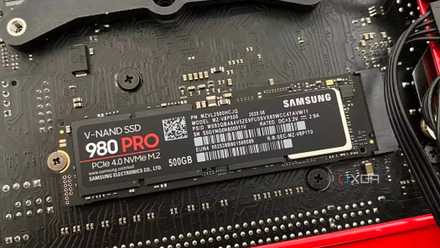
All M.2 cards use "keyed" connectors to connect to your motherboard or adapter cards, preventing issues if they're plugged into an incompatible socket. While the M.2 specification has 12 options for keying, M.2 SSDs mostly have three options: B, M, and B+M . The vast majority use M keying, which you'll find on the best M.2 SSDs using NVMe, like in the above image, where the notch is at the bottom of the connector pins when held with it pointing to the right. The lettering will also be printed on the PCB, and you could see SATA SSDs with this keying, but it's less common.
M.2 SSDs using the SATA protocol are fairly rare now, but they can either have B keying or B+M to fit into more socket types. B keying can also be found on NVMe SSDs that use two PCIe lanes, but these are also rare nowadays, with most NVMe using x4 lanes. B+M keying is also used for WWAN+GNSS cellular cards. You can also find M.2 Wi-Fi cards. These are usually keyed with A, E, or A+E and go in a different socket on your motherboard.
7 non-SSD devices you may be able to use in your M.2 slot
You might know it as your SSD connector, but the flexible M.2 slot is capable of so much more
Sizes, sides, and other specifications to consider
For most people, size and capacity are the only things to worry about
The only other specification you need to be aware of is the length of the M.2 SSD you need. Desktop motherboards can use a variety of lengths, but 2280, which is 80mm long, is the most common. Gaming handhelds like the Steam Deck use 2230, which are 30mm long, while the Legion Go used 2242, which are 42mm long. All of these are 22mm wide, and while the specification for M.2 has other width options, consumer SSDs only use 22mm so far.
|
M.2 Size |
Length (mm) |
|---|---|
|
22110 |
110 |
|
2280 |
80 |
|
2260 |
60 |
|
2242 |
42 |
|
2230 |
30 |
I'm not sure if I've ever seen 110mm or 60mm long M.2 SSDs, but according to the specifications, they're technically possible. The length somewhat determines the maximum storage capacity: the 2230 can hold a maximum of 2TB, while the 2280 can have a maximum of 8TB, using both sides of the M.2 PCB. If your SSD is under 4TB, it's more likely to be single-sided, which is vital if you're upgrading a laptop or other device with limited internal space.
SLC, MLC, QLC, and TLC
While looking for M.2 SSDs, you've probably noticed this group of acronyms. They all follow the same naming scheme, *-level-cell, which refers to the design of the NAND used. Older reviews and forum posts will likely say SLC (single-level-cell) and MLC (multi-level-cell) are the best types, but they don't exist in the consumer market nowadays, and haven't for many years. Any M.2 SSD using these technologies is likely to be worn out by now, and should be avoided, in my opinion, if you value your data integrity.
Triple-level cells store three bits of data per cell, and quad-level cells hold four bits. These allow for large capacities at lower costs, and the manufacturing process has matured to a point where SSD wear is overhyped. Consumer drives will easily outlast their warranty period, and better controllers and caching mean that the NAND can last as long as older SSD cells, while costing much less.
If you need DRAM, you probably know you do (and expect to pay a premium)
I can feel the comment section already, but most users don't need to pay extra for DRAM cache on their SSD, at least not anymore. On DRAM-equipped SSDs, that chunk of memory stores the data mapping table (with a ratio of 1MB of DRAM per 1GB NAND), which slightly speeds up your operating system's search for the data it needs at any time. A common misconception is that it caches user data, but that's incorrect—data passes through the controller into the input buffers of the NAND die, or pseudo-SLC cache, where it then passes to storage.
Even when it was more useful, DRAM cache sped up smaller file operations, like those that an operating system would perform. But many DRAM-less M.2 SSDs nowadays have a Host Memory Buffer (HMB), which will pre-allocate part of your system's RAM to serve as the DRAM cache, essentially giving similar performance. The only place HMB doesn't work is on devices that don't support it, like the PlayStation 5. DRAM cache might help with those devices, but it will be marginal at best.
If you prefer DRAM cache, look for Samsung's Pro range, which is the only reliable place to get it on M.2 SSDs. Some other manufacturers might use it in their premium range, but you might have to look for reviews of the individual drives to find out.

I tried using an M.2 SSD in a PCIe adapter instead of my motherboard, and the results were impressive
Add more speedy storage with those unused slots.
Not all M.2 SSDs are created equal (and that's okay)
At this stage, M.2 SSDs are considered mature technology, and the older myths around them can be safely ignored. It's even harder to find a 'slow' SSD these days, and it's more important to know that if you have a recent motherboard or laptop, almost any M.2 SSD will work, as long as you check the length of the slot it's going in.