
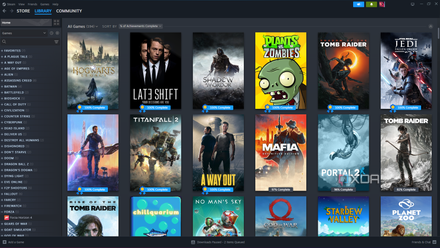
There's no doubt that Steam is the undisputed champ of handheld gaming PCs. There's the fact that SteamOS is faster than Windows, but also the existence of Steam Big Picture mode. It's not technically called Big Picture mode anymore, but regardless, it's Steam's redesigned 10-foot, controller-first interface that first debuted on the Steam Deck before rolling out to Steam proper. It's a great launcher, but it's not the best. The best launcher you can use for your handheld gaming PC, and maybe even your PC in general, is Playnite.
Playnite isn't exactly some niche app, and if you do even a cursory search for alternative launchers to Steam, Playnite will be near the top of the list. My goal here isn't to uncover Playnite for you. It's to show you why you should be using it, especially if you have a Windows-based handheld gaming PC like the ROG Ally X.

I had rock-bottom expectations for the unified Xbox PC app, and it's still worse than I thought
Microsoft wants to create an aggregated PC library, but this ain't it.
When a universal launcher is actually universal
It just works
There are a handful of "universal" launchers available, but I'd argue that Playnite is the only one that should truly claim that title. Microsoft's recent push with the Xbox app barely works, and it only supports a couple of storefronts: Steam and the Epic Games Store. Steam can technically work as a launcher for any app on your PC, but it requires manually adding every app you want to use, and there aren't any proper integrations with other storefronts. You don't get metadata, achievement or playtime information, or even so much as how much space the game is taking up on your SSD.
The clearest alternative to Playnite is GOG Galaxy, but once again, calling it "universal" doesn't feel fair. It offers a slew of integrations that allow you to not only see the games you have installed on other platforms, but also the games you don't have installed. It'll even show you metadata, achievements, and playtime. A quick search on the GOG subreddit will turn up dozens of threads about Galaxy being abandoned and integrations left behind. And speaking from my own experience, I've seldom loaded into Galaxy without at least one integration breaking, and often multiple.
GOG Galaxy
That's not at all the case for Playnite, and I suspect that's largely due to the fact that it's open-source, and has dozens of contributors working on the project. The main integrations are written and maintained by Playnite, and they include the following storefronts:
- Amazon Games
- Battle.net
- Epic Games Store
- GOG
- Humble
- Itch.io
- Rockstar Games
- Steam
- Ubisoft Connect
- Xbox
Those are just the integrations from Playnite itself. This is an open-source app, and it has an open-source ecosystem; one I'll dig into more in the next section. Just for integrations, though, there are add-ons for just about every PC key reseller online, console game libraries for PlayStation, Xbox, and Nintendo, a GeForce Now plugin, and even Meta Quest support. These add-ons may not work as well as the official list of integrations, but at least Playnite gets the basics right. The integrations work, and they show all of your games, installed or not.
Out of my library of over 1,300 games spread across different platforms, less than a dozen of them had incorrect metadata.
Even better is that this is an automatic process for Playnite. When you install the app, you'll be asked which integrations you want to use, and for those you select, you'll need to sign in to your respective accounts. After that, Playnite will automatically scan all of your accounts, add your games, and pull all the correct metadata for them, including imagery. Out of my library of over 1,300 games spread across different platforms, less than a dozen of them had incorrect metadata. It wasn't even the wrong metadata, either; there just wasn't a match. Regardless of the situation, you're free to edit the metadata, and even hook different sources into the app.
It takes time to set everything up, but Playnite is truly universal; or, at the very least, it's a heck of a lot more universal than any other launcher out there.

How I turned my gaming PC into the ultimate console at home
PC gaming isn't always streamlined, but we can fix that.
Getting your games in one spot (with style)
Have both form and function
Having a universal launcher on a handheld is important, not only because you need to get around with a controller, but also because you're often playing on multiple platforms on a Windows-based handheld. All the big handhelds have their own launchers, from Asus' Armoury Crate to Lenovo's Legion Space, but you have very little control over them. Playnite lets you configure it so it looks and feels the way you want it to.
I'm talking about themes, but stick with me for a minute because themes go beyond just being some half-baked CSS. For the look, all the usual suspects are here. There are themes modeled after PlayStation, Xbox, and Nintendo consoles; Themes like Platforms offer a minimalist view of a massive library, and Aniki-ReMake offers a theme rich with metadata. If you want something that looks like Steam, there's Playnite Deck. And if you'd rather navigate with the touchscreen, there's Toggle, which is a theme created specifically for touch controls on handhelds.
Every theme I've used has worked great, but more impressive than a fresh coat of paint is what you can do with it. Playnite supports community add-ons, and a good chunk of them make using a handheld significantly easier. Some are required, such as Extra Metadata Loader for dense themes like (u)biquity. Others, like DuplicateHider, automatically help your library look more tidy. And more still, such as BootVid, allow you to have a console-like experience on your Windows handheld.
Beyond that, there are plenty of add-ons made specifically for handhelds, such as Playnite Game Overlay that, as you might guess, gives you an overlay in games for Playnite. My favorite, however, is PlayState. With a hotkey, it allows you to suspend or resume any game at any time, which is huge for Windows-based handhelds. There are third-party tools you can download for suspend features on Windows, but with Playnite, it's available right in the add-on repository that's built into the app.
6 best game launchers to organize your game collection
Tired of scrolling through dozens of launchers to find a game you want to play? use one of these apps to store your entire collection in one place
As much (or little) as you need
With great power...
Playnite is so great because it's so flexible. That's the power of open-source software and developers who've designed community support into their application. I've touched on a few add-ons already, but you can trick your library out with integrations for HowLongToBeat, IsThereAnyDeal, Game Engine Checker, and Game Relations. You can focus on organization with add-ons like AutoCategories, DuplicateFinder, and FilterMaster. Or you can ignore all the wonderful add-ons available and just boot up PlayNite in full-screen mode. There are just so many options, from Special K integration to add-ons like SkipUacTask, which automates UAC prompts for games that trigger them.
That's also what makes Playnite tough to recommend to some people. It's not as easy as just settling for the occasional jank in Armoury Crate, or sticking with Steam Big Picture mode, knowing you'll need to tap dance on the screen to launch some of your non-Steam games. Playnite is incredible once it's set up just the way you like, but getting there takes plenty of legwork. And as anyone who's used applications with a library of community-created add-ons can tell you, they don't always work. Sometimes things break, updates fail, and conflicts occur. Playnite isn't any different.
But if you're willing to take the time to get everything configured, discover the add-ons you want, and get your accounts synced up, Playnite is fantastic. It's so good that I wish it wasn't only for Windows, in fact. Being able to utilize a powerful launcher like this on SteamOS or Bazzite would be fantastic.