
When I find myself stuck on a lengthy drive, the last thing I want to do is mess around with my in-car infotainment system.
While that usually means I end up using Apple's CarPlay, more recently I've been spending time with Android Auto and the wild world of sideloading apps. With that in mind, there are a few things I've done, either on my phone or in Android Auto's settings, to make sure I'm focused on the road ahead rather than hunting down a specific app or fiddling with Spotify playlists. I'm the type of person who almost always wants a streamlined experience with their tech devices, and when it comes to Android Auto, I find that it's even more important.
Most of these suggestions are pretty straightforward, but they're also the kind of things some people might overlook, especially if they're not familiar with Google's in-car infotainment system platform.
Reorganizing Android Auto's launcher is key
Move apps you use to the top and remove any you don't need
One of the first things I did with my Android device was reorganize my Android Auto launcher to make it easier to find the apps I actually use quickly. This meant moving apps like Waze, Spotify, Google Maps, PocketCasts, Settings, and a few others to the top, as well as removing apps that have no purpose being on my dashboard, like Teams, Google News, Facebook Messenger, Discord, and more. Sometimes I wonder why the Android Auto version of some of these apps even exists? Is anyone actually sending Discord messages through Android Auto?
To do this on my Pixel 10 Pro, I head to Settings > Connected Devices > Connection Preferences > Android Auto > Customize Launcher. I then uncheck any apps I don't want to appear on my in-car screen. To move apps around, I long-press the left side of the app where the six boxes are located and drag the app to where I want it. This might sound like a minor change, but it really does go a long way to ensuring you're paying more attention to the road and not searching for that app buried on the second page of your home screen.
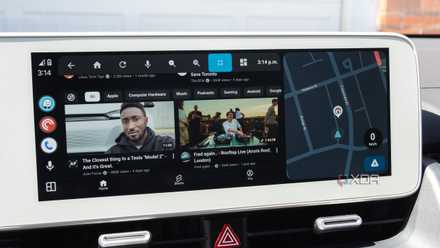
3 useful sideloaded Android Auto apps I use almost every day
The open nature of Android Auto is one of its key advantages over CarPlay
Set your Spotify playlists ahead of time
Then you won't need to scroll to find that perfect road trip track
A key thing I've learned to do before long drives is to have my Spotify account ready to roll before I even get in the car. For this one, you'll need to handle it primarily on your Android device rather than through Android Auto. First up, I make sure my favorite playlists are pinned to my Library. This includes, of course, "Divorced Dad Rock," the Blend playlist I share with my partner, Discover Weekly, and Spotify's AI DJ, which I still use quite frequently even though its song choices seem to have declined significantly.
To do this, I open Spotify on my phone and long-press on the menu item I want to pin. Next, I select Pin from the drop-down menu (it's towards the bottom). One other thing I do is add any recent songs I think I might want to listen to my custom playlist, "Only the dopest sad boi songs." Yes, I am a very serious person. To do this, I find the song in my Spotify app on my Android device and tap the three-line menu on the right side. Next, I select Add to Playlists and select the specific playlist I want the track added to.
I turn off all messagenotifications when driving
If you need to get ahold of me, call
In every other situation, I probably won't answer your phone call and expect a text, but when I'm behind the wheel, just call me. With that in mind, I actually turn off message notifications (and all notifications, for that matter) in Android Auto's settings, so I don't feel the urge to respond to whoever is trying to contact me, whether it's through a voice message or by typing on my phone.
To do this, I head to Settings > Connected Devices > Connection Preferences > Android Auto > and untoggle Show Message Notifications. With message notifications entirely turned off, I'm able to stay locked in to the purpose at hand: driving.
I begrudgingly use voice commands whenever possible
It will never feel normal to me to talk to a voice-activated assistant
I know we're in the AI assistant era, but I absolutely hate talking out loud to tech devices, whether it's Siri, ChatGPT, or, in this case, Google's Gemini, which recently finally showed up on my Android Auto. On a side note, I'm not a big fan of Gemini in Android Auto and find it far less capable than Google Assistant. It often mishears me and struggles to perform very basic tasks, which is very disappointing. I'm hoping Google has plans to improve Android Auto's Gemini integration very quickly.
Save on Phones & Mobile Deals for Smarter Car Use
By using Gemini with Android Auto, I try to spend less time actually touching my Ioniq 5's display. For example, I'll ask the AI assistant to launch Waze or Google Maps, and in some cases, even specific songs on Spotify. It's slow, clunky, and sometimes just really feels like it's talking too much, but if it's a simple task I'm not in a hurry to get done, I always rely on Gemini when I'm in my car since it keeps my eyes on the road and off the screen.
Google Assistant or Gemini should already be running in Android Auto, depending on your country, but if you're running into an issue, make sure both apps are up-to-date by opening the Play Store > select Your Profile in the top corner > Manage Apps & Device > Updates Available.

4 Android Auto settings I changed to make it feel truly mine
Night Mode, setting a custom wallpaper, shifting media controls, and more.