
Your home Wi-Fi network might be powered by a new Wi-Fi 7 router and a Gigabit internet plan, but it's only as strong as its weakest link. Errant devices with outdated Wi-Fi standards may not reduce the wireless speeds on your PC or smartphone, but they still make everything feel sluggish. Your smart TV is one of the devices that usually flies under the radar.
You may not suspect it, but older TVs can slow down your other devices. Like your smart home devices, your smart TV can hog airtime on your Wi-Fi network, becoming a bottleneck for other devices connected to the same network. Thankfully, you can isolate your TV to its own Wi-Fi band, use Ethernet to bypass Wi-Fi entirely, or switch to an external streaming device.

I thought my Wi-Fi problems were interference, but it turns out it was airtime
An abject lesson in the perils of overcrowding any access point
Slower devices can drag everything else down with them
Your TV and home automation devices are to blame
Most of the devices connected to your home network support modern Wi-Fi standards, such as Wi-Fi 6E and Wi-Fi 7, but your smart TV from a few years ago probably still uses Wi-Fi 5 or even older technology. This means it lacks key features such as OFDMA and uplink/downlink MU-MIMO, which are essential for managing multiple data streams while avoiding high latency and congestion. While your TV streams 4K content from Netflix or Plex, it can realistically become a choke point for other high-traffic devices like smartphones, laptops, and desktops. This doesn't affect the connection speed on your devices, but the airtime issues the TV creates can introduce slight sluggishness as everything waits for the TV to finish its handshake with the router.
Your smart home devices, like plugs and bulbs, are also notorious for being stuck on Wi-Fi 4 (sometimes Wi-Fi 5), causing the same problems across your entire network. To resolve airtime fairness issues, you should ideally optimize your router's QoS settings. You can configure which devices receive priority traffic from the router, limiting how much your smart TV and home automation devices can hold your network hostage. This way, your TV can't interfere with your Zoom calls, Steam downloads, or doomscrolling.

4 router settings most people never change that actually fix slow Wi-Fi
Don't blame your router or internet plan before checking your router's settings
Older TVs are limited to the crowded 2.4GHz band
Adapt, improvise, overcome
Although your smart TV might work well on the 2.4GHz band due to the longer range, it doesn't bode well for other devices on the same band. You might have moved almost every other device to the faster, less-congested 5GHz band, but those farther from the router may still be on the 2.4GHz band for optimal connectivity. This band is usually the most crowded, thanks to your smart home devices, Bluetooth signals, and neighboring Wi-Fi networks. Your old smart TV may not even have a 5GHz band to switch to, or even if it does, it may lack proper beamforming support to make the most of it. That's probably why you use it on the 2.4GHz band, but its constant traffic can make life difficult for various other devices on the same band.
The way out is to dedicate the 2.4GHz band to the TV and smart home devices and move everything else to the 5GHz or 6GHz band (if available). For devices farthest from your router, explore options to hardwire them via Ethernet, powerline adapters, or separate access points. You can also create a dedicated VLAN for your TV and other 2.4 GHz devices to keep them separated from your smartphones, laptops, desktops, tablets, handhelds, and other devices.

Smart TVs have been deteriorating for years, so I use a PC instead
This Mini HTPC is smaller than an Apple TV, but way more functionality
Use Ethernet or a streaming device to bypass the poor hardware
There's merit in both strategies
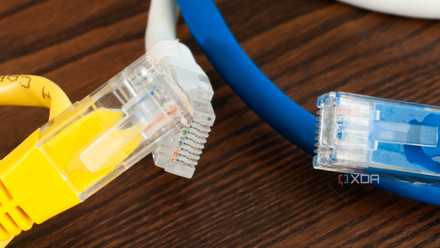
Of course, the best way to keep your smart TV from wreaking havoc on your wireless devices is to remove it from the Wi-Fi for good. Your TV most likely has an Ethernet port, which you can use for a highly stable wired connection to the router. Not only will our streaming performance improve, but all your other devices will also get a slight boost. Routing Ethernet can be a pain in some homes, but the benefits are worth it. You'll face fewer disruptions and slowdowns and enjoy high-bitrate streams from your local media library with unprecedented efficiency.
If hardwiring the TV is out of the question, you can explore external streaming devices to bypass the TV's dated hardware. Even budget streaming sticks like Amazon's Fire Stick and Roku Streaming Stick feature modern, powerful hardware to eliminate most of the issues plaguing older TVs. Premium options like the Apple TV 4K (3rd Gen) can be great for those already in the Apple ecosystem. These streaming boxes provide a much smoother interface, fast and low-latency Wi-Fi, and fewer ads than your smart TV's native software. It would be convenient to have every device in your home run smoothly on the same wireless network, but reality doesn't always bend to your will.
4 real-world benefits I got from wiring Ethernet to just two rooms
It's amazing the difference that just a couple of wired rooms can make
Your smart TV isn't so smart after all
Depending on your smart TV's age, it could be severely limited by its hardware. Older Wi-Fi standards can force it to use the 2.4GHz band, interfering with other devices on the same band. Plus, the lack of modern wireless features can cause airtime fairness issues as your devices wait for the TV to finish talking to the router. Adjusting your QoS settings, switching the TV to Ethernet, or moving to an external streaming box can solve these problems and make your Wi-Fi feel smooth again.