
Going deep into the Reddit rabbit hole and watching dozens of YouTube videos to understand my first NAS better threw a lot of information (read: noise) at me. I was flush with everything I needed to set up the NAS, keep it running with maximum efficiency, and things I needed to upgrade over time for it to feel like new, even after a few years. One of the upgrades that everyone seemed to unanimously propagate was SSD caching, as if it were the holy grail to fix all performance woes.
And it seemed logical too: SSDs are faster, and working as a buffer between you and the hard drives, they can make transfers feel snappy. After a few weeks of living with the NAS and tinkering to my heart's content, I wanted to make SSD caching my next project to invest myself in. Installing two new NVMe sticks on my Synology NAS, the early novelty soon wore off, only for me to realize that my NAS didn’t actually feel any faster.
That’s when I started digging into what caching really does, and more importantly, what it doesn’t.
Theory vs experience
How things worked out IRL was completely different
The basic idea behind SSD caching is simple: the NAS stores frequently accessed data on the SSD so it can serve it faster the next time. That means caching can help, especially when you are repeatedly opening the same files or running the same apps, such as your photo libraries, databases, or virtual machines.
However, a lot of home users like you and me don’t use NAS setups like that. I mostly store backups, large media files, and documents I open only once in a while. That’s sequential data — the kind you move around or access but don’t open repeatedly in small chunks.
Caching, on the other hand, thrives on repetition, and my usage didn’t have enough of it. So, after the first few transfers, the cache wasn’t doing much for me or the system. The read-write tests I ran looked great on paper, but the day-to-day experience didn’t change. It was one of those moments where you realize you’ve optimized the wrong thing. It was a bit like switching to a new high-refresh-rate monitor when your computer is the one lagging and jittering.
What actually made a difference
It was a multi-part solution
For a storage device, our entire attention is on the drives because they are the heart of it. But oftentimes, drives are the last thing slowing your system down. Multiple minor and often ignored factors collectively make your NAS feel sluggish. It could be the RAM, the Ethernet port, the connection medium, NAS settings, and whatnot.
Once you start looking, you realize how many tiny constraints pile up, affecting your NAS’s performance and health. I needed to address a bunch of them to let the NAS perform at its maximum capacity.
More RAM fixed everything
One reason the system felt slow was due to RAM constraints. My NAS came with 4GB of onboard memory, and I used the spare slot to double that. It made the kind of real-world difference that SSD caching could never — apps started to load faster and stay in memory for longer, Plex library scans stopped lagging, and file indexing sped up considerably. And a lot of NAS operating systems can use RAM for caching instead of SSDs, which are comparatively much slower. So, it brought about a difference across the board.
Link aggregation
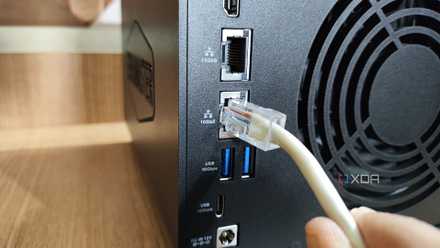
My NAS has a gigabit port, which isn’t upgradeable either, so I am kinda stuck with it. In an ideal world, your NAS has at least a 2.5GbE port or preferably a 10GbE port for maximum throughput over the LAN. Some modern NAS units even let you swap out the port itself for a faster one, but in my case, I had relied on something called link aggregation.
A 1GbE port can sustain about 110MB/s of transfer speeds. While enough for regular use like mine, if I am transferring large files, other client devices on the network would start facing performance dips. That’s because my laptop is hogging all the available bandwidth, requiring me to reserve such transfers for off-peak hours.
Link aggregation is a simple solution to this problem, essentially doubling the available bandwidth for more devices to access data without affecting everybody else on the network. It won’t speed things up for you but will instead keep transfer speeds steady for everyone.
5 reasons you should use link aggregation on your NAS
Both home users and businesses can benefit from it
Other small configurations
Besides these major changes that brought about a visible upgrade, I also made a few little changes everywhere that contributed to the larger performance uptick I noticed. For instance, I disabled unnecessary background tasks, streamlined folder permissions, and adjusted SMB settings to free up some system resources. SMB multichannel, where supported, and tweaking the transfer buffer size made speeds more consistent. These alone didn't bring a huge change, but the experience felt less laggy.

How you can turn an old SSD into a high-performance cache for your NAS
Upgrade your RAM with some speedy SSD caching.
The myth of ‘quick’ upgrades
There's more than quick fixes
SSD caching itself isn’t a bad idea; it just didn’t make sense in my case. It’s easy to get caught in the excitement of new hardware and upgrades, especially when they sound promising and super simple to implement. I took my time to learn that NAS slowdowns aren’t always related to the drives or the specific storage units — they come from everything around them: memory, network, and even software.
The reality is that caching does help, but in repetitive workloads, not in general home setups where you mostly store large files or backups. Those use cases benefit from the kind of upgrades I did over the years. So, you’d be better off saving cash by skipping NVMe drives altogether and investing in hardware tweaks that will actually make a difference.
QNAP TS-464
- Brand
- QNAP
- CPU
- Intel Celeron N5095
- Memory
- 8GB DDR4 (max. 8GB)
- Drive Bays
- 4
- Expansion
- 2x M.2 PCIe 3.0, 1x PCIe Gen 3 x2
- Ports
- 2x 2.5 GbE, 2x USB-A 3.2 Gen 2, 2x USB-A 2.0, 1x HDMI
QNAP's TS-464 is an impressive four-bay NAS with a striking design, powerful internal specs, and IR support for a remote control. If you're looking for the best-equipped NAS for running Plex (or other media solutions) without spending a small fortune, this is the NAS for you.