
I'm not pointing any fingers, but it's possible that you might unknowingly be hurting the performance of your gaming PC, even after using it for a few months (or years). You might not even know you're guilty of one or more of the following things, since Windows will not alert you in most cases. Alternatively, you might be ignoring some telltale signs, considering them "business as usual" for a gaming rig.
Most of these mistakes have to do with software, but a few are about hardware too, specifically the installation of it — which you would have done months or years prior, if you built your machine yourself. They might seem obvious to many readers, but for those of you who realize something is wrong, it's time to take back the lost performance of your gaming PC.
8 ways you are unknowingly ruining your Windows experience
Windows habits that are secretly killing PC performance
7 Running unnecessary startup apps
A few clicks, and you're free of the drag
I'll start with the most obvious performance optimization tip: the more programs running in the background, the greater the drag on your system resources. And most of these programs sneakily get launched the moment you boot into Windows, since they're set to run at startup by default. Programs like Steam, Xbox, Discord, Spotify, antivirus tools, MS Teams, OneDrive, and more are commonly seen running in the background right from the start.
It's not entirely your fault — the moment you install something new, it gets added to the list of startup programs, and ends up consuming memory and CPU bandwidth in the background. Unless you really want Teams or Discord to be up and running the moment you restart your machine, it's better to disable them in Task Manage or Windows settings. Not only will your system boot faster than before, but you'll also free up precious resources for gaming and other necessary applications.
7 apps that could be slowing your Windows performance
Is your Windows laptop feeling sluggish? These seven apps could be affecting performance.
6 Ignoring fan curve optimization
Do you hear them spinning?
Chances are you've got around 8 to 9 fans inside your PC, including the intake, exhaust, CPU cooler, and GPU fans. With so many fans packed together, it's natural for things to get noisy the moment you launch a demanding game — unless you've optimized fan curves for each of the fans. After building your gaming PC, you should always tune your fans based on your preference for acoustics and performance. If you think a gaming PC always sounds noisy, you might be in for a surprise.
You can often choose from pre-tuned profiles in the BIOS, picking either a silent one for a Zen-like vibe, or an aggressive one for the best thermals. The ideal is obviously to have a balance between the two. While you can set custom fan curves in the BIOS/UEFI for the CPU and system fans, you'll need to use a program like MSI Afterburner to do the same for your GPU. Alternatively, you can use an all-in-one program like Fan Control to not only set up all your fan curves, but make them communicate with each other for the best results.

PC airflow guide: How to strategically set up your case fans
You'll need to set up proper airflow inside your PC case for optimal cooling. This guide will show you how.
5 Using the SSD in the "wrong" slot
It works, but it can be much better
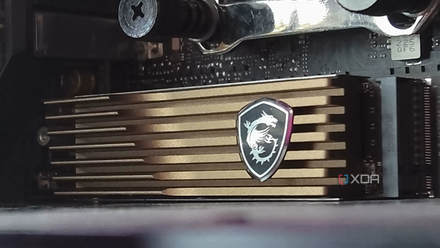
If your motherboard has multiple M.2 slots, you might be forgiven for thinking that you can install your SSD in any of them, and expect the same results. Most motherboards have two or three M.2 slots that can be one of Gen3, Gen4, and Gen5 types. These are communication protocols that determine the bandwidth available to your SSD, also known as PCIe 3.0, PCIe 4.0, and PCIe 5.0, respectively. Running your SSD in a slot slower than your drive's maximum speed can result in performance loss.
While the impact of running, say, a Gen5 SSD in a Gen4 slot might not be noticeable, that of installing a Gen4 SSD in a Gen3 slot can be felt in many scenarios. A PCIe 3.0 slot is capped at 3,500 MB/s, whereas a Gen4 slot can reach speeds of up to 8,000 MB/s. A Gen4 SSD with around 5,000 to 7,000 MB/s speed will be forced to run at around half of its potential in a Gen3 slot — your gaming FPS might not change, but you might see slower boot times and slightly delayed application launch times.
There is another concern around SSDs "stealing" PCIe lanes from the GPU (essentially reducing it from x16 to x8 mode) when installed in a slot that shares PCIe lanes with the GPU's PCIe x16 slot. While the performance difference is negligible to make a difference to any current GPU (even the RTX 50 and RX 90 series GPUs), you should still try to use the primary M.2 slot when installing your main SSD to avoid halving the bandwidth available to your GPU.
Can your GPU be slowed down by your NVMe SSD?
It's widely believed that an NVMe SSD in the primary M.2 slot can hurt GPU performance. Is that really the case?
4 Using an outdated BIOS
Sometimes, it's worth the hassle
I get it — if it ain't broke, don't fix it. I admit I haven't updated my BIOS in a while, but your outdated BIOS/UEFI version may be hampering performance or threatening the security of your PC. Some BIOS updates bring new features, improved gaming performance, and better stability for your CPU, especially when we're talking about hardware that's still fairly new.
For instance, BIOS updates for AMD's Ryzen 9000 and Intel's Core Utra CPUs were basically mandatory if you didn't want to leave performance on the table (or wanted your CPU to not crash, in Intel's case). In other cases, BIOS updates are needed to patch critical vulnerabilities similar to Meltdown and Spectre attacks, or Zenbleed. If you haven't updated your BIOS in years, moving to a recent version could bring pretty significant performance improvements in gaming and other areas.

You should update your BIOS, but maybe not as often as you think
How often should you update your BIOS?
3 Ignoring Resizable BAR
Time to resize your FPS
ReBAR or Resizable BAR is an advanced PCIe feature that allows the CPU to access the entire VRAM of your GPU at once instead of making multiple small transfers. This improves the communication between the two, and can net you a significant performance boost, depending on the game in question. AMD calls this Smart Access Memory, but the idea is the same — rather than keeping game assets waiting in queue, ReBAR can feed them concurrently to the GPU, speeding up performance.
ReBAR can improve your FPS by around 5 to 15%, depending on the hardware you have and the games you play. If you have an RTX 3000, RX 6000, or newer GPU, and an Intel Core 10th Gen, Ryzen 3000, or newer CPU, you can enable ReBAR in the BIOS settings. I should say "UEFI settings", since Resizable BAR is incompatible with BIOS, and you'll need to upgrade to UEFI to make use of it. You'll also need to convert your disk's partition table from MBR to GPT to support UEFI.

3 overlooked reasons you should move on from your ancient CPU
You might not have considered these factors before
2 Not enabling EXPO/XMP
Don't cripple your RAM speed
In case you didn't know, your RAM's rated speed isn't enabled by default in the BIOS/UEFI. When you first assemble or buy your PC, you need to enter the BIOS and select the respective XMP (Intel) or EXPO (AMD) profile to run it at the speed written on the box. Enabling XMP/EXPO is important not only to get the speed you paid for, but also to improve performance in terms of 1% lows in gaming, and the overall system responsiveness.
It's easy to gloss over XMP/EXPO, since your PC will seem like it's running just fine without it. However, you might be leaving a significant chunk of performance on the table, just by ignoring a few clicks in the BIOS. XMP/EXPO is way simpler than manually overclocking your memory — tightening RAM timings and tweaking frequencies might not even deliver the results to make the process worthwhile.

Here's why AMD EXPO/Intel XMP isn't enabled by default
Having XMP/EXPO turned on by default seems reasonable until it isn't
1 Not running RAM in dual-channel mode
Remember, slots A2 and B2 always
It's fairly obvious to PC builders and most pre-built PC manufacturers, but some users might still be missing out on the benefits of dual-channel memory. Installing your RAM kit in the A2 and B2 slots of the motherboard (usually the 2nd and 4th from the side of the CPU socket) enables the DIMMs to access both the memory channels supported by the motherboard and the CPU's memory controller.
RAM running in a dual-channel configuration can improve FPS significantly, sometimes up to 30%, especially in CPU-bound titles. You can also expect better 1% lows in games, thereby getting a smoother and more consistent experience. DDR5 RAM shows less dramatic improvements than that, but it's still faster than using single-channel memory.
Each DDR5 DIMM has two 32-bit sub-channels compared to a single 64-bit channel on each DDR4 DIMM, but that doesn't mean you're running a single DDR5 stick in dual-channel in the traditional sense. You're still only using a single channel on the motherboard's end, essentially utilizing half the memory bandwidth possible. Also, no consumer motherboard supports quad-channel memory configuration, whether it's DDR4 or DDR5.
Crucial Pro Overclocking DDR5-6000 kit (2x16GB)
- Brand
- Crucial
- Size
- 16GB, 32GB
- Technology
- DDR5
- Speed
- 6,000 MT/s
- RGB
- No
- Latency
- 36
The Crucial Pro Overclocking DDR5-6000 32GB is an affordable and fast memory kit for DDR5 gaming PCs, falling into the frequency sweet spot for AMD's Ryzen 7000 CPUs.

4 ways dual-channel RAM is better and why you should use it
We all know dual-channel RAM is better, but why? Where can you see the benefits?
The simple things can matter a lot
If you've been doing some of these things wrong on your PC, it's time to rectify your mistakes. These things might sound simple, but together they can dramatically improve the performance of your system. While most users would already know about each of the above items, it's possible some readers might have missed out on one or the other, especially stuff like Resizable BAR or BIOS updates.