
Storage failures can actually be quite difficult to predict. Whether it's a spinning platter or NAND flash, storage failures can feel like they hit out of nowhere, and the consequences can be disastrous. Besides backing up your data regularly, these 5 things should be part of your storage safety checklist, so you can catch any potential problems before they snowball into a dead drive.

5 signs your NAS HDDs are dying, and what to do next
Stay on the lookout for these telltale signs if you've got hard drives in your NAS setup
Check SMART data regularly
It's the smart thing to do
The first step to ensuring your system's drives are healthy and functioning as expected is to check SMART data. SMART stands for Self-Monitoring, Analysis and Reporting Technology, and it's built in to virtually all SSDs and HDDs. The attributes you'll be looking at between HDDs and SSDs will differ, but both types of storage have SMART as part of their firmware.
For SSDs, checking attributes like Percentage Used or Remaining Life can give you an idea of wear that your drive has undergone. This is generally in relation to the rated TBW (terabytes written) endurance. Relocated sectors are also worth taking note of; if your drive is swapping out bad NAND blocks infrequently, there's nothing to worry about, but a large number could indicate a failing drive. One SSD-specific attribute, called Erase Failure Count, can be checked after each SMART test, and if the number continually rises, your drive is likely kaput.
For HDDs, Spin Retry Count is a good indicator of whether your HDD's mechanical system is working as intended. This, along with Seek Error Rate, can be great indicators. A few isn't a big deal, but large numbers can be a red flag.
It's worth noting that SMART data isn't great for actually saving a drive, though. It's not a great indicator of whether you may need a drive soon, it's more useful as a method to diagnose a drive which is already failing. If you're having issues, it's worth checking SMART first to see if something is gravely wrong.

How often should you check your hard drive health?
We all know that we should monitor our storage drives to prevent data loss but exactly how often is enough?
Verify your file system semi-regularly
Hardware isn't everything
Even if your hardware is all fine and good, the file system running on your drive can corrupt, causing all kinds of nasty issues. You don't cause these kinds of issues on purpose; it's mostly due to sudden power loss, or irrecoverable system crashes, which can happen to anyone. Verifying your file system isn't worth obsessing over, but it's worth doing a handful of times every calendar year.
To do so on Windows, open up a command prompt window as administrator and type chkdsk /f. This will scan your disk and fix any errors or bad sectors. The same can be done on Linux with fsck, and on macOS within Disk Utility.

4 file systems you should consider instead of NTFS for your next SSD
Windows might be the most used operating system, but if you need specialized requirements, you have other options for file systems.
Keep firmware updated
Drives don't always have a perfect release
Sometimes, manufacturers release models of SSDs and HDDs that may contain firmware bugs. These can cause performance issues, data corruption, and, at worst, complete drive failure. It's rare, but is absolutely a concern. To mitigate this, make sure your drive firmware is updated. Before you do so, be sure to back up any data saved on the drive, and ensure your power is stable during the firmware flash, otherwise you risk bricking your drive. Look for official firmware updates on manufacturer support pages for your respective drive.
Maintain some amount of free space
Drives don't do well when they're close to full
Both spinning platter and flash storage suffer in performance when they're driven too close to 0% capacity. For SSDs, they need some amount of free space for overprovisioning, wear leveling, and (if your drive has one) SLC cache. Running too close to full capacity can completely cut off write speeds and even shorten lifespan. HDDs are the same, performance drops as the outer tracks are filled, and the inner tracks become the only place to store data. Fragmentation can also worsen as you get close to capacity. As a general rule of thumb, around 10% free space on an SSD will suffice, and closer to 20% on an HDD.
Ensure drive temperatures are in order
The easiest check of all
Heat is one of the biggest dangers in terms of longevity in any kind of electronics, not just silicon parts. Prolonged exposure to high temperatures and continuous and vast fluctuations can accelerate wear in both HDDs and SSDs.
In HDDs, platters can warp and bearings can be stressed. These mechanical parts need to be kept at a reasonable operating temperature. It's pretty difficult to get an HDD that warm in a consumer PC, but it's worth looking out for. SSDs can reach unsafe temperatures much more realistically, especially if you're dealing with large file transfers for prolonged periods of time. Heatsinks will mostly solve this issue, along with good airflow across both types of drives.
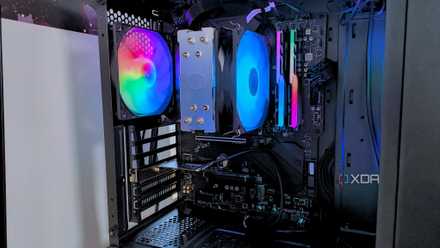
4 tweaks that dropped my PC temps by 20 degrees Fahrenheit
Small changes add up quickly.
Replace old drives before they fail
All drives will fail eventually. That's just the way that they're built. SSDs will wear out based on their write cycles, and HDDs will fall victim to mechanical wear. While their typical lifespans are in the realm of 5 years plus, it's still worth keeping an eye on the health of your drives, and when the time comes, replace them before they fail in order to prevent data loss.