
It's tempting to assume that a faster internet plan is the solution to all your Wi-Fi woes. However, most people aren't even saturating their existing bandwidth. The average home internet speeds in the US top out somewhere around 300 Mbps, which is more than sufficient for gaming, 4K streaming, and file downloads on multiple devices simultaneously. If your Wi-Fi connection feels lackluster, it's usually not the internet speed that's at fault. You need to look elsewhere to find the flaws in your networking setup, and identify the upgrades that will actually deliver a meaningful impact. Instead of aiming for Gigabit (or higher) speeds, revisit your router hardware, dead zones, channel selection, and QoS settings. Your existing internet plan is probably more than enough already — you simply need to remove the bottlenecks.
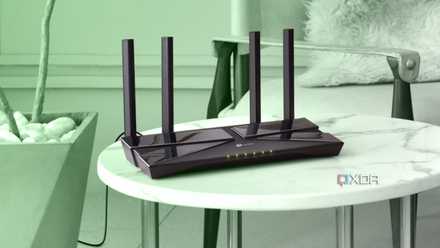
I thought I needed faster Wi-Fi, but I was wrong
The router antennae needed scientific adjustment is all
Upgrade your ancient router already
Wi-Fi 5 has too many compromises
Many ISPs have been using Wi-Fi 6 and 6E routers for a while now, but older Wi-Fi 5 models still exist in some home networks. If your setup is one of them, your Wi-Fi problems can easily be traced to your aging router. Wi-Fi 5 lacks some key features that make modern routers far better in crowded apartment complexes or high-density areas. First, your Wi-Fi 5 router supports only downlink MU-MIMO, allowing it to communicate with up to 4 client devices but without upstream (upload) support. Wi-Fi 6 overcomes this limitation by allowing both downlink and uplink capabilities between the router and up to 8 devices. This significantly improves signal strength and latency when your network is competing with several others in a high-density environment.
Second, Wi-Fi 5 doesn't support OFDMA, which allows the router to communicate with multiple devices simultaneously. OFDMA divides wireless channels into smaller units to enhance network efficiency and reduce latency when a lot of devices are connected to the same network. MU-MIMO and OFDMA work together to ensure your Wi-Fi doesn't feel outdated despite our network speed test showing a large number. If your ISP refuses to replace your router with a Wi-Fi 6 or 6E model, you can buy an aftermarket router yourself and connect it to the ISP's router, configuring the latter in bridge mode to avoid double NAT issues.
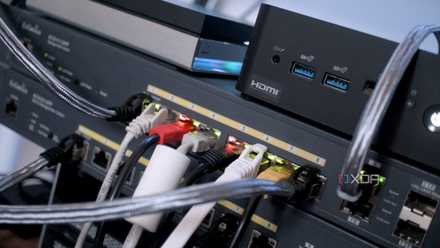
I regret sticking with my ISP router for so long — it's way better to make my own
Open yourself up to networking nirvana.
Don't be lazy with router placement
Your existing configuration may be suboptimal
Even with a Wi-Fi 6 (or 6E) router, you can't bypass the need to position it in an ideal spot in the house. If your router is installed in, say, the living room due to logistical constraints, the rooms furthest from the router are likely to get the short end of the stick. Dropped connections and slashed speeds are common in such situations, despite having the range advantages of a modern router. Try to relocate your router to a more central location inside the house, preferably at a height where it has a line of sight with as many devices as possible. You may need to extend the incoming fiber cable to allow the router to be repositioned.
Next, the antennas should not be in the default positions. Router antennas create wireless signals in a donut shape, where the antenna goes through the hole in the donut. Hence, your antennas should be positioned in various directions that are perpendicular to each other to maximize coverage over the entire house. Solid walls and other obstacles can ruin the performance of even the best routers, so you can't afford to stick with the default router location that your ISP deemed acceptable. If your router's existing location is suboptimal, ensure you change it to one where you get the least number of dead zones or areas with subpar latency and network responsiveness.
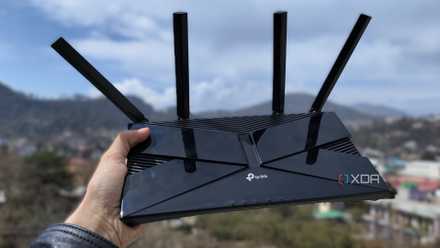
My router was in the wrong spot for 3 years: here's how I found out and fixed it
Good features cannot stand in for poor placement.
Use the right wireless channels
The defaults could be jamming your airways
The more devices you connect to your network, the harder it gets for each one to enjoy a fast and responsive connection. Modern routers and client devices overcome a lot of these challenges, but how do you bypass network congestion caused by competing networks in your vicinity? You and your neighbors use the same frequencies to receive Wi-Fi signals, and with enough competition, it can get crowded. This creates additional latency and a poor Wi-Fi experience despite everything seemingly perfect on the surface. You may not have touched your router's settings since the day the ISP's technician installed it, so you may be using subpar channels for months or years.
Switching to a better channel is simpler than it sounds. You just need to identify less-crowded channels using a program like WiFi Analyzer, and switch to them in your router's settings. Typing 192.168.1.1 in a browser window usually gets you to the router login page, where "admin" typically works for both username and password fields. Otherwise, you can try "password" for the password field. You may need to log in using your router's app to access all the settings. Once you select the appropriate channel, it's also worth choosing the right channel width. Wider channels like 80MHz and 160MHz allow for higher speeds, but can also encounter more interference and reduced coverage. You can switch to 40MHz or even 20MHz channels if you're experiencing sluggish performance on the wider channels.

5 things you can do to optimize your router for the best performance
Here's how to get the most out of your router
Optimize your QoS settings
Why leave performance on the table?
Most people don't need more powerful networking hardware; they just need to make the most of what they already have. Your router's Quality of Service (QoS) settings are another way to do just that. You may not have seen these settings before, but they can simplify bandwidth priority for your devices, ensuring the most demanding ones get the most attention from your router. Without QoS optimization, your router assigns equal priority to everything connected to it, which can mean that your gaming PC, smart TV, and smartphone are waiting on slower home automation devices. By turning on QoS on some routers or configuring more detailed settings on others, you can turn your slow and unstable connection into a surprisingly powerful one overnight, reducing ping during online gaming and buffering during media streaming.
Again, your ISP router may have the QoS settings locked down. In that case, you can connect your own router to the ISP's model, run the latter in bridge mode, and access your new router's QoS settings. You don't need a "gaming router" to improve your online gaming experience; QoS might be all you need to streamline your existing setup.

I set up QoS to manage bandwidth for my home connection and you can too
Quality of Services helps manage the network traffic to reduce buffering and slowdowns with video calls or streaming multimedia on your home network.
Invest in a mesh network to overcome poor coverage
It may be the last resort
If an upgraded router, improved location, and optimized settings don't cut it, you may need a mesh network to expand coverage inside your house. Unlike a direct device-to-router connection, a mesh network involves several mesh nodes situated around the house, which handle the device-to-network connection. Without a mesh network, the Wi-Fi performance starts to fall off when you move away from the main router. With the primary mesh node hardwired to your router and other nodes connected wirelessly to the primary node, all your devices can enjoy superior connectivity throughout the house. Some mesh networks support tri-band coverage, allowing a dedicated band for the signal to travel from the mesh nodes to the router, so that client devices can still enjoy a dual-band connection.
While mesh networks are excellent for large homes, they can also benefit smaller homes with layouts that obstruct the Wi-Fi signal from reaching every room of the house. You can test your Wi-Fi speed and responsiveness at various points in the house to find the dead zones. Even in a relatively smaller house, having two mesh nodes can make a world of difference to your Wi-Fi performance. Investing in a mesh network can seem expensive, but the upfront cost pays for itself over time as you can add more nodes to scale your network, based on your future needs.

6 myths you probably still believe about mesh networking
If you've been on the fence about getting a mesh network, or you're set on getting one, make sure you have all the details first.
Wi-Fi speed isn't everything
Before you rush to upgrade your internet plan to Gigabit (or faster) speeds, inspect your existing hardware and software. An ancient router, improper router placement, and unoptimized settings may be holding your network hostage. Faster speeds won't solve the underlying flaws in your Wi-Fi network. Upgrade to a modern router, invest in a mesh network, and optimize your router's settings to benefit from your existing setup's full capabilities.