
I have a bad habit of over-explaining things to Claude. I'd write these long-winded prompts trying to describe something, and often just talking in circles. This involves typing prompts that are almost as long as short stories, but also lots of copy-pasting text from web pages or notes apps, or downloading the whole page as a PDF to then upload to the chat for reference. All because I want Claude to have the full picture. It's not like this doesn't work, there just had to be a more efficient way to handle it.
The fix was so obvious it's a little embarrassing how long it took me to fully take advantage of it. Claude reads images exceptionally well - literally anything you throw at it, it can analyze and describe down to the tiniest element. I can screenshot anything and drop it in, and the long prompt that I normally would have sent shrinks down to basically nothing, because the image itself carries the context. This has been such a massive time saver, but there's a bit more to it than just hitting the Snipping Tool.
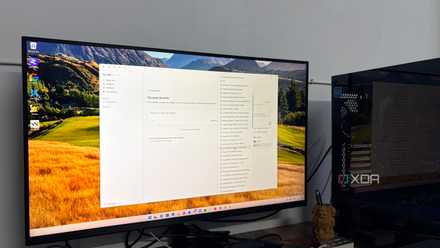
The Claude feature everyone ignores is the one I use every single day to boost my productivity
The ultimate Claude power-user trick
I was doing it the hard way at first
But there was a much faster way to talk to Claude
I got into this routine of downloading entire webpages as PDFs just to attach them to a chat, because uploading a file felt more reliable than pasting text in. But it was often just one section of one page I actually needed. Another thing I'd get stuck with is spending tens of minutes crafting a prompt trying to describe what was happening in whichever software I was using - whether I was stuck on a feature or a design workflow. It'd take forever just to describe my dilemma to Claude. Neither of these methods turned out to be as accurate as just showing Claude what I was working with, via screenshots.
When Claude looks at, say, a screenshot of a UI layout, it's not just reading pixels, it's understanding what the elements mean and what state the UI is in. Same goes for images of text - it can accurately transcribe text from imperfect images, but also understand what the text means in context. And then, your screenshot and the prompt you send with it get processed together as a single input, not sequentially. So it's not like it looks at your image first and then reads your message; it's reasoning about both at once. This is basically standard across all the big multimodal models now - GPT and Gemini included - it's just that nobody really talks about it, and Claude's massive context window makes it more useful in practice than it has any right to be.
You can add up to 20 images per session, up to 30MB each, on both free and Pro - so free users can also utilize this workflow. The max recommended size is 8k x 8k pixels. And it gets wobbly with very small or low-res images - anything under around 200 pixels is where it starts making mistakes.
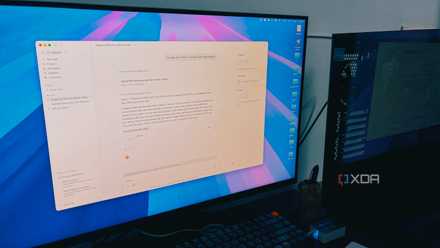
How I work with images in Claude
They're doing more work than my actual prompts now
For one-off questions, the workflow is just the plus icon, add image, and done. The prompt that goes with it shrinks to basically nothing because the image is already doing the explaining, I'm just directing it. What I screenshot varies a lot: error messages, UI states I'm trying to recreate, sections of a webpage I want to reference, settings screens, design mockups in other apps. Anything I'd normally describe in paragraphs, I just capture instead. Even a note I didn't actually want to create, so I just type somewhere temporarily and screenshot it. You can even screenshot photography inspiration and ask Claude which settings to tweak in your editor to get the same look (as well as screenshots of the editor if you're still a beginner, so Claude will guide you how to use the features).
For recurring context though, I add screenshots directly into a Project's knowledge base so they're loaded into every conversation I start inside that project without me re-uploading anything. This is excellent for ongoing troubleshooting in software, design references, style guides, recurring UI states, whatever you want. And because Projects use RAG, the knowledge base isn't sitting in your active context window eating up tokens - it only pulls in what's actually relevant to the conversation.
The other piece is Cowork, which is a Claude desktop tool that requires Pro. I set up a scheduled task that runs every night, it goes through my screenshots folder, reads each image, identifies what software or context is visible, and sorts everything into subfolders by topic automatically. It creates the subfolders itself if they don't exist, cleans up empty ones after, and doesn't ask for confirmation unless it's about to delete something. So by the time I'm actually reaching for a screenshot to drop into Claude, it's already filed somewhere findable rather than buried under "Screenshot (4941)" in a flat folder that's been accumulating since whenever.
I finally found a local LLM I want to use every day (and it's not for coding)
Local AI that actually fits into my day
The snipping tool basically handles half of my prompts now
The unexpected thing about switching to screenshots is that capturing forces you to isolate exactly what you need before you even open Claude. You have to decide what you're actually looking at, which means the question is already sharper by the time you type anything.
One caveat worth mentioning before you go all in: glance at what's actually in the frame before you send anything. Work dashboards, anything with credentials or private data visible - Claude handles images responsibly but that's still information going through a server.