
Laptops typically have a lifespan of 3-5 years, with high-end models lasting around 7 years on average. After that, they either get exchanged for a newer model or end up lying in some remote corner of the house. But not all laptops have to suffer the same fate, at least not in the first few years of use. If you maintain them well, take the necessary precautions, and use the recommended software optimizations, you can easily extend your laptop's life by a few years.
Replace the hard drive with an SSD
Witness a massive boost in performance
The most effective upgrade, and one that I can personally attest to, is switching to an SSD (Solid State Drive). This matters most if your laptop currently houses an HDD (Hard Disk Drive), which many older models do. You can quickly verify this by opening the Task Manager (Ctrl + Shift + Esc), heading to the Performance tab, selecting Disk, and checking whether it says HDD or SSD.
Some time ago, on one of my laptops that's roughly 8 years old, I swapped the HDD for an SSD, and the performance gains were massive. Boot times were faster, apps ran smoother, and file searches were quicker than ever before. This single upgrade can keep your old laptop usable for another few years.
Upgrade the RAM
A few more GBs can make a noticeable difference
Most older laptops ship with either 4GB or 8GB RAM, and these days, that's often not enough to run resource-intensive applications and tasks. Even browsing the web with 10+ active tabs in Google Chrome or running 3-4 apps at once can cause slowdowns.
So, if your laptop supports it, adding more memory will make it feel smoother. For instance, if your laptop currently has 4GB of RAM, upgrading to 8GB is a big improvement. Or if it currently has 8GB, go with 16GB for faster multitasking. If your laptop has two RAM slots, it's best to use two RAM sticks instead of one, since dual-channel memory delivers better performance.

Extend the life of your laptop with these 4 DIY upgrades
Upgrading your laptop doesn't need to be hard and can be a great way to breathe new life into it
Clear any dust buildup
Overheating kills your laptop's performance
Overheating can be a real performance bottleneck in older laptops. What might appear as a slowdown is often your laptop trying to bring the temperature back to normal levels by throttling its performance. If the slowdown is accompanied by the fan running at full speed, it's the high temperatures to blame. And one of the biggest reasons behind overheating is dust buildup. Over time, your laptop's fan, responsible for the airflow, collects dust, which hinders its operation.
Older laptops generally have an easily removable back casing, which exposes the components underneath. So, power off the laptop, unplug it, remove the back panel, locate the fan, and use a can of compressed air to clear the dust inside. You can also use a Q-tip for dust that's been stuck in place for a long time.
Reapplying the thermal paste is also an effective solution, but only do it if you are comfortable with the process. It's slightly more complex than a simple cleanup.
Disable startup apps and remove unnecessary programs
Fewer active apps minimize resource consumption
The next step is to disable all non-critical startup entries. These are apps that automatically load when you turn on the PC. Disabling this behaviour reduces the strain on system resources, allowing your PC to run faster after boot. To disable startup apps, open the Task Manager, go to the Startup apps tab, select the entry you don't need, and click Disable.
Also, if you have several programs that you rarely use, now is a good time to uninstall them. These include apps shipped by the OEM with the laptop and other Windows bloatware. With only the useful programs installed and running, your laptop will deliver much better performance.
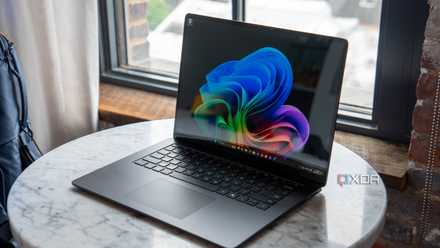
7 tips for maintaining long-lasting performance on your laptop
Make sure your laptop stays snappy for years
Defragment your hard drive
A fragmented disk slows down your laptop
If your old laptop comes with an HDD, defragmenting can make a noticeable difference in speed and performance. Although Windows does perform weekly optimization, you can manually do it once in a while if the PC feels slow. Defragmentation helps because data on HDDs gets scattered over time, and the defrag operation brings those file pieces close together. When that happens, files open quickly and apps launch faster.
To defrag a drive, open the Defragment and Optimize Drives built-in utility, select a drive from the list, and click Optimize.
Make sure you don't defragment SSDs. They store data differently than an HDD, and don't benefit from defrag operations. Also, don't defragment HDDs frequently. It can reduce the drive's lifespan.
Perform a clean Windows install
Give your laptop a fresh start
After years of use, Windows laptops tend to accumulate a lot of unnecessary files, broken Registry entries, and other software components that slow them down. A manual cleanup often operates at the surface level while the real problem persists. In such cases, a clean Windows reinstall is the best option. It will speed up any old Windows laptop almost instantly.
All you need is a flash drive, a bootable drive creation tool like Rufus, a stable Internet connection, and a few hours. Before you proceed, make sure to back up the critical files and note down any saved passwords that you might need later.

5 ways you can put an old laptop to use to improve your productivity
Improve your workflow by repurposing an old laptop
Get a few smart accessories
Instantly upgrade your experience
Another effective measure that will make your old laptop feel more usable is investing in accessories that complement it. The most important is a cooling pad. It helps improve airflow and keeps overheating in check. I have been using one for the last three years, and overheating issues have reduced significantly since then. You can also go for something simple that lifts your laptop above the surface by at least a few inches.
Other smart hardware upgrades include an external keyboard and mouse, especially if the built-in ones have worn out over time. Just don't go with something too costly, unless you plan to use it with other devices as well.
Remember, laptops don't usually die overnight. It's years of neglect that force you to upgrade them. With the right tips and tricks, you can easily get one to last 6-7 years, or even more. One of my laptops is over 8 years old, and it's still functioning well. Another Dell 2-in-1 that I got five years ago feels as good as new. So, if you want to extend your laptop's lifespan, now is the time to act.