
Summary
- 1) PowerToys fixes everyday Windows annoyances and should ship with Windows out of the box.
- 2) Peek, PowerRename, Image Resizer, and Advanced Paste save me time and cut context switching.
- 3) FancyZones and Always On Top fix multitasking; PowerDisplay Brightness fixes missing external monitor slider.
Windows 11 is a good operating system — I use it every day for work, gaming, emulation, and the endless cycle that includes all these and everything in between. Of course, there are still plenty of tiny annoyances even years after using it that do make me wonder if Microsoft even uses their operating system the same way power users do. After all, there's so much more that Windows 11 is clearly capable of doing, but it just isn't allowed to without additional software stepping in.
That's where PowerToys enters the conversation. For years now, it has been a utility pack that every power user installs immediately after a fresh Windows install. In fact, installing PowerToys almost feels integral to the true Windows 11 experience, considering how many of its features don't feel optional or extra, and more like things Windows should have shipped with from the very start. Windows 11 may very well have its problems, but if you're a power user and make PowerToys a part of your daily usage, the entire PC can feel a lot less irritating to use, and a lot more your own.
8 reasons you should be using PowerToys on your Windows PC
Take your productivity to the next level
PowerRename and Peek make file management far less painful
Two tiny utilities that save me minutes every single day
Make enough tutorials for Windows and other pieces of software, and you'll realize one thing very quickly: screenshots become your life. By the time I'm finished with a guide, I end up with dozens of images that need to be organized, checked, renamed, resized, and then uploaded. Thankfully, Peek helps with exactly that.
Instead of opening an image in the Photos app, checking what it contains, closing it again, and then renaming it, all I have to do with Peek enabled is highlight the file and tap Spacebar. The image appears instantly, and disappears with another press of the same key. My hands never have to leave the keyboard, and while the time saved on a single image is tiny, the cumulative, compound effect is easy to notice after hundreds of screenshots every week.
The next problem is solved by PowerRename. Once I know which screenshots are which, I need to name them properly. Now, Windows can rename files in batches, but its functionality does remain fairly limited. PowerRename gives me proper find-and-replace tools and bulk-renaming options without needing any third-party software, or an online service.
It's no wonder that bulk file renaming websites are still open today, but that's only because not every Windows user knows about PowerRename in PowerToys. So, regardless of whether I'm renaming screenshots, emulator saves, or image assets for work, PowerRename is always there, and I instinctively reach out for it before I even consider an alternative.

I replaced Copilot with PowerToys as my Windows 11 command center, and the difference is night and day
I'm trying to get things done, not talk to my PC.
Image Resizer and Advanced Paste save me from opening extra apps
Less context switching means more work actually gets done
My emulators occasionally decide to be cheeky and capture screenshots at 1080p when I'd really prefer 1440p assets. The same thing happens when I move screenshots from my laptop to my desktop before uploading them for work. Normally, that would mean opening an image editor or using an online resizing tool.
With PowerToys, though, I simply right-click the image and use the Image Resizer from the Context Menu. Within seconds, the file is resized and ready to go, with zero browser tabs or uploads involved. I don't have to open Photopea or PhotoStack online to get the width and height I need from the final image. Sure, the utility of each feature depends on what the user needs, but for me, this is a genuinely transformative feature that makes my life easier every single day.
Even Advanced Paste scratches a very similar itch. Copying and pasting sounds pretty simple until you're constantly moving text between multiple websites, documents, content management systems, and messaging apps thrown in the mix too, occasionally. There are a lot of formats, spacing problems, and random fonts to juggle around, and advanced paste lets me do exactly that.
This PowerToys feature lets me strip formatting, convert content into different formats, and generally avoid the clipboard chaos that becomes surprisingly common when your job involves moving information around all day. Much like Image Resizer, its biggest strength is eliminating unnecessary detours. The regular Windows clipboard (Win + V) is already an absolutely integral part of my everyday life, but Advanced Paste only makes things easier and gives me more control. Every time it saves me from opening another application, it feels like a small victory.

I used Windhawk, PowerToys, and Rainmeter together, and Windows feels like mine again
Because personalization has never been Windows' strongest suit
FancyZones and Always On Top fixed my multitasking headaches
Windows Snap is fine, but this is what I actually wanted
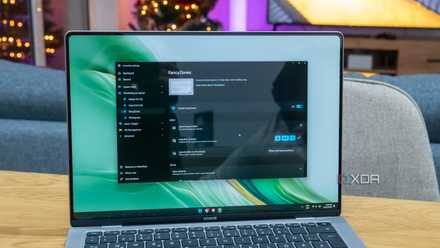
The built-in Snap Layouts in Windows 11 are remarkable and perfectly serviceable, and it does deserve its flowers. I've used Snap for years without ever really complaining about them. Then I started using FancyZones, and once you do, too, you'll know immediately why so many enthusiasts use FancyZones once and never look back. FancyZones lets me create custom layouts that actually match how I work rather than forcing me into Microsoft's predefined arrangements.
I'm not saying it's the best way to work, but I can't truly function without a small YouTube window running in the corner of my screen. Thankfully, it's FancyZones that lets me keep it as small as possible while the rest of the screen space goes to the other two or three applications in my workflow. Of course, it isn't just YouTube or Netflix playing in the third zone — I also compare documents, write while researching, or monitor multiple windows at once, and FancyZones lets me create the zones I need exactly the way I want for my specific workflow on any given day. FancyZones scales beautifully across larger displays and ultrawide monitors, too. You won't have to constantly resize and nudge windows into place, because PowerToys and FancyZones will be ensuring that everything lands exactly where it's supposed to.
Another feature called Always On Top complements FancyZones perfectly. With a simple keyboard shortcut, I can pin a window above everything else. I could be following a tutorial for WSL, or watching benchmark results while tweaking settings, or even looking at tables and charts while writing, and it would always be pinned on the top of the screen. A single button combo ensures that I don't have to keep hunting for it under layers of tabs and windows every time I click the mouse, even once.

These 4 Windows features are rarely used on PCs, but they make my work easier every day
Microsoft doesn't always add useful features, but when they do, they never talk about it
PowerDisplay Brightness solves the biggest problem Windows still hasn't
Remind me why it isn't built into Windows, again?
It's genuinely baffling that desktop Windows still doesn't offer a universal brightness slider for external monitors. While laptops and tablets all get one, and phones have had it for ages, of course, desktop users are often just expected to fiddle around with physical monitor buttons buried deep beneath layers of menus. It's the number one reason I still have my monitor's remote control stacked squarely on the table, taking up more mental space than it does physical.
Save on PC upgrades — deals for computers & work setups
With PowerToys, PowerDisplay Brightness fixes that. With it, I can adjust brightness directly from Windows, which means no longer reaching for monitor controls every time the lighting conditions of my room change. It works pretty much exactly how you'd expect — it lets you adjust brightness directly from Windows itself, and that's what makes its absence from the operating system even stranger. It's so useful that it makes me annoyed that Microsoft hasn't integrated something into Windows itself.
- OS
- Windows 10/11
Microsoft PowerToys is a collection of free, open-source tools that can improve Windows productivity.

PowerToys is amazing, but it could be even better with these 5 features
These improvements could take Windows to the next level
PowerToys is the Windows feature pack Microsoft forgot to ship
Until PowerToys gets packaged with every fresh Windows install, it'll remain one of the first apps I install on every new Windows 11 install.
You'll usually see PowerToys being mentioned as a collection of utilities for enthusiasts and power users, but I can't help but feel that describing it that way undersells the whole thing. Many of these tools aren't niche features, but practical QoL improvements that solve everyday frustrations millions of Windows users face every day.
That's why PowerToys really shouldn't be an optional download at all, and should be shipped with Windows from day one. Until that day comes, though, it's one of the first things I will install on every new PC, because there just aren't a lot of applications out there that make Windows 11 feel so much more yours than PowerToys.