
Windows 11 (and any other operating system) works best when it has a stable connection to the internet. This connectivity is used to sync cloud storage, backup files to another location on your network, or update the system and apps while you're not using the computer. That's great when everything is running smoothly, but sometimes you might get a Windows can't connect to this network error, which stops you from accessing the local network or the internet. Even the best laptops aren't immune to this issue, but the good news is that in most cases, some simple troubleshooting steps are all you need to get back online.

How to solve Windows Wi-Fi issues
Let's get connected
Before we start on more in-depth troubleshooting, there's one thing you should always try. First, you should check to see if any other devices you own can connect to the same Wi-Fi network. This rules out any issues with your internet service provider or networking equipment, so that you know whether it's a Windows issue. If your smartphone or other Wi-Fi device is also having issues, a simple reboot of your router might be all that's needed to get you back online. If this is the case, the quickest way back to connectivity is to unplug your router from the wall socket, wait for 30 seconds, then plug the router back into power and wait for it to boot. Try connecting to Wi-Fi on your Windows PC and see if you can get connected.
If restarting your router doesn't solve your issue, there is one other thing to restart. That's your computer of course, since often a reboot will solve any number of minor issues.
- Right-click on the Start icon.
- Hover the mouse over Shut down or sign out, then click on Restart from the pop-out menu.
Once your PC has finished rebooting, sign back in and see if it connects to your network.
Try Airplane mode
Windows' Airplane mode can also sometimes reset the Wi-Fi network, allowing it to reconnect to the network that it was having issues with.
- Click on the Wi-Fi icon on the Taskbar to open the Quick Settings menu.
- Click on Airplane mode to enable it.
- Wait for a few seconds, then click on Airplane mode a second time to disable it.

How to Customize which Radios are Disabled in Airplane Mode
How to customize which radios are turned off when enabling airplane mode on Android. Now you can leave WiFi, Bluetooth, or NFC on in Airplane Mode!
Try forgetting the network and reconnecting
Setting up your home network is a fairly straightforward process, but things can often glitch, leaving you unable to connect to your network. Without knowing which setting is causing the issue, the easiest way to get connected again is to forget the Wi-Fi network, then set it back up from a clean slate.
- Click on the Wi-Fi icon on the Taskbar to bring up the Quick Settings, then click on the right arrow icon above your Wi-Fi name.
- Right-click on your Wi-Fi network name, then click on Forget from the menu that appears.
- Then click on your Wi-Fi name in the list, and enter your security details to connect as if for the first time.
Try reinstalling your networking drivers
The same process works for Wi-Fi and Ethernet adapters
It's entirely possible that a Windows update or some other change to your computer corrupted the networking drivers, causing you to not be able to connect to the network. To fix this, you will have to reinstall your networking drivers. Try searching for an update before you do this.
- Open the Start Menu and search for Device Manager, then click on the app.
- Expand the Network adapters section.
- Right-click the name of your network adapter, then click on Update driver.
- Choose Search automatically for drivers to let Windows see if there are any updates.
You can also try reinstalling the same driver, rolling-back to the previous version, or uninstalling the adapter then reinstalling it from the drivers provided by the manufacturer. Whichever way you try, once reinstalled you should be able to connect to the network that you were having issues with.
Clear the DNS cache
And release the IP address
Sometimes the Windows can't connect to this network error can be because of misconfigured DNS or IP settings. Releasing the IP address from your Windows computer and then flushing its cached DNS can make your computer connect to the network again.
- Right-click the Start menu icon and choose Terminal. Windows 10 users might see Command Prompt or Windows PowerShell instead.
-
Enter the following commands, pressing Enter between each one:
netsh winsock resetnetsh int ip resetipconfig /releaseipconfig /renewipconfig /flushdns
- Reboot your computer, then try connecting to the network again.
Try the Network reset feature
Get fresh network settings
- Open Windows Settings and click on Network & internet.
- Click on Advanced network settings.
- Click on Network reset.
- Click on Reset now.
Your Windows PC will reboot, and when it starts up again, all of your networking components and settings will be reset to a clean slate. You'll need to connect to your Wi-Fi network again, and if you were running a VPN, you'll have to reinstall that as well. Still, this could be the final step to actually getting your computer connected to your network again.
Try the inbuilt Windows troubleshooter
This will investigate and also give recommendations
- Open the Start Menu, search for Troubleshoot, and click on Troubleshoot settings.
- Click on Other troubleshooters.
- Click on Run next to the Network and Internet option.
- The troubleshooter will run, and give you other recommendations for troubleshooting steps that it can take on your behalf.
The troubleshooter will try to fix your networking issues.
If you have tried all of these steps though and still have issues connecting to your network, it could be due to a problem with your hardware and I would recommend talking to the manufacturer or a repair specialist about your next steps.
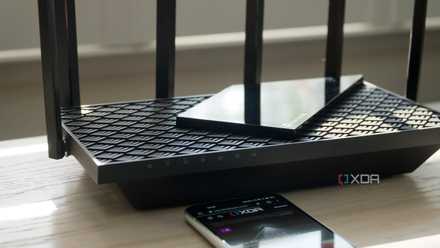
How to network computers in your home
Sharing files between computers connected to the same router has never been easier.
How to fix Ethernet connectivity issues on Windows
There are a few fixes specific to wired connections👁 Asus RT-AX57 Ethernet ports and antennas from an angle
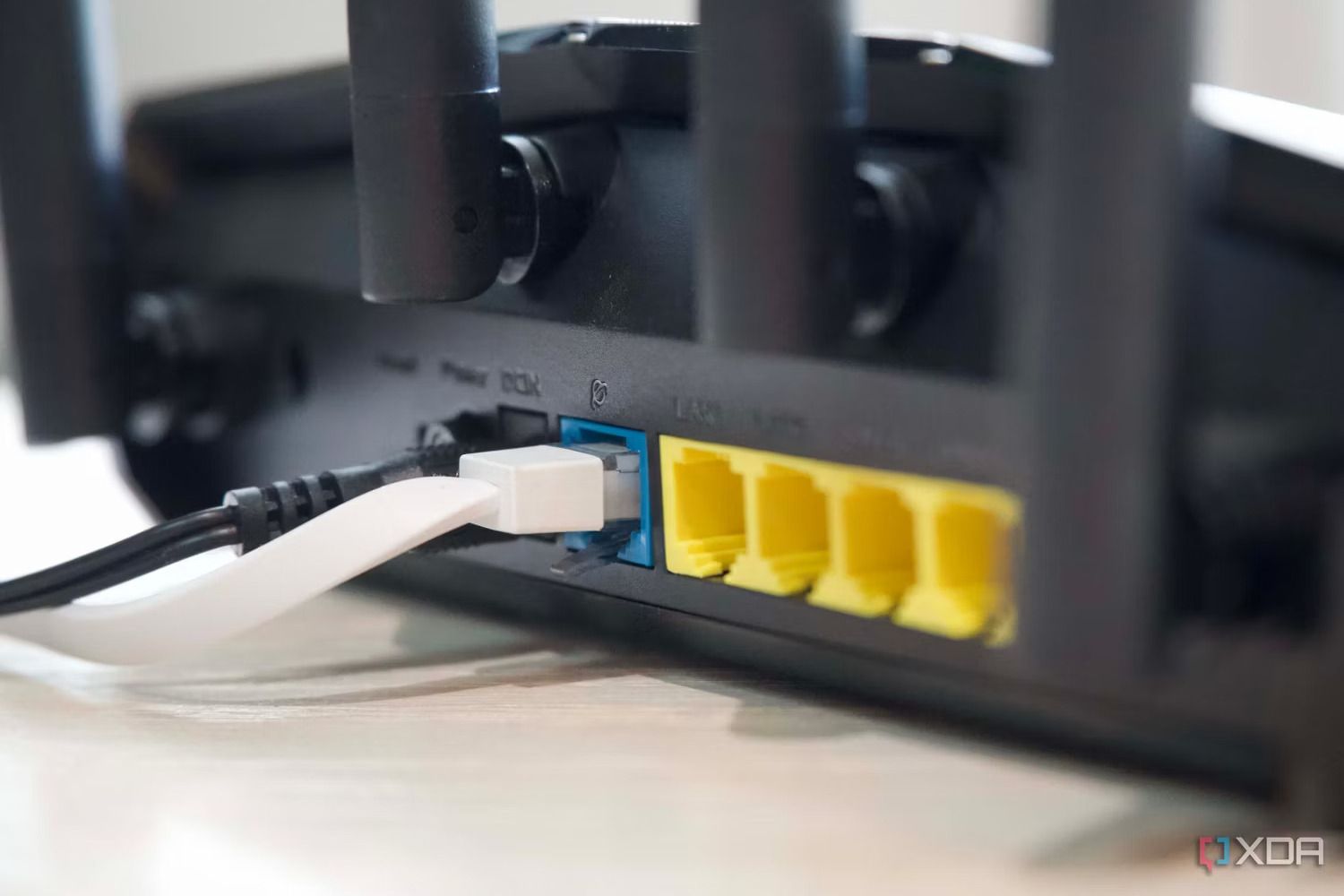
While most of the earlier steps for fixing a Wi-Fi connection on Windows apply to Ethernet connections as well, there are a couple of things that are specific to wired connections. The first thing to check is if your Ethernet cable is firmly plugged in at both the computer and router ends. It's often best to unplug and then replug them to check, as this could fix any minor issues. Also, check the cable for any severe bends, snags, or physical damage to the sleeve. If you can see any damage, it's worth replacing that cable with a new one. That might fix the inability to connect, and it might also make your connection faster, as damaged cables often cause slower speeds.

The 4 cheapest home network upgrades you can make
You don't always need a new router to improve your network performance. Improve your connectivity without needing to buy a new router.
If Windows still doesn't connect to the internet, it could be an external issue
If nothing discussed in this guide got your Windows computer back online, the chances are some failing hardware is to blame. That could be the Wi-Fi adapter on your laptop or PC, an Ethernet port, or even your router if you find other devices are also having issues. Check in with your PC manufacturer for deeper troubleshooting and options for repairs. And it's always worth checking your internet service provider's outage tracker, as there might be a wider issue affecting your internet connection.