
If your PC doesn't sound like the silent dream you thought it would, it's probably your choices that brought you here. PC components are prone to some level of noise, especially those spinning rapidly, such as hard drives and anything with fans. So, your CPU, GPU, and case fans emitting uncomfortably high decibels isn't surprising, but it's definitely avoidable, at least in most scenarios. In addition to poor hardware choices and aging fans, consider your PC maintenance habits, aggressive overclocking, and overlooked fan curves as possible culprits behind loud and annoying PC fans.

5 reasons your PC sounds like a rocket ship during gaming (and how to fix it)
Enjoy the sound of silence rather than preparing for liftoff.
Your case isn't equipped for your hardware
It matters more than you'd think
Sometimes, the case just isn't built to handle the hardware you put inside it, especially if you're reusing your old case for a modern build. Maybe it doesn't have the space for enough intake & exhaust fans and AIO radiators, so you're making do with whatever you have. If the heat produced by your CPU, GPU, and other components isn't expelled properly, it can easily lead to raised temperatures, forcing your fans to work harder and louder.
Alternatively, your case might not be old but too compact to allow for adequate heat dissipation for your demanding components. Little to no ventilation, with a few vents only on the sides of the front panel, can lead to an air-starved environment, which isn't suitable for silent fan operation. Even a new and fancy case might be choking your components if airflow was an afterthought in its construction.

4 reasons your PC case deserves more of your budget
Treat your case just like the rest of your components
You've allowed dust to go unchecked
"My Arrakis! My Dune!"
I'm probably not the best person to lecture others on the merits of cleaning one's PC, but you can learn from my mistakes. I didn't deep-clean my PC for three years, as the CPU temps hadn't become a problem yet. My room doesn't see a lot of dust, but if your conditions are different, ignoring PC cleaning for years can easily hamper your fans' ability to keep your PC cool and silent. The dust deposits on your fans will limit the amount of air intake, raising temperatures and forcing the fans to spin faster to compensate.
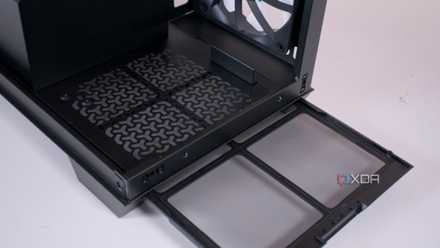
Whether it's your case fans, GPU fans, or CPU cooler fans, regular dust cleaning isn't optional. Even your AIO radiator and mesh panels need to be cleaned once they get blocked with dust. You might be blaming everything from dried-out thermal paste to rogue background programs for elevated temperatures when the true culprit is probably your dust-caked fans. Cleaning your PC at least once every 3–6 months will not only keep your temps and noise levels low, but also make your PC look brand-new and improve the longevity of your hardware.
4 ways to prevent dust from slowing down your PC
Don't let dust and other particles beat you and your mighty system.
Your CPU and GPU are overheating
It might be time to pull back a little
I might sound like a broken record, but overheating isn't always caused by dust or lack of airflow. Your CPU or GPU might be breaking temperature records due to a number of other factors. Expired thermal paste can be one of them, especially if you haven't touched it in 3–4 years. Running an aggressive overclock 24/7 might also be pushing your CPU or GPU to the limit, probably without delivering any worthwhile performance benefits.
Maybe you aren't pushing your hardware in the conventional sense by tweaking voltage and power. Instead, you might be running workloads that are too demanding for your hardware, stressing it a bit too hard. This can easily push your CPU and GPU to the limit, causing temps to climb, and forcing the fans to work overtime, ultimately leading to a noisy system. This might be a good sign that your PC is aging rapidly, and an upgrade is overdue.

5 things that can cause thermal throttling on your PC
Thermal throttling can be rather annoying, but if you know what to do, it doesn't have to end in frustration
Your fans are too cheap or too old
Replacing them might be your only choice
Another mistake you might have made is settling for poor-quality fans. When choosing the components for a build, your focus is probably on the core components, such as the CPU, GPU, motherboard, RAM, and storage. Many PC builders don't get into details like the type of case fans (static pressure vs. airflow), CFM, and build quality, instead focusing on looks and size alone. If you unfortunately bought fans with poor bearings or otherwise subpar quality, this might be the main reason behind your noisy PC.
The other possibility is that your case fans have simply worn out after years of use, and noisy operation is just the reality of your system now. High-quality fans don't develop faults within a few years, but if your build is especially old, you might have to consider replacing the fans. You could buy Noctua fans if you don't hate the design, or Arctic fans when you're on a budget. Consider static pressure fans for compact cases with higher resistance, and airflow fans for most other scenarios.
Arctic F12-120
- Brand
- Arctic
- Noise Level
- 22.5 dBA
- Maximum Rotational Speed
- 1,350
- Air Flow Capacity
- 53 CFM
The Arctic F12-120 range of fans is excellent for most PC builds where enthusiast-grade overclocking won't take place, thanks to the decent performance and high airflow support. They may not be built or designed as well as more premium fans, but these are a great budget-friendly choice.

6 mistakes you're making when buying new case fans for your PC
Buying new case fans is a bit more complicated than you'd think
You've plugged them wrong or ignored the fan curves
Rookie mistakes
Yes, the reason behind noisy fans can actually be that you plugged them into the wrong motherboard header. Connecting a PWM fan to a DC fan header will force it to run at 100% speed all the time, as there's no voltage-based control to modulate the speed based on the temperature. This can happen to new PC builders, especially when 3-pin DC headers physically support 4-pin PWM fan cables, but the result is not what you're expecting.
The other, more probable reason is not tuning your fan curves properly, or relying on default fan curves entirely. Without manual tuning, your fan curves will almost always be suboptimal, pushing the fans into overdrive on the slightest of temperature jumps. For a smoother ramp-up and hence, a more silent system overall, use Fan Control or the UEFI to tune each of your fan curves. It's not really a time-consuming process, and the rewards more than outweigh the effort anyway.
5 myths about fans that are hurting your gaming PC's performance
Myths about PC fans might be keeping you from enjoying better temps, performance, and noise levels.
Acceptance is the first step
Once you realize that the noisy fans inside your PC are probably your own fault, it becomes easy to fix the problem. The dominoes start falling, and you start fixing your fan curves, giving the tower a deep clean, controlling overheating, and considering replacements. CPU, GPU, and case fans are a crucial link in your PC's cooling system; choosing high-quality fans and optimizing your build to take complete advantage of them is no one's job but your own.