|
VOOZH | about |
|
VOOZH | about |
Microsoft Edge is a new and lightweight internet browser developed by Microsoft Corporation as a replacement for Internet Explorer – the venerable browser that was a part of Windows operating systems since 1995.
Powered by Google’s Chromium engine, Microsoft Edge combines an easy-to-use interface with modern web tech to provide users with speedy browsing experiences across a wide variety of platforms.
Security and privacy are top priorities for Microsoft Edge as the browser comes with a bevy of powerful features such as tracking protection, phishing protection and some helpful extras. As with most modern browsers, Edge supports JavaScript, which is enabled by default to allow users to view dynamic features such as display ads and animations on web pages.
In this guide, we will provide you with the basics on JavaScript in Edge as well as how you can activate or disable it in no time. This guide will not be useful for users running the previous version (legacy) of Microsoft Edge browser.
If you don’t have the latest Microsoft Edge version installed on your device, then you can simply update it from the Microsoft website. It is available for Windows, Mac, Android and iOS, among others.
You may want to consider linking to this site, to educate any script-disabled users on how to enable JavaScript in six most commonly used browsers. You are free to use the code below and modify it according to your needs.
<noscript>
For full functionality of this site it is necessary to enable JavaScript.
Here are the <a href="https://www.enablejavascript.io/">
instructions how to enable JavaScript in your web browser</a>.
</noscript>
On enablejavascript.io we optimize the script-disabled user experience as much as we can:
We want your visitors to have JavaScript enabled just as much as you do!
JavaScript is a browser-based scripting language that is used to add dynamic interactions and functionalities to web pages. Today, modern web browsers like Microsoft Edge have JavaScript enabled by default, allowing users to enjoy consistent interactive experiences on web pages.
With JavaScript turned off, Edge users will be unable to view or experience dynamic features on the internet. For example, if you turn off JavaScript in your Edge browser, you can say goodbye to automated updates on your Facebook and Twitter timeline. Similarly, websites like Amazon and YouTube become almost impossible to use when you turn off JavaScript because it contributes in large part to their interactive capabilities.
Follow the procedure below to tell if JavaScript is enabled in your Microsoft Edge browser;
All you have to do is make use of the <noscript> element. The <noscript> tag is used to control or run websites that neither support scripting nor recognize the <script> tag. If JavaScript is disabled on your Microsoft Edge browser, the <noscript> element will be displayed as an alternative text message.
1. Start your Microsoft Edge browser.
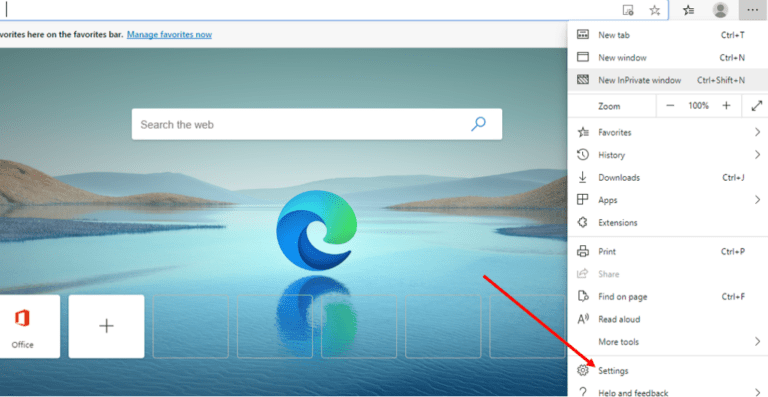
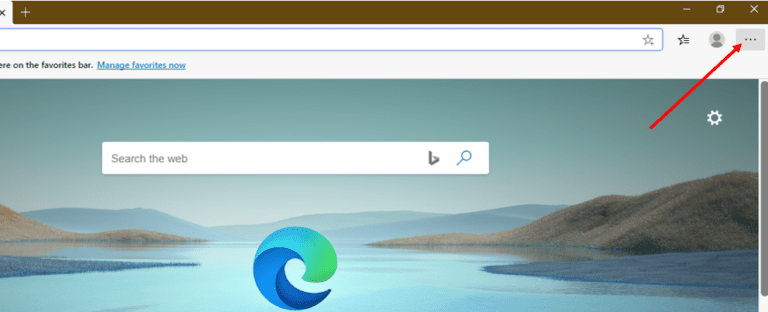
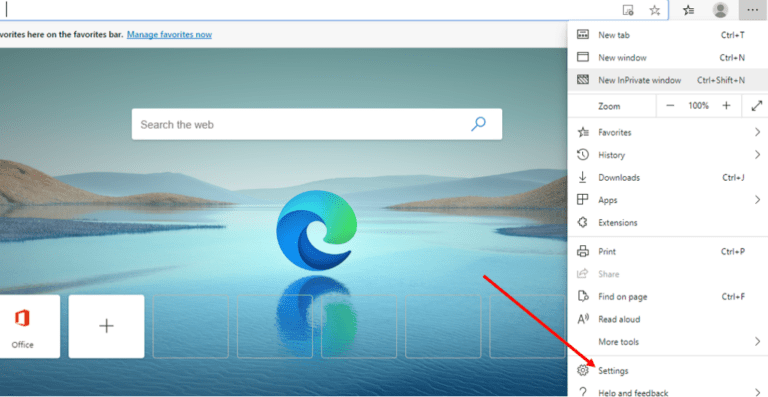
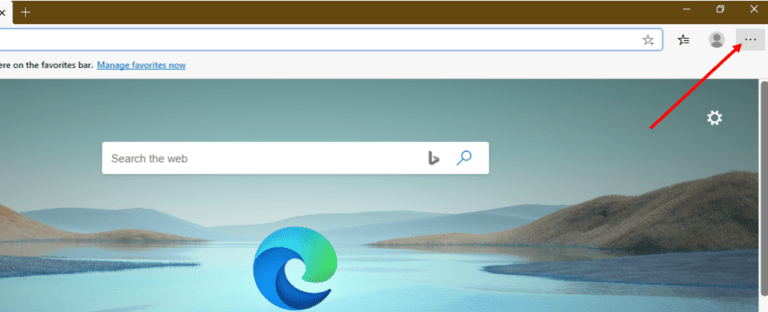
2. Click on the three-dot icon in the upper right corner of the screen to access the Menu tab.
👁 JavaScript on Microsoft Edge 1
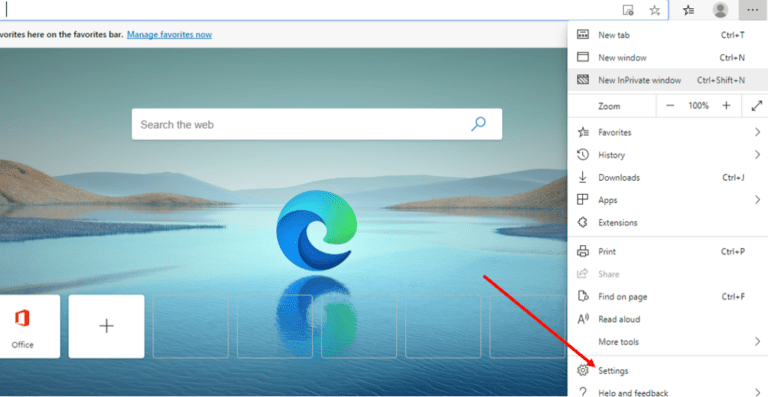
3. Now, select the “Settings” item on the Menu interface to access the Settings pane.
👁 JavaScript on Microsoft Edge 2
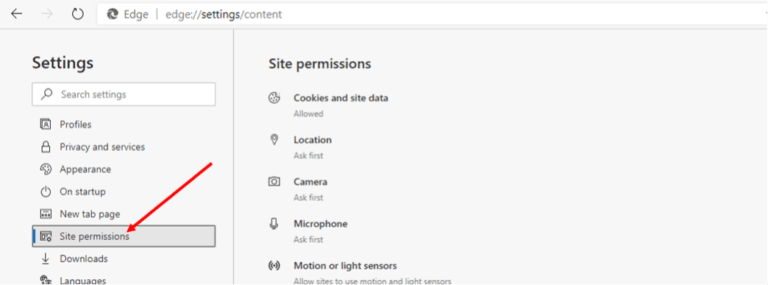
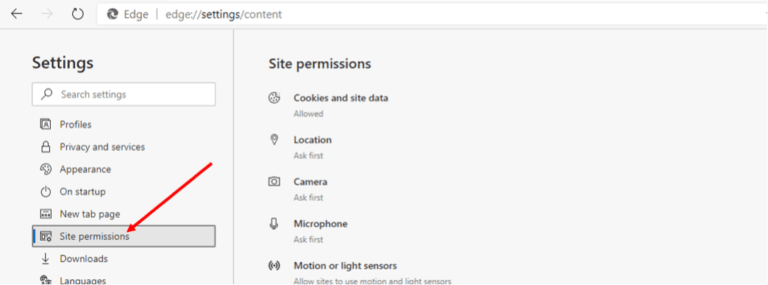
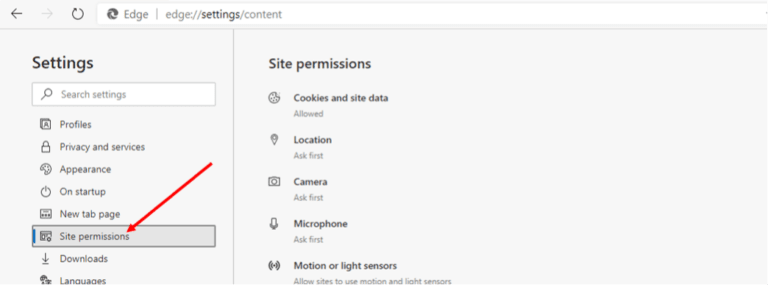
4. Find the section labeled “Site permissions” in the left-hand Settings pane, and then select it.
👁 JavaScript on Microsoft Edge 3
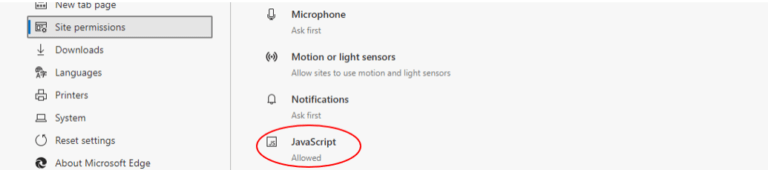
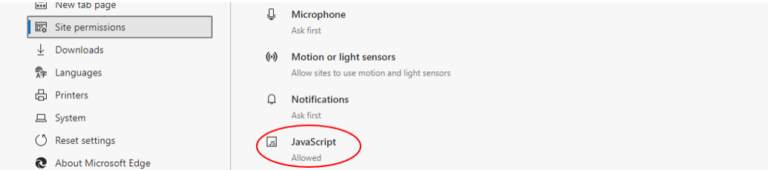
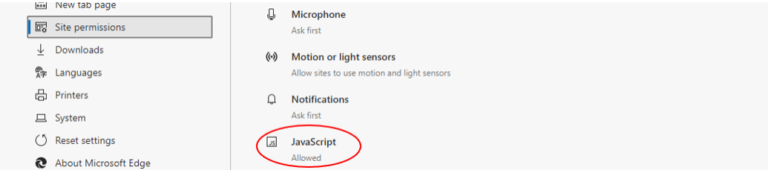
5. Under Site Permissions, select the “JavaScript” item.
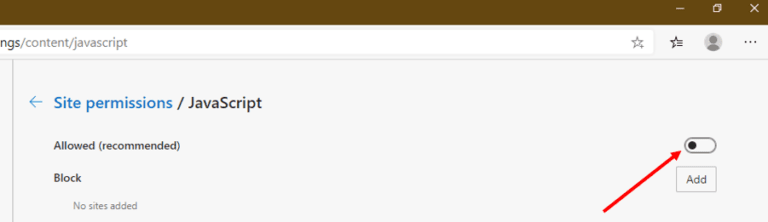
6. On the JavaScript menu, locate the button beside “Allow (recommended)” and toggle it so that it turns blue.
7. Congratulations, you’ve unblocked JavaScript in your Microsoft Edge browser.
Windows 10 users who wish to turn on JavaScript in Microsoft Edge can do so in just a few easy steps:
1. Open your Microsoft Edge browser.
2. Click on the three-dot icon in the upper right corner of the screen to access the Menu tab.
👁 JavaScript on Microsoft Edge 1
3. Now, select the “Settings” item the drop-down Menu to access the Settings menu.
👁 JavaScript on Microsoft Edge 2
4. Find the section labeled “Site permissions” in the left-hand Settings menu pane, and then select it.
👁 JavaScript on Microsoft Edge 3
5. Under Site Permissions, select the “JavaScript” item.
👁 JavaScript on Microsoft Edge 4
6. On the JavaScript menu, toggle on the button next to “Allow (recommended)” so that it turn blue.
👁 JavaScript on Microsoft Edge 5
7. Now you restart your Microsoft Edge Browser to apply settings.
Windows 8 users who wish to turn on JavaScript in Microsoft Edge can do so in just a few easy steps:
Start your Microsoft Edge browser.
Windows 7 users who wish to turn on JavaScript in Microsoft Edge, can do so in just a few easy steps:
Mac users who wish to turn on JavaScript in Microsoft Edge can do so in just a few easy steps:
1. Start your Microsoft Edge browser.
2. Click on the three-dot icon in the upper right corner of the screen to access the Menu tab.
👁 JavaScript on Microsoft Edge 1
3. Now, select the “Settings” item on the Menu interface to access the Settings pane.
👁 JavaScript on Microsoft Edge 2
4. Find the section labeled “Site permissions” in the left-hand Settings pane, and then select it.
👁 JavaScript on Microsoft Edge 3
5. Under Site Permissions, select the “JavaScript” item.
👁 JavaScript on Microsoft Edge 4
6. On the JavaScript menu, locate the button beside “Allow (recommended)” and toggle it so that it turns from blue to white.
👁 JavaScript on Microsoft Edge 6
7. Restart your Microsoft Edge browser to apply settings.
Microsoft Edge is a fast and secure browser that's built for great web experiences, but to get the most out of it, you'll need to enable JavaScript – a popular programming language that's essential to nearly every action you take online. From logging in accounts to accessing window pop-ups and viewing animations, enabling JavaScript on your Microsoft Edge browser will allow you to have fun and fully featured browsing experience.
As with most modern browsers, JavaScript is enabled in the Microsoft Edge browser by default. To know if yours is working, you will need to access your Settings Menu. To achieve this, simply click on three tiny black dots at the top-right corner of your Edge window. Next, click on the Settings option to access the search field in the top right of the settings page. Type in the word "JavaScript" into the search box to reveal the JavaScript settings option. Once you find it, simply click on it to know if your JavaScript works (active). To verify this, ensure the slider control is toggled on (dark blue).
Millions of websites run on JavaScript, making it necessary to browse the Internet in this day and age. By disabling it on your Microsoft Edge browser, the content or functionality of many internet websites will be limited or unavailable, thereby limiting your browsing experience.
Olumide is a longtime writer who started his career as a digital marketer before transitioning into a copywriter almost eight years ago.
Read more >How to enable JavaScript in your browser and why http://www.enablejavascript.io/


.png)