|
VOOZH | about |
|
VOOZH | about |
Mozilla Firefox is an open-source internet browser created by Mozilla Corporation. Now at version 70.0.1, Mozilla continues its trend of being a full-featured browser that’s packed full of strong security and privacy features. Other exclusive features of Mozilla Firefox include an ad-free browsing mode, track-protected private browsing mode and more.
Mozilla Firefox also provides users with a clean interface and is supported across popular operating systems such as Windows, Mac/iOS and Android, among others. As with most modern browsers, Mozilla also supports JavaScript, which is enabled by default to allow users view interactive elements like display ads and animations on web pages.
In this guide, we will provide you with the basics about JavaScript in Mozilla Firefox as well as how you can activate or disable it in no time. If you don’t have Firefox installed, you can simply download it from the Mozilla Foundation’s website.
You may want to consider linking to this site, to educate any script-disabled users on how to enable JavaScript in six most commonly used browsers. You are free to use the code below and modify it according to your needs.
<noscript>
For full functionality of this site it is necessary to enable JavaScript.
Here are the <a href="https://www.enablejavascript.io/">
instructions how to enable JavaScript in your web browser</a>.
</noscript>
On enablejavascript.io we optimize the script-disabled user experience as much as we can:
We want your visitors to have JavaScript enabled just as much as you do!
JavaScript is a browser-based scripting language that is used to add dynamic interactions and functionalities to web pages. Today, modern web browsers like Mozilla Firefox have JavaScript enabled by default, allowing users access to enjoy user-interactive experiences on web pages.
With JavaScript turned off, Firefox users will be unable to view or experience dynamic features on the internet. For example, if you turn off JavaScript in your Firefox browser, you can say goodbye to automated updates on your Facebook and Twitter timeline. Similarly, websites like Amazon and YouTube become almost impossible to use when you turn off JavaScript because it contributes in large part to their interactivity capabilities.
If you want to tell if JavaScript is already enabled in your Firefox browser, then follow this simply procedure to know how.
All you have to do is make use of the <noscript> element. The <noscript> tag is used to control or run websites that neither support scripting nor recognize the <script> tag. The <noscript> element will be displayed as an alternative text message if JavaScript is disabled on your Firefox browser.
1. Open your Mozilla Firefox browser.
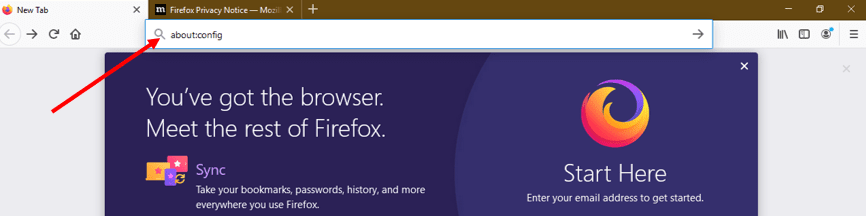
2. Type “about:config” into the address bar of your Firefox browser window, and click enter.
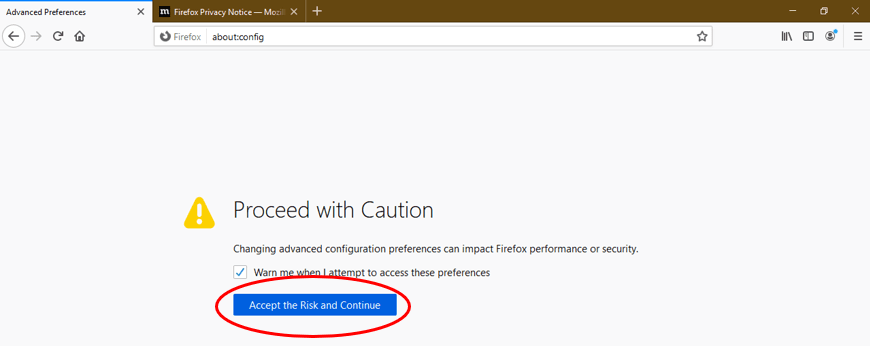
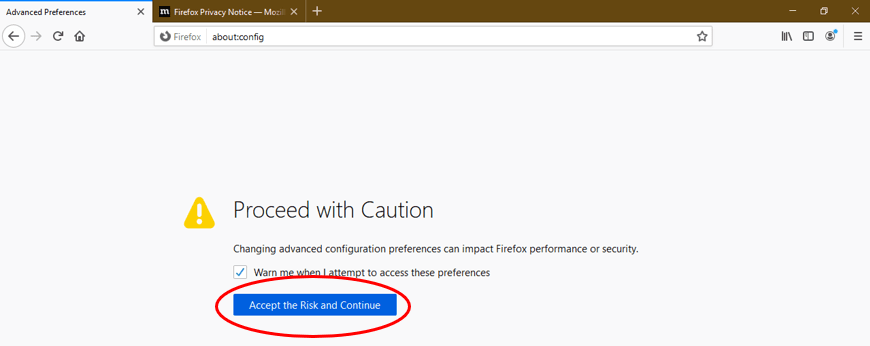
3. A warning message will display on your browser; click “Accept the Risk and Continue” button to proceed.
4. On the following page, enter “javascript.enabled” in the search box to find the preference result of the same name.
5. Next, locate the option labeled “javascript.enabled” on the search result and select toggle to turn on JavaScript. The Value column should read as “true”.
6. And that’s it, you’ve successfully unblocked JavaScript. Restart your Firefox browser to enjoy a user-interactive internet experience.
7. Click OK and restart your browser.
Windows 10 users who wish to turn on JavaScript in Firefox can do so in just a few easy steps:
1. Open your Firefox browser
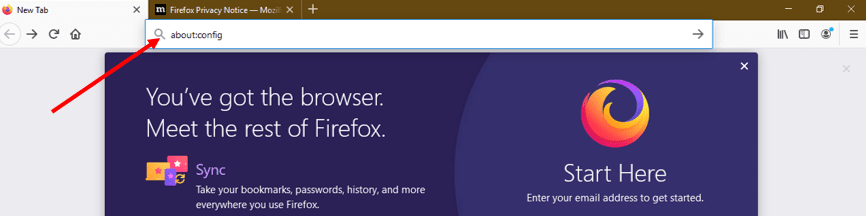
2. Type “about:config” into the address bar of your 👁 Image
Firefox window, and click enter.
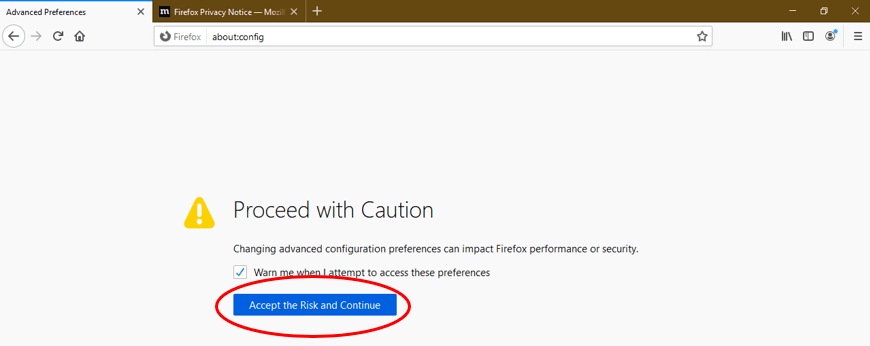
3. A warning message will display on your browser; click the “Accept the risk and continue” button to proceed to the next page.
4. On the following page, type “javascript.enabled” in the search box to find the preference option of the same name.
5. Next, locate the option labeled “javascript.enabled” in the search results and select Toggle to enable JavaScript. The Value column should read as “true”.
6. And that’s it, you’ve successfully activated JavaScript. Restart your Firefox browser to enjoy a user-interactive internet experience.
7. Click OK and restart your Mozilla Firefox browser.
Windows 8 users who wish to turn on JavaScript in Firefox can do so in just a few easy steps:
Windows 7 users who wish to turn on JavaScript in Firefox can do so in just a few easy steps:
Mac users who wish to turn on JavaScript in Firefox can do so in just a few easy steps:
Follow the steps below to turn off JavaScript in your Firefox browser:
1. Start your Mozilla Firefox browser.
2. Open a new window and type “about:config” in the address bar and press enter – a warning menu will display.
3. On the menu, select “Accept the Risk and Continue” to proceed to the next page.
4. Now locate the preference search box and enter “javascript.enabled”.
5. On the search result page, locate the “javascript.enabled” option, and toggle the switch beside it to “false.”
6. That’s it. JavaScript is now disabled.
JavaScript is a popular programming language that's essential for modern websites to function correctly on Mozilla Firefox. It powers most of the dynamic features you see on web pages, including button clicks, navigations, and form submissions. Enabling JavaScript in your Firefox browser is an easy process. In fact, it should only take you only a minute or so to complete.
On Mozilla Firefox, JavaScript is enabled by default, but you can check it reasonably quickly to verify if it is working correctly. To do that, simply input "about:config" into the Address Bar of your Firefox browser and press the Enter key on your keyboard. Next, accept the warning about changing advanced settings by clicking the "I'll be careful, I promise" button. On clicking the "Accept the Risk and Continue" button, a search feature will appear. Type in "javascript" into this search bar. As you type this, every JavaScript-based setting appear. If the "javascript.enabled" is set to "true," then your JavaScript is working correctly.
The use of JavaScript on your Firefox browser is virtually crucial because it enables the best use of modern websites such as Gmail, Facebook, YouTube, and more. If you have JavaScript disabled, most of what makes these websites work won't load in your Firefox browser. Some web page features such as buttons that change when they're clicked or images with zoom capabilities may not work properly while others may not work at all.
Olumide is a longtime writer who started his career as a digital marketer before transitioning into a copywriter almost eight years ago.
Read more >How to enable JavaScript in your browser and why http://www.enablejavascript.io/



.png)