Amazon Simple Storage Service (Amazon S3) is a highly scalable, secure, and low-latency object storage service provided by Amazon Web Services (AWS). S3 allows organizations to store and retrieve any amount of data from anywhere on the web, serving as a foundational block for modern cloud architectures. It provides virtually unlimited storage capacity with an individual object size limit of up to five terabytes.
Core Concepts
To understand Amazon S3, it is essential to get familiar with its three primary building blocks:
1. Bucket
Concept: A bucket is a logical container for your data, behaving like a top-level folder or directory.
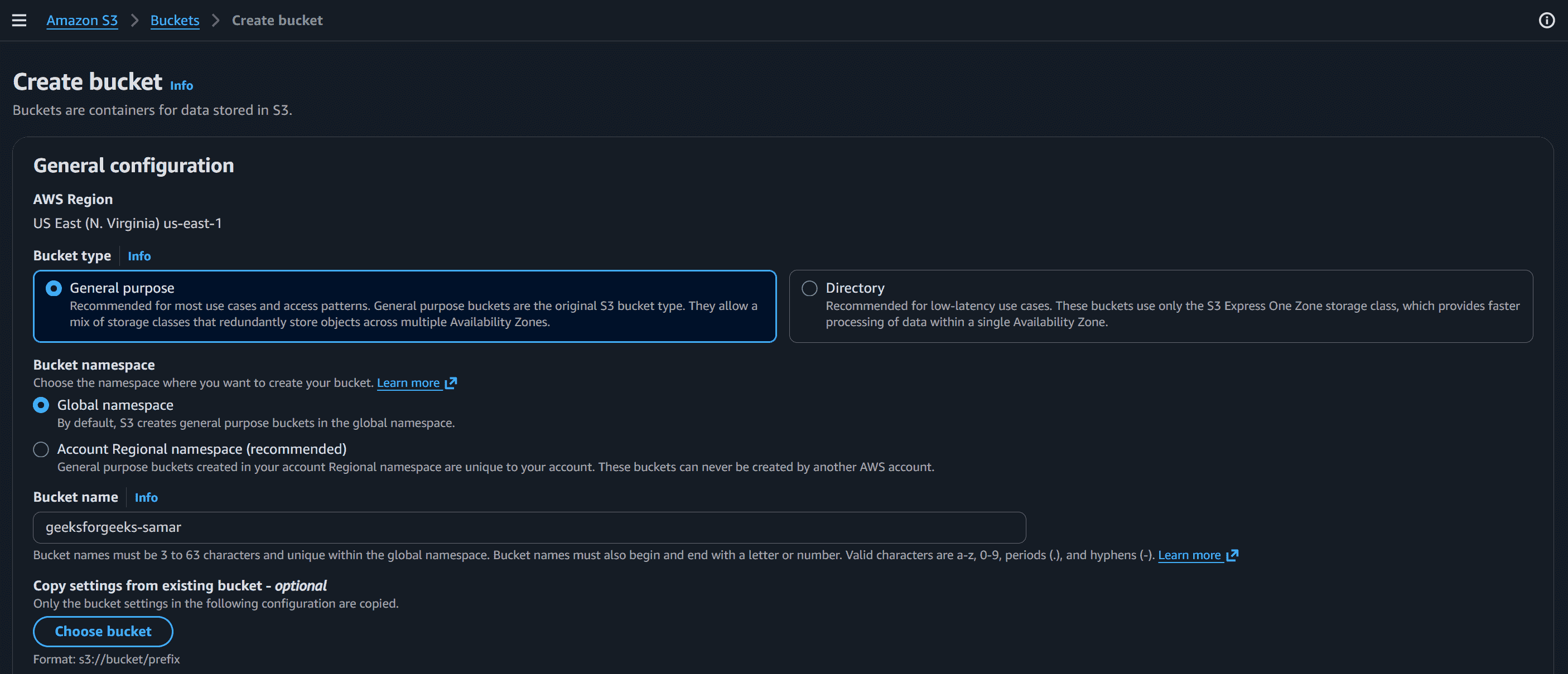
Globally Unique Name: Bucket names must be globally unique across all AWS accounts worldwide. (e.g., my-company-backup-2025 is unique, but my-bucket is not).
Regional Nature: When creating a bucket, you must choose a specific AWS Region where the data will be stored.
2. Object
Concept: An object is the actual data unit being stored, which can represent any file format like an image, video, log, or database backup.
Data Capacity: Individual objects can range from 0 bytes up to a maximum size of 5 Terabytes.
Metadata Support: Consists of key-value pairs representing descriptive info about the file (e.g., Content-Type: image/jpeg).
3. Key
Concept: A key is the unique identifier or name assigned to an object inside an S3 bucket.
Hierarchical Simulation: Amazon S3 uses a flat storage structure, but keys can include slashes (/) to simulate folders. (e.g., s3://my-bucket/images/puppy.jpg).
Create an S3 Bucket
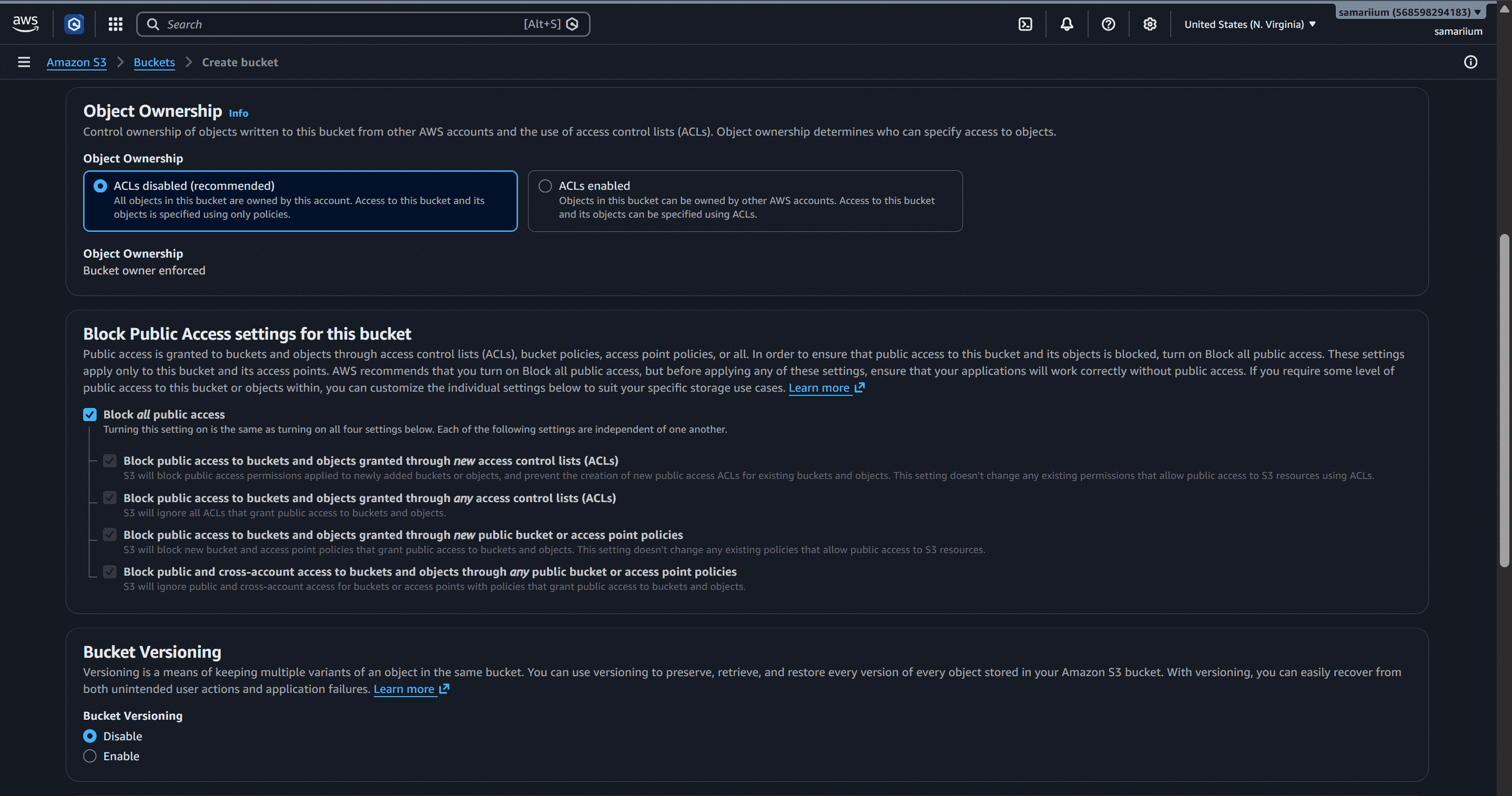
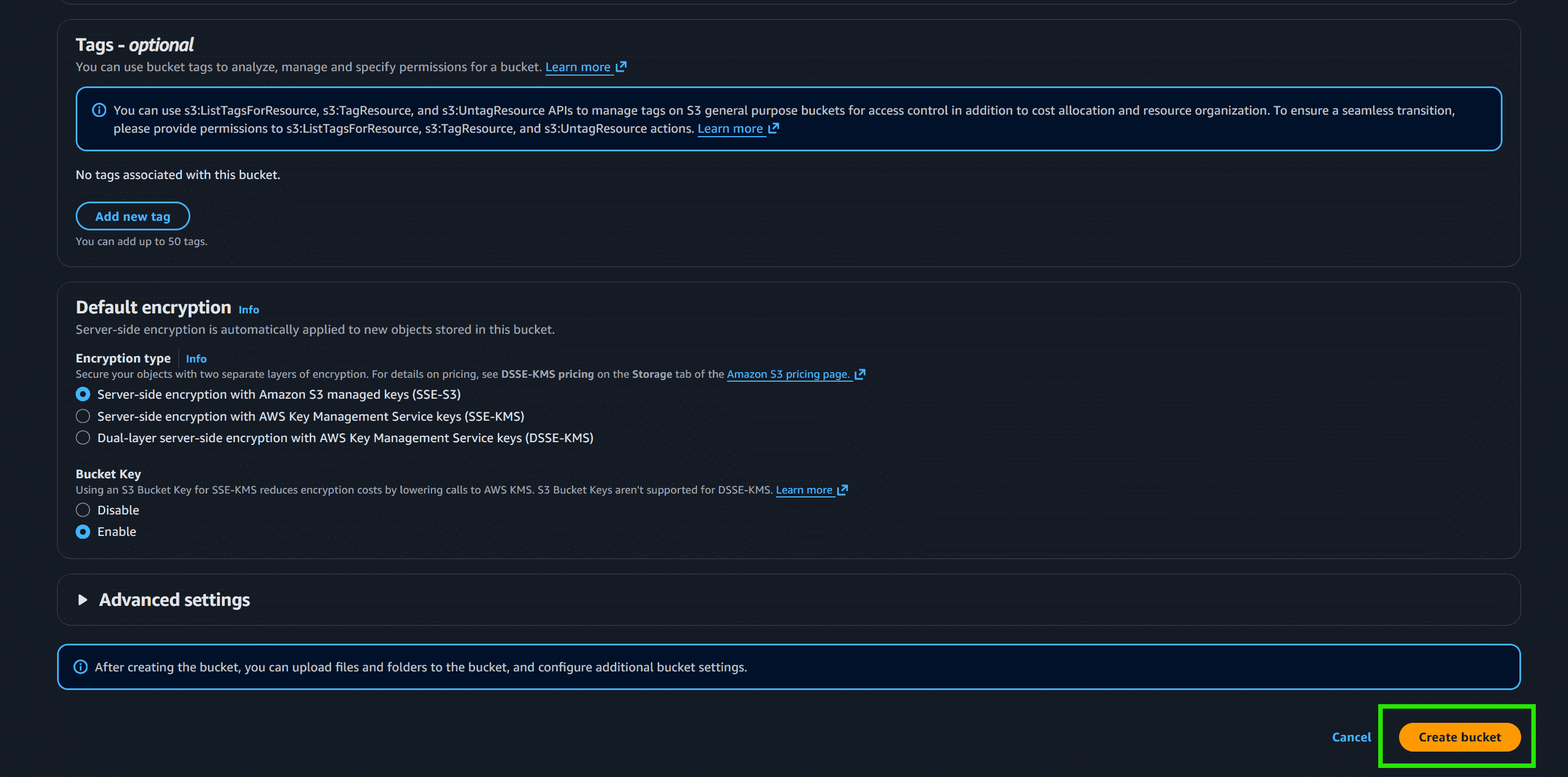
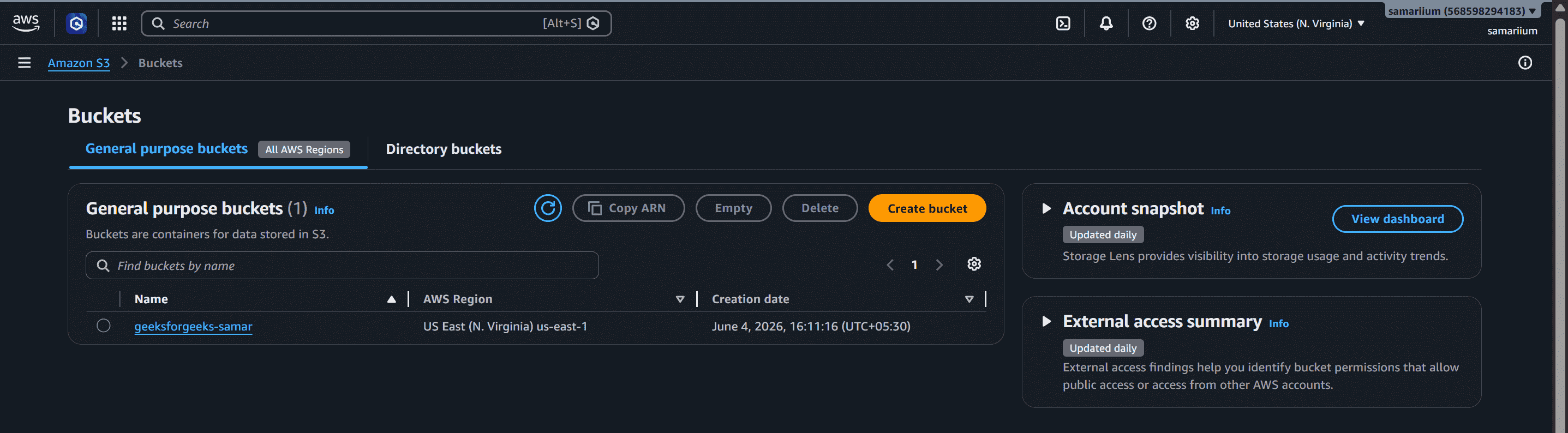
Follow these steps to configure and create an S3 bucket in the AWS Management Console:
Step 1: Sign In to AWS
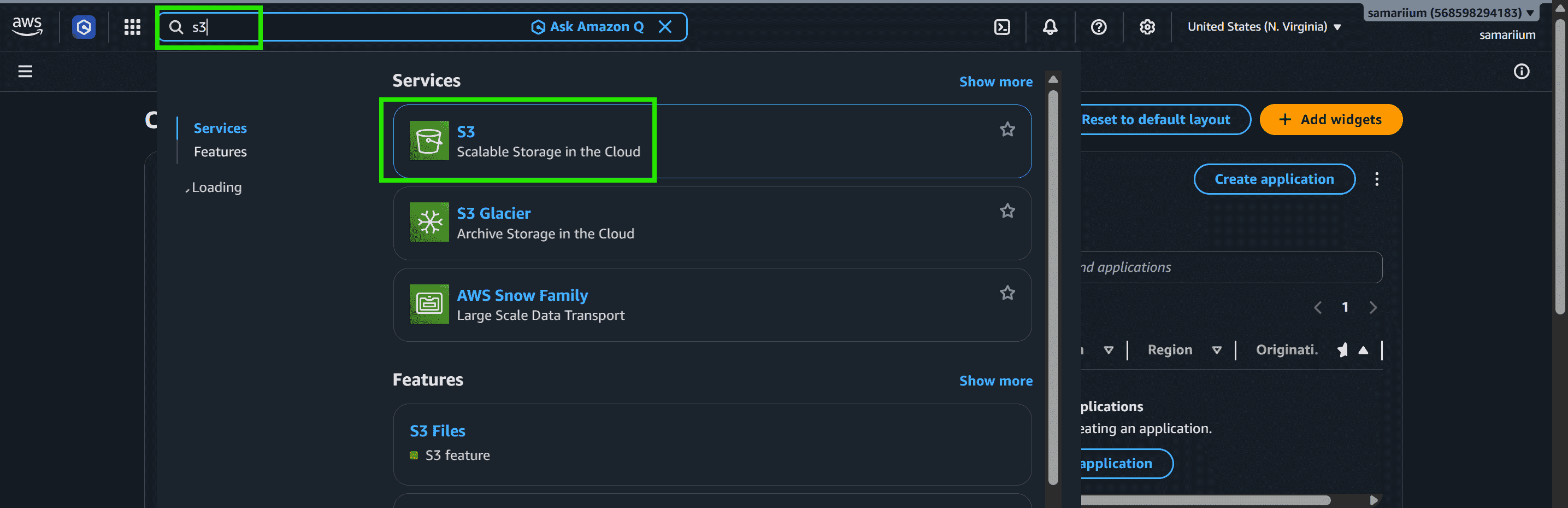
Step 2: Search for Amazon S3
Go to the search bar at the top of the AWS Console