|
VOOZH | about |
|
VOOZH | about |
The AWS Management Console is a centralized platform designed for accessing and managing AWS cloud services. It offers a graphical user interface (GUI) that simplifies the management of various AWS resources, such as compute power (EC2), storage (S3), databases (RDS), and more.
Once you have created your AWS account, you can use the console to easily create, configure, monitor, and scale your AWS resources, all without the need to interact with complex command-line interfaces.
AWS provides several methods to access the AWS Management Console:
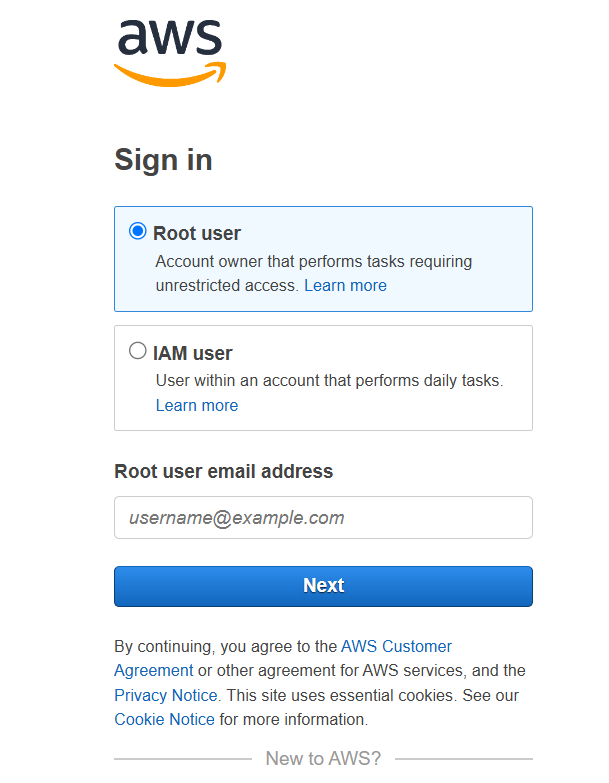
This is the main account used when you first set up AWS.
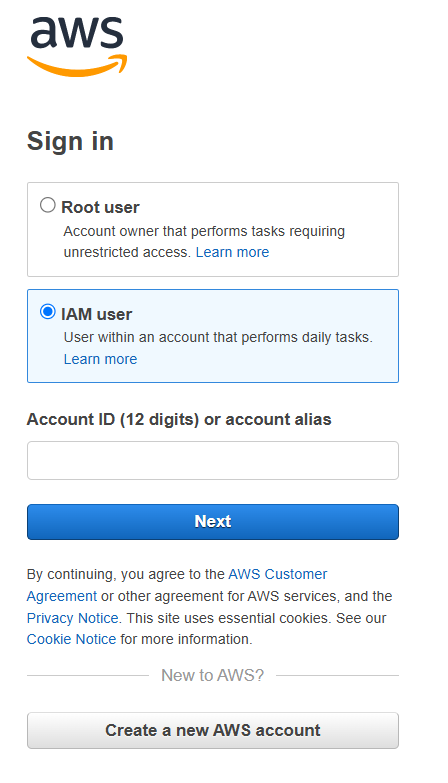
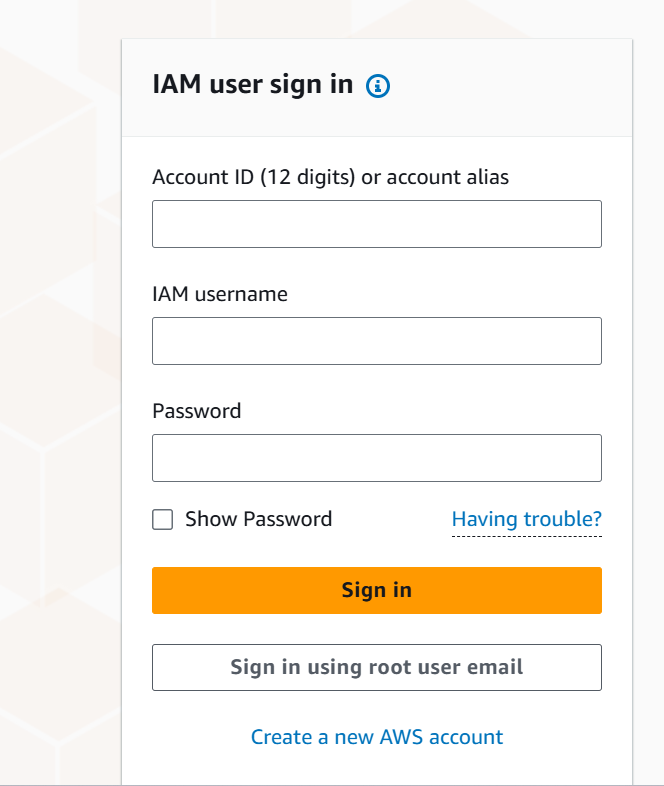
An IAM (Identity and Access Management) user has specific permissions assigned by the account owner.
Note: To Know more about how to login as IAM user Click here
An IAM role is used based on your organization's settings to grant temporary access to specific services or resources.
To learn more about AWS IAM Role Click here
Whether you are a beginner or have experience, the AWS Management Console provides an easy-to-use interface that helps you navigate AWS services and efficiently manage your cloud infrastructure.
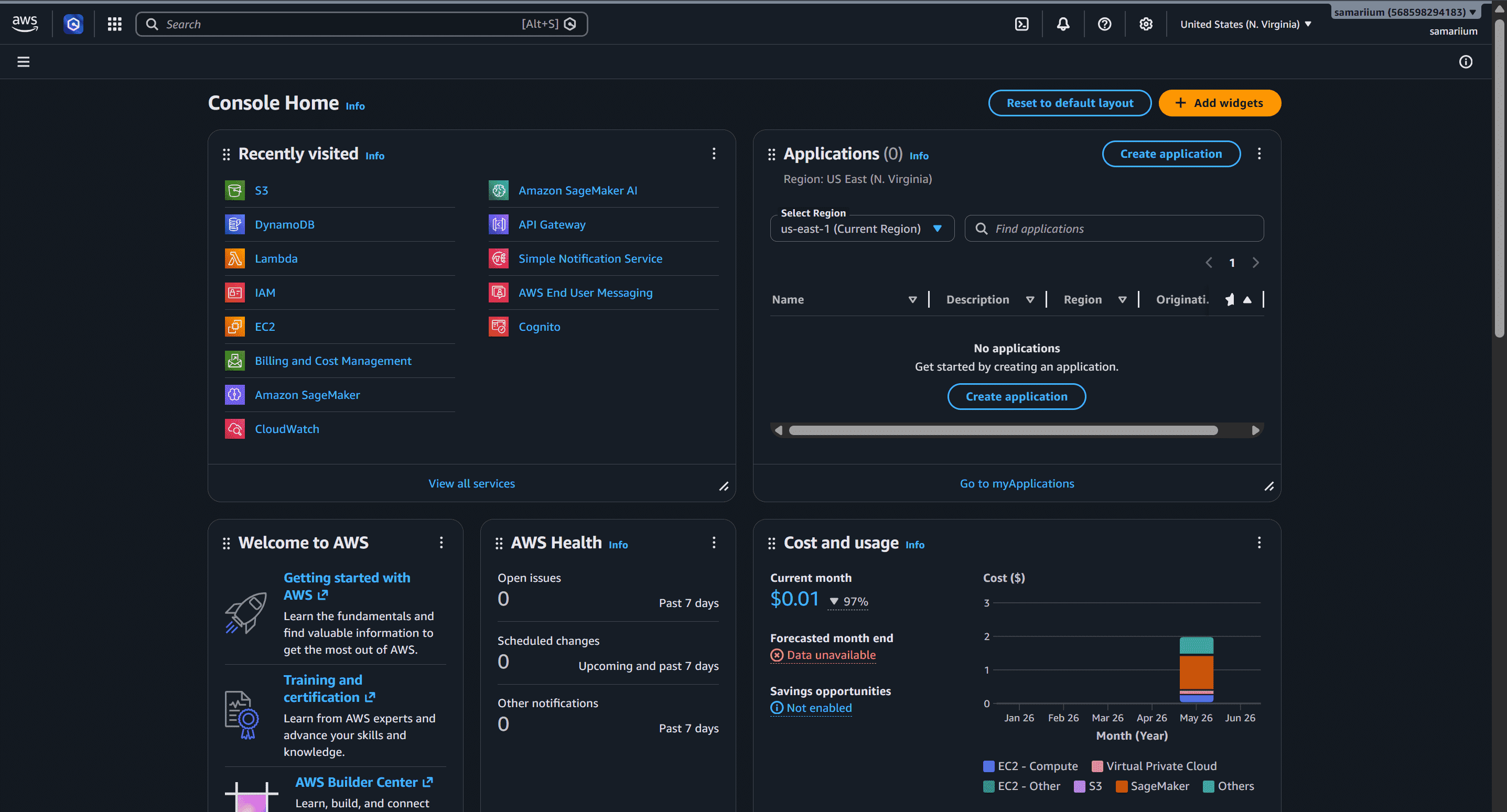
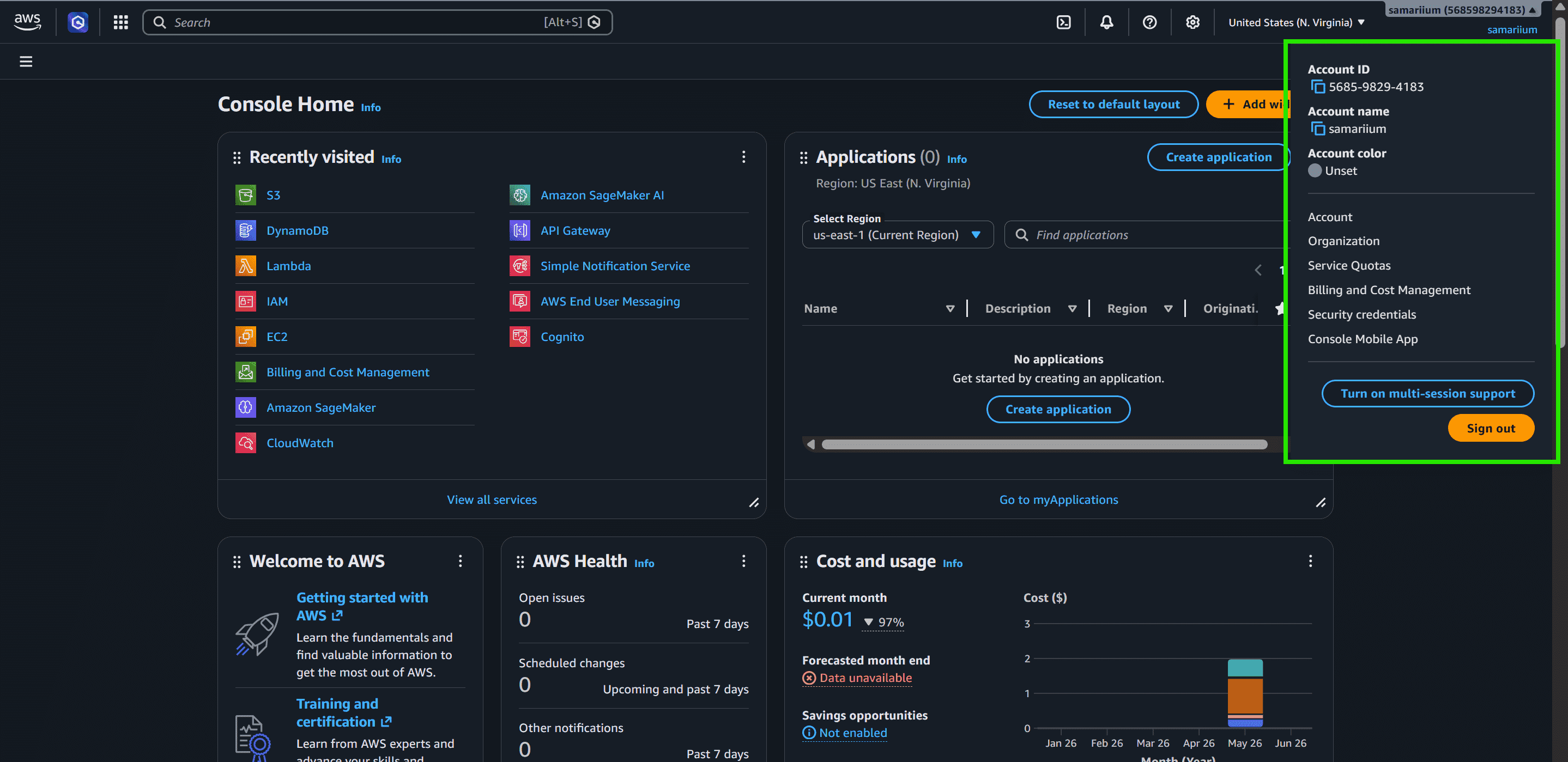
On top right corner there is option with username. Clicking on username gives various option related to AWS user account. User settings can be managed from these various options.
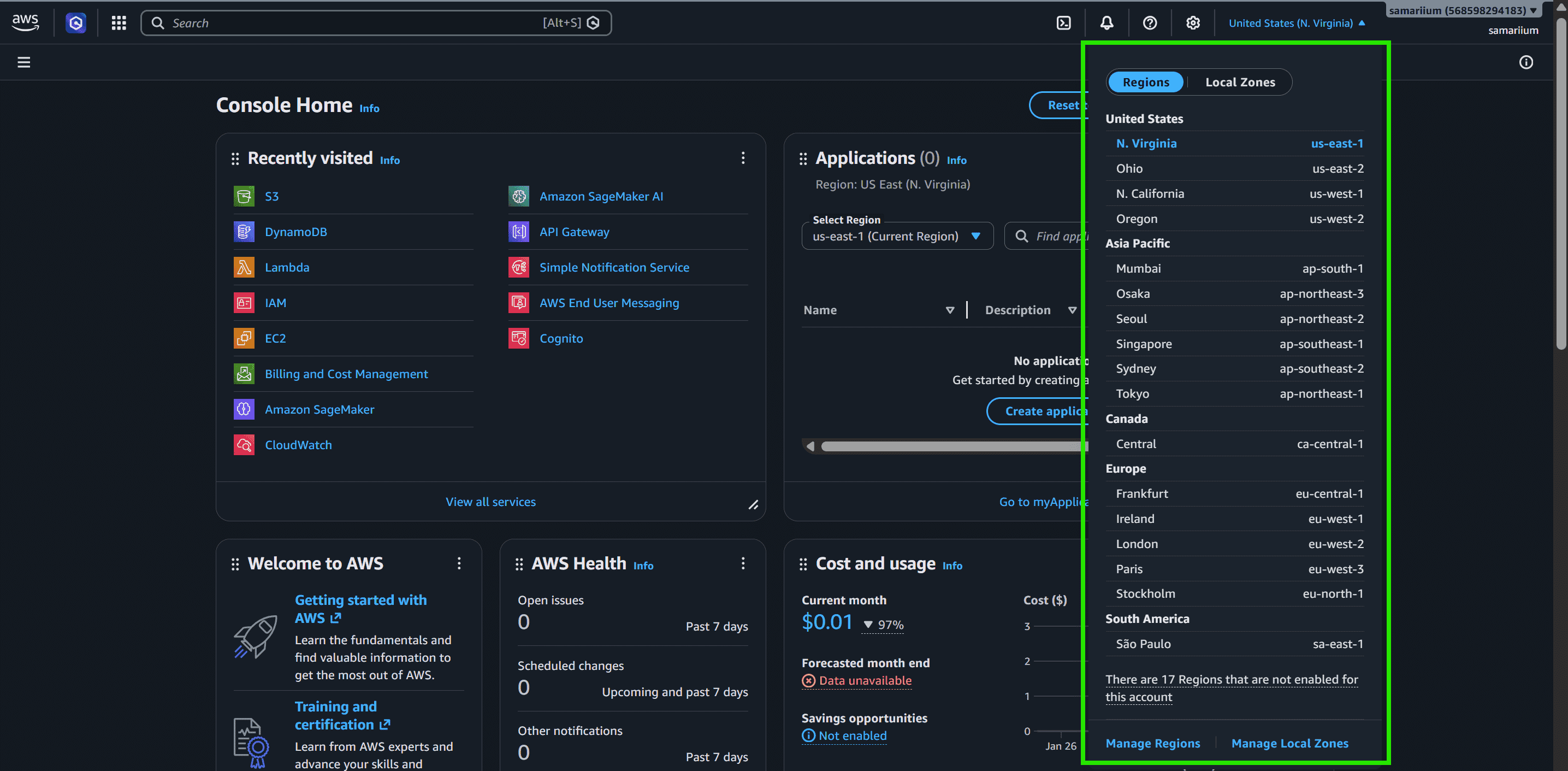
Next to the username, you’ll see the AWS Region indicator. Clicking it shows the current region and provides a list of all available AWS regions. You can select the region that best suits your needs for deploying resources.
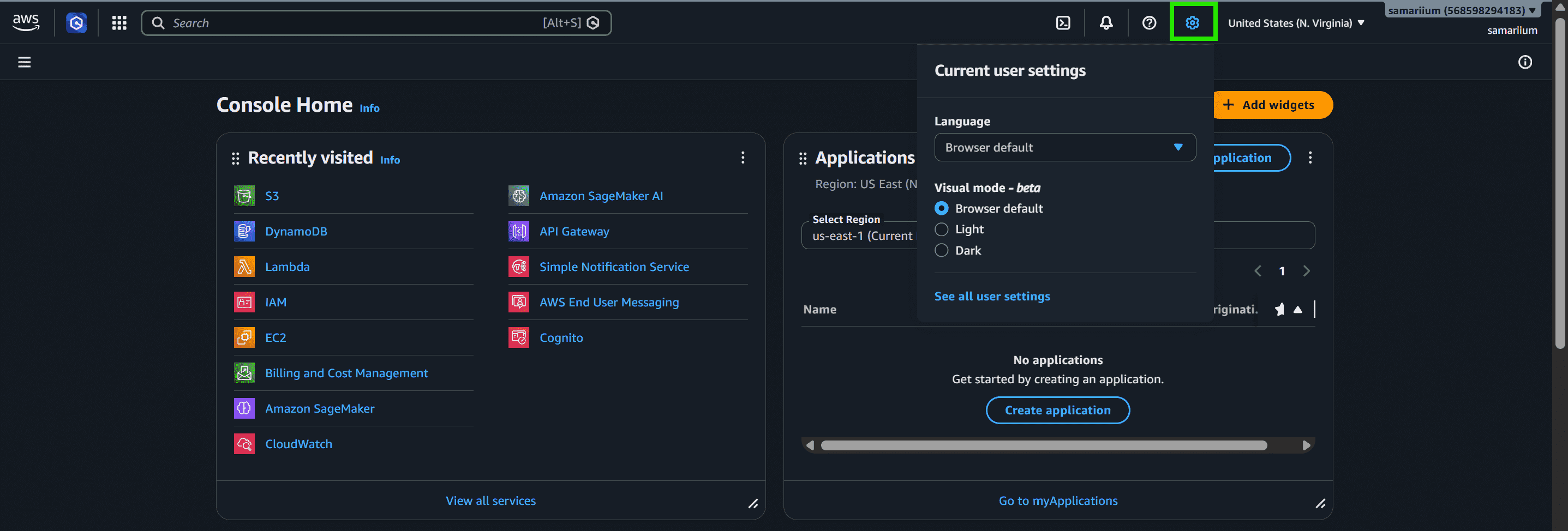
The small gear icon represents AWS Settings, where you can manage general settings for the AWS console:
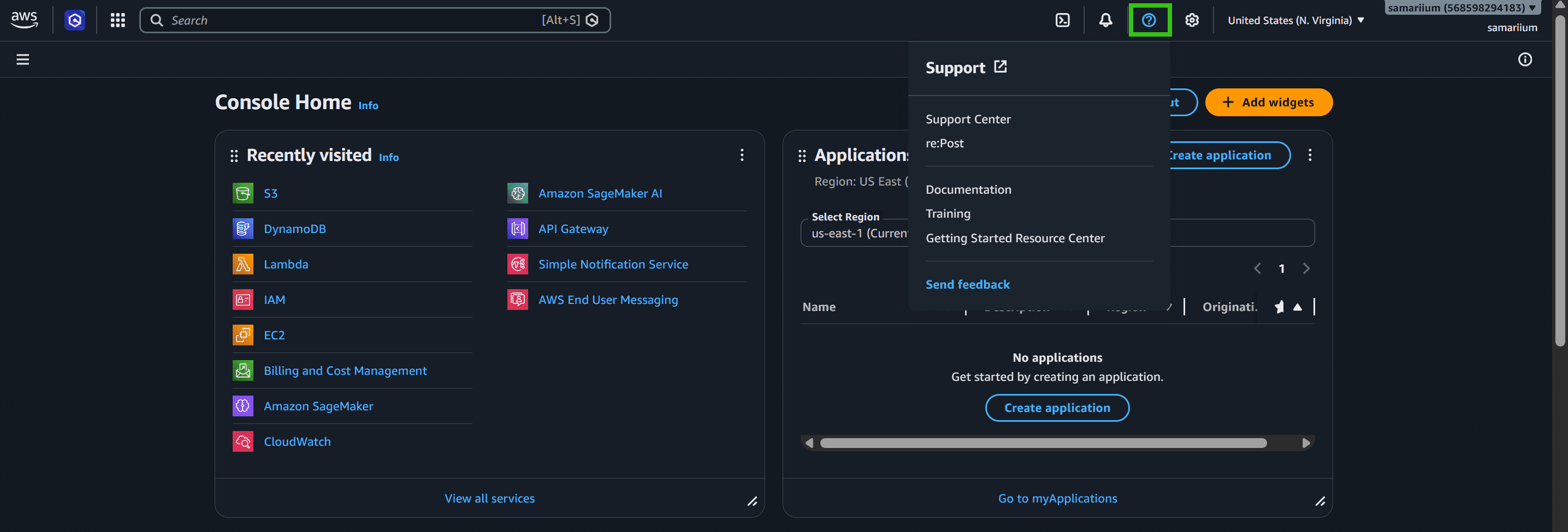
The support option shows all the support related menus. This option can be used in case of failure or issues with AWS service .
Various documentation and other related links are also present in support.
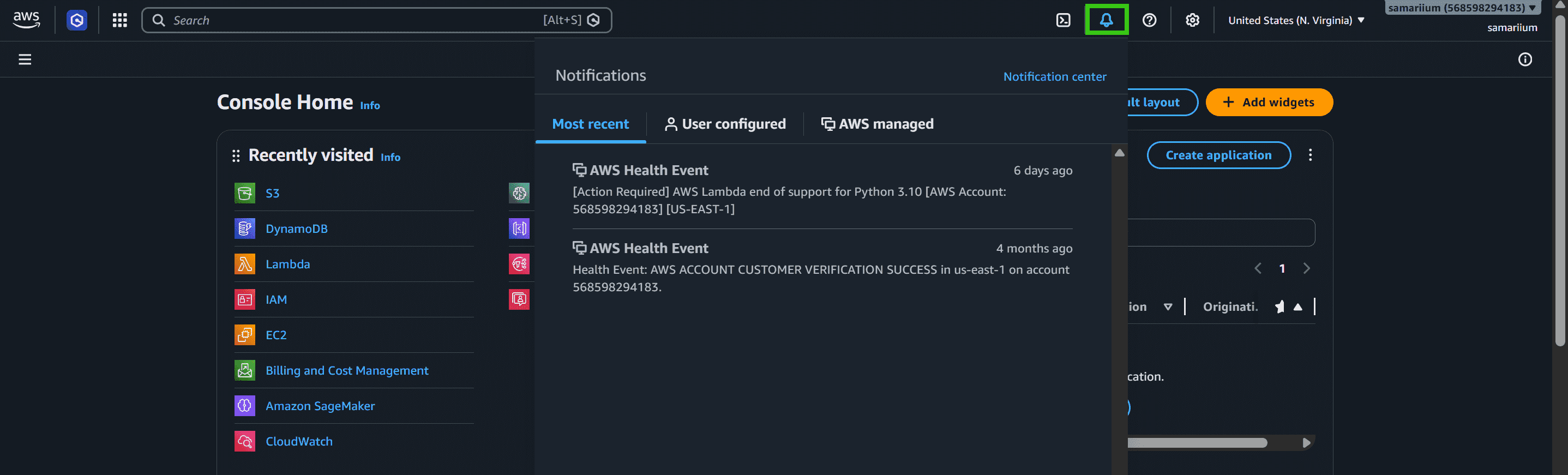
The bell icon provides AWS Notifications, displaying alerts related to your AWS services, including any health events that may affect your resources.
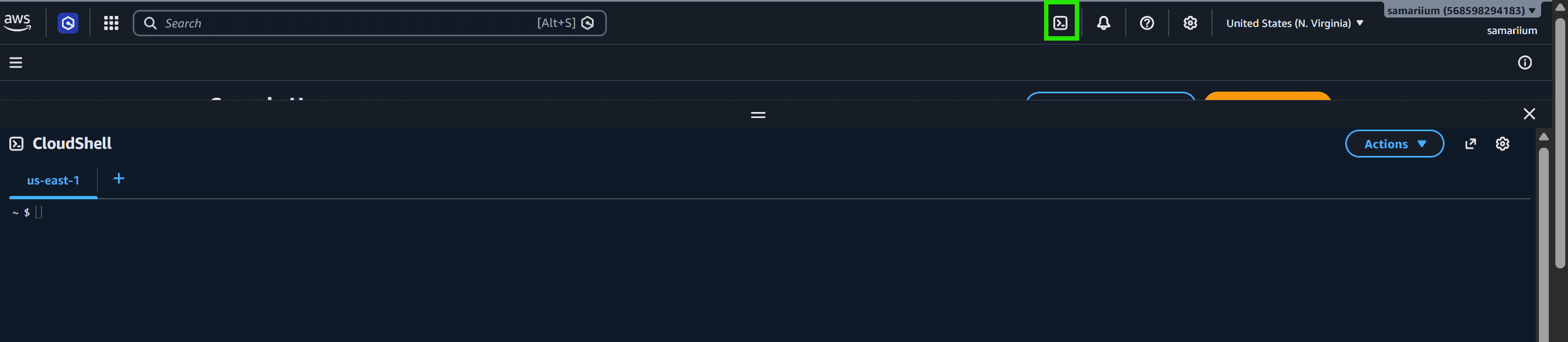
AWS CloudShell is a browser-based shell that comes pre-authenticated with your console credentials. You can use it to run AWS CLI commands or scripts directly from your browser.
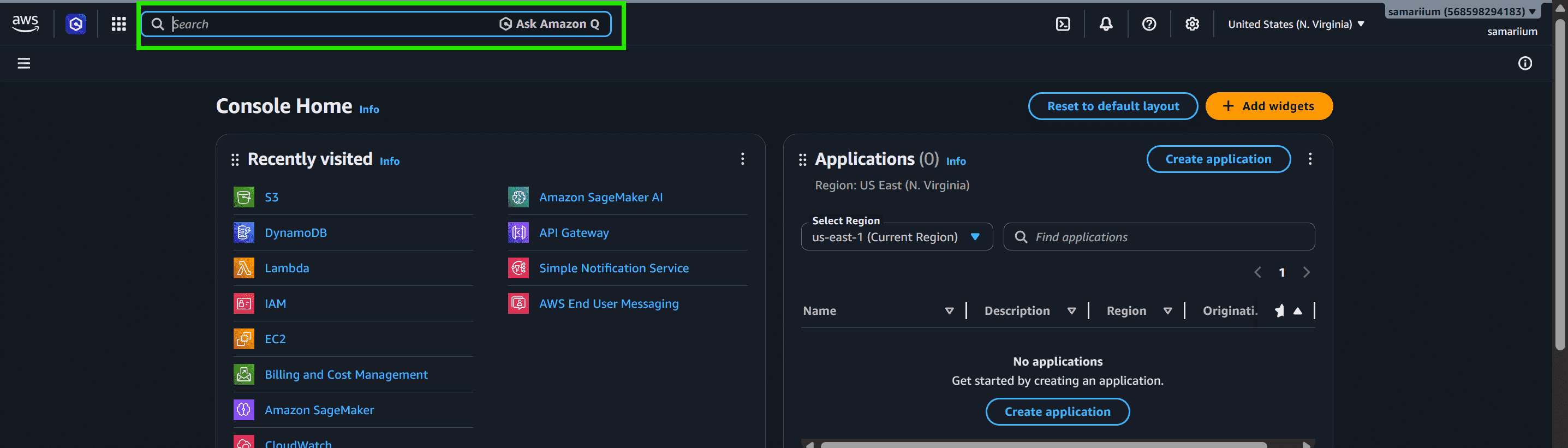
The Search option allows you to search across AWS for specific services, features, blogs, documentation, tutorials, and other resources. It helps you quickly locate relevant information:
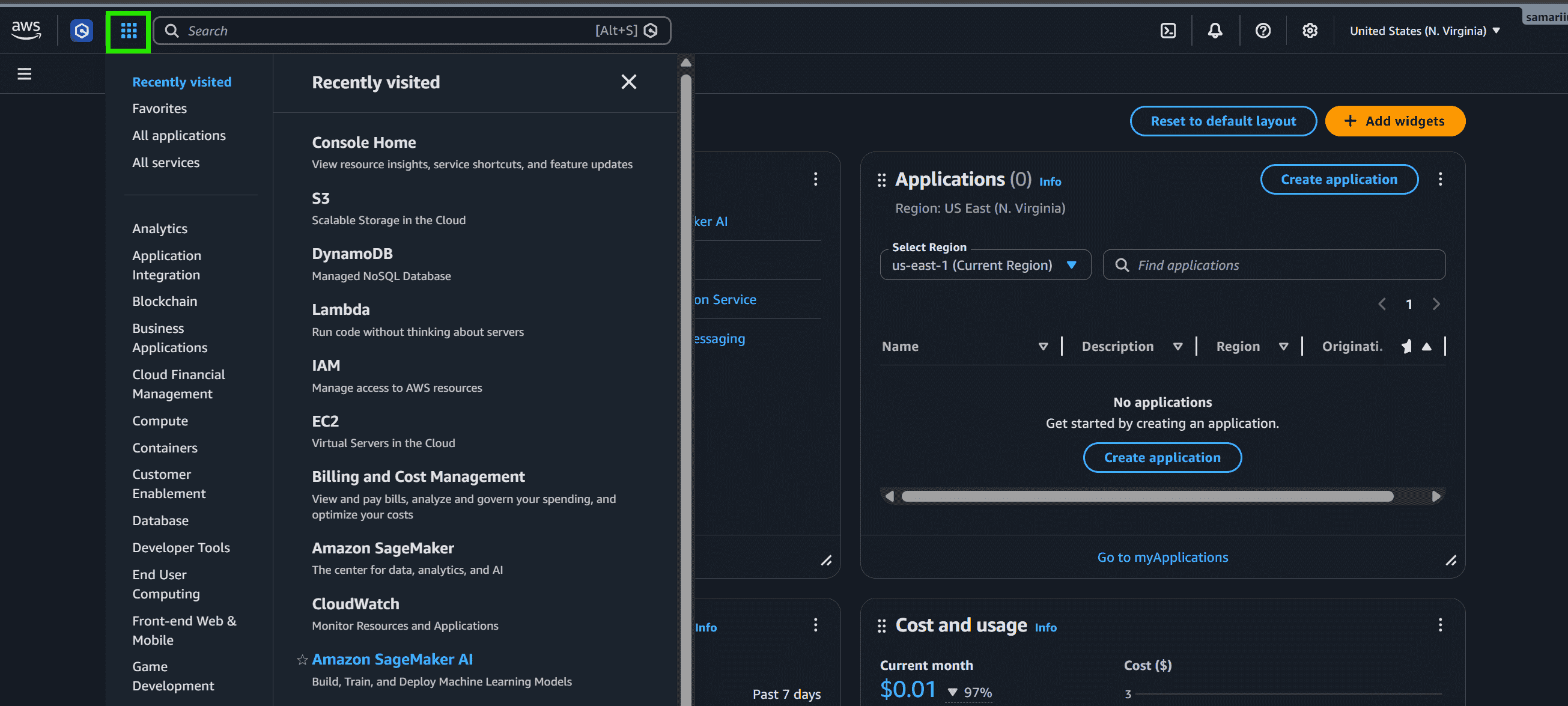
The Service Selector is located next to the search bar. It lists various AWS services and groups them for easy navigation. It also displays recently visited services, making it easier to return to services you've used before.
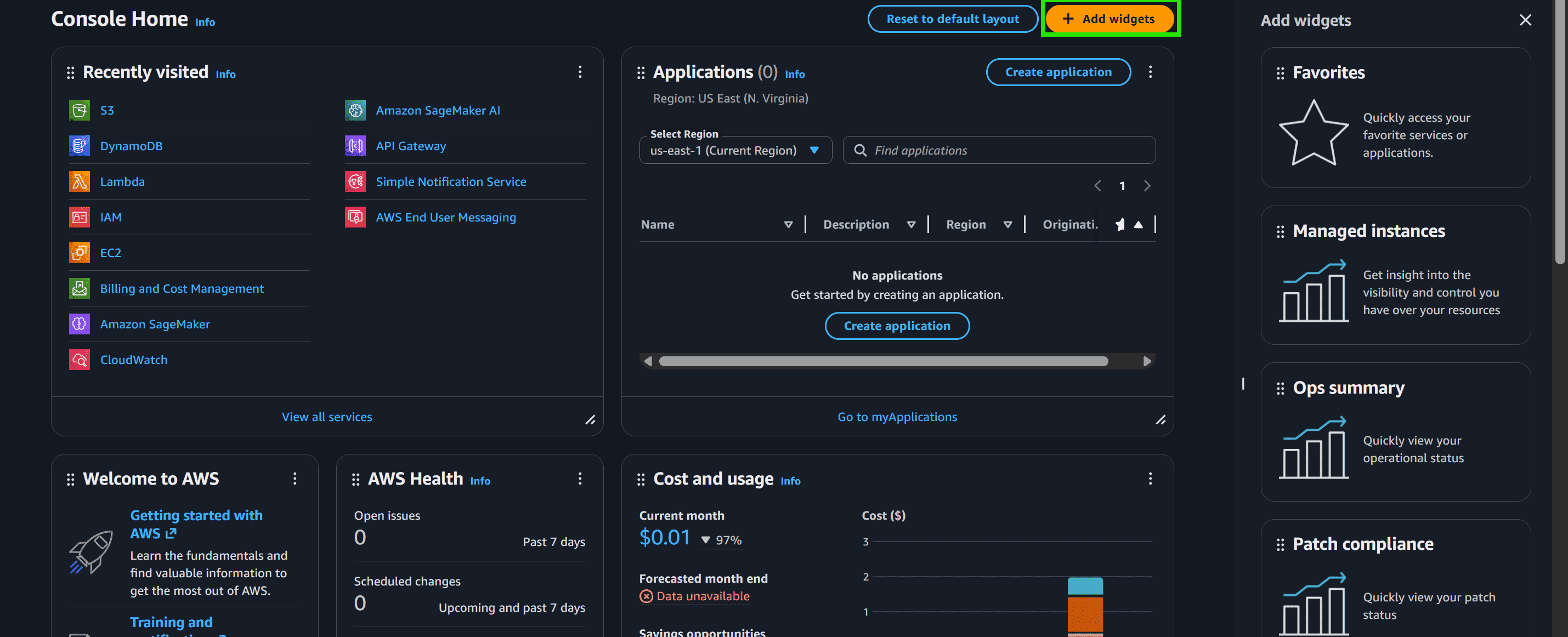
This contains number of widgets for various purposes. It helps user for easy navigation and overview of their services and resources in AWS. The widgets can be added or removed as per user preference. Add widget button can be used to add new widget.
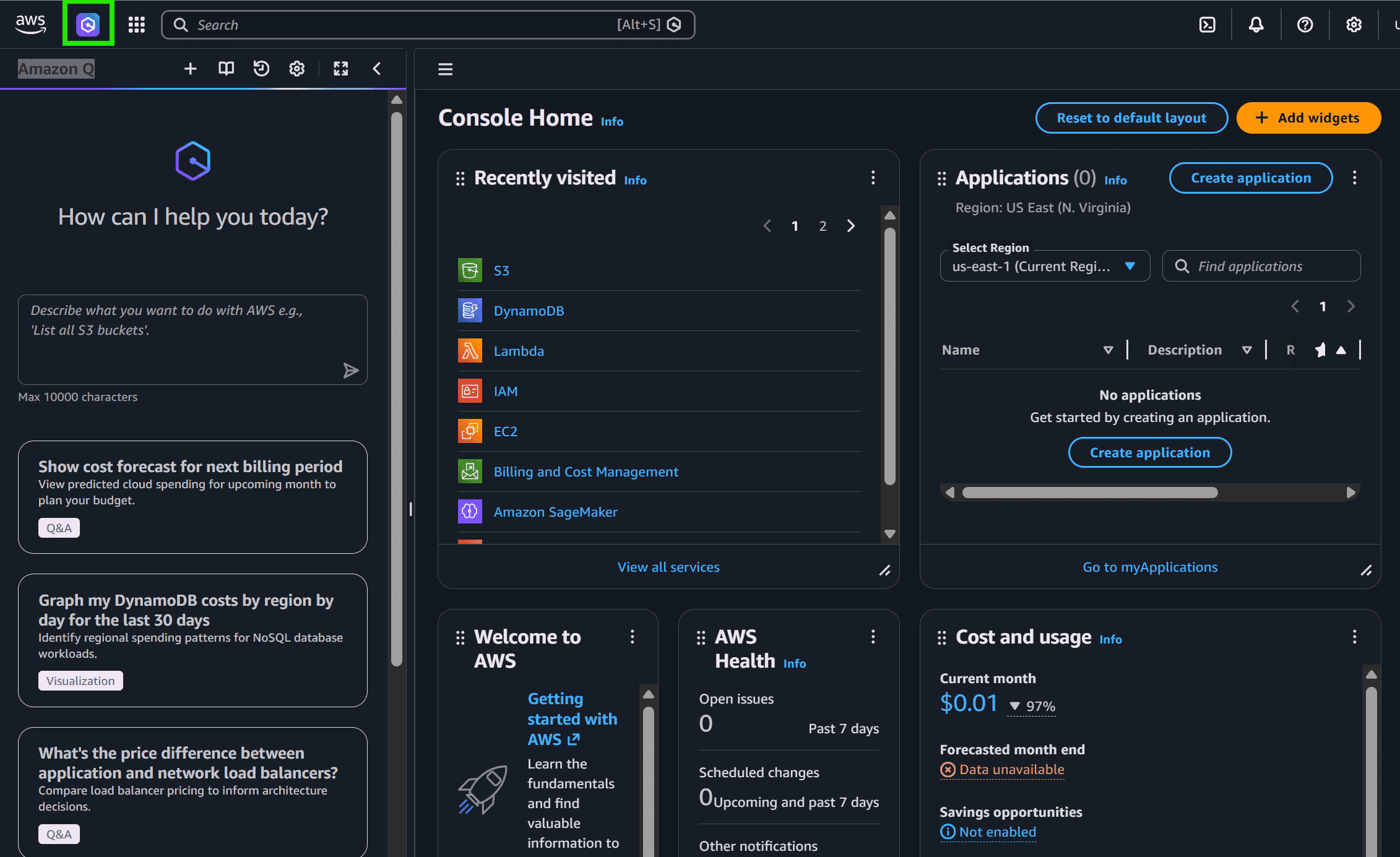
In the AWS Management Console, you can access Amazon Q from the navigation panel or search bar. Amazon Q acts as an AI-powered assistant that helps users understand AWS services, generate code suggestions, troubleshoot issues, and get guidance directly within the console.