FTP or File Transfer Protocol is a set of rules and conventions that governs how files are transferred between a client and server on the internet. It operates on the seventh layer i.e. Application layer of the OSI model. FTP uses a clien-server model where the server acts as a repository for files and the client can establish a connection to perform various operations such as uploading, downloading, deleting, and listing directories.
To learn more about FTP theoretically, visit this article: FTP
In this article, let us look at how we can connect Azure websites using FTP over the internet.
Steps To Connect Azure Website Using FTP
Step 1: Create an App service on Azure
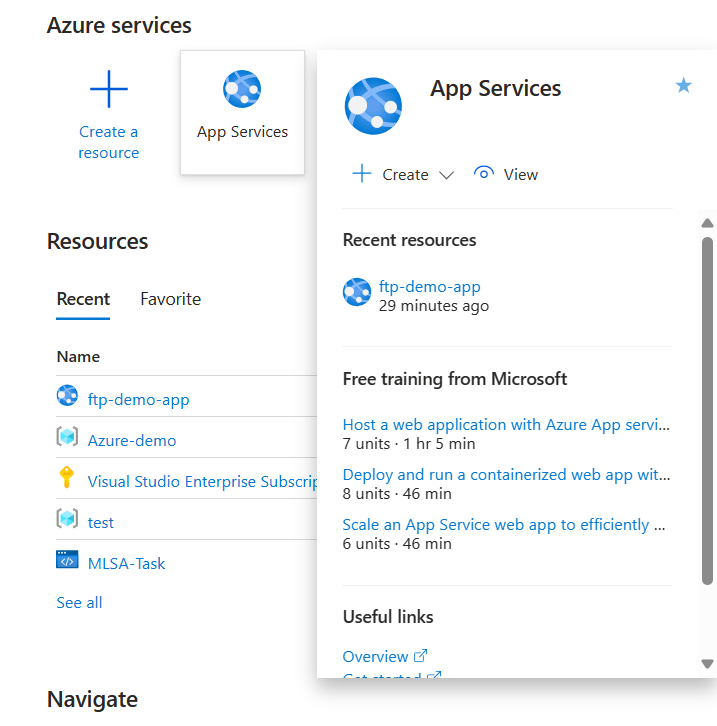
- Navigate to the Azure portal and in the Marketplace, find Azure App services
👁 Azure App Services
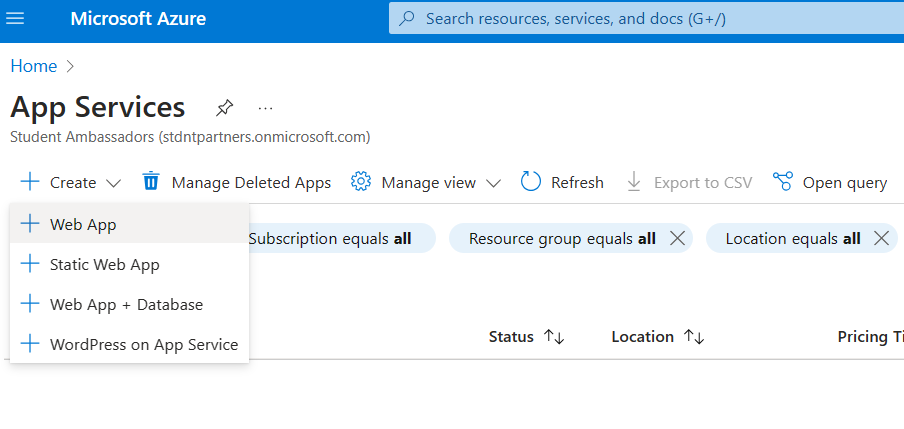
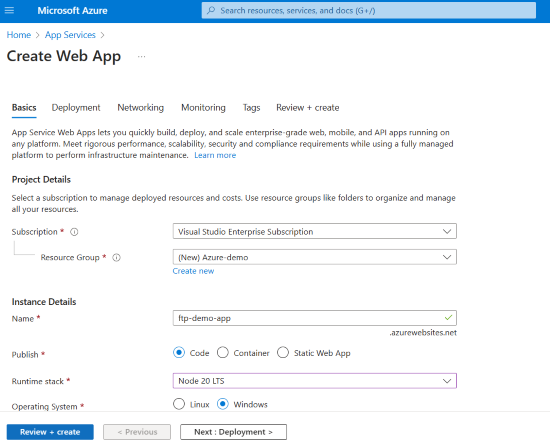
- Now, create a new web app service.
👁 Create app services
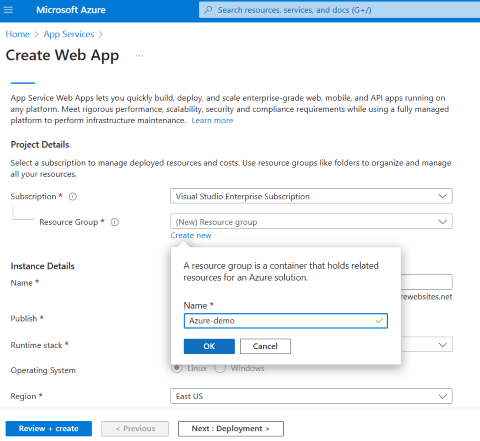
Enter the following credentials
- subscription type
- resource group, create new resource group if needed
👁 name
- Name of the app
- Mode of Publish
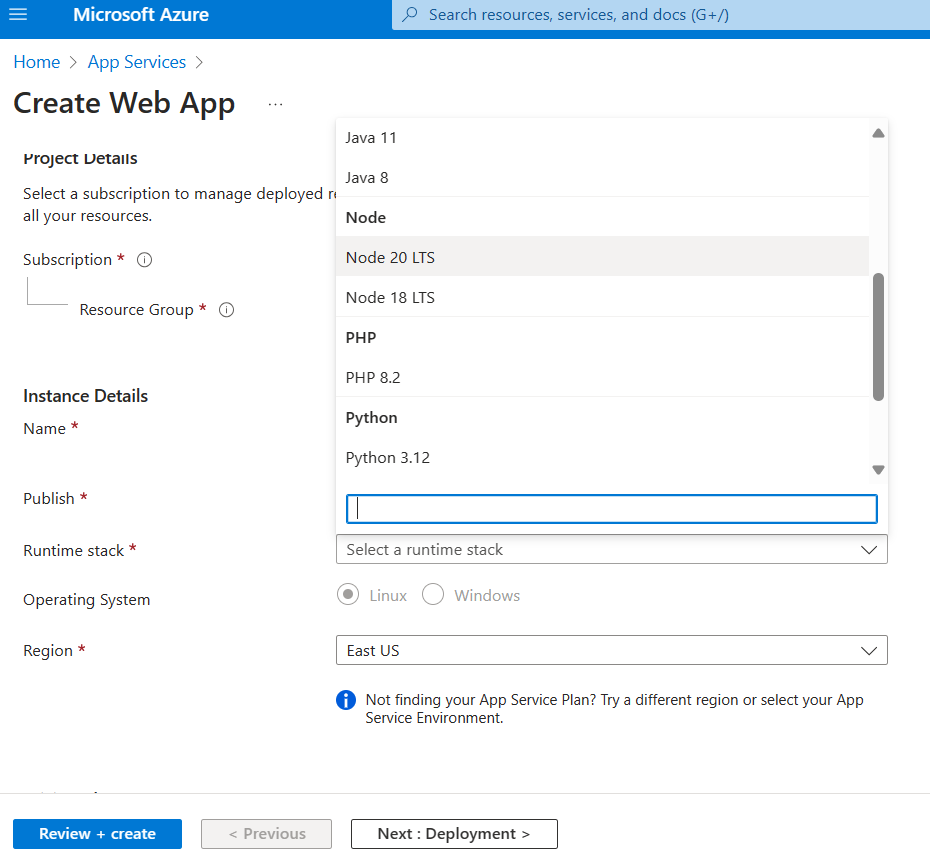
- Runtime stack
👁 Search Source application
- Operating System
- Region(default)
After that, click Review + create to create the web app.
👁 Configure the details
Step 2: Getting the FTP(S) Credentials
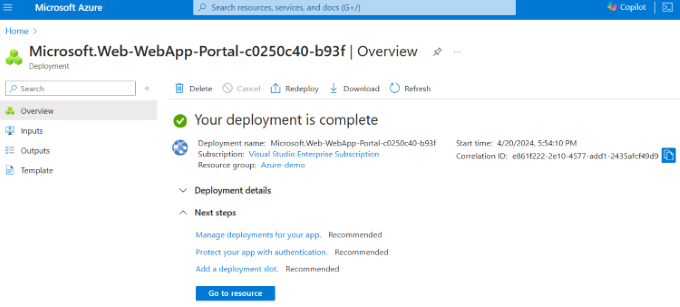
- Once the resource is deployed, click on "Go to resource".
👁 Deployment completed
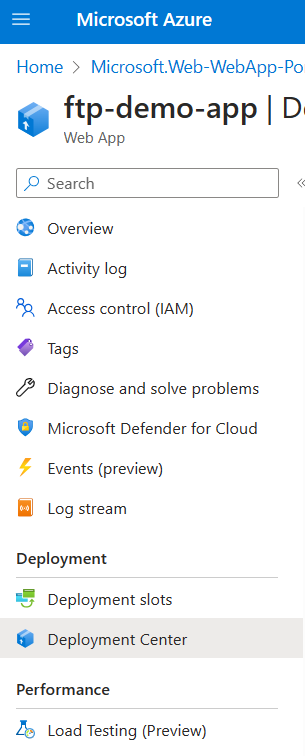
- In the left menu, under the deployments section, find and navigate to deployment center.
👁 deployment testing
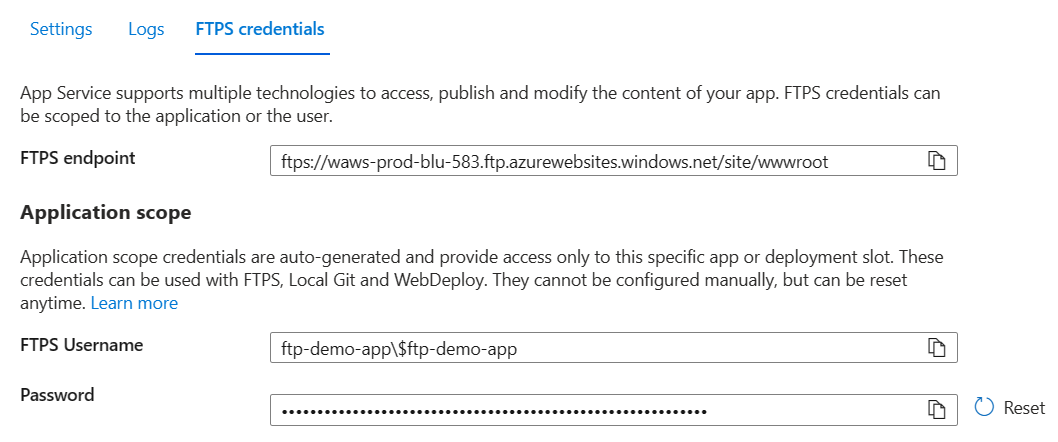
- In the deployment center, you will find the FTP(S) credentials.
- FTPS endpoint
- FTPS Username
- Password
👁 FTP Credentials
Step 3: Connect with FTP Client
Note: Here I am using FileZilla FTP Client
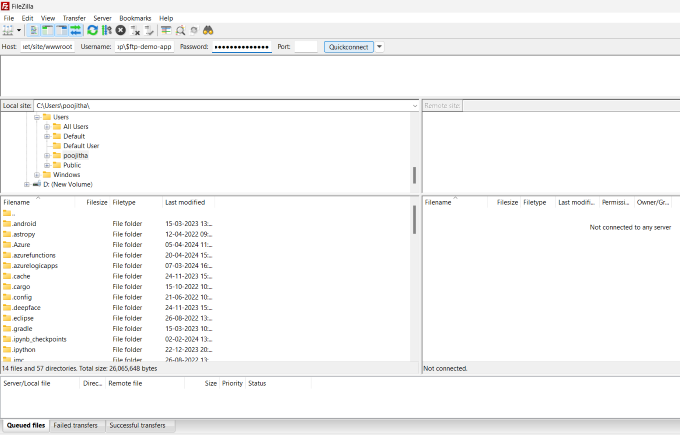
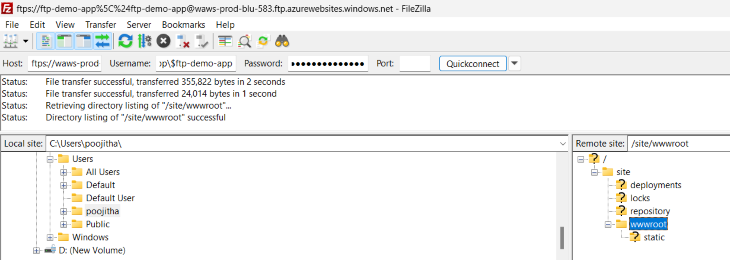
- Open the FileZilla FTP Client, Fill the Host input with FTPS endpoint URL and username and password with FTP Username and Password from Azure Portal.
👁 Conncet With FTP
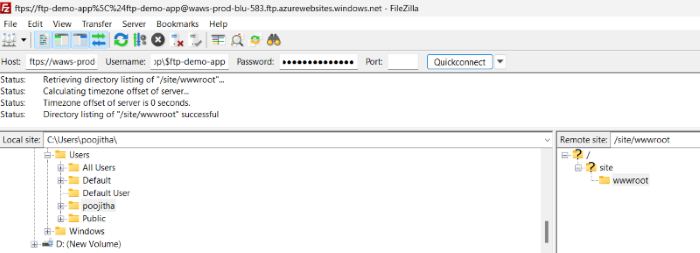
- click on "QuickConnect" to start the server.
👁 Quick Connect
Step 4: code deployment
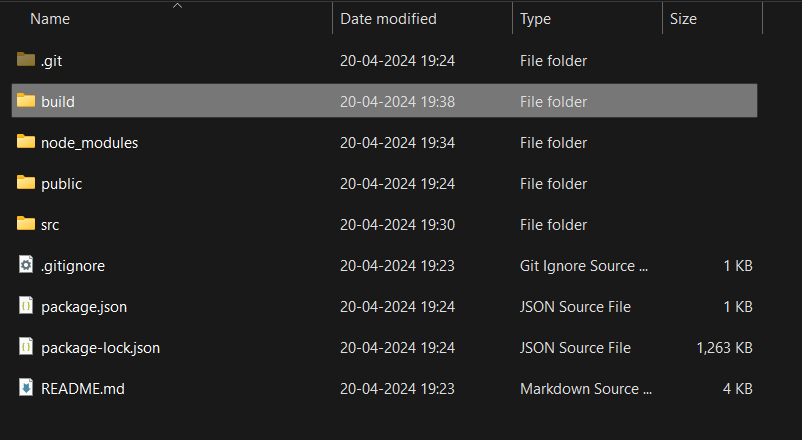
- Here, I have create a react application and build.
👁 Build
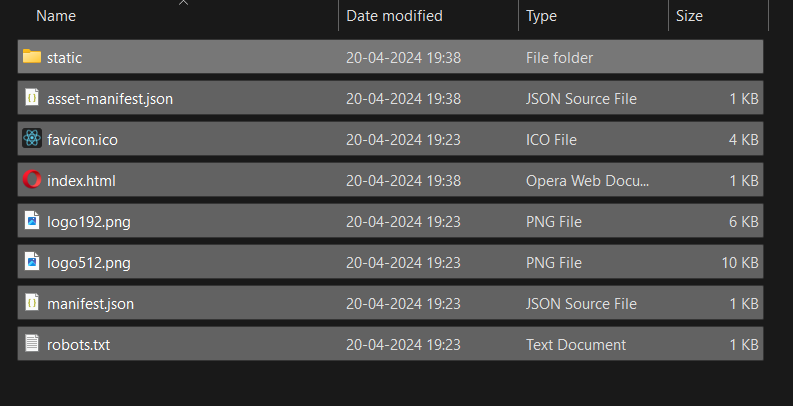
- copy the contents of the build folder and drag and drop the files in the wwwroot folder in the FTP server.
👁 Drag and drop the file
👁 know see the files is transfered
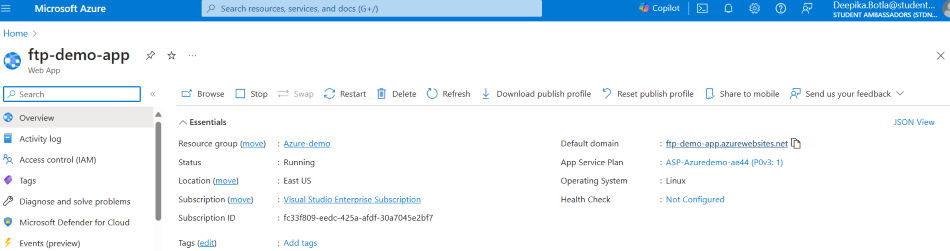
- Navigate to the Azure App services in the Azure portal and navigate to your web app.
👁 navigate to app service
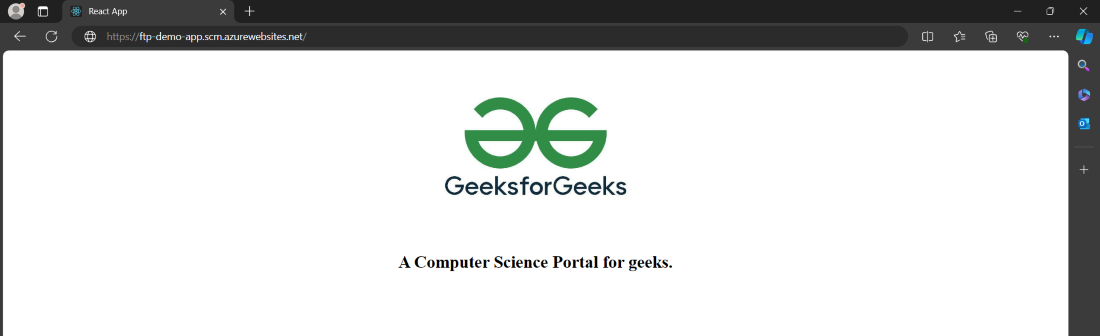
- Under the Essentials, find and navigate through the Default Domain link in order to access your web app.
👁 GFG
In this way, we can use FTP to connect with Azure and send the files across the internet.