 |
VOOZH | about |
|
VOOZH | about |
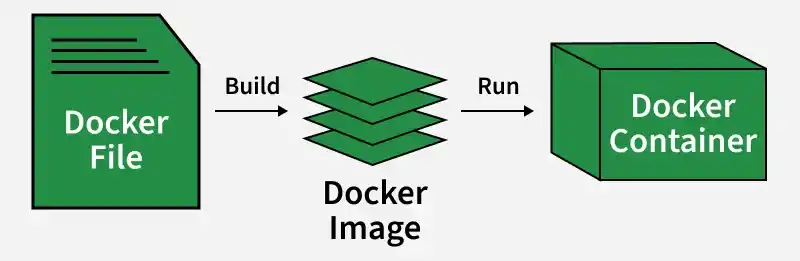
A Dockerfile is a simple text file that contains a script of instructions for building a Docker image.
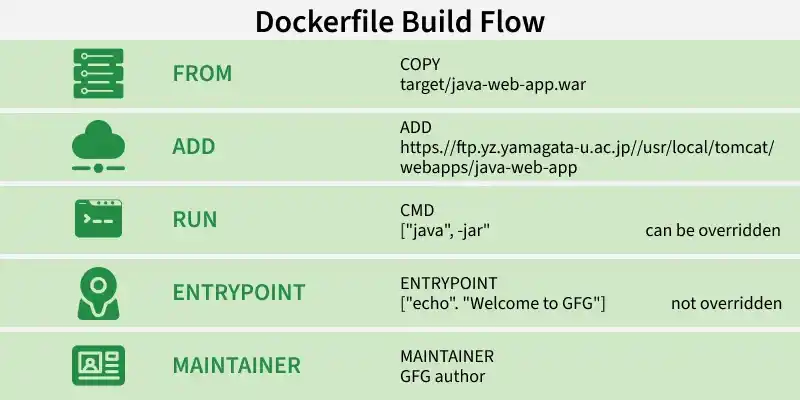
Each instruction plays a specific role in building images, from defining the base system to copying files, running scripts, and setting container
This must be the very first instruction in a Dockerfile. It sets the base image for subsequent instructions, essentially choosing the foundational operating system or environment for your application.
FROM <ImageName>
Example: The base image will be ubuntu:19.04 Operating System.
FROM ubuntu:19.04
The copy command is used to copy the file/folders to the image while building the image.
COPY <Source> <Destination>
Example: Copying the .war file to the Tomcat webapps directory
COPY target/java-web-app.war /usr/local/tomcat/webapps/java-web-app.warHas all the features of COPY, but can also handle remote file URLs and automatically extract compressed files (like .tar.gz) into the destination directory.
ADD <URL>
Example: Try to download Jenkins using ADD command
ADD https://ftp.yz.yamagata-u.ac.jp/pub/misc/jenkins/war/2.397/jenkins.warBest Practice: Always prefer COPY unless you specifically need ADD's tar extraction or remote URL features. COPY is more transparent and predictable
This command executes any commands in a new layer on top of the current image and commits the results. These are build-time commands needed to set up your application, such as installing packages.
RUN < Command + ARGS>
Example
RUN touch fileThe main purpose of the CMD command is to start the process inside the container and it can be overridden.
CMD [command + args]
Example: Starting Jenkins
CMD ["java","-jar", "Jenkins.war"]Syntax
ENTRYPOINT [command + args]
Example: Executing the echo command.
ENTRYPOINT ["echo","Welcome to GFG"]In this example, we will write the Dockerfile for Jenkins and build an image by using Dockerfile which has been written for Jenkins and we will run it as a container.
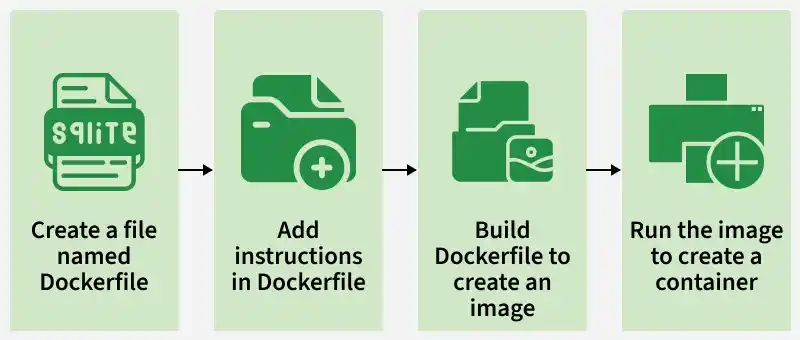
Step 1: Open Docker and create a file with the name Dockerfile.
Step 2: Open the Dockerfile by using the vi editor and start writing the command that is required to build the Jenkins image.
FROM openjdk:11-jdk
MAINTAINER GFG author
LABEL env=production
ENV apparea /data/app
RUN mkdir -p $apparea
ADD https://ftp.yz.yamagata-u.ac.jp/pub/misc/jenkins/war/2.397/jenkins.war $apparea
WORKDIR $apparea
EXPOSE 8080
CMD ["java","-jar","jenkins.war"]
Step 3: Build the image by using the below command with the help of Dockerfile and give the necessary tags. and the dot(.) represents the current directory which is a path for Dockerfile.
docker build -t jenkins:1 .Step 4: Run the container with the help image ID or tag of the image by using the below command.
docker run -d -p 8080:8080 <Imagetag/ID>Step 5: Accesses the application (Jenkins) from the internet with the help of host port and hostIP (HostIP: Port)
👁 containerized applicationThe following are the some of the troubleshooting of Dockerfile Issues:
The following are the difference between dockerfile and Docker Compose:
| Dockerfile | Docker Compose |
|---|---|
| Defines how to build a single Docker image | Defines and runs multi-container Docker applications |
| Dockerfile (no extension) | docker-compose.yml |
| Builds an image layer by layer from instructions | Manages multi-container setups and networking |
| Focuses on image creation | Focuses on container orchestration and configuration |
FROM, RUN, CMD, COPY, ADD | services, volumes, networks |
| Single-container focus | Multi-container focus |
| Each image built individually | Handles inter-container dependencies |
| Creating a reusable environment for an app | Running an application stack (e.g., web server, database) |

.png)
-(1).png)
.png)
.png)
.png)