|
VOOZH | about |
|
VOOZH | about |
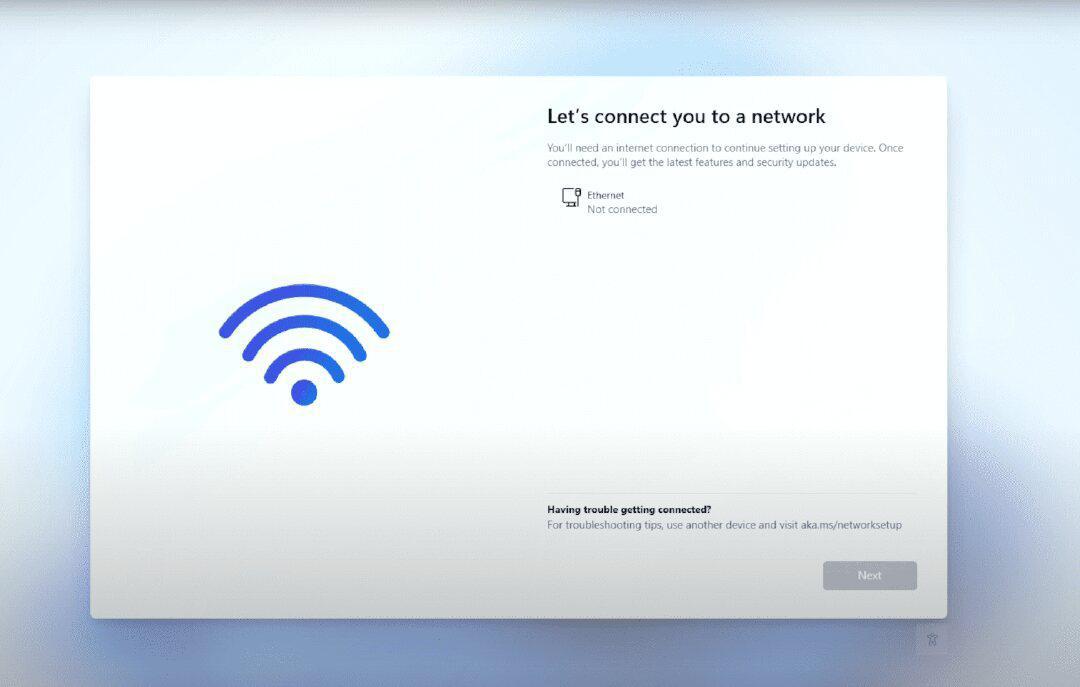
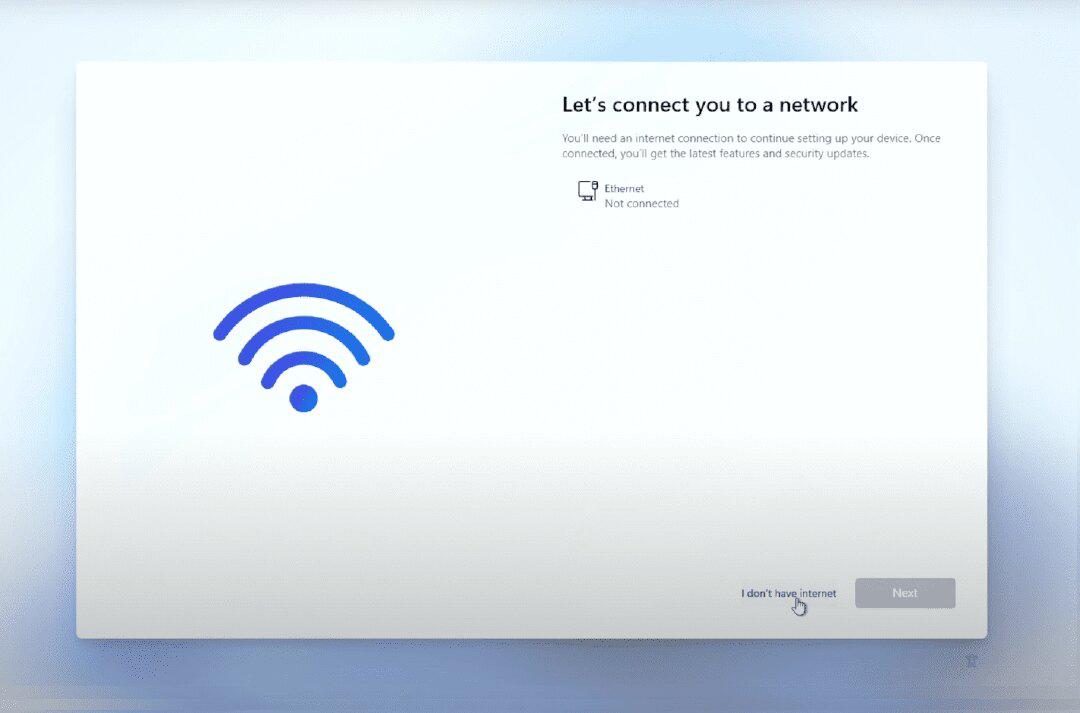
During Windows 11 installation, some users may encounter a situation where the "Next" button remains disabled (as shown in the provided image) preventing them from proceeding unless they have an Ethernet connection. However, many users face problems due to the lack of availability of Ethernet connection also Wi-Fi options aren't visible.
This problem can occur due to the unavailability of a proper network driver in the system.
👁 Bypass-Lets-connect-you-to-a-network_1
The "Let's connect you to a network" issue on Windows 11 occurs due to network configuration glitches. It disrupts internet access. If you ever find yourself stuck in this situation while installing Windows 11, here are the steps to resolve the issue and move forward.
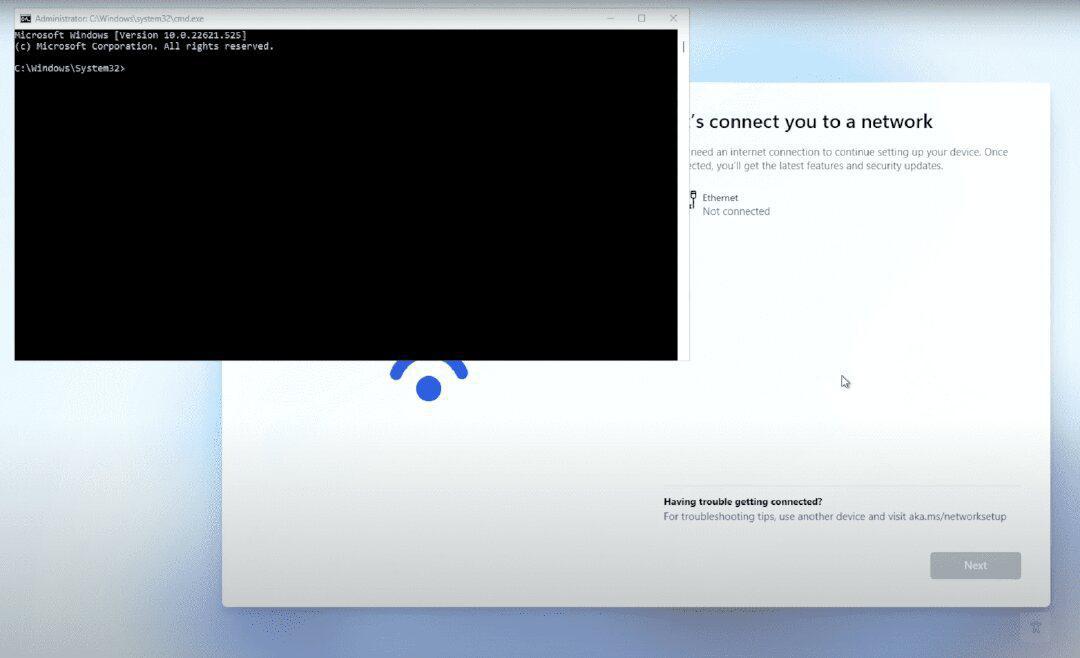
Step 1: Press Shift+F10. It will open command prompt.
👁 Step-1_-Bypass-Lets-connect-you-to-a-network
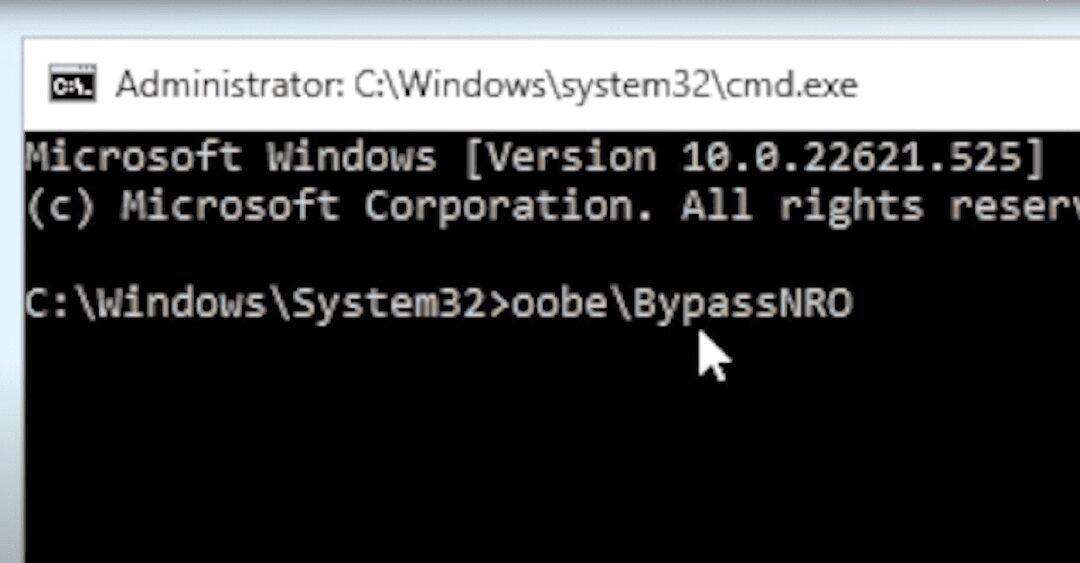
Step 2: Now enter the following command and hit Enter button.
oobe\BypassNRO
👁 Step-2_Bypass-Lets-connect-you-to-a-network
Step 3: Now it will automatically restart the PC.
👁 Step-3_Bypass-Lets-connect-you-to-a-network
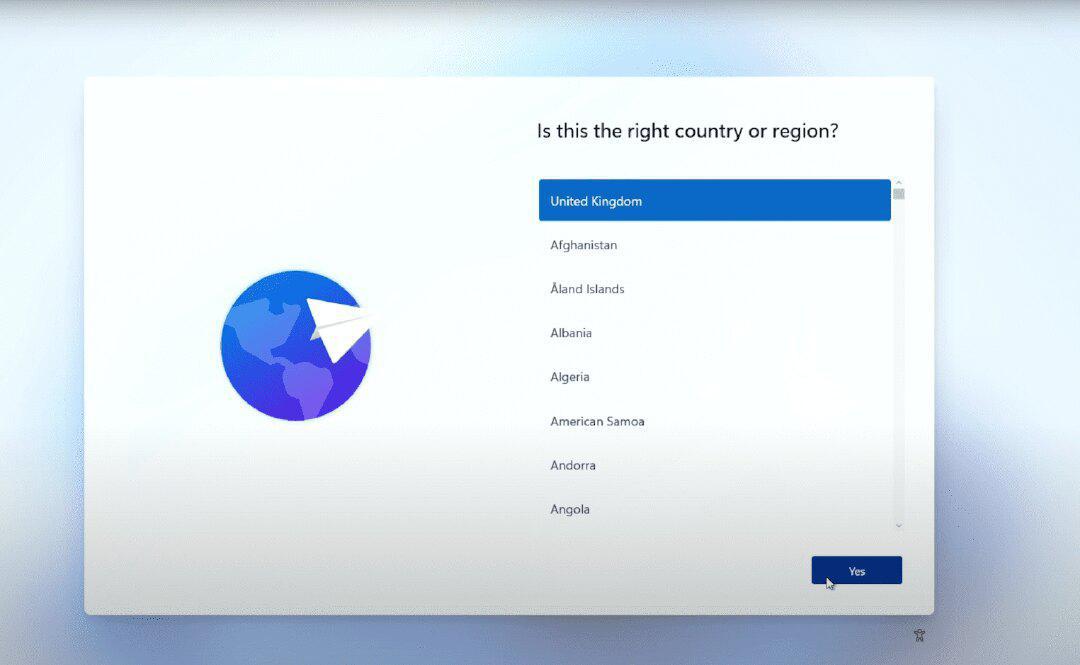
Step 4: Choose your Country orRegion and click on Yes.
👁 Step-4_Bypass-Lets-connect-you-to-a-network
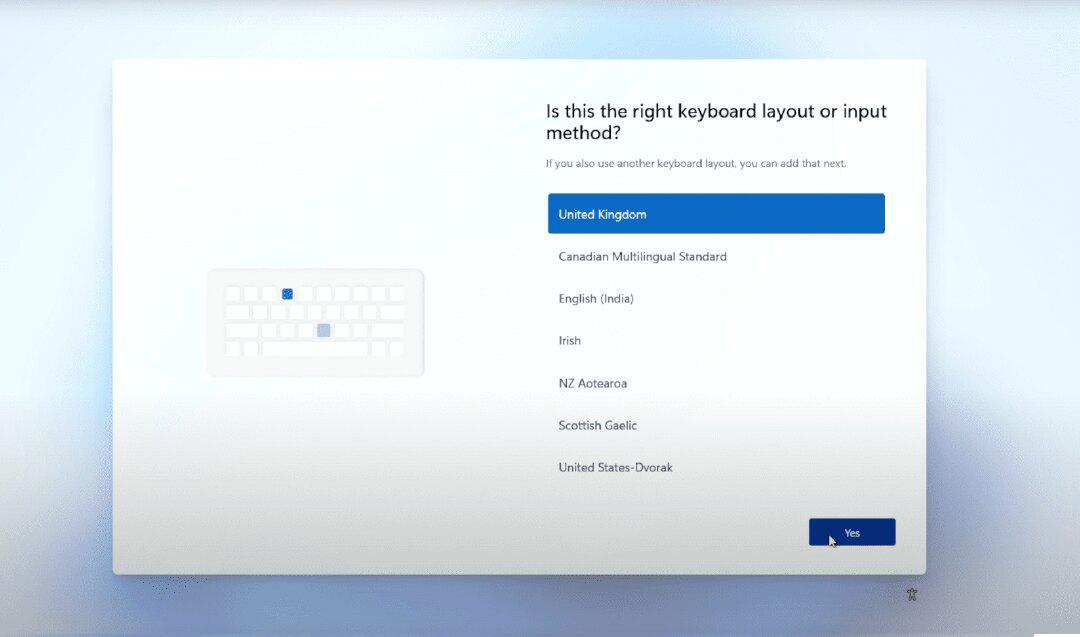
Step 5: Choose your Keyboard layout and click on Yes.
👁 Step-5_Bypass-Lets-connect-you-to-a-network
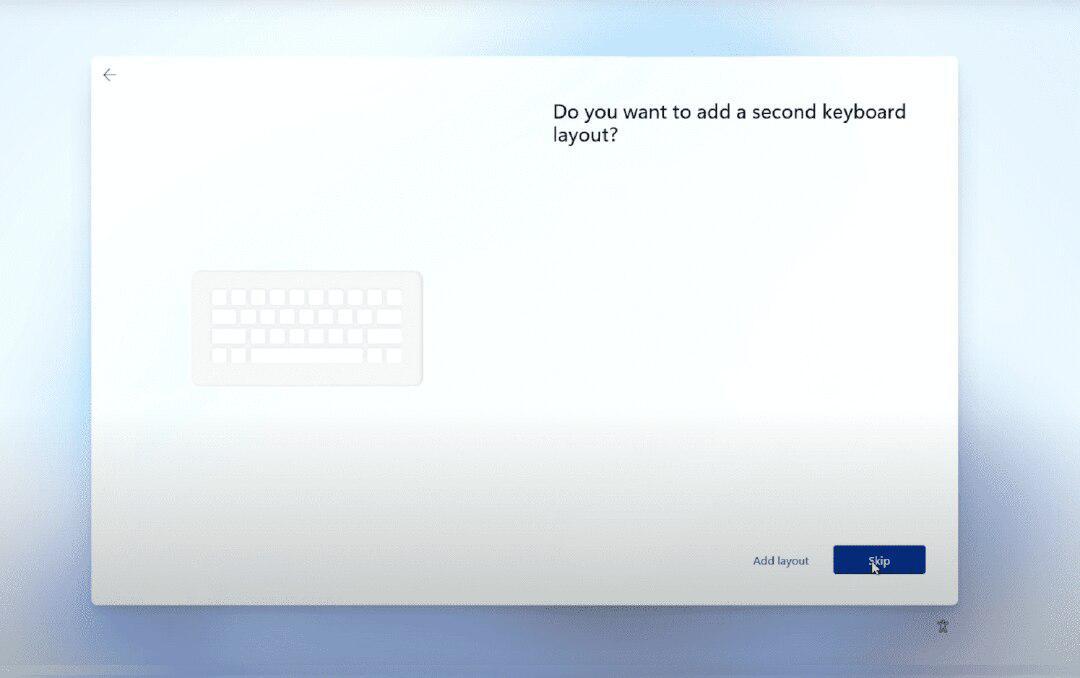
Step 6: You can add a second keyboard layout, or you can skip this part.
👁 Step-6_Bypass-Lets-connect-you-to-a-network
Step 7: Now, you can see that there is an option 'I don't have internet'. Click on it.
👁 CompressJPEGOnline_50kb_9535
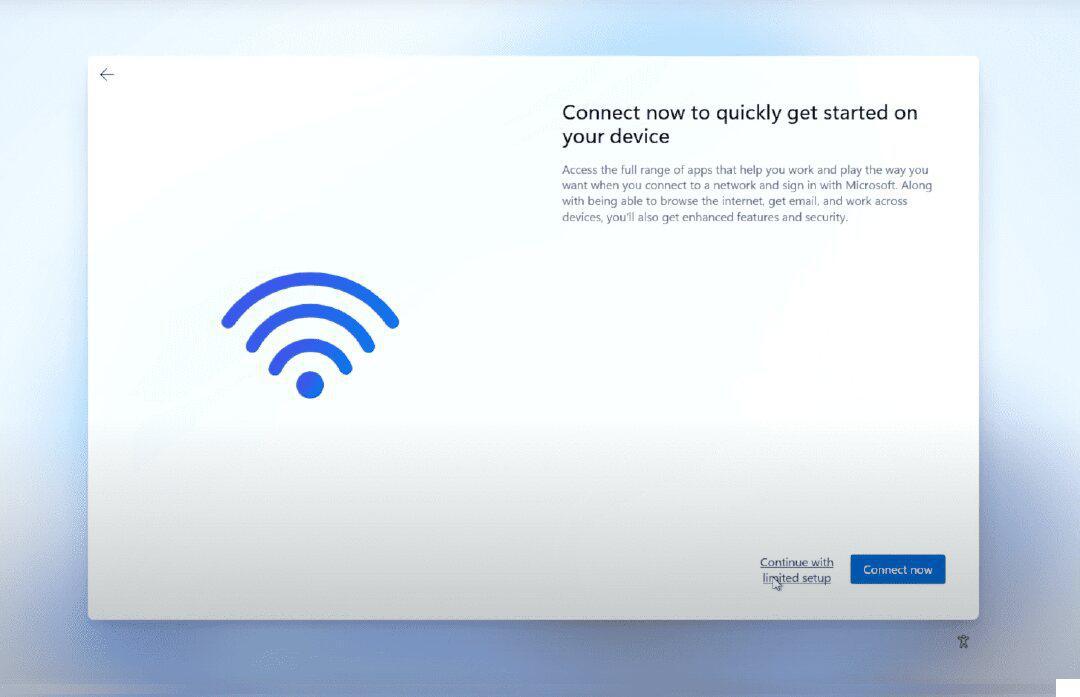
Step 8: Click on 'Continue with limited setup'.
👁 Step-8_Bypass-Lets-connect-you-to-a-network
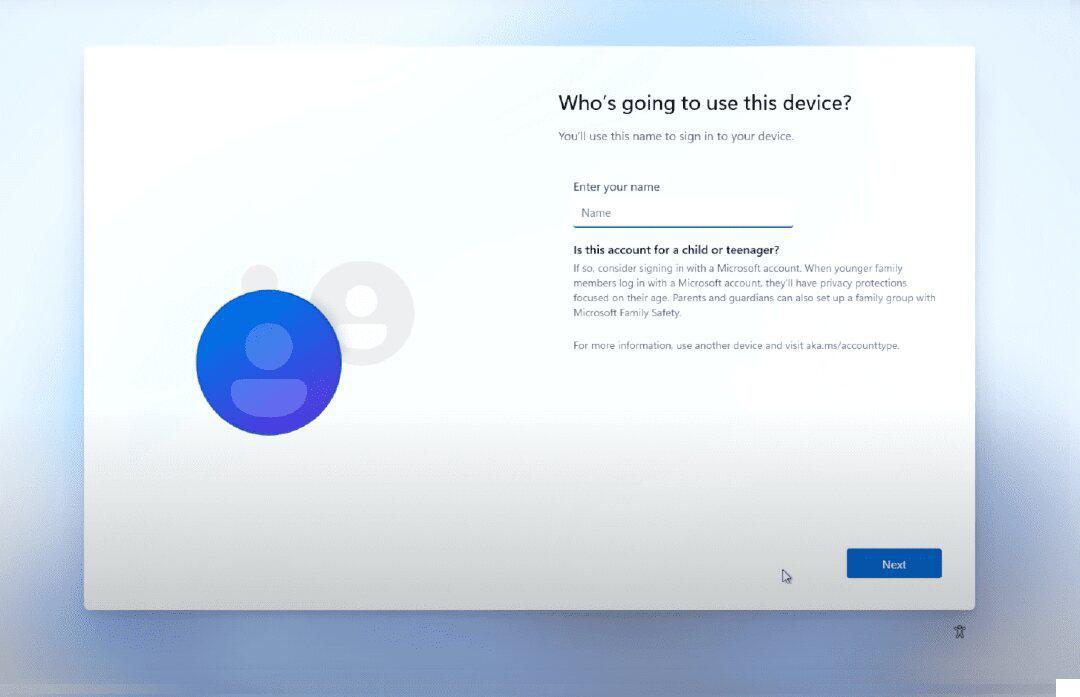
Step 9: Now Enter the name of who is going to use this device and click on Next.
👁 Step-9_Bypass-Lets-connect-you-to-a-network
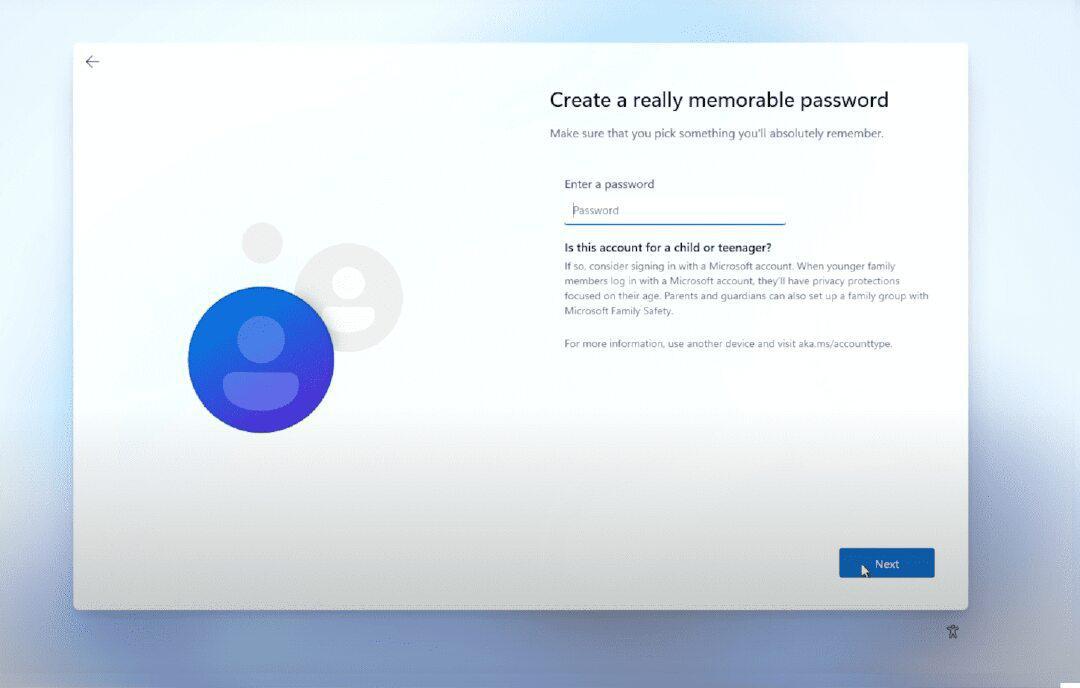
Step 10: Enter a password and click on Next.
👁 Step-10_Bypass-Lets-connect-you-to-a-network
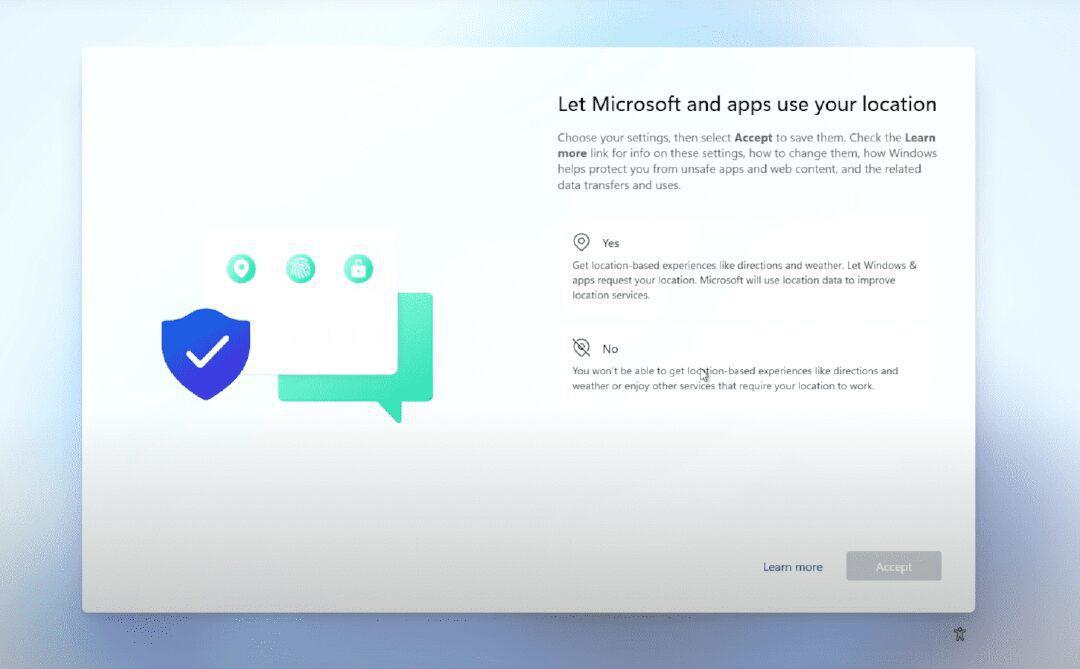
Step 11: Scroll down and click on Accept.
👁 Step-11_Bypass-Lets-connect-you-to-a-network
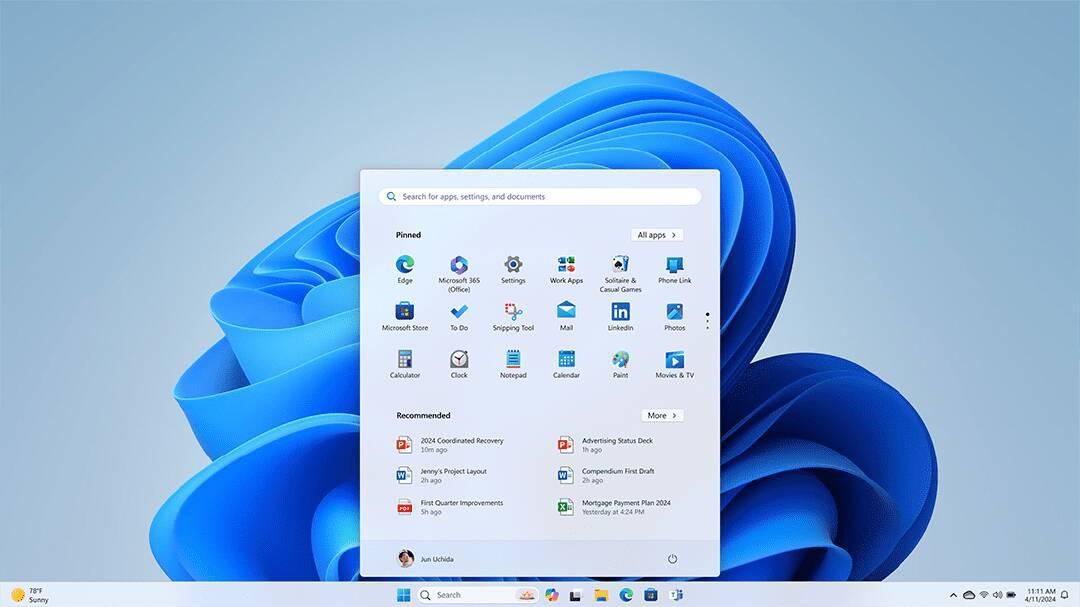
Step 12: After waiting for a few minutes, you can see the Home Screen.
👁 Step-12_Bypass-Lets-connect-you-to-a-network
After following these steps carefully, we can successfully install Windows 11!