|
VOOZH | about |
|
VOOZH | about |
Upgrading from Windows 10 to Windows 11 is free for eligible devices. The best part about this is that you don't need to spend any additional charges on a new PC, you can upgrade to Windows 11 for free. Whether you want to enhance gaming performance, an advanced user interface, or better security, Windows 11 is the better choice over Windows 10.
Before starting the upgrade, it's essential to make a quick cross-check to determine whether your Windows 10 PC is eligible or not for upgrading to Windows 11. Your system must meet the following requirements to upgrade to Windows 11.
Note: You can use the PC Health Check tool to verify if your current Windows 10 PC is eligible or not to upgrade to win 11.
There are several methods to upgrade from Windows 10 to Windows 11, and Microsoft has made it easy to download and install the new operating system. Below is the list of the following methods to perform the Win 11 upgradation:
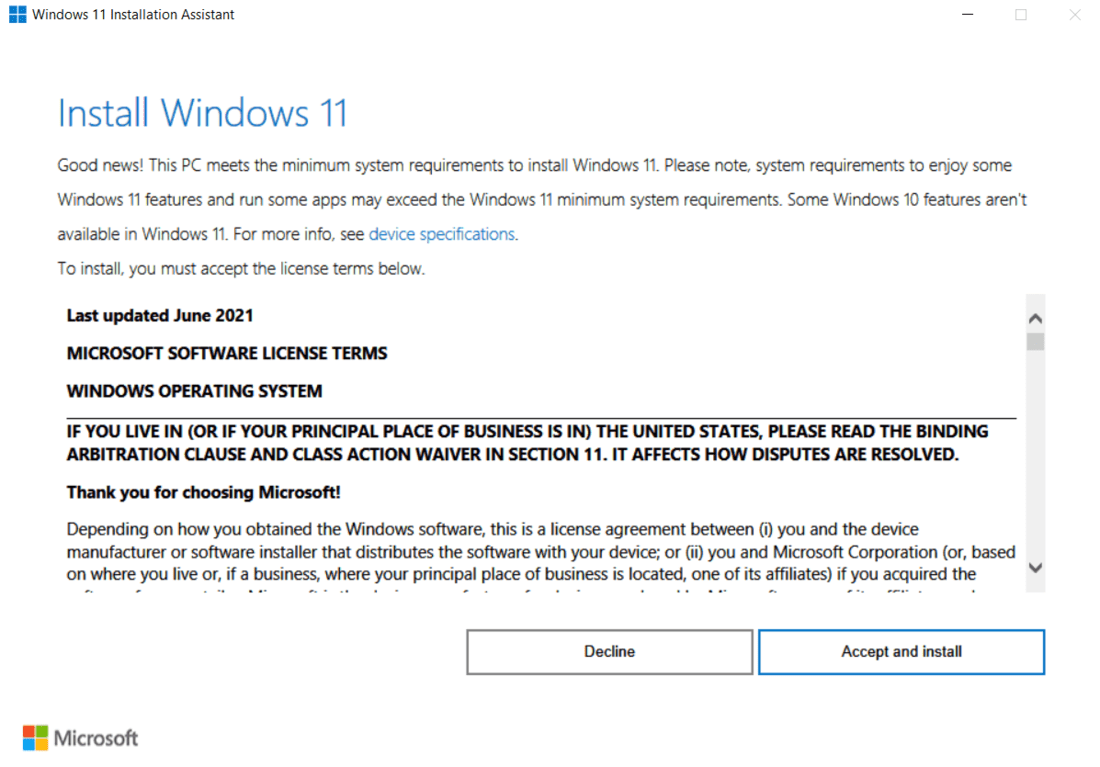
Windows 11 Installation Assistant is one of the most useful tools to download & install Windows 11 for Free. If you want to use this tool, follow these steps:
Go to Microsoft's Download Windows 11 page. There you will see an option named Windows 11 Installation Assistant.
Click on the Download Now button located underneath Before you begin to start downloading the tool.
After downloading, run the file. Now, it will ask for your permission to download & install Windows 11 for Free. Click on Accept and Install to proceed.
The utility will now start the process automatically. Wait until the process is finished. After finishing, the utility will ask you to restart your PC to complete the installation of Windows 11. Click on Restart Now to proceed.
After rebooting, you will be able to operate on your newly installed Windows 11 PC.
If you want to upgrade Windows 10 to Windows 11 using a bootable USB drive, creating Windows 11 Installation Media is a great method for tha. Let's see how you can perform this action:
Go to Microsoft's Download Windows 11 page. Scroll down and you will find an an option there Create Windows 11 Installation Media.
Click on the Download Now button located underneath Before you begin to start downloading the tool.
Once the downloading gets completed, run the file and go through its terms and license. Click on Accept to proceed.
👁 How to Upgrade from Windows 10 to Windows 11 for Free5Check the box that says Use the recommended options for this PC and hit Next.
👁 How to Upgrade from Windows 10 to Windows 11 for Free6Click on the ISO file and hit Next.
👁 How to Upgrade from Windows 10 to Windows 11 for Free7Hit the button that says Keep personal files only and click Next.
👁 How to Upgrade from Windows 10 to Windows 11 for Free8The downloading process will start automatically. After downloading, double-click on the setup file to begin installing. After finishing, reboot your PC to complete the installation of Windows 11.
If you'd rather use an ISO file to install Windows 11, below is the easy-to-go steps to perform this action:
Go to Microsoft's Download Windows 11 page. There you will see an option named Download Windows 11 Disk Image (ISO) for x64 devices.
Choose Windows 11 (multi-edition ISO for x64 devices) from the dropdown menu and click on Download to proceed.
👁 How to Upgrade from Windows 10 to Windows 11 for Free9After downloading, double-click on the setup file. The below screen will appear. Click on Install to start installing Windows 11.
👁 How to Upgrade from Windows 10 to Windows 11 for Free000After the installation is finished, reboot your computer. After booting up, you will able to operate on your newly installed Windows 11 PC.
Upgrading from Windows 10 to Windows 11 offers several benefits that enhances your overall in-hands experience. Here are a few key highlighters to support this upgradation:
Also Read