|
VOOZH | about |
|
VOOZH | about |
Imagine waiting for a video to buffer. Slow internet feels the same due to which a lot of time gets wasted, resulting in Poor performance. There are some ways to maximize the speed of an internet connection, and this article explains these methods in detail. Keep in mind, that your internet won't be faster than what you're paying for, However, most people do not even enjoy the standard internet speed. but we'll show you how to maximize your Internet speed and make the best use of it.
👁 How-To-Maximize-the-Speed-of-Your-Internet-Connection
This article is exactly for them. We will see Different methods to boost Internet speed test. these tips and methods are tried and tested, and ensure a smoother online connection for your devices.
Table of Content
This method gives simple tips to make internet speed test faster easily. It's like a convenient manual with simple solutions, making it suitable for anyone to improve internet speed test without much hassle.
You can improve the speed of your internet using the following quick fixes:
This method is effective for achieving a faster internet experience by fixing Hardware. It will provide a significant boost in your internet speed test for better online work.
Here are some hardware fixes that you can implement to boost your internet speed test. They include:
The solutions provided in this section are reliable and tried and tested, You can use the following software fixes to improve your internet.
Routers have two frequency bands: 2.4 GHz and 5 GHz. Many use 2.4 GHz for the internet, causing it to be slower due to crowded airwaves. It has a good range. The 5 GHz band is faster but has a smaller range.
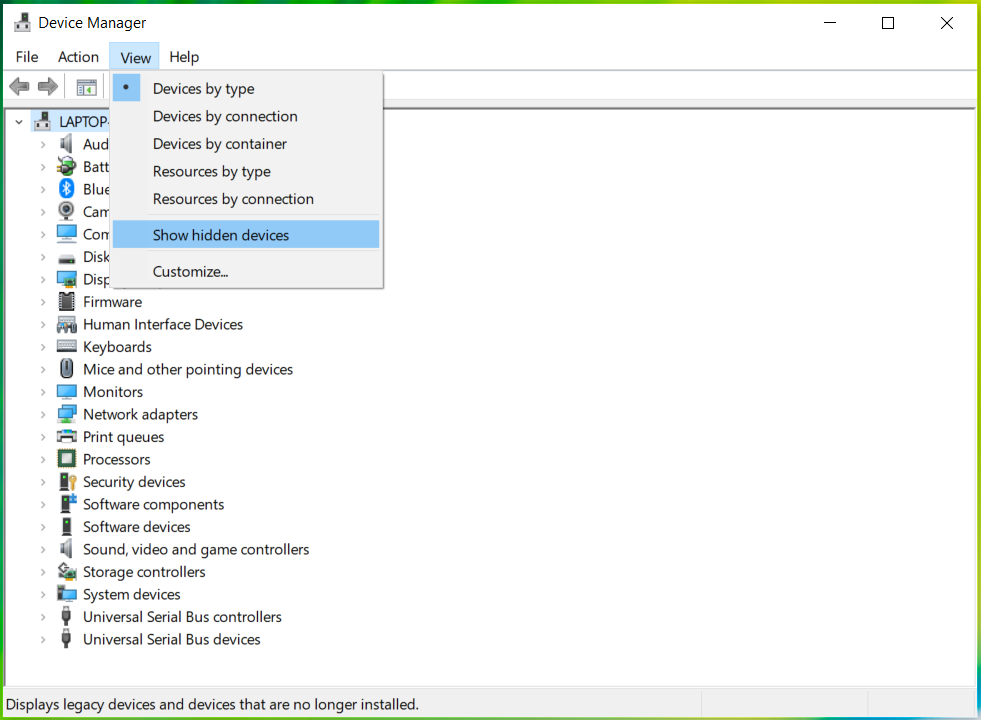
To change your band, search for Device Manager on Windows, click View, and then Show hidden devices.
👁 Improve-Internet-Speed-Using-Software-Fixes_1
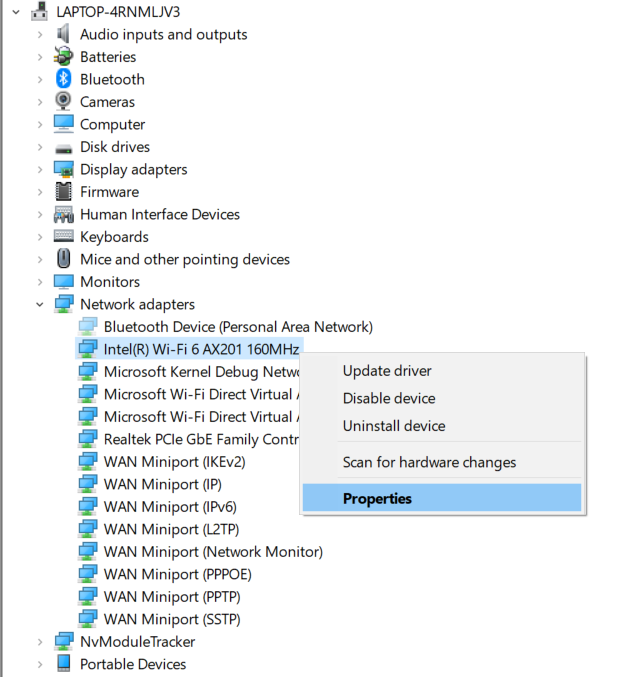
Now, find Network adapters from the list of categories and double-click on them. Then, find your Wi-Fi adapter from the list of devices, right-click on it, and hit Properties.
👁 Improve-Internet-Speed-Using-Software-Fixes_2
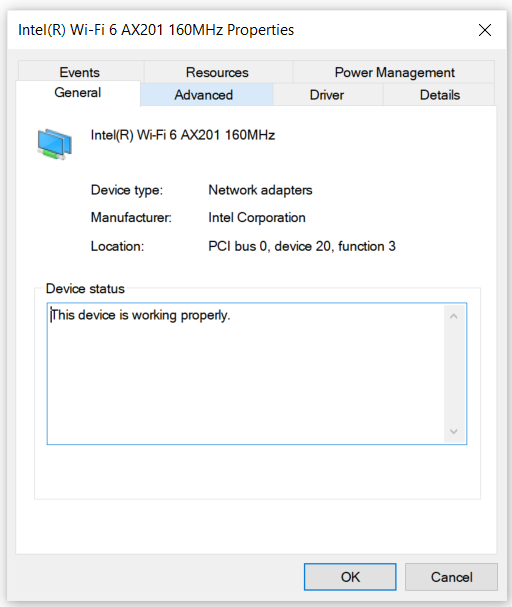
On the Properties tab, locate Advanced at the top of the page and click on it.
👁 Improve-Internet-Speed-Using-Software-Fixes_3
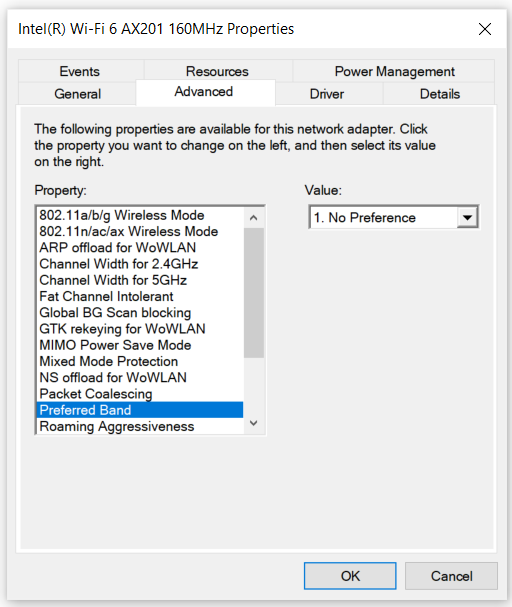
Now, find the Preferred Band property and select it.
👁 Improve-Internet-Speed-Using-Software-Fixes_4
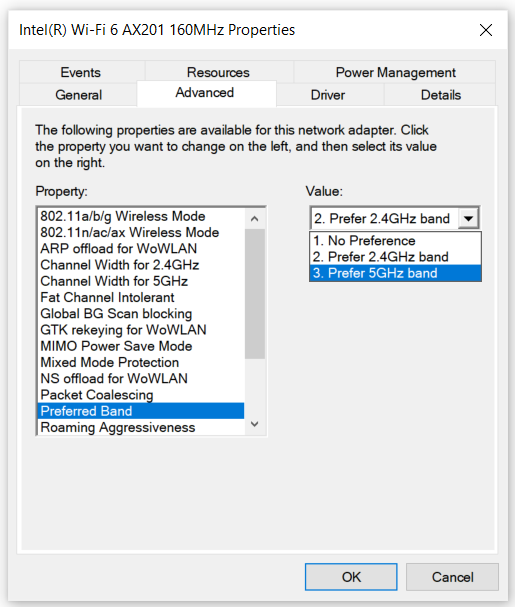
In the value box, choose the preferred band from the dropdown list. We need to choose the one we are not using. In our case, we were not using the 5 GHz band. So, we choose it from the dropdown. Finally, click OK to operate.
👁 Improve-Internet-Speed-Using-Software-Fixes_5
There may be some files or folders on your PC that are created for unethical purposes. These can prevent your network from operating normally. That's why you need to do an antivirus scan on your PC. We will do it using Windows Security. Here is the process:
Step 1: Type Windows Security in the search bar and click on the application that pops up.
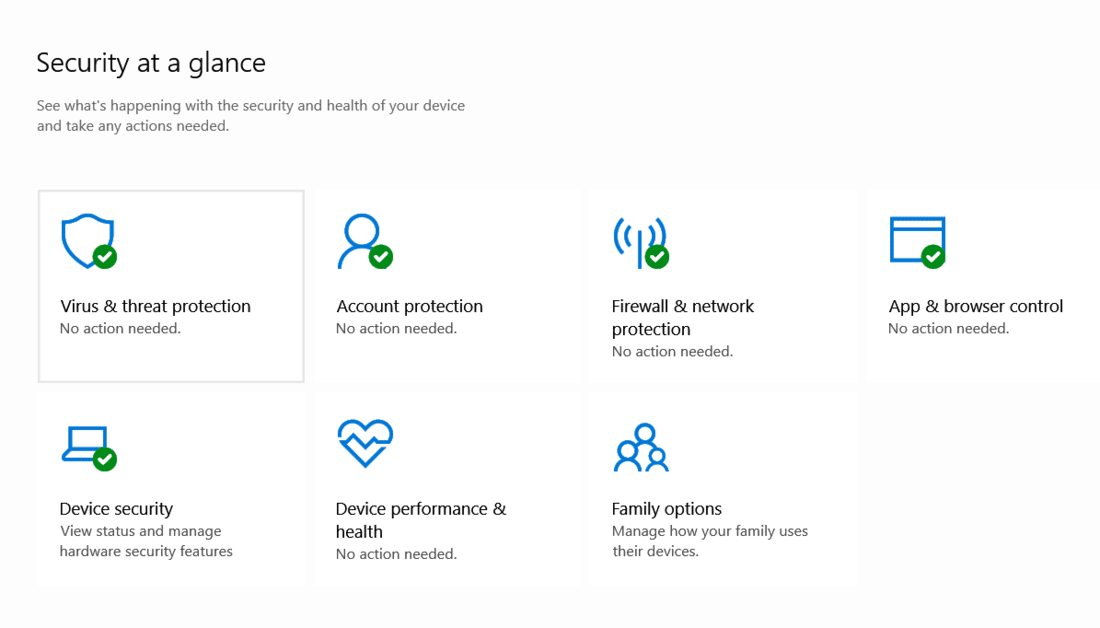
Step 2: On the Windows Security page, click on Virus & Threat Protection.
👁 Improve-Internet-Speed-Using-Software-Fixes_6
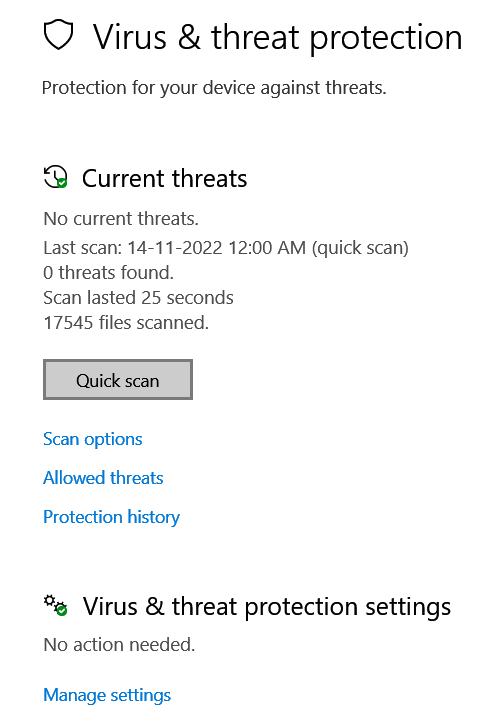
Step 3: On the below page, click on Quick Scan Threat Protection to let Windows Security search the computer for threats. If any issues are found, it automatically fixes them.
👁 Improve-Internet-Speed-Using-Software-Fixes_7
Sometimes, simply updating your browser removes a lot of issues and makes your internet speed faster. If you are using Google Chrome, here's the process of updating it:
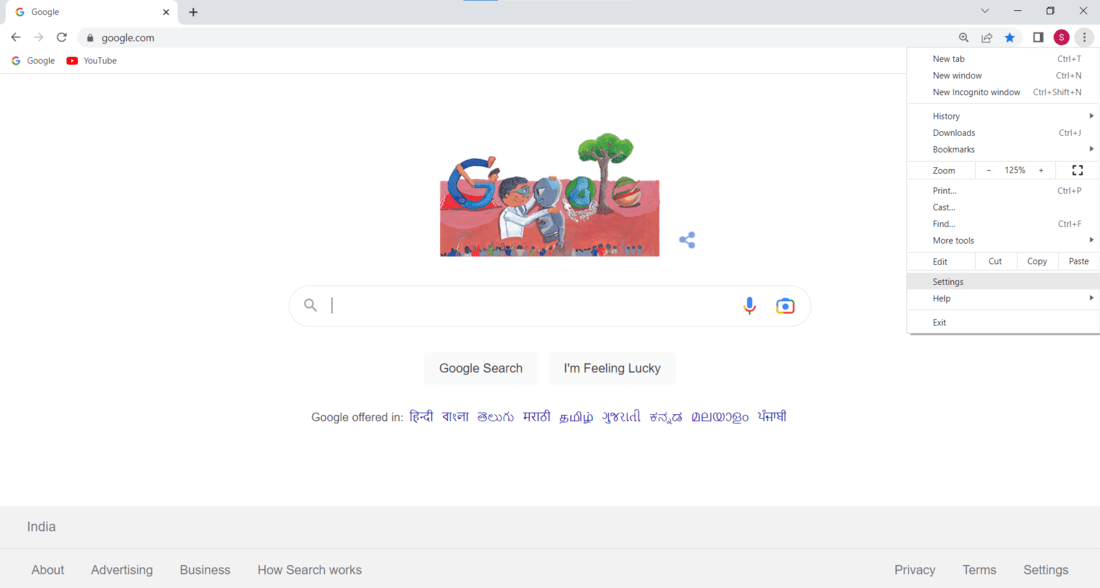
Step 1: Click on the three-dot icon to open the menu. Then, click on Settings.
👁 Improve-Internet-Speed-Using-Software-Fixes_8
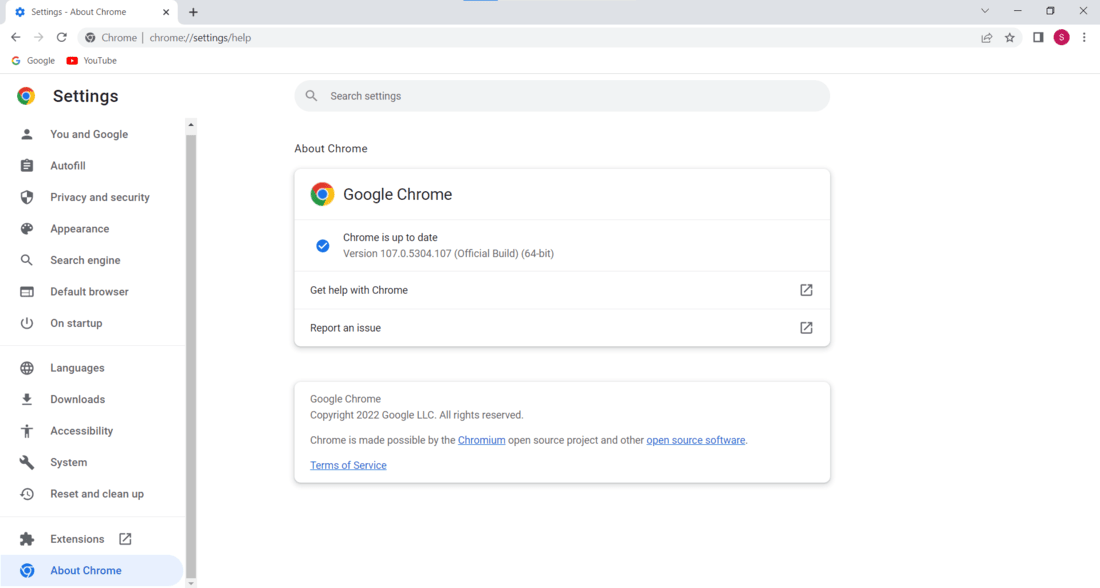
Step 2: Navigate to About Chrome. If there's any update available, it will automatically download and install it. If there isn't any, then it will show you the current version of Chrome.
👁 Improve-Internet-Speed-Using-Software-Fixes_9
Cached files help websites load faster on return visits but can lead to errors if they don't match the browser records.
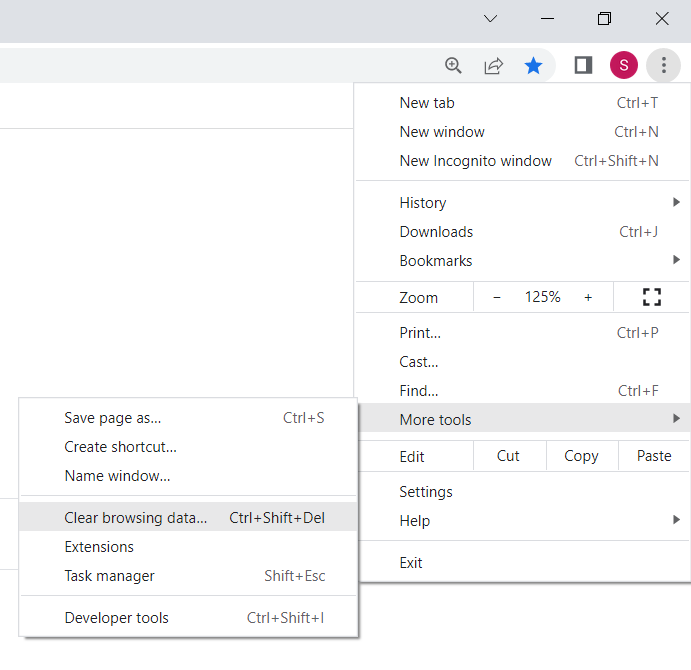
To fix this, remove the cached files. On Chrome, Go to Settings > More tools > Clear browsing data for a quick solution to ensure smooth website performance.
👁 Improve-Internet-Speed-Using-Software-Fixes_11
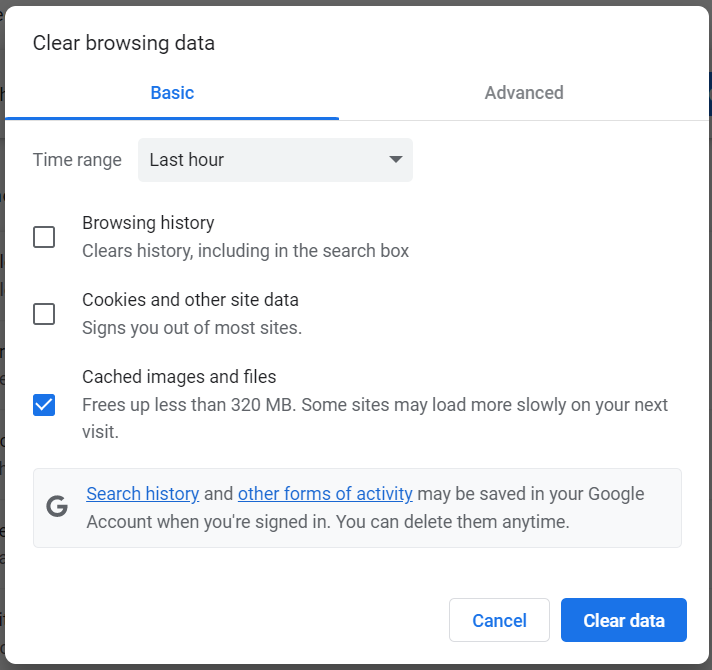
Then, tick the checkbox that says Cached images and files. Finally, click on Clear DataScan to operate.
👁 Improve-Internet-Speed-Using-Software-Fixes_12
DNS (Domain Name System) helps speed improvement by translating website names into IP addresses efficiently. A fast DNS means quicker access to websites, enhancing and improving internet speed.
You can change your DNS on Windows to boost your internet speed test. Here is the process of doing it:
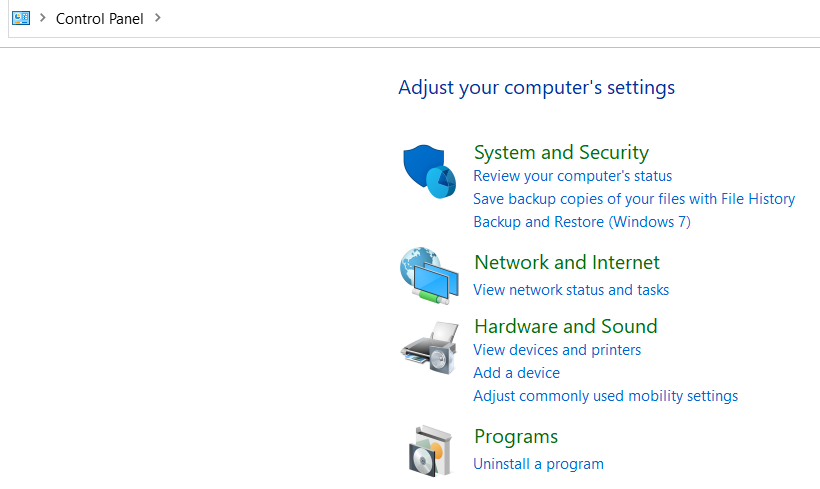
Step 1: Type Control Panel in the search bar and open the application that pops up. On the below page, you will see an option called Network and Internet. Click on it to proceed to the next step.
👁 Improve-Internet-Speed-by-Changing-DNS_1
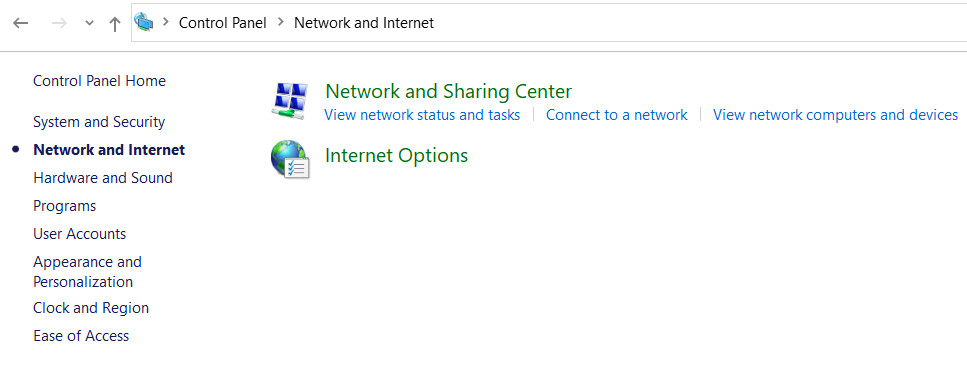
Step 2: Click on Network and Sharing Center.
👁 Improve-Internet-Speed-by-Changing-DNS_2
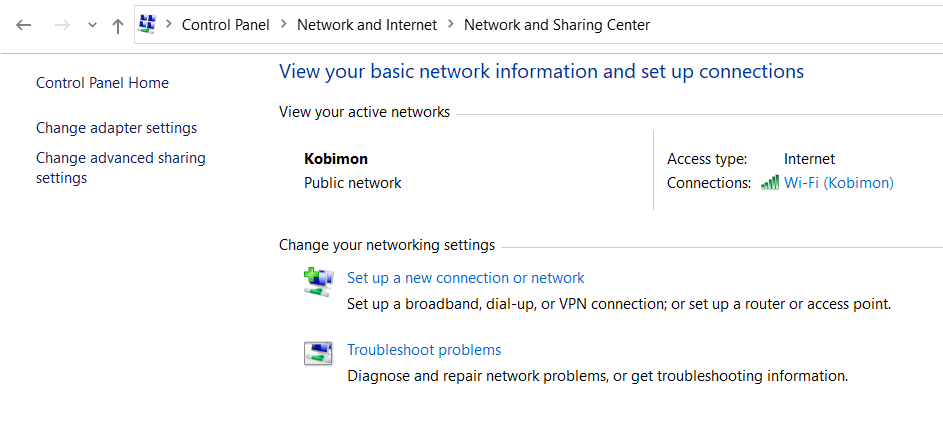
Step 3: Click on the Change adapter settings option on the left.
👁 Improve-Internet-Speed-by-Changing-DNS_3
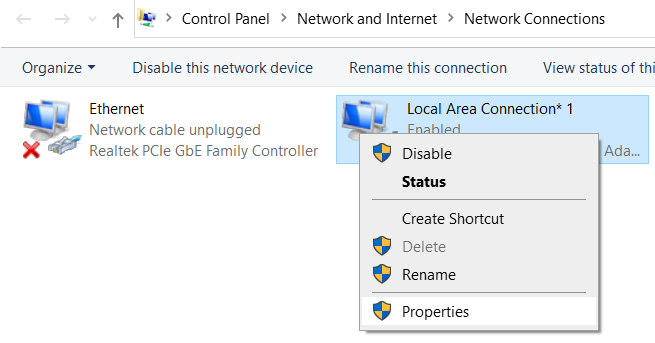
Step 4: Right-click on your internet connection and click on Properties.
👁 Improve-Internet-Speed-by-Changing-DNS_4
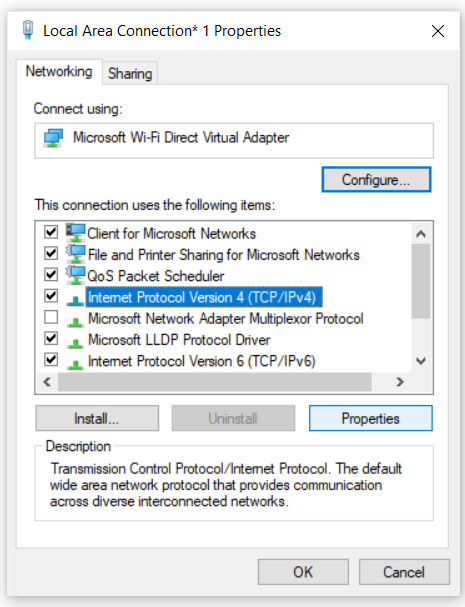
Step 5: Select the Internet Protocol Version 4(TCP/IPv4) option and click on Properties.
👁 Improve-Internet-Speed-by-Changing-DNS_5
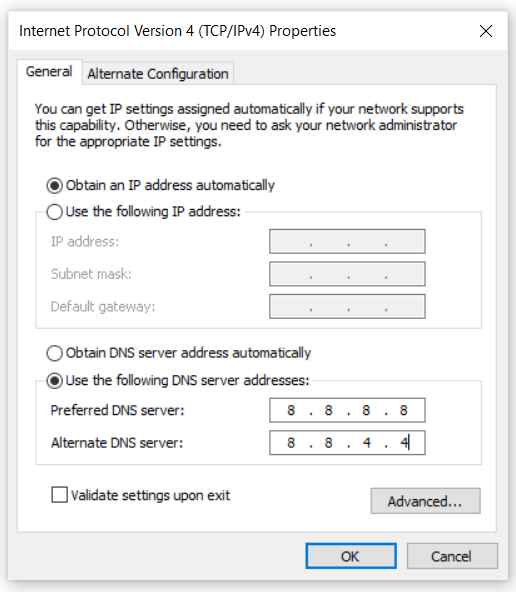
Step 6: Click on the Use the following DNS server addresses option. Next, you need to fill out the boxes with DNS addresses. In our case, we have used Google servers. If you want to use this server as well, type 8.8.8.8 in the Preferred DNS server box and 8.8.4.4 in the Alternate DNS server box. Finally, click OK to save the settings.
👁 Improve-Internet-Speed-by-Changing-DNS_6
You have successfully changed your DNS on Windows. Now check your internet connection. It has surely gained a good amount of speed.
Implementing these tips can significantly increase internet speed test, making your online experience smoother and faster. By optimizing settings, managing devices, and staying mindful of your plan, you can boost your internet speed test for effortless browsing and quicker downloads.