Pinecone is a fully managed vector database for AI applications that enables fast storage, indexing and search of high-dimensional embeddings, supporting semantic search and recommendations without managing infrastructure.
Stores and indexes vector embeddings efficiently.
Enables fast similarity search for semantic matching.
Supports applications like recommendations and search systems.
Handles scaling and performance automatically.
Provides filtering and real-time updates for dynamic data.
Vector Databases
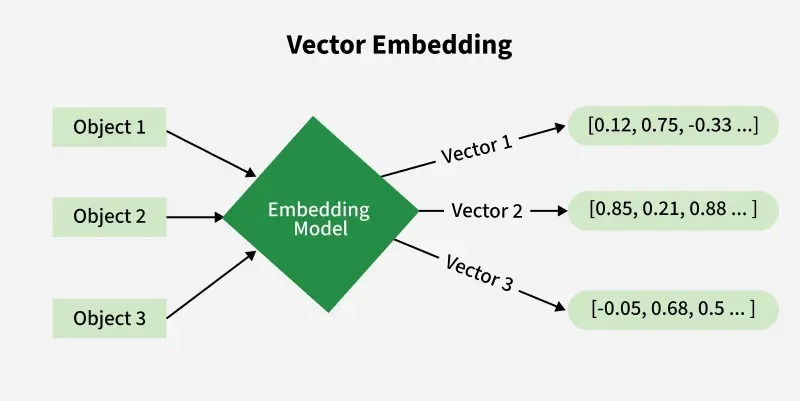
A vector database is designed to store, index and search high-dimensional embeddings, enabling similarity-based search instead of exact matches. It uses methods like cosine similarity or Euclidean distance to find semantically similar data.
Run pip install pinecone in your terminal to install the Pinecone Python client library. This lets you connect to and use Pinecone’s vector database from your Python code.
Step 4: Initialize Pinecone
Import the Pinecone client and initialize it using your API key.
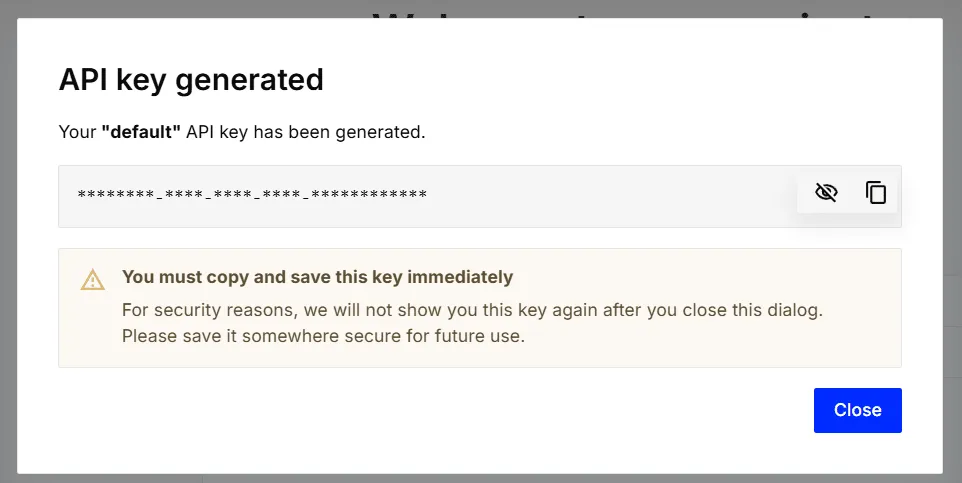
This securely connects your Python application to Pinecone and allows you to manage vector indexes.
Step 5: Create an Index
Create or connect to a Pinecone index (e.g., “gfg”).
This index is used to store, query and manage your vector embeddings.
Step 6: Upsert Vectors
Define vectors with unique IDs, numerical values and optional metadata.
Insert (upsert) these vectors into the Pinecone index for storage and retrieval.
Step 7: Query the Index
Send a query vector (e.g., [0.1, 0.2, 0.3]) to the Pinecone index.
Retrieve the top similar vectors along with their metadata for context.
Output:
ID: vec1 Score: 0.9998 Metadata: {'text': 'example text 1'} ID: vec2 Score: 0.85 Metadata: {'text': 'example text 2'}
Applications
Enables semantic search to find relevant content based on meaning instead of keywords.
Supports recommendation systems by matching user preferences with similar items.
Enhances chatbots and Q/A systems by retrieving relevant answers from knowledge bases.
Allows image and video search by comparing visual embeddings for similar content.