|
VOOZH | about |
|
VOOZH | about |
This article will cover all the steps involved in exporting DB Snapshot data to Amazon S3. For this process, we primarily need a pre-existing Snapshotand an Amazon S3 bucket. We can even create the S3 bucket during the exporting process, but an existing one will sort the task and make it quicker. Exporting a DB Snapshot extracts the data from the database snapshot and stores it on your desired S3 bucket to analyze further.
Amazon S3 or Simple Storage Service is a cloud storage resource of object storing. A basic example of this storage type is Google drive. We can store different types of files here like images, documents, applications, etc. S3 is much more flexible and loaded with several features along with the facilities of a cloud platform.
Now let’s get to the task of exporting DB Snapshot data to the Amazon S3 bucket
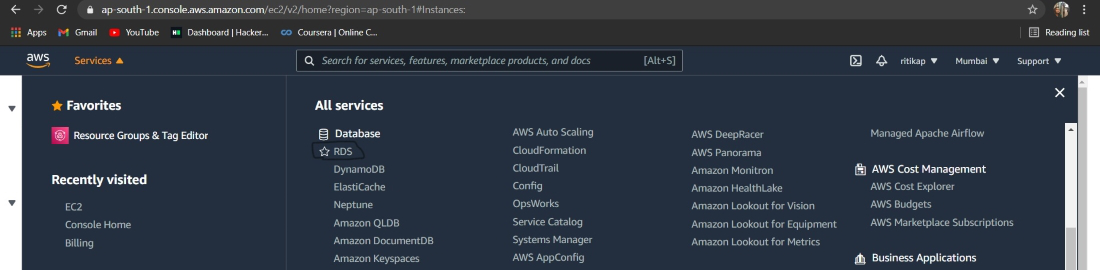
Step 1: First, login into your AWS account, and once your primary screen is loaded. Click on "services" which is written on the left and then from the drop-down menu under the "Database" section there is an option RDS. Click on that and wait for the page to be loaded. Here is the image for better understanding.
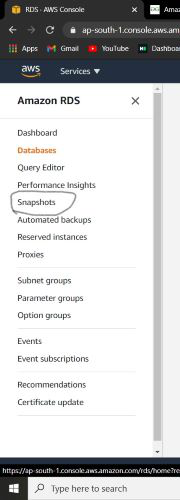
👁 ImageStep 2: Once the next page loads, a list of options will appear on the left navigation pane. From the list click on snapshots. Here is the image to refer to.
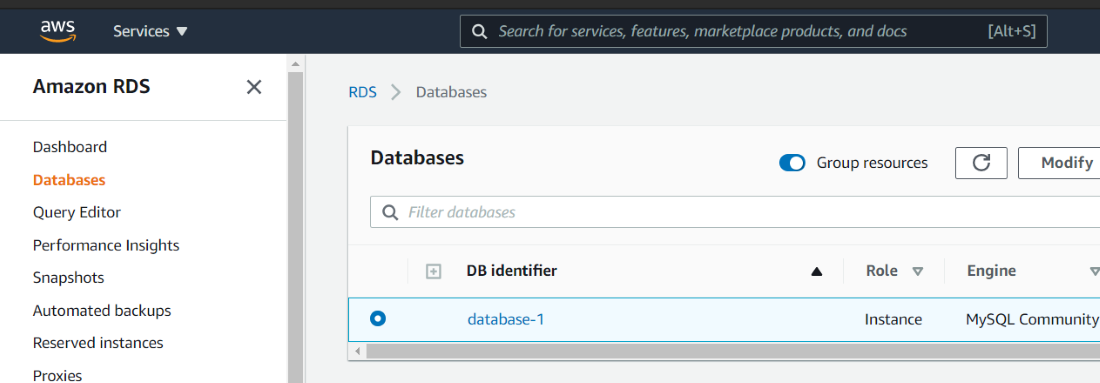
👁 ImageStep 3: After a while, an array of snapshots along with their names and other details are visible on the screen. Select the snapshot you wish to export. Please refer to the image attached ahead.
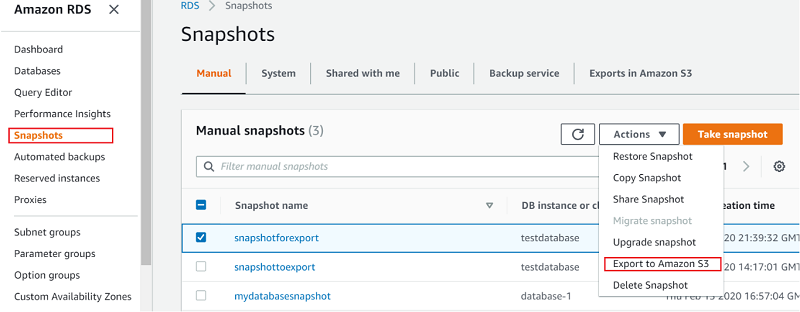
👁 ImageStep 4: Now, click on "Actions". From the given drop-down list of options, select the “Export to S3” option. Take reference from the image attached ahead.
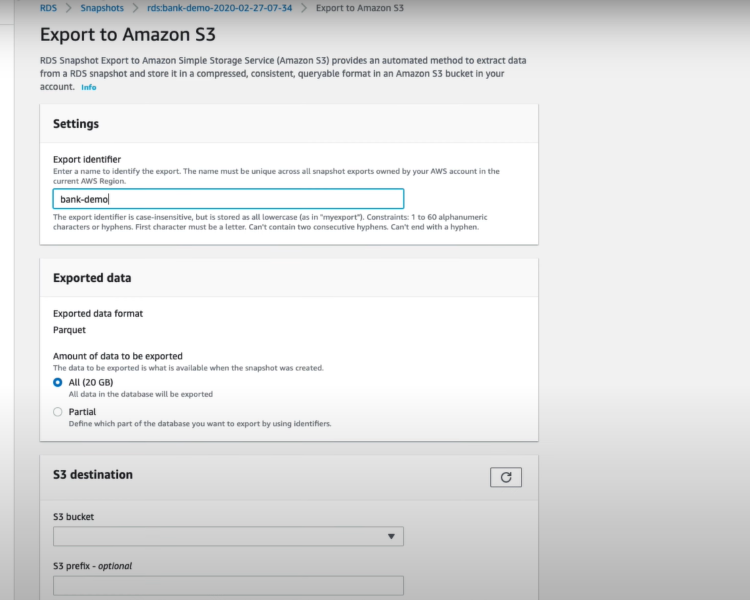
👁 ImageStep 5: Now, comes the configuration time. When the export to the S3 window appears. First, give a name to the task for the identification process. Scroll down and fill in other details like the bucket name, amount to export i.e. Partial or All. Refer to the image for understanding better.
👁 ImageStep 6: Once everything is configured as per your demands. Click on "Export to S3". Here is the image to refer to.
👁 ImageIn this way, we can simply Export a DB Snapshot to S3 using the AWS console. We can also encrypt the snapshots in cases where the data security is at a higher stake. And if you are also a free tier account user like me, then make sure you delete all the instances, snapshots, and all other services you have used before logging out from your account. For any confusion while deleting the snapshot consult this article.