|
VOOZH | about |
|
VOOZH | about |
This article will cover the steps involved in Renaming a DB Instance. A DB Instance is nothing but a database which includes a bunch of memory structures for managing data files. For more detailed information on the topic give the linked article a read.
For renaming an existing DB Instance,
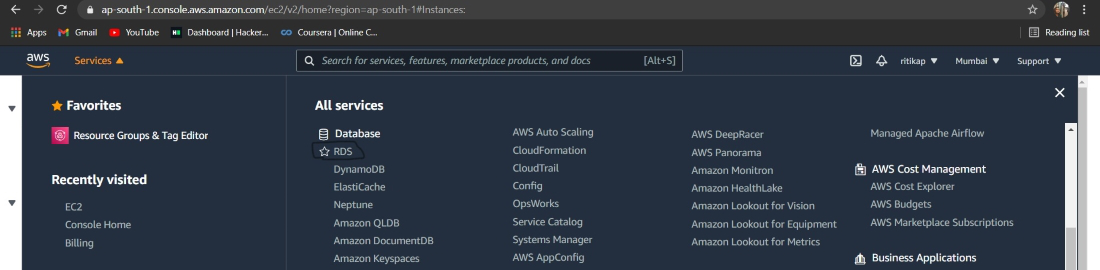
Step 1: Login to your AWS account. Click on services from the leftmost side of the AWS management console. And click on RDS. Here is the image for better understanding.
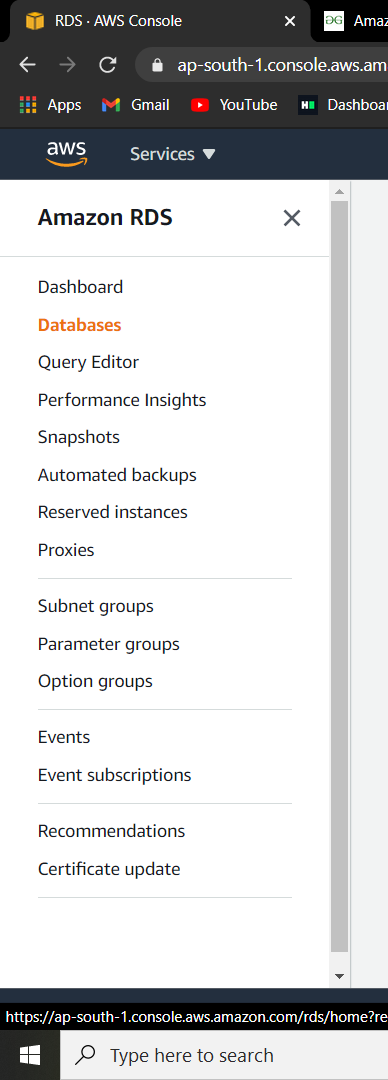
👁 ImageStep 2: From the navigation pane, click databases. Here is the image for better understanding.
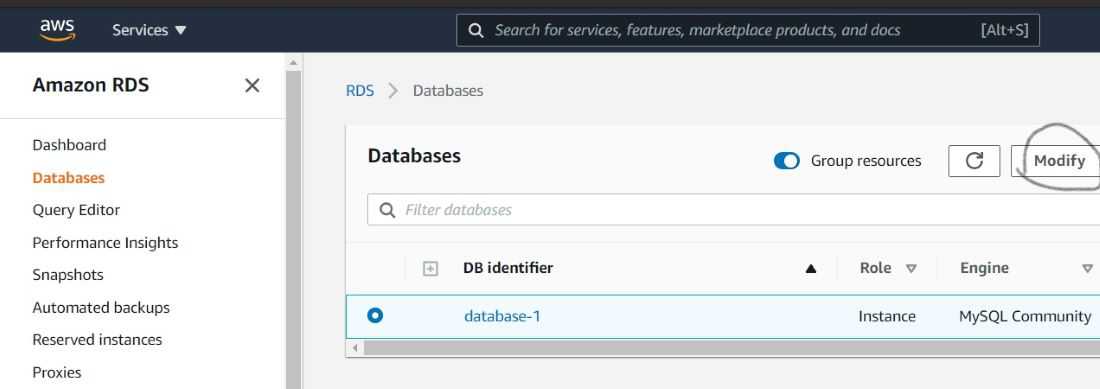
👁 ImageStep 3: Select the instance you are willing to rename. Here is the image for better understanding.
👁 ImageStep 4: Click on modify.
Step 5: Under settings, enter a new name for the DB Instance identifier. Here is the image for better understanding.
Step 6: For making the changes immediately, choose Apply Immediately. Here is the image for better understanding.
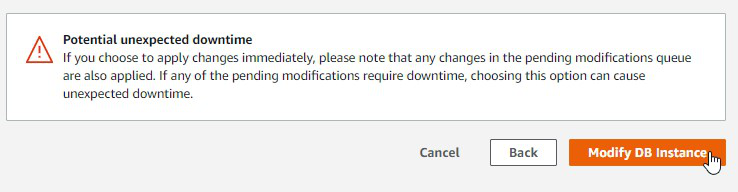
👁 ImageStep 7: Finally after reviewing the changes click on Modify DB Instance for saving the changes made. You can select back if something is still wrong in the setting. Here is the image for better understanding.
👁 ImageIn this way, we can simply rename a pre-existing instance.