|
VOOZH | about |
|
VOOZH | about |
AWS Budget Setup helps users monitor cloud spending by setting cost limits and receiving alerts whenever expenses exceed the defined budget. This helps organizations control AWS costs and avoid unexpected charges.
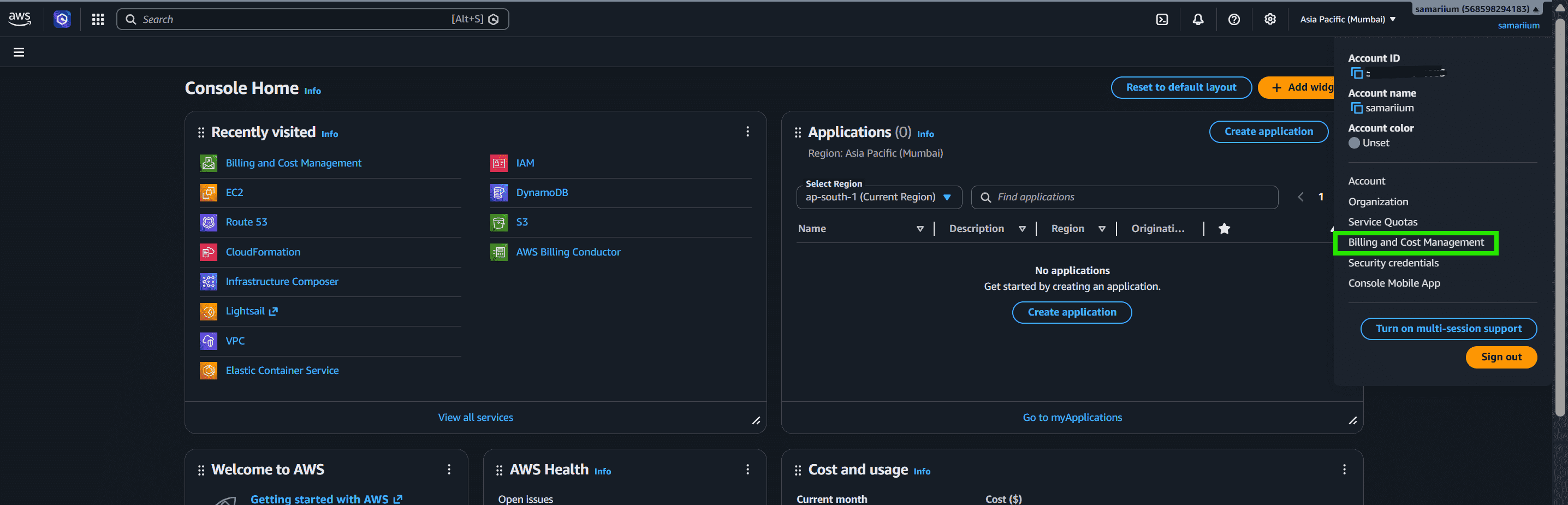
Step 1: Log in to the AWS Management Console. Click on your account name at the top-right corner of the console and select Billing Dashboard from the dropdown menu.
Step 2: When logging in as an IAM user, you may see a billing access error even if you have administrator permissions. If this error appears, follow the next steps to enable billing access for IAM users. If you do not see this error, you can continue with the remaining setup steps.
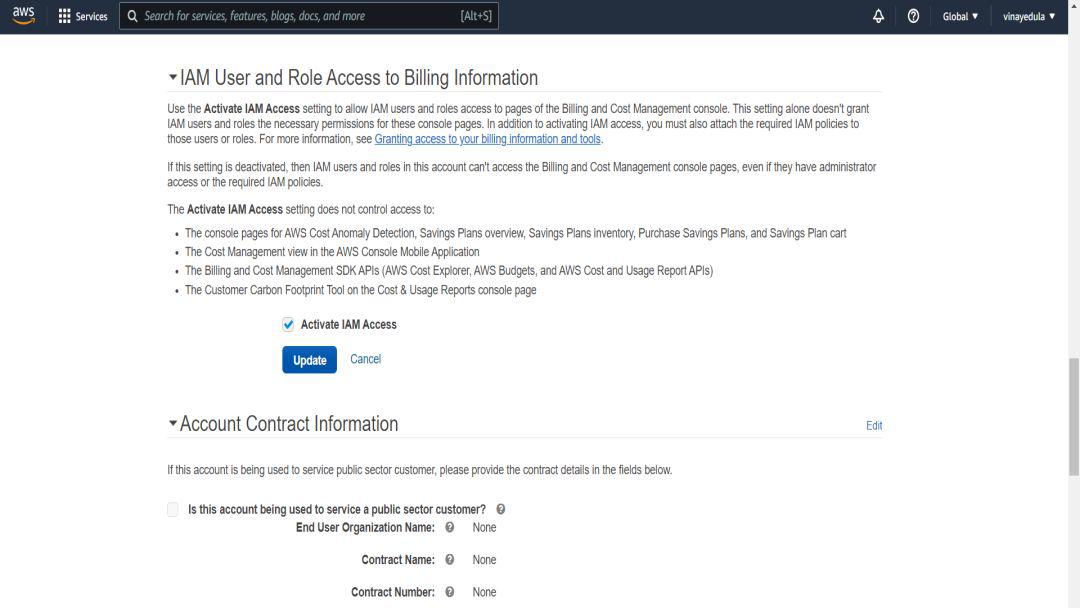
Step 3: To allow IAM users to access billing details, log in to the AWS root account. Click on My Account at the top-right corner of the console, scroll down to IAM User and Role Access to Billing Information, and choose Edit. Enable IAM Access so administrator IAM users can view and manage billing information.
Step 4: Once the setting is enabled, return to your IAM user account and refresh the page. You will then be able to access the AWS Billing and Cost Management dashboard successfully.
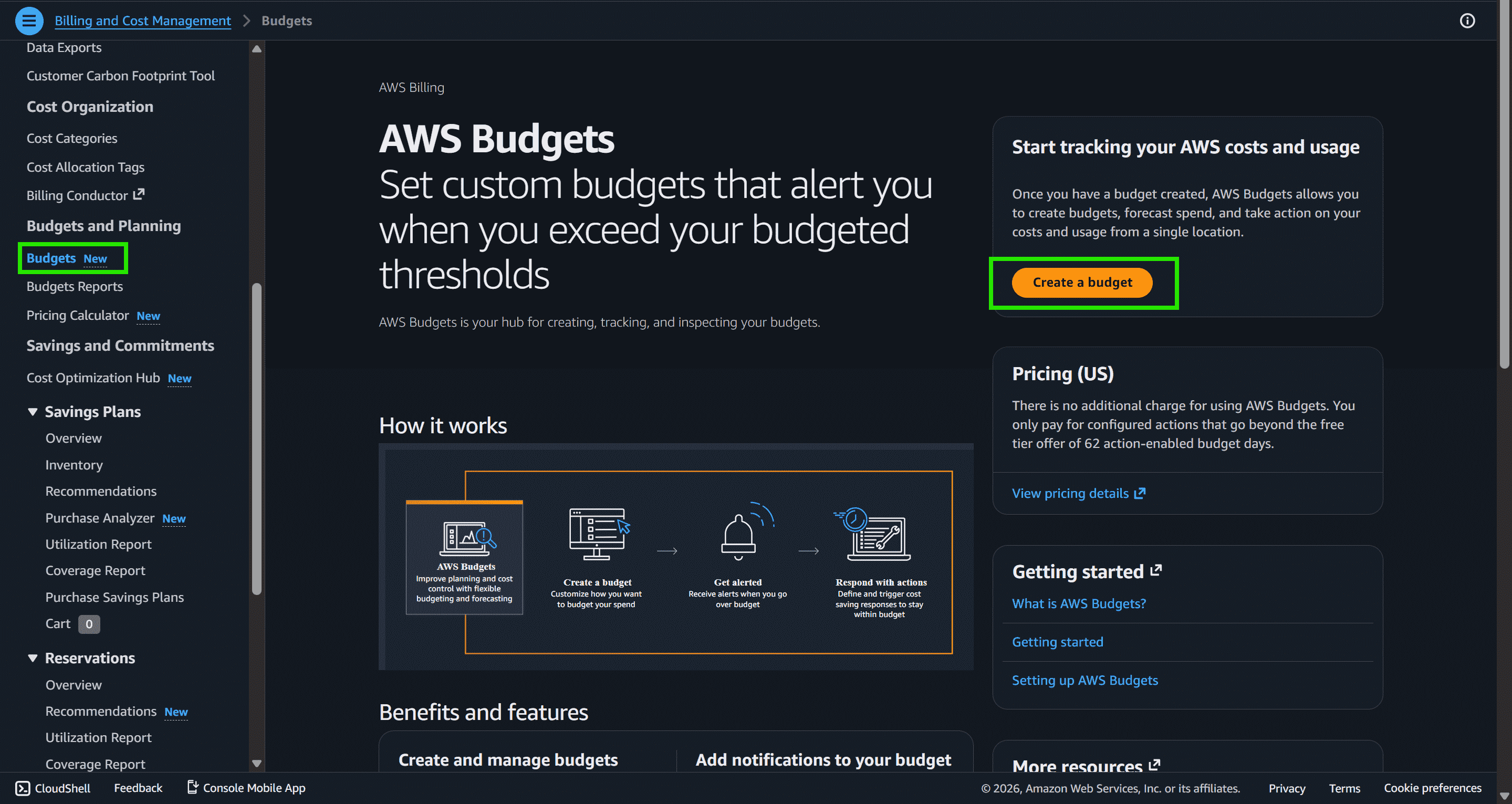
Step 1: In the left sidebar of the AWS Billing Dashboard, click Budgets and select Create a Budget
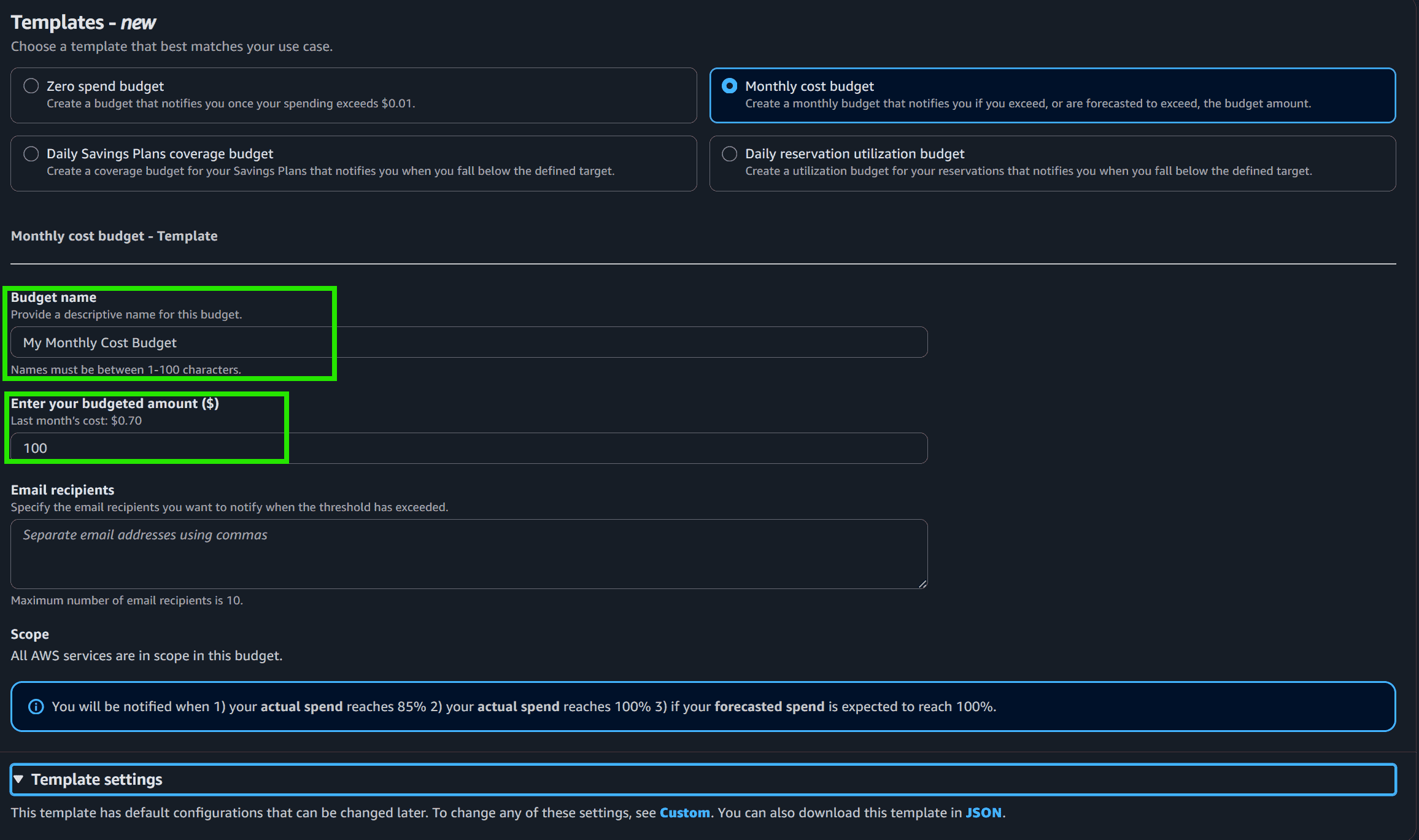
Template (simplified): Predefined budget templates for quick setup
Customize (advanced): Provides more detailed budget configuration options
After selecting the budget setup and budget type, Scroll down, enter the budget name and amount, and add email recipients for budget alerts.
When using the Customize (Advanced) budget setup, AWS provides different budget renewal options based on how long you want the budget to remain active.
Step 2: AWS Budgets can automatically perform actions, such as stopping services, when the budget threshold is reached.
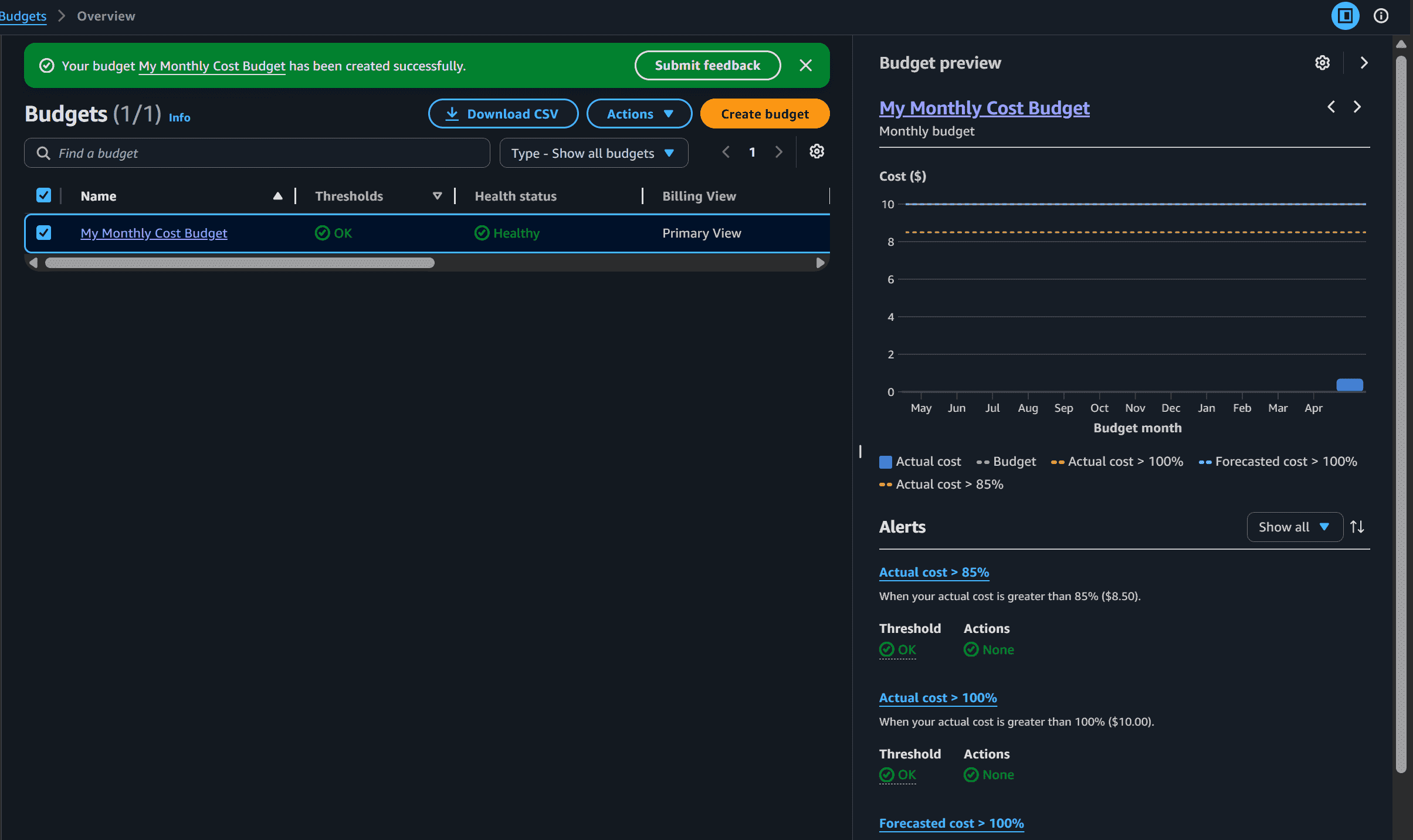
Finally, review all the budget settings and click Create Budget to complete the AWS Budget setup.
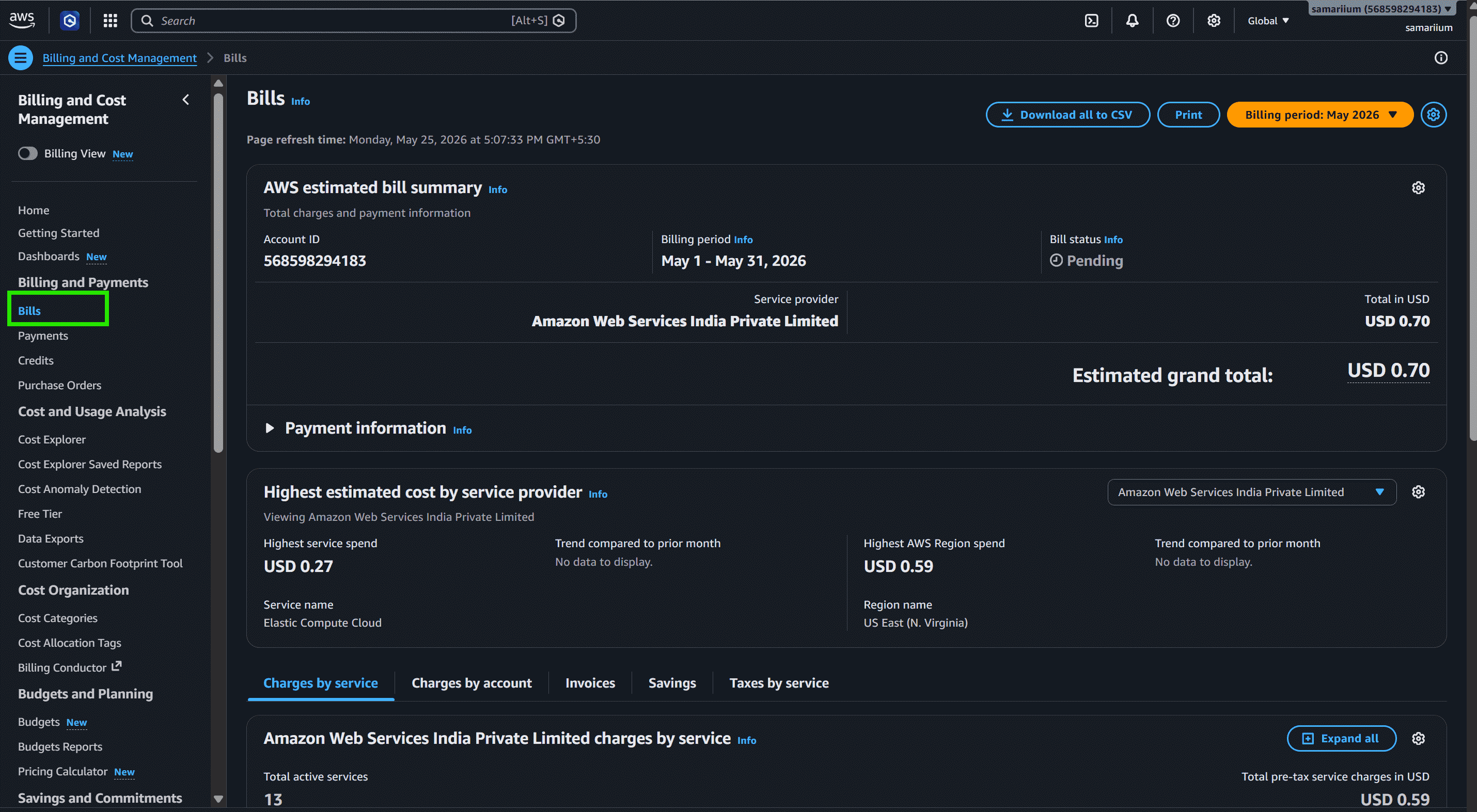
To view your AWS bill, click on the Bills option from the left sidebar in the Billing Dashboard. You can select a specific month to view detailed charges and billing information for that period.
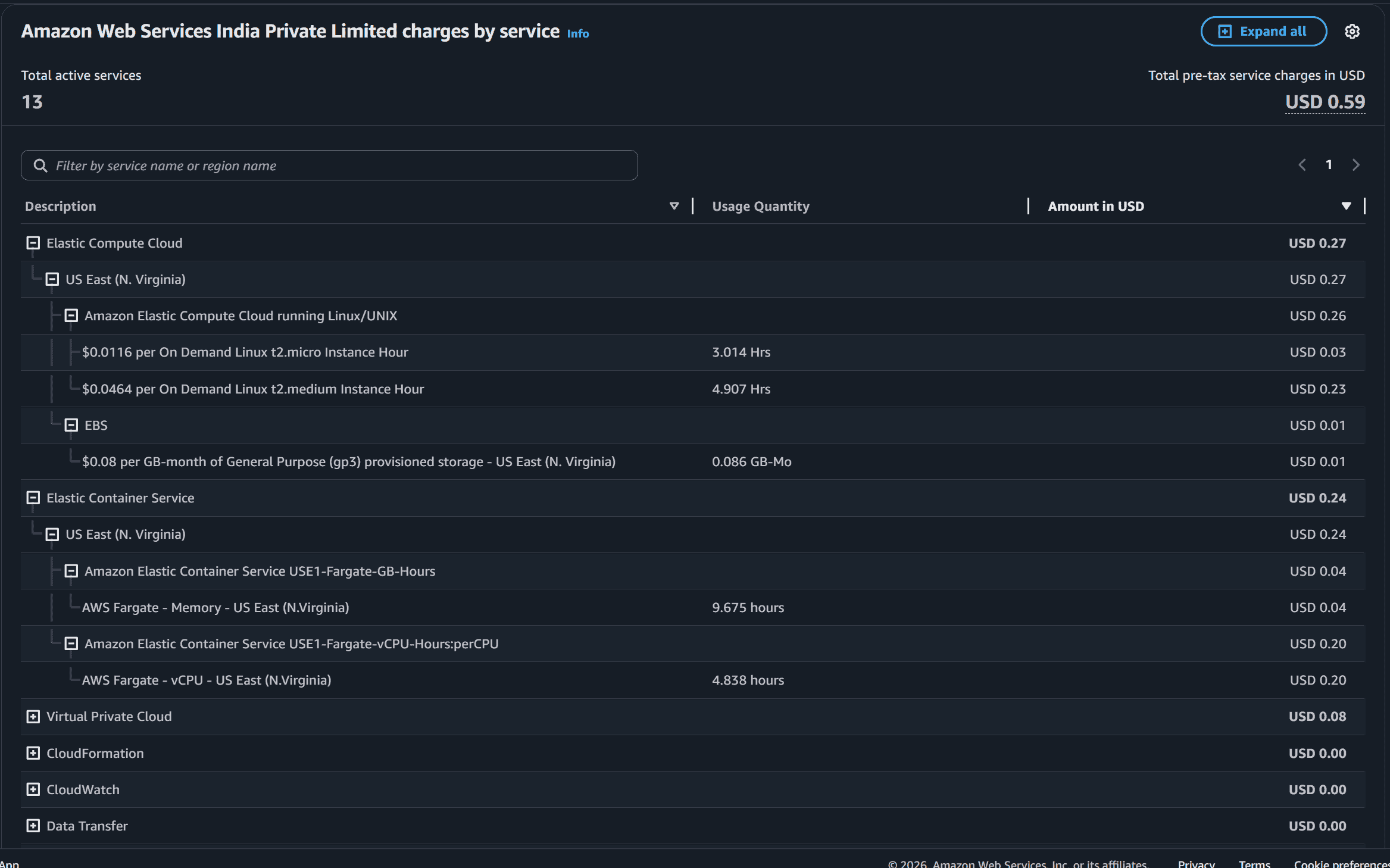
AWS Bills help users identify which AWS services are generating charges, the regions where resources are running, and the detailed usage costs. Billing information is updated daily, making it easier to track and manage cloud expenses.
AWS Bills also provide a detailed cost breakdown based on service usage. This helps users understand why charges occurred and identify unused resources that can be stopped or deleted to reduce costs.