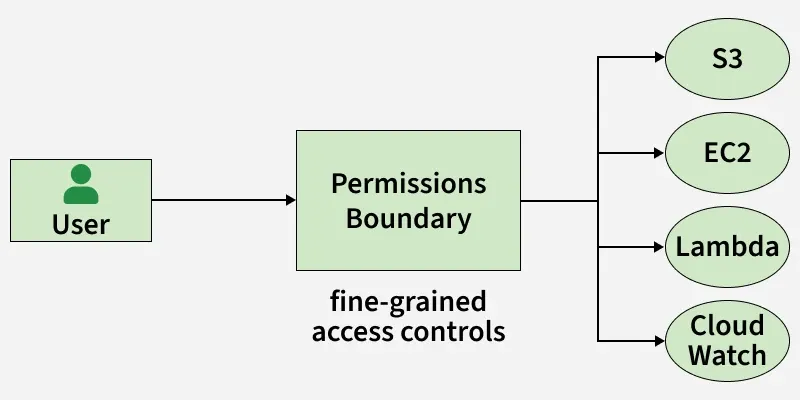
Amazon Web Services (AWS) Identity and Access Management (IAM) is a powerful service that enables users to control access to AWS resources. One advanced feature within IAM is the Permissions Boundary, a concept designed to set the maximum permissions a user or group can have.
Aws permissions boundary defines the maximum permissions that an iam role or user can have, even if additional permissions are granted through attached policies.
It is commonly used to enforce security guardrails, ensuring that users cannot escalate privileges beyond approved limits.
Permissions boundaries are especially useful in large organizations where teams manage their own iam policies.
They work together with identity-based policies and service control policies to provide layered access control.
Permissions Boundaries are particularly useful in scenarios where fine-grained control over user permissions is crucial. By setting a Permissions Boundary, administrators can ensure that even if policies are attached to a user , they cannot exceed the permissions specified in the boundary policy.
Safely delegating iam role creation to teams or automation tools while restricting the maximum permissions those roles can obtain.
Setting Permissions Boundaries involves a few key steps:
1. Create a Policy for the Permissions Boundary:
Navigate to IAM in the AWS Management Console:
Sign in to the AWS Management Console.
Open the IAM console.
Create a Policy:
In the left navigation pane, select "Policies."
Click on "Create policy" and choose the "JSON" tab.
Define the permissions within the policy, specifying the maximum level of access allowed.
Create a Permissions Boundary Policy:
Once the policy is defined, create a customer-managed IAM policy that will be used as a permissions boundary.
Save the policy.
2. Attach the Permissions Boundary Policy:
Navigate to Users :
Depending on whether you are setting a Permissions Boundary for a user , navigate to the respective section in the IAM console.
Select User :
Click on the user for which you want to set the Permissions Boundary.
Attach Policy:
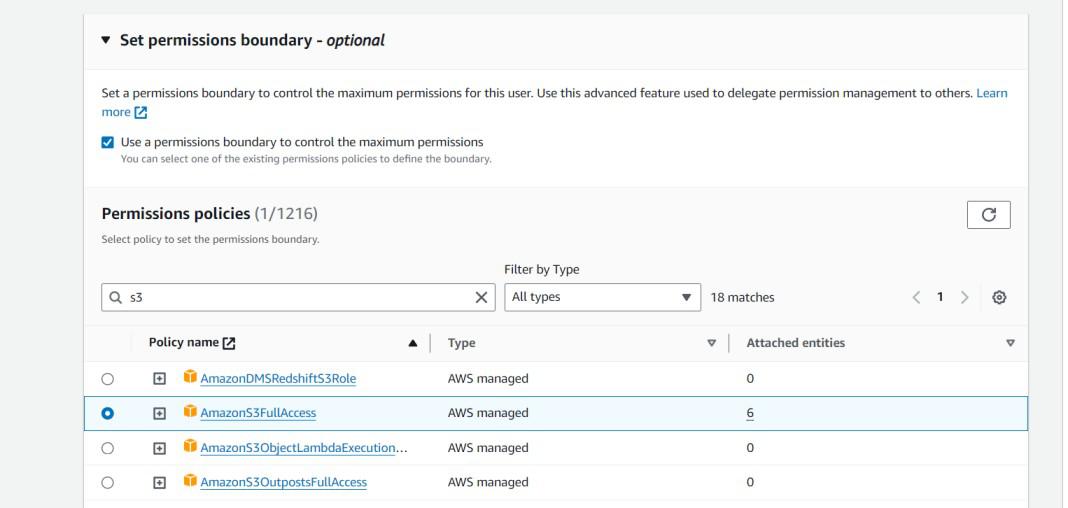
In the "Permissions" tab, find the "Permissions boundaries" section.
Click "Attach permissions boundary."
Select the previously created Permissions Boundary policy.
Review and Save:
Review the changes, ensuring that the correct policy is attached as the Permissions Boundary.
Save the configuration.
Practical Implications:
Setting Permissions Boundaries has several practical implications for AWS users:
Granular Control:
Permissions Boundaries allow for the creation of highly granular access controls, ensuring that users cannot exceed a specified level of access, regardless of attached policies.
Governance and Compliance:
Implementing Permissions Boundaries aids in maintaining governance and compliance standards by enforcing a maximum level of permissions.
Security:
By setting boundaries, administrators can mitigate the risk of unintentional or malicious escalation of privileges, contributing to a more secure AWS environment.