|
VOOZH | about |
|
VOOZH | about |
Docker containers run in isolated network namespaces. By default, they are unreachable from the host or the internet. To make a service accessible, we must bridge the gap between the Container Network and the Host Network.
The -p (or --publish) flag is the key. The syntax follows the HOST:CONTAINER pattern: docker run -p <Host_IP>:<Host_Port>:<Container_Port>/<Protocol> <Image>
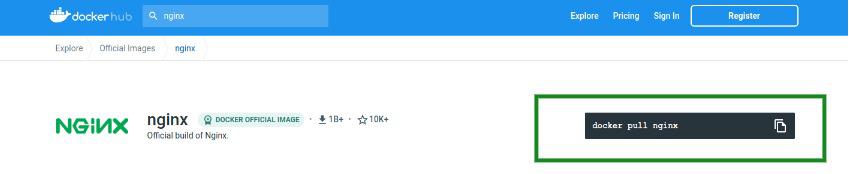
Docker Hub is a hosted repository service provided by Docker for finding and sharing container images. You can host your own images on Docker Hub, but we will use the official Nginx repository to pull images of Nginx which is an open-source reverse proxy server. An official image on docker has an official image tag.
This repository has all the information regarding the Nginx image and how we can use it. On the top right corner, we see a docker pull command specifying how to pull the image to our computer.
Step 1. Use the command to pull the Nginx image.
$ docker pull nginxOutput:
Running A Container From The Pulled Image:
When we run a container using the docker run command, it does not publish any of its ports to the outside world. To expose our container port to services outside of Docker, or to containers that are not in the same network as our container, use the --publish or -p flag.
A typical example of --publish flag:
$ docker run -p 8080:80 --name webhost -d nginxLet us break this command to understand better:
$ docker inspect nginxThis will list all configurations of the Nginx image, from where we can locate the ExposedPort property.
Step 2: This data can be filtered out using the --format flag:
$ docker inspect --format="{{.ContainerConfig.ExposedPorts}}" nginxStep 3: Now that we know for sure that Nginx runs on TCP port 80 inside the container's virtual network. We can use the docker run command.
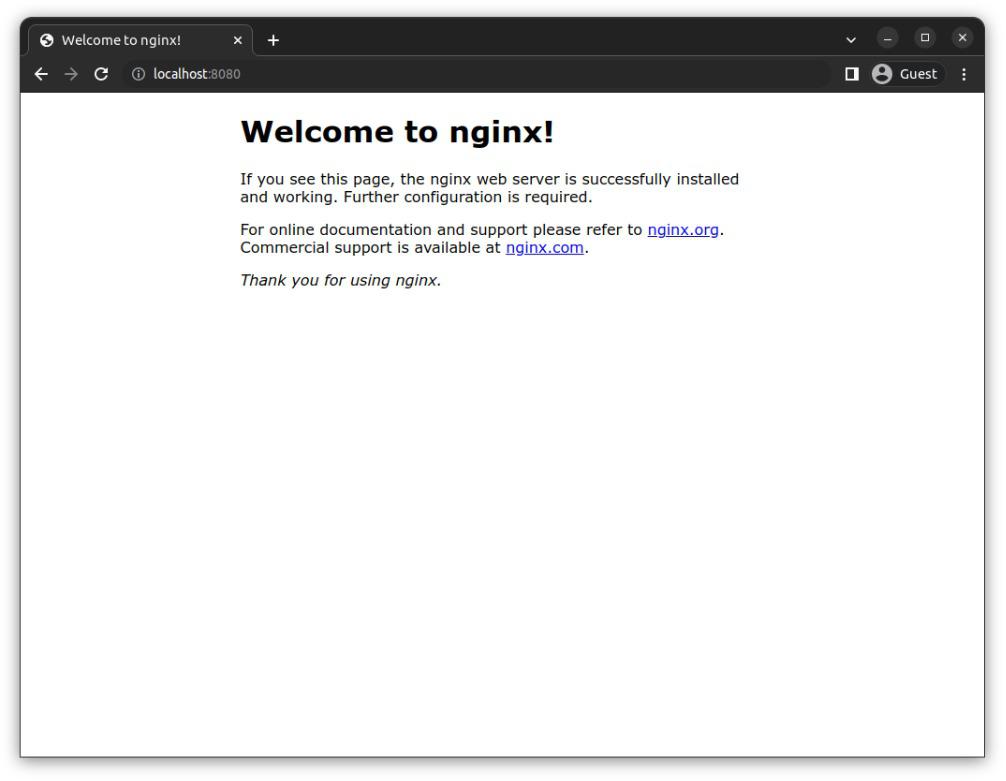
$ docker run -p 8080:80 --name webhost -d nginxStep 4: Verify if Nginx is running on port 8080:
Well, this was easy, let us create a local docker image for a react app and publish its port:
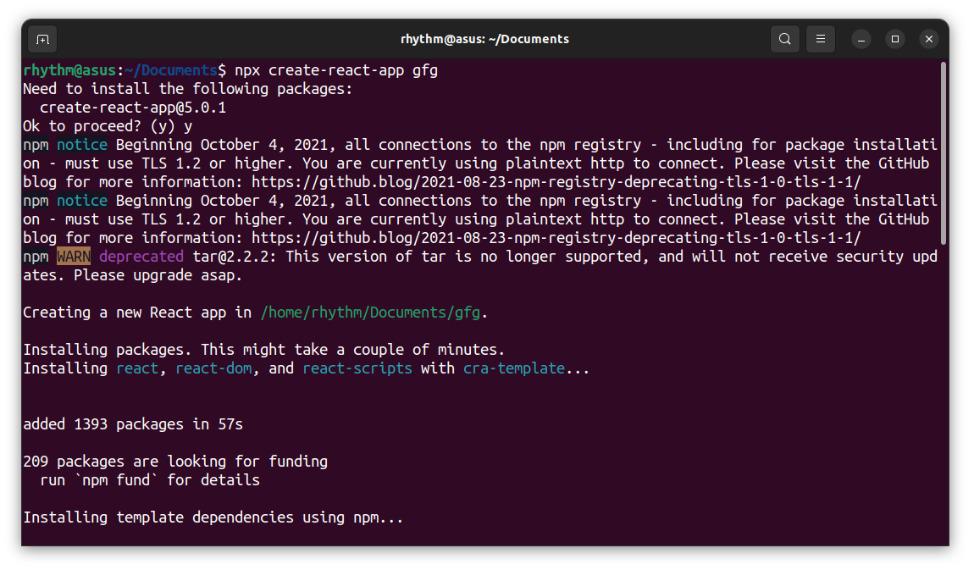
Step 1: For this, I am using a simple react application. Let us initialize the react application first:
$ npx create-react-app gfgIf you don't have NodeJs installed you can clone a react app project from GitHub.
Step 2: Create A Dockerfile file in the root directory of the project. Create a Dockerfile named file in your project's root directory and paste this:
# pull official base image
FROM node:13.12.0-alpine

# set working directory
WORKDIR /app

# add `/app/node_modules/.bin` to $PATH
ENV PATH /app/node_modules/.bin:$PATH

# install app dependencies
COPY package.json ./
COPY package-lock.json ./
RUN npm install --silent
RUN npm install react-scripts@3.4.1 -g --silent

# add app
COPY . ./

# can be skipped
EXPOSE 3000

# start app
CMD ["npm", "start"]
Step 3. Build An Image.
$ docker build -t basic-react-app .Step 4. Run the Image:.$ docker inspect --format="{{.ContainerConfig.ExposedPorts}}" basic-react-app
$ docker run -p 3000:3000 -d basic-react-appThis step will need a little explanation. Ours react app runs on port 3000 inside the container -p 3000:3000 maps this port to the host port.
Step 5. Verify in your browser
| Command | Purpose |
|---|---|
| docker ps | The go-to command. Shows all running containers and their PORT mappings. |
| docker port <container_id> | Lists all port mappings for a specific container in a clean format. |
| docker inspect --format='{{.NetworkSettings.Ports}}' <id> | Returns a JSON map of all port bindings for that specific container. |
| docker image inspect --format='{{.Config.ExposedPorts}}' <image> | Shows which ports the image author intended to be used (the EXPOSE instruction). |
| docker run -P <image> | Publish all: Maps all exposed ports in the Dockerfile to random high-range ports on the host. |