|
VOOZH | about |
|
VOOZH | about |
IAM defines "who can do what on which resource". Cloud IAM (Identity Access Management) offers a standardized set of functions and integrates access management for Google Cloud services into a single solution. You can create and manage permissions for Google Cloud resources using the Identity and Access Management (IAM) service provided by Google Cloud. The appropriate tools are provided by Cloud IAM to efficiently and highly automate the management of resource rights. Users do not receive permissions directly from you, you give them roles instead, that combine one or more permissions. You can use this to relate jobs and groups within your organization to specific job responsibilities. Users only have access to the information they require to do their tasks, and administrators can easily give default permissions to huge groups of users.
A role contains a set of permissions that allows you to perform specific actions on Google Cloud resources. In simple words, a role is a named list of permissions.
Some commonly used project-level roles provided by Google are mentioned below:
Role | Permissions |
|---|---|
Viewer | Permissions for read-only actions like viewing existing resources. |
Editor | All viewer permissions + permissions for actions that modify state , like changing existing resources. |
Owner | All editor permissions + permissions for :
|
Browser |
|
The Structure of a Cloud IAM permission looks like this:
<service>.<resource>.<verb>
Example:
storage.bucket.admin: grants the ability to manage storage buckets, including creating, editing, and deleting buckets.compute.instances.stop : allows a user to stop a Virtual Machine.Steps to set up IAM role (Using command line interface) :
gcloud iam list-testable-permission
nano <<file_name>>.yaml
title: "[ROLE-TITLE]"
description: "[ROLE_DESCRIPTION]"
stage: "[LAUNCH_STAGE]" //such as ALPHA, BETA, or GA
includedPermissions:
- [PERMISSION 1]
- [PERMISSION 2]
Save the above using CTRL+X and close it using CTRL+Y, then ENTER.
gcloud iam roles create <<role_name>> --project <<project_name>> --file <<file_name>>.yaml
Custom roles can only be used to grant permissions in policies for the same project or organization that owns the roles or resources under them. You cannot grant custom roles from one project or organization on a resource owned by a different project or organization.
An IAM policy specifies access controls for Google Cloud resources. IAM roles discussed above are part of policies. An IAM policy is attached to a cloud resource and specifies which principals have which roles for that particular resource. IAM policy can be declared using yaml or JSON format.
{"bindings": [ /* A policy iscollection ofbindings */{"role": "roles/<role_name>", /* rolecan be an IAM predefined role or a user-created custom role*/"members": [ /* Bindingbinds one or moremembers, or principals */"user:tanu@example.com","group:gfg@example.com","domain:google.com","serviceAccount:<enter project_id>"]},{"role": "roles/<role_name>", /* a binding may consist of multiple roles each having some members */"members": ["user:jain@gmail.com"],"condition": { /*logical expression that allows access to a resource only if the expression evaluates totrue*/"title": "expirable access","description": "Does not grant access after Dec 2024","expression": "request.time < timestamp('< enter timestamp >')",}}],"etag": "< enter meta_data >", /* Enter meta data */"version": 3}
This is how you set up IAM policy using JSON.
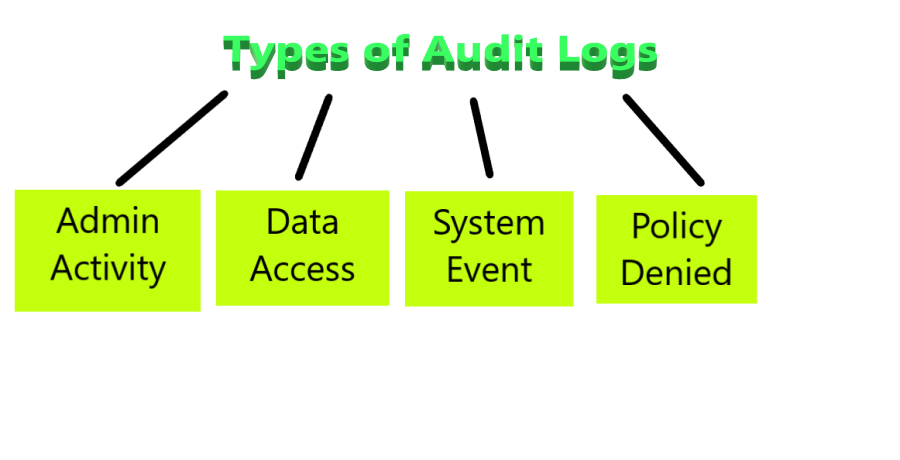
Audit logs help you answer "Who did what, where, and when?". Audit logs allow us to view all the changes that have happened on GCP resources. There are 4 types of audit logs supported in GCP.
Feature | Admin Activity | Data access | System Event | Policy Denied |
|---|---|---|---|---|
Default enabling | Yes | No | Yes | Yes |
Chargeable | No | charges on basis of volumes of logs of data | No | charges on basis of volumes of logs of data |
Default retention period | 400 days | 30 days | 400 days | 30 days |
Step 1: Go to Logging> Logs Explorer from console navigation or by search bar.
Step 2: To display audit logs, enter the given query into the query-editor field, and then click Run query:
You can use this query too for displaying audit logs -
protoPayload."@type"="type.googleapis.com/google.cloud.audit.AuditLog"We are clear that the audit log provides information about who has accessed your resources and what permissions they have used. This can be used to identify unauthorized access or track down access control errors. Moreover you can apply different filters to acknowledge the issues (no need to learn to write queries).
Step 1: Create a Cloud Storage bucket with a unique name. From the Cloud Console, Go to the Navigation menu > Cloud Storage > Buckets.
Step 2 Create a bucket named gfg-tanu (this should be unique so you can modify the name ).
Step 3: Upload desired file or folder to the bucket whose viewer access will be given to the principal role.
Step 4: Select Navigation menu > IAM & Admin > IAM.
Step 5: Click on grant access.
Step 6: In the Select a role field, select Basic > Viewer from the drop-down menu.
Step 7: In the New Principals field add the service account to which you want to grant viewer access. Then, click "Save".
In this way, the mentioned principal service account will have Viewer access.
A student who is enrolled in a particular course would be granted access to the course's materials, such as lecture videos, assignments, and exams. He/She will not be allowed to access other material. Any website that collects personal information about its users may use Identity and Access Management (IAM) to ensure that only authorized personnel have access to this data. A developer might need access to all of the company's code repositories, while a marketing manager might only need access to the website.