|
VOOZH | about |
|
VOOZH | about |
Microsoft Azure Cognitive Services provides a variety of pre-trained powerful AI tools and models that gives the developers an opportunity to integrate these intelligent features into their applications effortlessly and without any requirement of implementing Machine Learning. These services cover a range of capabilities including vision, speech, language processing, and decision-making, enabling applications to perceive, understand, and interact with the world like never before.
These services are categorized into four main areas:
Lets see all the services and their use cases one-by-one in this the, by directly implementing using the Azure portal.
But before that make sure that you have an account in Azure and have a subscription. If eligible, activate a free trial to explore Azure services.
Once you have signed in to the portal , you can follow the steps below to create the requried azure resources to test and deploy them into your application.
For those who cant activate the free trail accout, or you are only learning how to use the portal and not willing to pay money, then you can activate microsoft sandbox from one of the free microsoft lessons they provide in their microsoft learn portal for a limited amount of time and use all the azure services for free.
After activating the sandbox, go to you azure portal. In the right corner, there is an option under your profile, to change the subscription directory. Change it from default user to microsoft learn sandbox to activate your free account for limited time.
The first step in using Azure vision services is to create a New Resource:
Step 1: Click on "Create a resource."
Step 2: Search for "Computer Vision" in the marketplace.
Step 3: Select "Computer Vision" and click "Create."Configure Your Resource:
Step 4: Subscription: Choose your Azure subscription.
Step 5:
Step 6: Access Keys and Endpoint: Navigate to Your Resource: After deployment, go to your Computer Vision resource. Keys and Endpoint: Under "Resource Management," click on "Keys and Endpoint." Copy your keys and endpoint URL for API access.
Step 7: SDK Installation:Install the appropriate SDK for desired programming language you wish to work with. For Python, you can install the Azure SDK by using the following command:
pip install azure-cognitiveservices-vision-computervisionAfter installing the appropriate SDK, you can save the API keys and endpoint in the .env file under your project folder.
Here is the sample code for using the Azure vision services:
from azure.cognitiveservices.vision.computervision import ComputerVisionClient
from msrest.authentication import CognitiveServicesCredentials

# Initialize client
endpoint = "YOUR_ENDPOINT"
key = "YOUR_KEY"
client = ComputerVisionClient(endpoint, CognitiveServicesCredentials(key))

# Analyze an image
image_url = "URL_OF_IMAGE"
analysis = client.analyze_image(image_url, visual_features=[
 "Categories", "Description", "Color"])

# Output results
print("Categories:", analysis.categories)
print("Description:", analysis.description.captions[0].text)
print("Dominant colors:", analysis.color.dominant_colors)
You can choose the feature of service (e.g., Image Analysis, OCR, Face Recognition) that you want to implement in your application and then deploy our application.
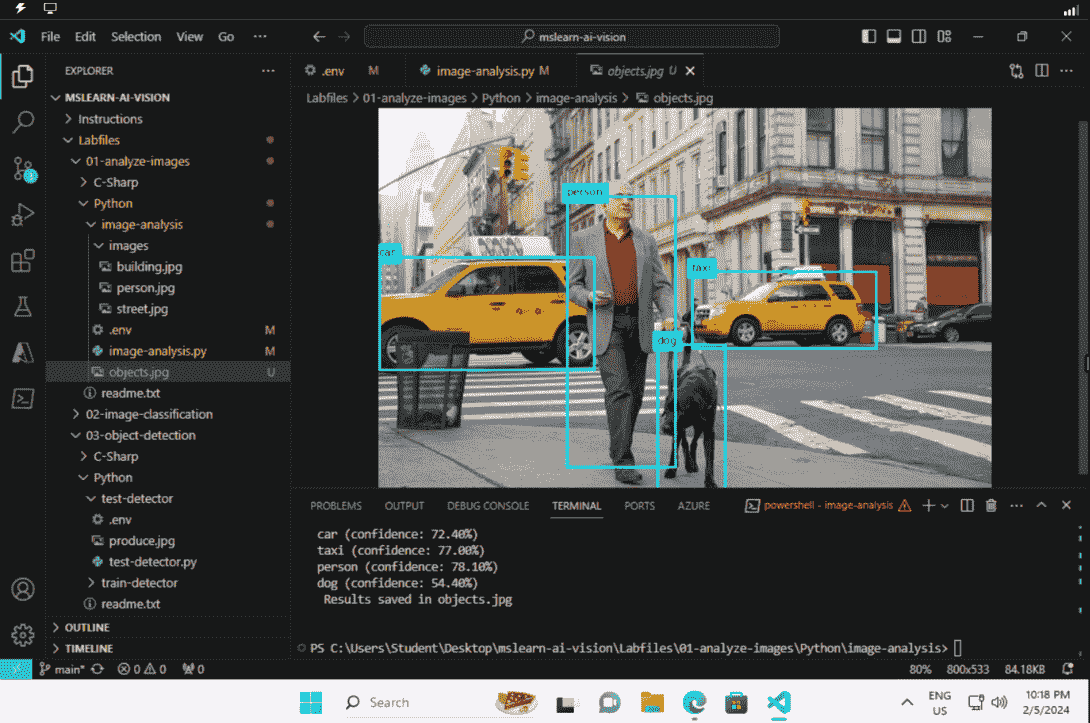
The output shows out the following parameters that it had recognized along with the description and confidence score.
Categories: [{'name': 'outdoor', 'score': 0.98}]
Description: A person with a dog on a sunny day.
Dominant colors: ['Blue', 'Green']
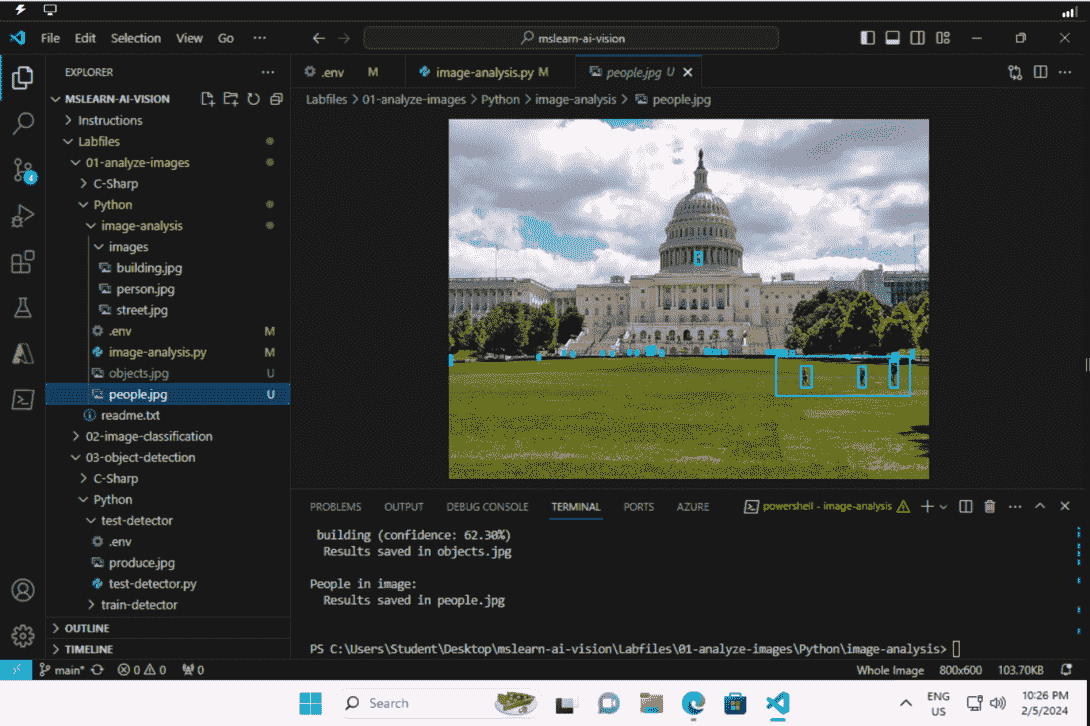
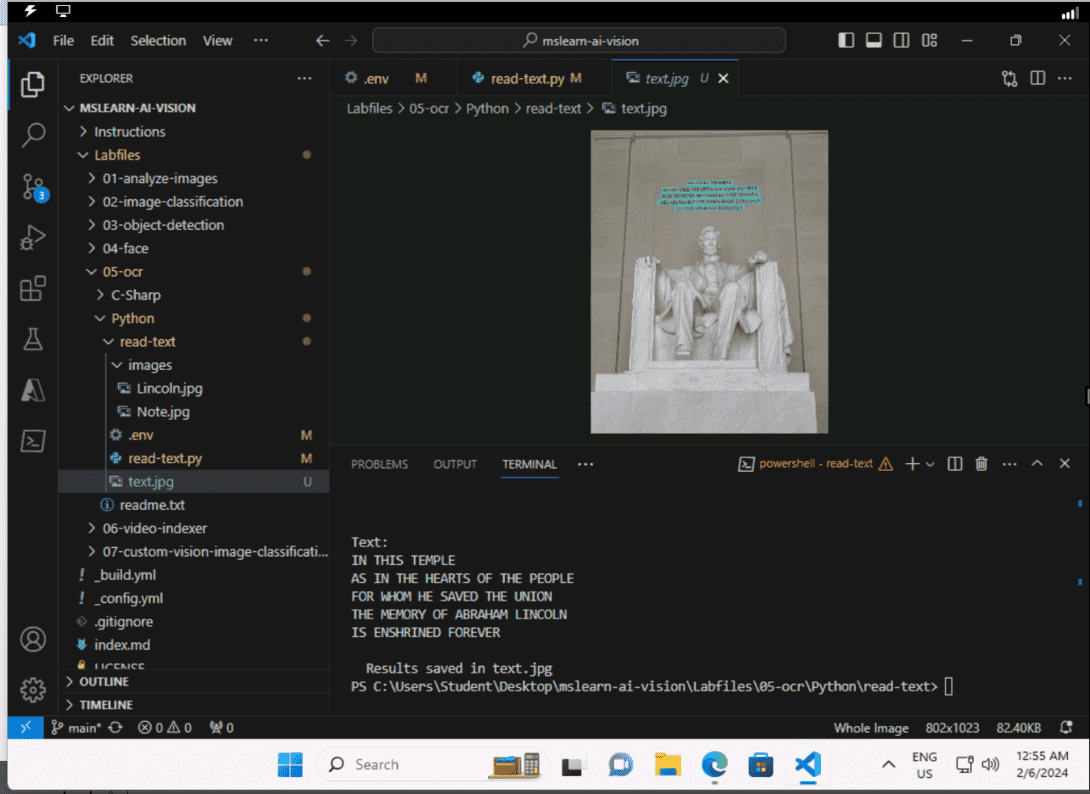
In the above output, using OCR( optical character recognition), the model gives the output to the similar structure as given below.The model creates a rectangular bounding box around the object that it detects.
Text: "IN THIS TEMPLE
 AS IN THE HEARTS OF THE PEOPLE
 FOR WHOM HE SAVED THE UNION
THE MEMORY OF ABRAHAM LINCOLN IS ENSHRINED FOREVER"
Bounding Box: [50, 20, 200, 60]
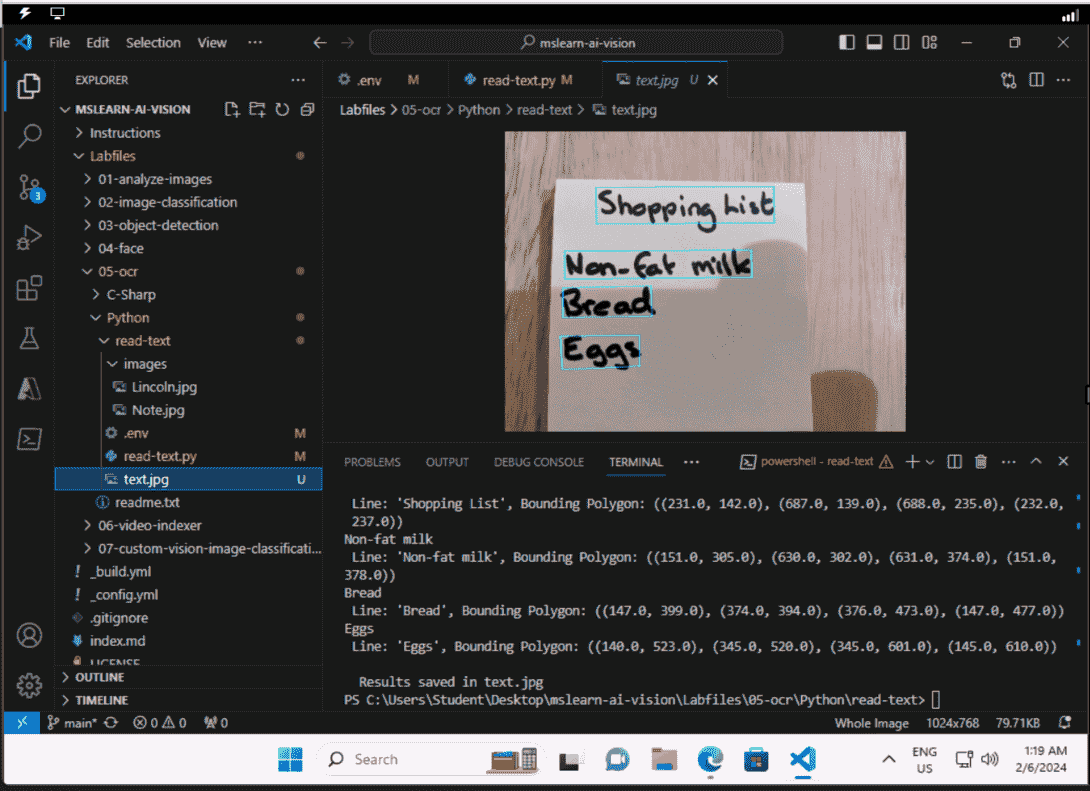
The output for recognizing the handwritten text looks like something below.
Handwritten Text: "shopping list, non-fat milk, Bread, eggs"
Words: [{'text': 'shopping list', 'boundingBox': [30, 50, 100, 70]}, {'non-fat-milk': 'World', 'boundingBox': [120, 50, 190, 70]}]
1. Vision Services: Used for tasks such as:
2. Speech Services: Enable applications to
3. Language Services:
4. Decision Services: Enhance decision-making through personalized recommendations and anomaly detection. Applications include:


.png)