|
VOOZH | about |
|
VOOZH | about |
Pre-requisite: Azure
In this article, we will show you how to export the azure policy assignments from a select Azure Subscription from the Azure Cloud Shell with the help of Azure PowerShell run commands. To export the list of azure policy assignments one should require the RBAC reader access role on the select azure subscription to fetch and export.
Step 1: Log in to Azure Portal
Step 2: Open Azure Cloud Shell and Switch to PowerShell console
Step 3: Use the following command to switch the target Azure subscription
Set-AzContext -Subscription "add subscription name" | Out-Null
Step 4: Use the following Azure PowerShell command to verify the list of policy assignments from your given subscription scope
Get-AzPolicyAssignment `
| Select-Object -ExpandProperty properties `
| Select-Object -Property DisplayName `
| Format-List
use this command: to verify/get the count of assigned policies on a select subscription.
(Get-AzPolicyAssignment).count
Step 5: Use the following Azure PowerShell command to export the list of policy assignments from a given subscription scope in CSV format.
Get-AzPolicyAssignment `
| Select-Object -ExpandProperty properties `
| Select-Object -Property DisplayName `
| Export-CSV "./policyAssignments.csv"
To get more properties like Display Name, Scope, and Policy Definition ID use the below command
Get-AzPolicyAssignment `
| Select-Object -ExpandProperty properties `
| Select-Object -Property DisplayName Scope, PolicyDefinitionID `
| Export-CSV "./policyAssignments.csv"
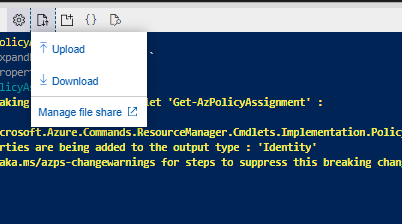
Step 6: To Download the file click on the file upload and download option (Refer to the image) >> select Download
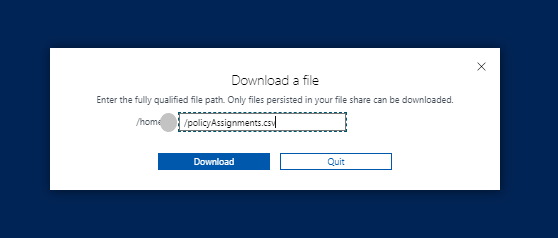
Step 7: Add the given CSV file in step 5 (Refer Image) >> Click on Download
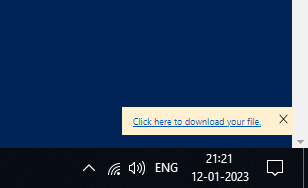
Step 8: Once you did clicking on the Download button then you get one more link to download your file. Click on that to download the file locally.