|
VOOZH | about |
|
VOOZH | about |
In this article, we will learn how to get started with Prebuilt Azure Virtual Machines ready for containers. If you wanted to get started with Docker, and you're thinking if there were some VMs that had already been set up with Docker and some images for you to try out, then you should definitely check out the VMs that are available inside the Azure marketplace.
To do so follow the below steps:
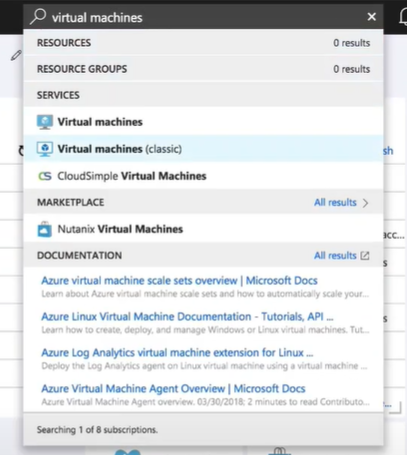
Step 1: Inside the Azure portal, we would just type in virtual machines.
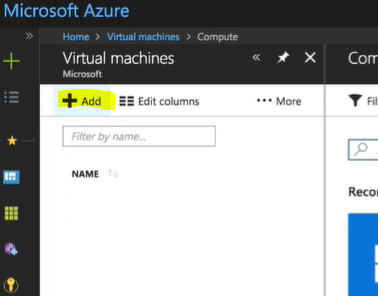
👁 ImageStep 2: Then we need to go down to the "Virtual Machine" section and click on "Add".
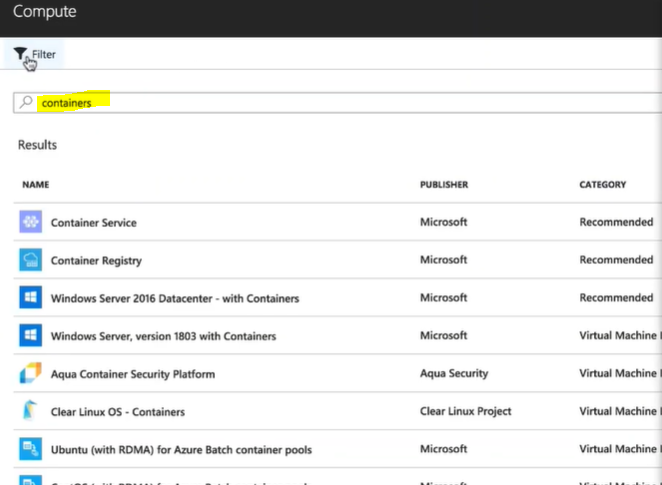
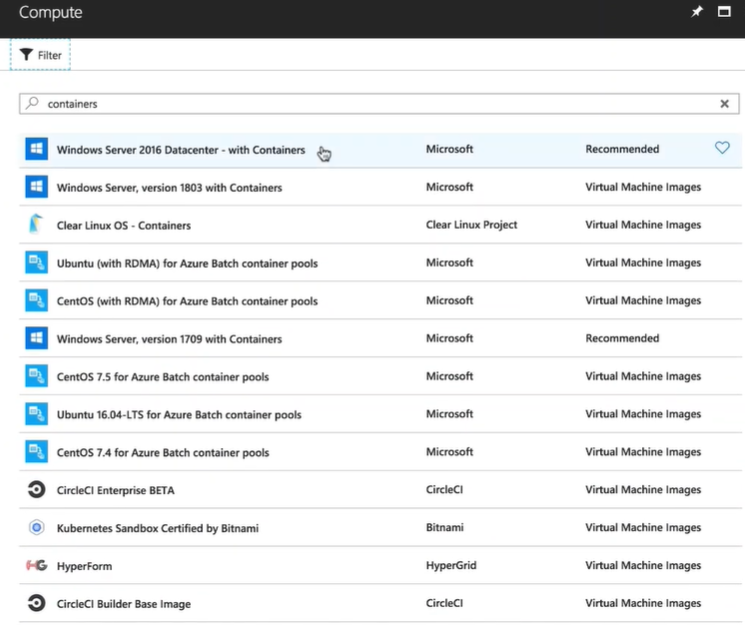
👁 ImageStep 3: Inside the marketplace, we are just going to search for containers.
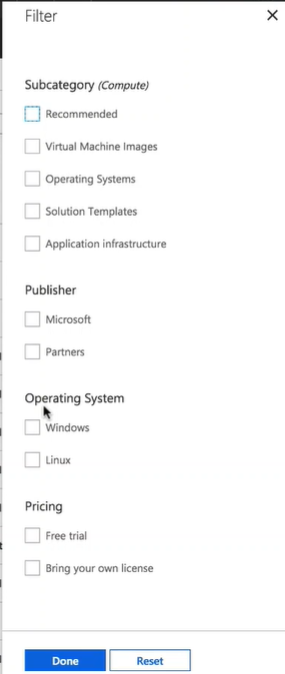
👁 ImageStep 4: Then the thing that we could do is we could use the filter, on the right-hand side, we can determine the operating system that we want to choose. So, if we want Windows or even Linux containers, we'll just select them both for now. We'll click "Done" and now that you refine our search results.
👁 ImageIf we take a look at some of the results that we have here, notice that have various Windows and Linux VMs that already have containers available.
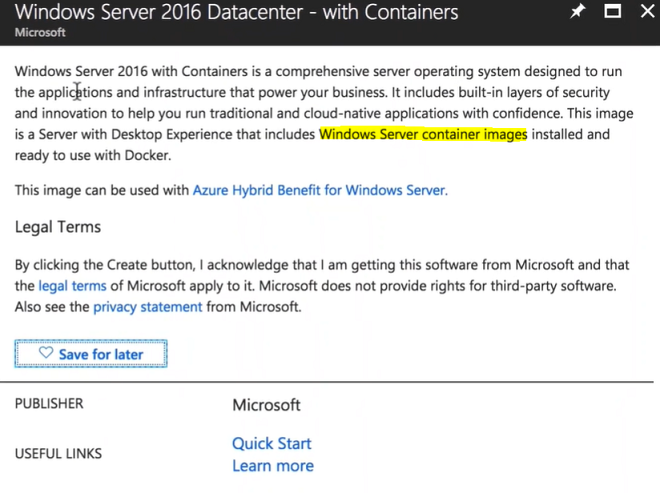
👁 ImageIf you click on this Windows Server 2016 Datacenter. You can see that this Window already comes with Windows Server container images already installed and ready to use with Docker.
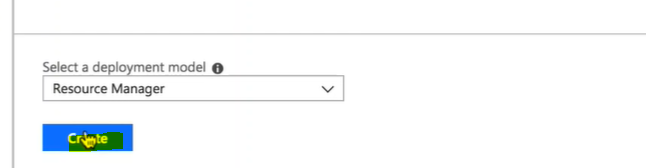
👁 ImageStep 5: All you have to do now is hit "Create", go through to set up, and now you have your very own virtual machine, with Docker and container images already available for you.
👁 Image