|
VOOZH | about |
|
VOOZH | about |
Podman is an open-source project and can be used to manage all of your containers, regardless of the container engine even if you do not utilize Podman as the container engine. The basic principles of the Podman runtime environment is only compatible with Linux operating systems. You can, however, manage containers on the Podman-running machine using a remote client for another operating system.
Podman is a daemonless, open-source, Linux-native tool that makes it simple to identify, execute, build, share, and deploy applications that use Open Containers Initiative (OCI) containers and container images. Podman features a command line interface (CLI) that is familiar to anyone who has used the Docker Container Engine. Most users can just alias Docker to Podman without issue. Containers run by Podman can be either root or a non-privileged user. Podman manages the complete container ecosystem, including pods, containers, container images, and container volumes, with the libpod library.
Below is the step-by-step process of using Podman with Dockerfiles:
First of all, Your package manager ought to display messages confirming the successful installation of Podman.
$ sudo apt install podmanOutput:
Now let's make a basic Dockerfile. We'll construct a container that runs a rudimentary Nginx web server in this example.
# Use an official Nginx image as a parent image
FROM nginx:alpine

# Copy a custom configuration file (if needed)
# COPY nginx.conf /etc/nginx/nginx.conf

# Expose port 80 for the web server
EXPOSE 80
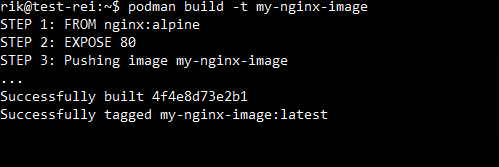
To create the container image, navigate to the directory where your Dockerfile is located and execute the Podman command as follows.
$ podman build -t my-nginx-image Output:
The container ID will appear when you perform the podman run command.
$ podman run -d -p 8080:80 --name my-nginx-container my-nginx-imageOutput:
Next, You can use the following to see how your container is running.
$ podman psOutput:
In the next step, you can remove the container by using the following command.
$ podman rm my-nginx-containerOutput:
Lastly, Use these if you need to remove the image.
$ podman rmi my-nginx-imageOutput:
In this article, we have learned about Podman: A Basic Example of Using Podman With Dockerfiles. Since Podman and Dockerfiles are interoperable, most Docker commands will function identically in Podman.