|
VOOZH | about |
|
VOOZH | about |
Helm Chart is widely regarded as the package manager for Kubernetes. While it may appear to be just another package manager, it extends a great deal more. Helm makes managing application components easy by grouping those parts into charts, which can then be easily installed and upgraded.
Helm charts leverage a packaging format. A chart is a collection of files that define a related set of Kubernetes resources. A single chart might be used to deploy something as simple as a Memcached pod, or it could be used to deploy something as complex as a full web app stack, complete with HTTP servers, databases, and caches. Charts are developed as files laid out in a particular directory structure. They can be made into versioned archives to be deployed.
Here is the step-by-step implementation to pull environment variables with Helm Charts:
First, Use the helm create command to start a new Helm chart.
helm create my-chartOutput:
Below is the generated directory structure and files created by the helm create command.
my-chart/
├── .helmignore
├── Chart.yaml
├── values.yaml
├── charts/
└── templates/
 ├── deployment.yaml
 ├── service.yaml
 ├── hpa.yaml
 ├── ingress.yaml
 ├── serviceaccount.yaml
 ├── tests/
 │ └── test-connection.yaml
 └── _helpers.tpl
Values will have added to your environment variables.yam. For example.
env:
 - name: DATABASE_URL
 value: "mysql://user:password@host:port/db"
 - name: SECRET_KEY
 valueFrom:
 secretKeyRef:
 name: my-secret
 key: secret-key
You can get metadata for your chart in the Chart. yaml.
apiVersion: v2
name: webapp
description: A Helm chart for deploying a basic Nginx web application
type: application
version: 0.1.1
appVersion: 1.22.0
Next, open the file templates/deployment.yaml and fill in the container specification with the environment variables.
apiVersion: apps/v1
kind: Deployment
metadata:
 name: my-app
spec:
 replicas: 1
 selector:
 matchLabels:
 app: my-app
 template:
 metadata:
 labels:
 app: my-app
 spec:
 containers:
 - name: my-app-container
 image: my-app-image:latest
 env:
 {{- with .Values.env }}
 {{- toYaml . | nindent 12 }}
 {{- end }}
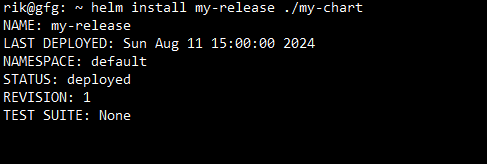
Now, The install option must be a chart reference, a path to a packaged chart, a route to an unpacked chart directory, or a URL.
helm install my-release ./my-chartOutput:
Then you can find out how your deployment is progressing.
kubectl get deploymentsOutput:
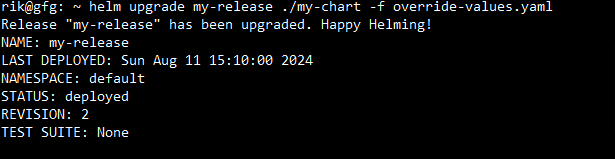
Now you can also update with personalized values to enhance the process.
helm upgrade my-release ./my-chart -f override-values.yamlOutput:
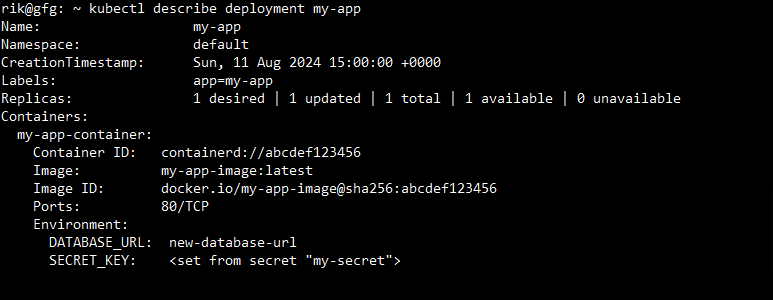
Lastly, running the below command may show an extensive overview of the deployment's settings, status, and other pertinent information.
kubectl describe deployment my-appOutput:
In this article, we have learned about how to pull environment variables with Helm charts. A Helm chart combines YAML files with templates to generate configuration files based on specified criteria.