|
VOOZH | about |
|
VOOZH | about |
The terraform console command in Terraform opens an interactive console where you can evaluate and explore Terraform expressions and resource state in real-time.
The terraform console command is a feature of the Terraform CLI that launches an interactive environment where you can test expressions, interpolations, and functions before integrating them into your configurations. This tool allows you to interact with the values currently stored in the state, making it invaluable for experimenting, debugging, and understanding how Terraform evaluates various expressions within your infrastructure.
Its main purpose is to assist users in previewing and fine-tuning expressions, ensuring accuracy and functionality, ultimately improving configuration development and troubleshooting.
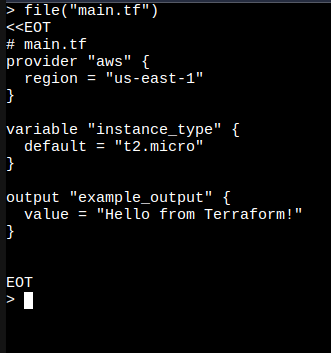
erraform Console Commandlookup(), join(), concat()), allowing you to see how they behave with certain inputs or data structures.Before using the terraform console, you must initialize your Terraform project with the necessary configurations. Create a simple Terraform configuration file, such as main.tf, and initialize it.
# main.tf
provider "aws" {
 region = "us-east-1"
}

variable "instance_type" {
 default = "t2.micro"
}

output "example_output" {
 value = "Hello from Terraform!"
}
terraform initTo initialize the Terraform project and download provider-specific plugins, run:
terraform initThis prepares your working directory and ensures all necessary provider plugins are installed.
Once the project is initialized, you can enter the interactive console with:
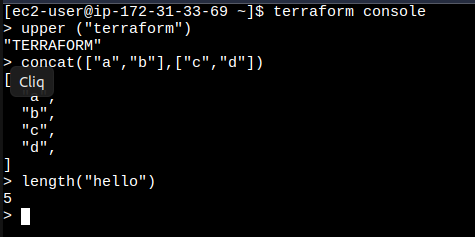
terraform consoleThis will open an interactive shell where you can test different Terraform functions.
Now that you are inside the terraform console, you can use various Terraform functions to interact with your configuration or test expressions.
upper(): Converts a string to uppercase.> upper("terraform")
"TERRAFORM"
> concat(["a", "b"], ["c", "d"])
["a", "b", "c", "d"]
> length("hello")
5
> length(["a", "b", "c"])
3
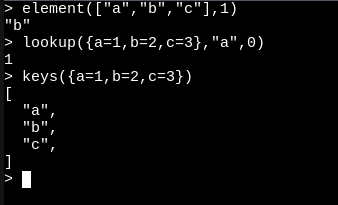
element(): Retrieves an element from a list by index.
> element(["a", "b", "c"], 1)
"b"
lookup(): Looks up a value in a map.
> lookup({a = 1, b = 2}, "a", 0)
1
keys(): Returns the keys of a map.
> keys({a = 1, b = 2, c = 3})
["a", "b", "c"]
min(): Returns the minimum value from a list of numbers.
> min(10, 5, 20)
5
abs(): Returns the absolute value of a number.
> abs(-10)
10
conditional expression: Test conditions inside the console.
> true ? "Yes" : "No"
"Yes"
coalesce(): Returns the first non-null argument.
> coalesce("", "hello", "world")
"hello"
file(): Reads the contents of a file as a string (replace with an actual path to a file).
> file("example.txt")
"This is the content of the file"
filebase64(): Reads a file and returns its Base64 encoded content.
> filebase64("example.txt")
"VGhpcyBpcyB0aGUgY29udGVudCBvZiB0aGUgZmlsZQ=="
timestamp(): Returns the current timestamp.
> timestamp()
"2024-10-08T12:00:00Z"
You can also access variables and outputs directly in the console:
Access a variable:
> var.instance_type
"t2.micro"
Access an output value:
> output.example_output
"Hello from Terraform!"
Once you're done experimenting, you can exit the console by typing exit or pressing Ctrl + D.
The terraform console command is an essential tool for testing and debugging Terraform expressions in a live, interactive environment. By using functions such as string manipulation, numeric calculations, and data retrieval, you can experiment with your configurations before deploying them. This ensures accuracy and helps prevent errors in complex infrastructure setups. Mastering the various functions available in Terraform, such as lookup(), concat(), and element(), will significantly enhance your ability to create dynamic, efficient configurations that suit your infrastructure needs.
The terraform console command opens an interactive shell where you can evaluate Terraform expressions, test functions, and query the current state of resources. It’s primarily used for debugging and experimenting with Terraform code in real-time.
Yes, you can use most Terraform functions in the console, including string, numeric, collection, and conditional functions. This allows you to test how these functions behave with specific inputs or data structures before applying them in your configuration.
You can exit the Terraform console by typing exit or pressing Ctrl + D. This will close the interactive session and return you to the command line.
Yes, you can access both variables and outputs in the console. For example, var.<variable_name> retrieves the value of a variable, and output.<output_name> retrieves the value of an output defined in your configuration.
Using the console allows you to test functions and expressions interactively without applying changes to your infrastructure. This reduces the risk of mistakes and allows you to refine your code before deploying it in production.