|
VOOZH | about |
|
VOOZH | about |
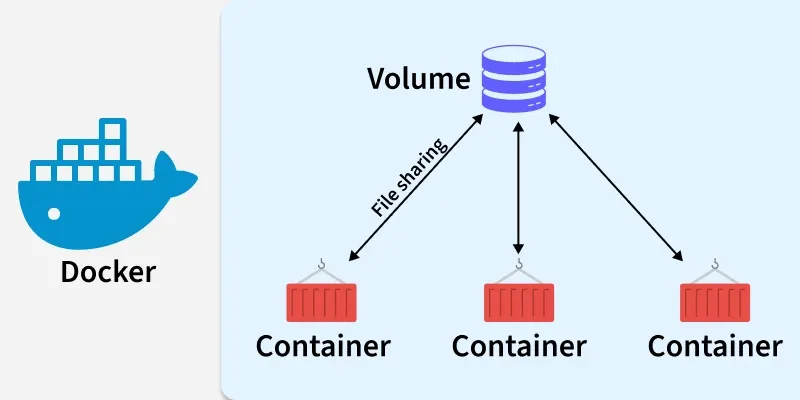
Docker Volumes are persistent storage mechanisms managed by Docker that allow containers to retain data beyond their lifecycle. They provide a reliable and efficient way to preserve data generated by containers by mounting a dedicated filesystem into the container. This ensures data remains intact even if the container is stopped, removed, or recreated.
Docker containers are ephemeral—once a container is removed, any data stored within its internal filesystem is lost. This is ideal for stateless apps but problematic for databases or services that require data persistence.
Docker Volumes solve this by decoupling the data from the container's lifecycle. By storing data in a dedicated location on the host machine managed by Docker, you ensure:
Unlike a container, which has a specific lifecycle that ends when it’s stopped or removed, a volume's lifecycle is independent of any particular container. This means that the data stored in a volume persists beyond the container that uses it, making it ideal for retaining important information like databases, configuration files, or logs.
This behavior allows you to manage and protect your data independently from the container lifecycle, making volumes an essential tool for ensuring data persistence and flexibility.
| Feature | Bind Mounts | Docker Volumes |
|---|---|---|
| Storage Location | Any user-specified directory on the host. | Managed by Docker in a specific storage area. |
| Management | Manual (Host filesystem dependent). | Automatic (Managed via Docker CLI/API). |
| Lifecycle | Tied to the host's directory structure. | Independent of the container lifecycle. |
| Performance | High, but varies by host OS. | Optimized; generally better I/O in production. |
| Primary Use Case | Development: Syncing source code for real-time testing. | Production: Databases, stateful apps, and persistent data. |
| Security/Isolation | Low; container can modify sensitive host files. | High; isolated from the host's sensitive system files. |
The data appears the same from within the container in all mount modes. In the filesystem of the container, it is shown as a directory or a single file.
| Named Volumes | Anonymous Volumes |
|---|---|
| Assigned a custom, human-readable name. | Assigned a random, long alphanumeric ID. |
| Easy to track, backup, and remove manually. | Difficult to track; often lead to "volume clutter." |
| Can be easily referenced by name across multiple containers. | Requires the specific ID to reuse, which is impractical. |
| Long-term data (Databases, config files). | Temporary storage or specific state isolation. |
| Persist until explicitly deleted by the user. | Deleted automatically if the container is run with the --rm flag. |
Docker Engine volume plugins link Engine installations with external storage systems such as Amazon EBS, allowing data volumes to survive beyond the lifespan of a single Docker host. For further details, please refer to the plugin documentation.
Use the --volume and --volume-driver options on the docker container run command to grant a container access to a volume. The host's volume name and path are accepted by the --volume (or -v) flag, whereas the driver type is accepted by the --volume-driver flag.
 $ docker volume create --driver=flocker volumename

 $ docker container run -it --volume volumename:/data busybox sh
If a plugin registers itself as a VolumeDriver when activated, it must provide the Docker Daemon with writeable paths on the host filesystem. The Docker daemon provides these paths to containers to consume. The Docker daemon makes the volumes available by bind-mounting the provided paths into the containers.
{
 "Name": "volume_name",
 "Opts": {}
}
docker volume create \
--label description="my_vol" \
--label version="1.0.1" \
my_volFROM baseimage
RUN mkdir /app/data
RUN chown -R 1000:1000 /app/data
RUN chmod 755 /app/data
VOLUME /app/data
Mounting volumes as read-only in Docker allows for the protection of sensitive or critical data from unintended modifications. By setting the volume option to read-only, you ensure that any changes made within the container are not persisted to the underlying volume, preserving data integrity and security.
docker run -d \
 -v /path/on/host:/path/in/container:ro \
 --name my_container \
my_image$ docker system df -vWhen mounting volumes to container paths with existing data, Docker ensures data integrity by copying the existing container data into the new volume. Consequently, neighboring mount points and other containers using the volume will also access the populated content, preventing inadvertent data loss.
Instead of manually specifying each volume with the -v flag, you can use --volumes-from to inherit volumes from an existing container when starting a new container:
# Create the first container
$ docker run -d --name test -v my_vol:/data image:latest

# Create the second container
$ docker run -d --name backup --volumes-from test image:latest
This command automatically mounts all volumes from the "test" container into the "backup" container, simplifying the setup process. It's handy for tasks like backing up data from one container to another.
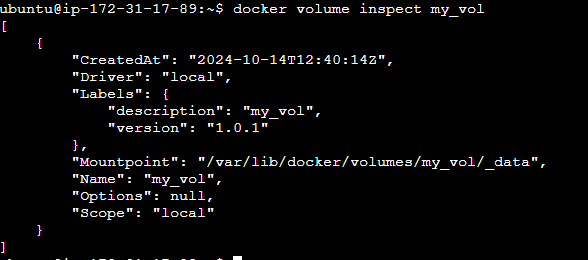
Each volume's name and the storage driver that supports it will be shown. Use docker volume inspect to obtain more in-depth details about a particular volume instead:
To inspect volumes in Docker, you can use the docker volume inspect command followed by the name or ID of the volume you want to inspect. For example:
docker volume inspect my_volTo remove volumes in Docker, you can use the docker volume rm command followed by the name or ID of the volume you want to remove. For example:
docker volume rm my_volTo prune volumes in Docker, you can use the docker volume prune command. This command removes all volumes not used by at least one container. Here's how you can use it:
docker volume prune$ docker run -v $(pwd):/var/opt/project bash:latest \
bash -c "ls /var/opt/project"$ docker run -v data-volume:/var/opt/project bash:latest \
bash -c "echo 'Hello World' > /var/opt/project/test.txttmpfs"$ docker run --mount \
'type=volume,src=data-volume,\
dst=/var/opt/project,volume-driver=local,\
readonly' \
bash -c "ls /var/opt/project"Assume that we used the data-volume mount in a container to run our echo script. Afterwards, we could make a list of every container we've used:
$ docker ps -a
CONTAINER ID IMAGE COMMAND CREATED STATUS PORTS NAMES
5774502f857 bash "docker-entrypoint.s…" 8 minutes ago Exited (0) 8 minutes ago exciting_payneThe following command launches a fresh Ubuntu 22.04 container and connects your terminal to it (-it), enabling you to execute example commands in the ensuing stages. Within the container, a volume named demo_volume is mounted to /data. Use the following command right now:
$ docker run -it -v demo_volume:/data ubuntu:22.06
$ ls /data
$ echo "foobar" > /data/foo
$ cat /data/foo
foobar$ docker run -it -v demo_volume:/app alpine:latest
$ docker run --mount source=[volume_name],destination=[path_in_container] [docker_image]
docker run -it --rm \
 -p 8888:8888 \
 -v <my-vol>:<container-dir> \
quay.io/jupyter/minimal-notebook:latestA processor (CPU) that supports virtualization—more especially, the Apple Hypervisor framework—is necessary for Docker Desktop to function. Only Mac computers with CPUs that support the Hypervisor framework may use Docker Desktop.
$ sysctl kern.hv_supportWhen using Linux, mounting a route to another path is handled by the system. For instance, when executing the subsequent command on a Linux system:
$ docker run --rm -ti -v /home/user/work:/work alpineDocker Desktop defaults the read, write, and execute permissions for both users and groups on shared volumes to 0777 when sharing files from Windows.On shared discs, the default permissions are not customisable. You must either utilise non-host-mounted volumes or figure out a means to get the programmes to operate with the default file permissions if you are working with applications that need permissions different from the shared volume defaults during container runtime.