|
VOOZH | about |
|
VOOZH | about |
Pre-requisite: DynamoDB
Amazon DynamoDB is a fully managed NoSQL database provided by amazon that supports both document and key-value stored data. In this article, we will learn how to create a table, add data, scan, a query that table, and delete the data by using the DynamoDB console.
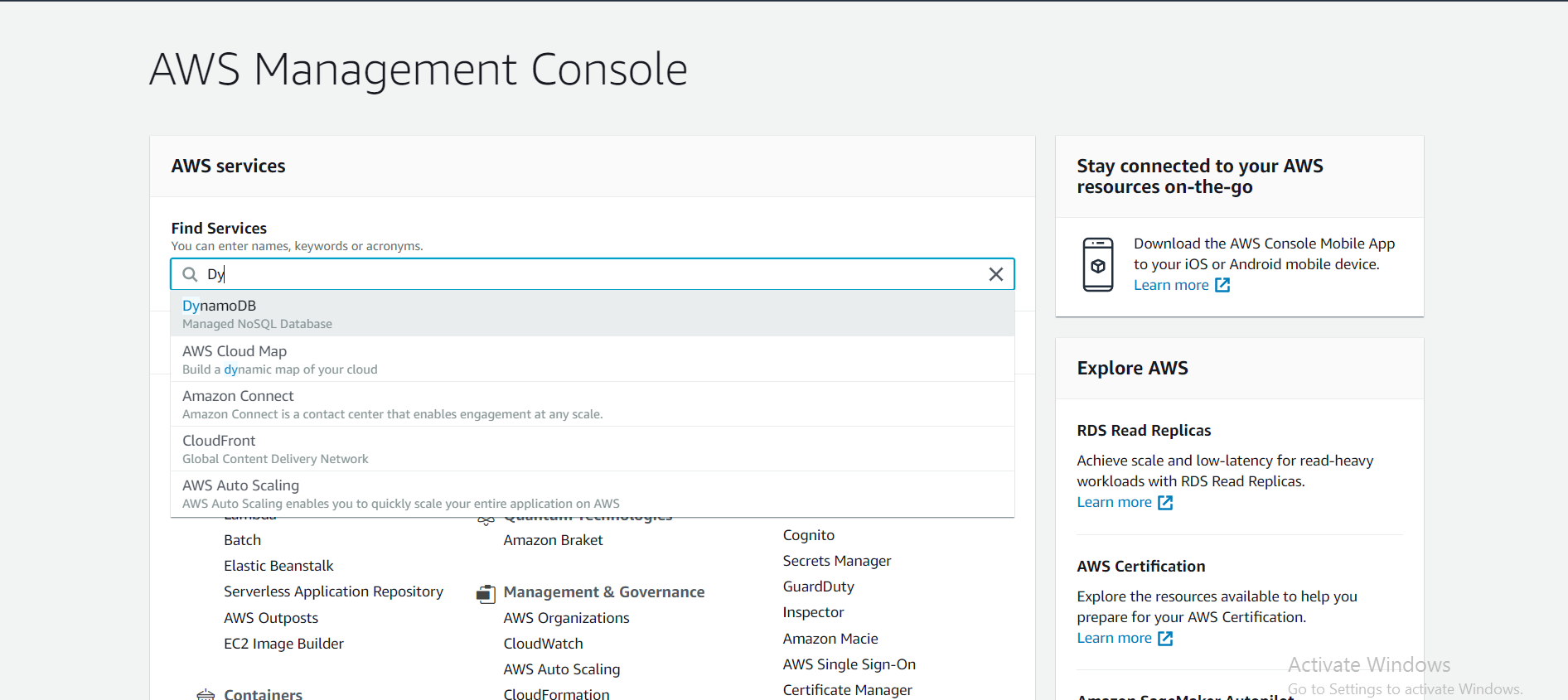
Step 1: Go to your AWS management console and search for DynamoDB.
Now click on the create table option.
Step 2: Now, write your table name in the table name column, and the primary key of your table in this article we are creating a GeeksforGeeks table with the named topic as the primary key.
Now click on the create table button.
Step 3: Now go to the items section and click on create items.
Fill your data in the respective columns you create previously. Do this operation for all the rows in your table.
Step 4: In this step, we are going to query our table. Below the create items section there is a drop-down menu select the query option from that menu.
You can perform your query in different ways. Write any partition key name which you have entered in your table. For example, if I write Data Structure it will show all the topics in the table. In this way, you can perform different queries according to your requirement.
Step 5: Now we delete an existing item
Step 6: Deleting the table. In the DynamoDB dashboard, there is an options table click on that then select the table you want to delete and click on delete.
These are the complete steps to create, query, and delete the table in Amazon DynamoDB.