|
VOOZH | about |
|
VOOZH | about |
Creating an item in a DynamoDB table is a vital operation in application development that allows you to upload data. We will explore how we can create items for tables using different methods used for different purposes.
Amazon DynamoDB is a fully managed NoSQL database service that provides fast and predictable performance with seamless scalability. With DynamoDB, you can create database tables that can store and retrieve any amount of data and serve any level of request traffic. You can scale up or scale down your table throughput capacity without downtime or performance degradation. To know more about it read this article.
For example, consider table 'People'.It has 3 items in it. Each item has 3 attributes namely, FirstName, LastName, and Age. For a more detailed overview of the table read this article.
Primary Key: The primary key uniquely identifies each item in the table, so that no two or more items can have the same key.
For a more detailed overview about key read this article.
Step 1: Login into AWS -> https://aws.amazon.com/ Management
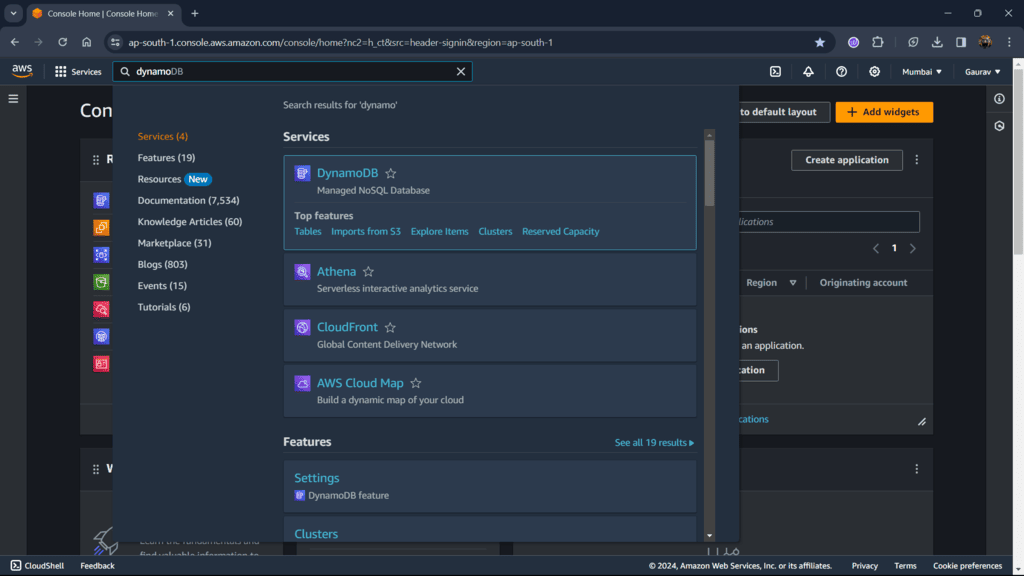
Step 2: After signing in you will land on the AWS Management Console page and search for Dynamo as shown below.
👁 DynamoDBStep 1: After landing on the DynamboDB dashboard, go to Tables from the sidebar and click on your table name (in my case 'Music').
👁 Open TableStep 2: From the Top right go to Explore table items. This will allow you to perform CRUD operations on table.
👁 Explore table itemsStep 3: Select Create item, from this you will be able to create an item for the table.
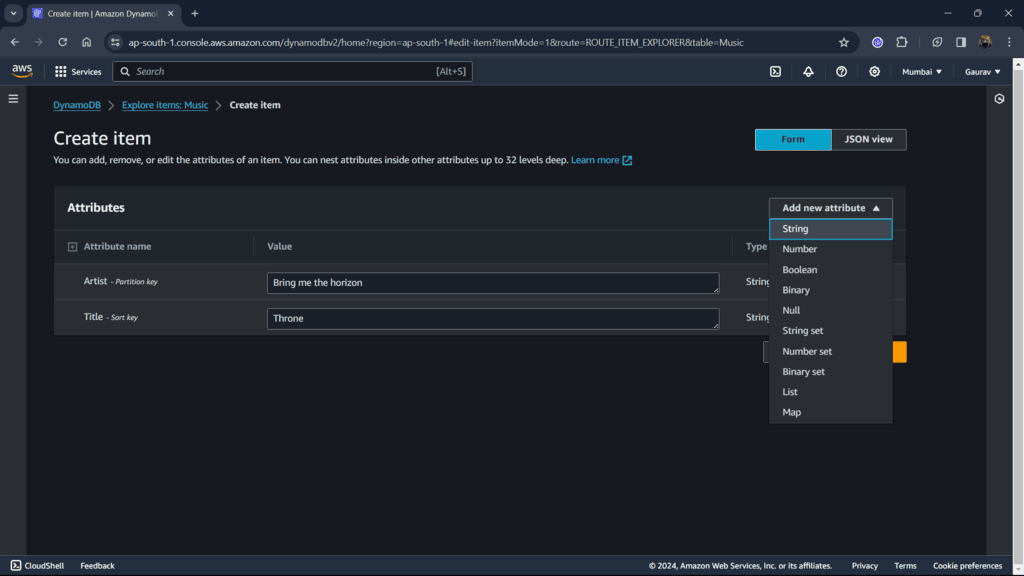
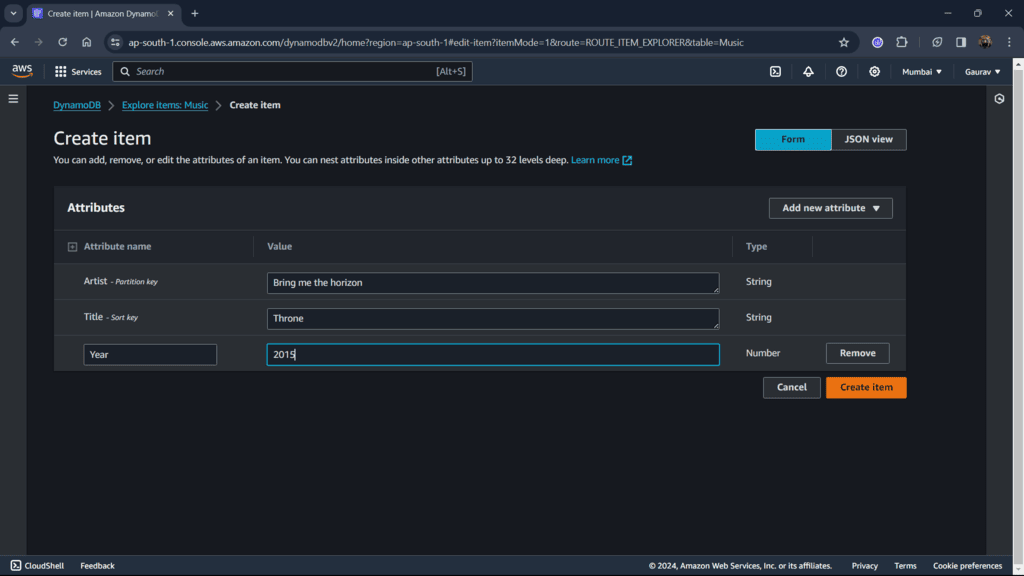
👁 Create itemStep 4: Add data in your respective fields. We can also add additional attributes in table by clicking on Add new attribute and then selecting datatype of your data.
👁 Add AttributeStep 5: After filling all the fields Create item.
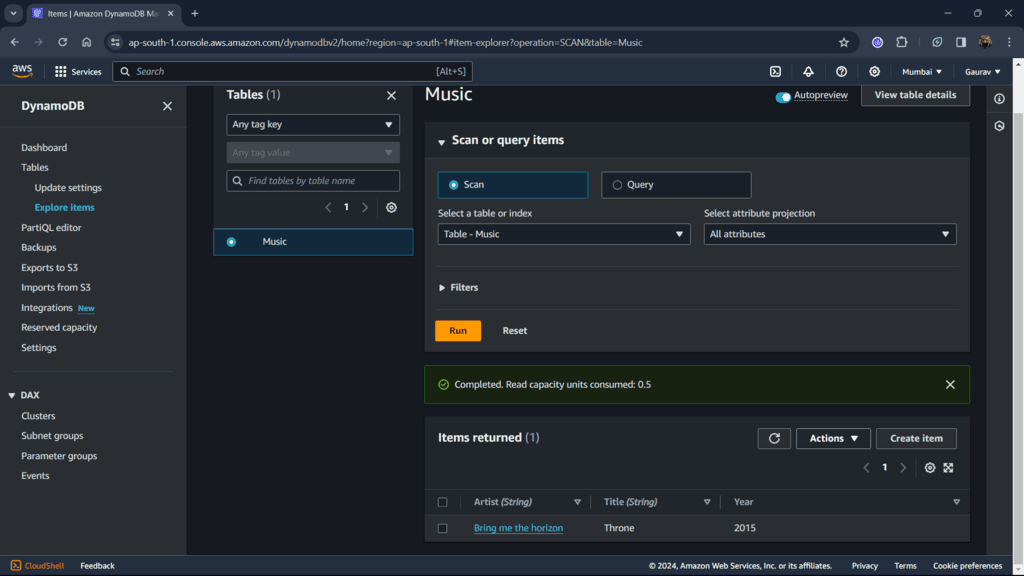
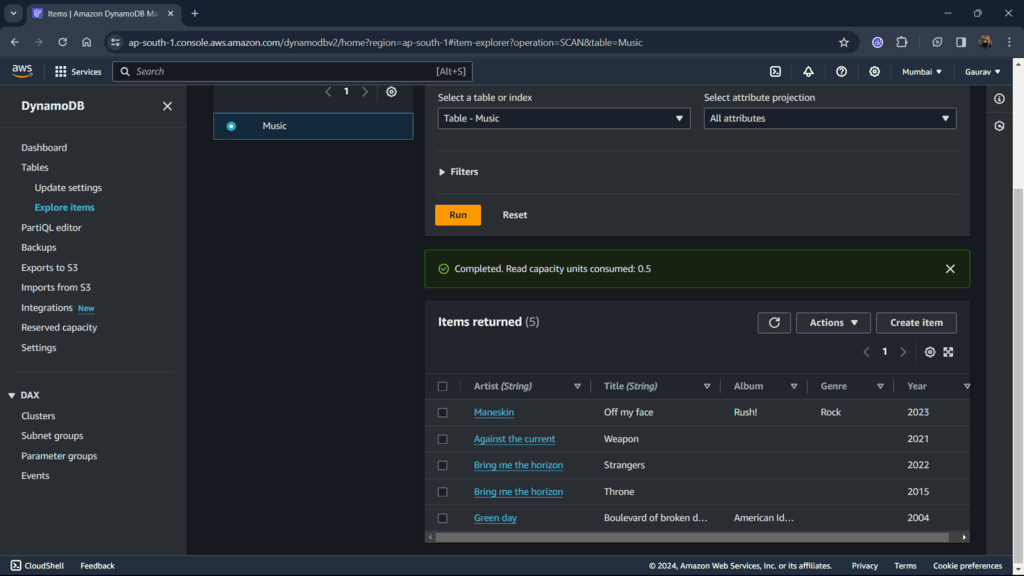
👁 Create itemStep 6: After refreshing exploring items page you can see you create item at the bottom.
👁 ReadStep 1: Select Cloudshell from the bottom left or just open AWS CLI on your system.
Syntax:
aws dynamodb put-item --table-name TABLE-NAME --item '{"ATTRIBUTE" : {"DATATYPE":"DATA"}}'TABLE-NAME: add your table name
ATTRIBUTE: add your attribute name
DATATYPE: In CLI there are different datatype descriptors for each datatype.
For Example:
aws dynamodb put-item --table-name Music --item '{"Artist" : {"S":"Bring be the horizon"}, "Title" : {"S":"Strangers"}, "Year" : {"N":"2022"}}'Note: You can add any number of attributes for each item.
👁 CLI create itemStep 2: Check if successfully created or not. Goto explore items page and check at the bottom.
👁 Added ItemsWe have successfully created an item into the DynamoDB table (Music) using two methods Amazon Management Console and CloudShell (AWS CLI). Using GUI you can easily create items by just filling fields but if you want to create an item from outside Amazon Management Console we can use AWS CLI.