|
VOOZH | about |
|
VOOZH | about |
Firebase is a powerful platform that offers a range of services to enhance our web application. From authentication to real-time database storage, Firebase provides everything you need to create a dynamic and engaging user experience.
In this guide, we will go through the process of setting upFirebase in a JavaScript project and integrating Firebase Authentication and Realtime Database into a simple web application.
Firebase offers a suite of services that can be integrated into our application such as:
Let's Create a new directory for our project and follow it. Initialize a new Node.js project (if we are using Node.js) and install Firebase:
mkdir firebase-js-project
cd firebase-js-project
npm init -y
npm install firebase
Explanation: The above commands create a new directory named "firebase-js-project" navigate into it, initialize a new Node.js project with default settings, and then install the Firebase package as a dependency for the project.
Create an index.html file in your project directory with the following structure:
<!DOCTYPE html>
<html lang="en">
<head>
 <meta charset="UTF-8">
 <meta name="viewport" content="width=device-width, initial-scale=1.0">
 <title>Firebase JavaScript Project</title>
</head>
<body>
 <h1>Welcome to Firebase with JavaScript</h1>
 <div>
 <h2>Authentication</h2>
 <input type="email" id="email" placeholder="Email">
 <input type="password" id="password" placeholder="Password">
 <button onclick="signUp()">Sign Up</button>
 <button onclick="logIn()">Log In</button>
 </div>
 <div>
 <h2>Realtime Database</h2>
 <input type="text" id="message" placeholder="Message">
 <button onclick="sendMessage()">Send Message</button>
 <div id="messages"></div>
 </div>
 <script src="app.js"></script>
</body>
</html>
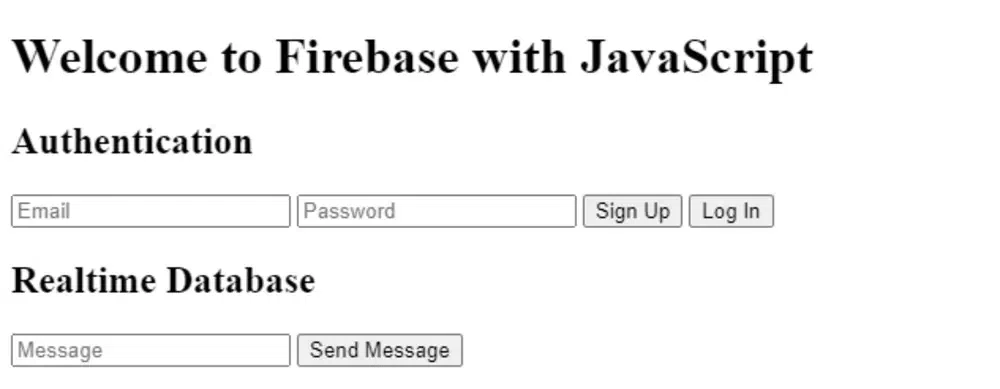
Output:
Explanation:
This is an HTML template for a web page that includes elements for user authentication (email, password inputs and sign-up/login buttons) and for interacting with a Firebase Realtime Database (input for sending messages and a display area for messages). The JavaScript file "app.js" is linked at the end for handling the functionality of these elements.
Add the Firebase SDK to our project by including the provided Firebase configuration snippet in a firebase-config.js file:
// firebase-config.js
const firebaseConfig = {
 apiKey: "YOUR_API_KEY",
 authDomain: "YOUR_AUTH_DOMAIN",
 databaseURL: "YOUR_DATABASE_URL",
 projectId: "YOUR_PROJECT_ID",
 storageBucket: "YOUR_STORAGE_BUCKET",
 messagingSenderId: "YOUR_MESSAGING_SENDER_ID",
 appId: "YOUR_APP_ID"
};

// Initialize Firebase
firebase.initializeApp(firebaseConfig);
Create an app.js file to handle Firebase Authentication and Realtime Database interactions:
// app.js
import { initializeApp } from "firebase/app";
import { getAuth, createUserWithEmailAndPassword, signInWithEmailAndPassword } from "firebase/auth";
import { getDatabase, ref, set, push, onValue } from "firebase/database";
import firebaseConfig from './firebase-config.js';

// Initialize Firebase
const app = initializeApp(firebaseConfig);
const auth = getAuth(app);
const database = getDatabase(app);

// Authentication functions
function signUp() {
 const email = document.getElementById('email').value;
 const password = document.getElementById('password').value;
 createUserWithEmailAndPassword(auth, email, password)
 .then((userCredential) => {
 const user = userCredential.user;
 console.log('Sign Up Successful:', user);
 })
 .catch((error) => {
 console.error('Error signing up:', error.message);
 });
}

function logIn() {
 const email = document.getElementById('email').value;
 const password = document.getElementById('password').value;
 signInWithEmailAndPassword(auth, email, password)
 .then((userCredential) => {
 const user = userCredential.user;
 console.log('Log In Successful:', user);
 })
 .catch((error) => {
 console.error('Error logging in:', error.message);
 });
}

// Realtime Database functions
function sendMessage() {
 const message = document.getElementById('message').value;
 const messagesRef = ref(database, 'messages/');
 const newMessageRef = push(messagesRef);
 set(newMessageRef, {
 text: message
 });
 document.getElementById('message').value = '';
}

function displayMessages() {
 const messagesRef = ref(database, 'messages/');
 onValue(messagesRef, (snapshot) => {
 const messages = snapshot.val();
 const messagesDiv = document.getElementById('messages');
 messagesDiv.innerHTML = '';
 for (const key in messages) {
 const message = messages[key].text;
 const messageElement = document.createElement('p');
 messageElement.textContent = message;
 messagesDiv.appendChild(messageElement);
 }
 });
}

// Initialize display messages function
displayMessages();

// Expose functions to the global scope
window.signUp = signUp;
window.logIn = logIn;
window.sendMessage = sendMessage;
Explanation:
In the above code, The JavaScript file is used to interact with Firebase services, specifically Firebase Authentication and Firebase Realtime Database. It initializes Firebase using the provided configuration, sets up authentication functions for signing up and logging in users, and defines functions for sending and displaying messages in the real-time database. The functions are exposed to the global scope so they can be called from the HTML file.
To view your project, you can use a local server. If you have Node.js installed, you can use a simple HTTP server like http-server:
npm install -g http-server
http-server .
Explanation:
Firebase Authentication provides an easy way to handle user authentication with email/password, social media accounts, and more. In this step, we will focus on email/password authentication.
The signUp function creates a new user with email and password:
function signUp() {
 const email = document.getElementById('email').value;
 const password = document.getElementById('password').value;
 createUserWithEmailAndPassword(auth, email, password)
 .then((userCredential) => {
 const user = userCredential.user;
 console.log('Sign Up Successful:', user);
 })
 .catch((error) => {
 console.error('Error signing up:', error.message);
 });
}
Explanation: This signUp function is used to create a new user account using the Firebase Authentication service. It retrieves the email and password values from the input fields with the IDs `email` and `password`, respectively. Then, it calls the `createUserWithEmailAndPassword` method with these values to create a new user account. If the account creation is successful, it logs a success message to the console along with the user object. If there is an error during account creation, it logs an error message to the console.
The logIn function logs in a user with email and password:
function logIn() {
 const email = document.getElementById('email').value;
 const password = document.getElementById('password').value;
 signInWithEmailAndPassword(auth, email, password)
 .then((userCredential) => {
 const user = userCredential.user;
 console.log('Log In Successful:', user);
 })
 .catch((error) => {
 console.error('Error logging in:', error.message);
 });
}
Explanation: The `logIn` function is used to authenticate a user with Firebase Authentication using their email and password. It retrieves the email and password values from the input fields with the IDs `email` and `password`, respectively. Then, it calls the `signInWithEmailAndPassword` method with these values to authenticate the user. If the authentication is successful, it logs a success message to the console along with the user object. If there is an error during authentication, it logs an error message to the console.
Firebase Realtime Database allows you to store and sync data in real-time. Let's add functionality to send and display messages.
The sendMessage function adds a new message to the database:
function sendMessage() {
 const message = document.getElementById('message').value;
 const messagesRef = ref(database, 'messages/');
 const newMessageRef = push(messagesRef);
 set(newMessageRef, {
 text: message
 });
 document.getElementById('message').value = '';
}
Explanation: The `sendMessage` function is used to send a message to the Firebase Realtime Database. It first retrieves the message content from an input field with the ID `message`. Then, it creates a reference to the `messages/` node in the database using the `ref` function. It generates a new unique key for the message using `push` and creates a new child node under `messages/` with this key. The message content is set as the value of this new node. Finally, it clears the input field to prepare for the next message.
The displayMessages function listens for changes in the database and updates the UI:
function displayMessages() {
 const messagesRef = ref(database, 'messages/');
 onValue(messagesRef, (snapshot) => {
 const messages = snapshot.val();
 const messagesDiv = document.getElementById('messages');
 messagesDiv.innerHTML = '';
 for (const key in messages) {
 const message = messages[key].text;
 const messageElement = document.createElement('p');
 messageElement.textContent = message;
 messagesDiv.appendChild(messageElement);
 }
 });
}

// Initialize display messages function
displayMessages();
Explanation: The `displayMessages` function fetches and displays messages stored in the Firebase Realtime Database. It first creates a reference to the `messages/` node, then listens for changes to this node using `onValue`. When data changes, it retrieves the updated messages, clears the existing messages displayed in the `messagesDiv`, and appends each message as a paragraph element to the `messagesDiv`. Finally, it initializes the function to display messages when the page loads.
Overall, Firebase services, including Authentication, Firestore, Realtime Database, Cloud Storage, Cloud Functions and Hosting provide developers with a comprehensive toolkit for building modern web applications. By following the steps outlined in this guide, you can easily set up Firebase in your JavaScript project and using its features to create a seamless and interactive user experience. Whether you are looking to add user authentication or real-time data syncing, Firebase has you covered with its easy-to-use APIs and powerful functionality.